Husnain Ali is our professional go-to Graphic Designer who works on improving our images. All the team members can access the updated images on Dropbox.
Add images that need work at ../Dropbox/Support/Documentation/Graphic Design/NEW/
Next, add details such as date, what needs to be improved in Images – CF7Skins.txt with the addition of each new image. The details must be clearly stated.
Once updating the image is complete, the new image is available at ../Dropbox/Support/Documentation/Graphic Design/DONE/
Acceptance checkbox is one of the form-tag types that Contact Form 7 has long provided. It consists of a simple checkbox dedicated to confirming the submitter’s consent on a given condition.
We decided to redefine this feature because it was no longer adequate to meeting increasing requirements. Obtaining explicit consent in advance of collecting personal data is now considered essential in terms of protecting privacy rights. Therefore, it is important to record who has consented to what conditions if there is a possibility of reusing the personal data.
With the new acceptance checkbox, you can specify a condition to consent to in the content part of the form-tag, and if the submitter consents to it, the fact will be recorded in a mail message, or in the database (Flamingo).
Once done a CF7 Test skin style. we have to follow below steps to test the style comparing with a finalized CF7 Style
Testing Skin
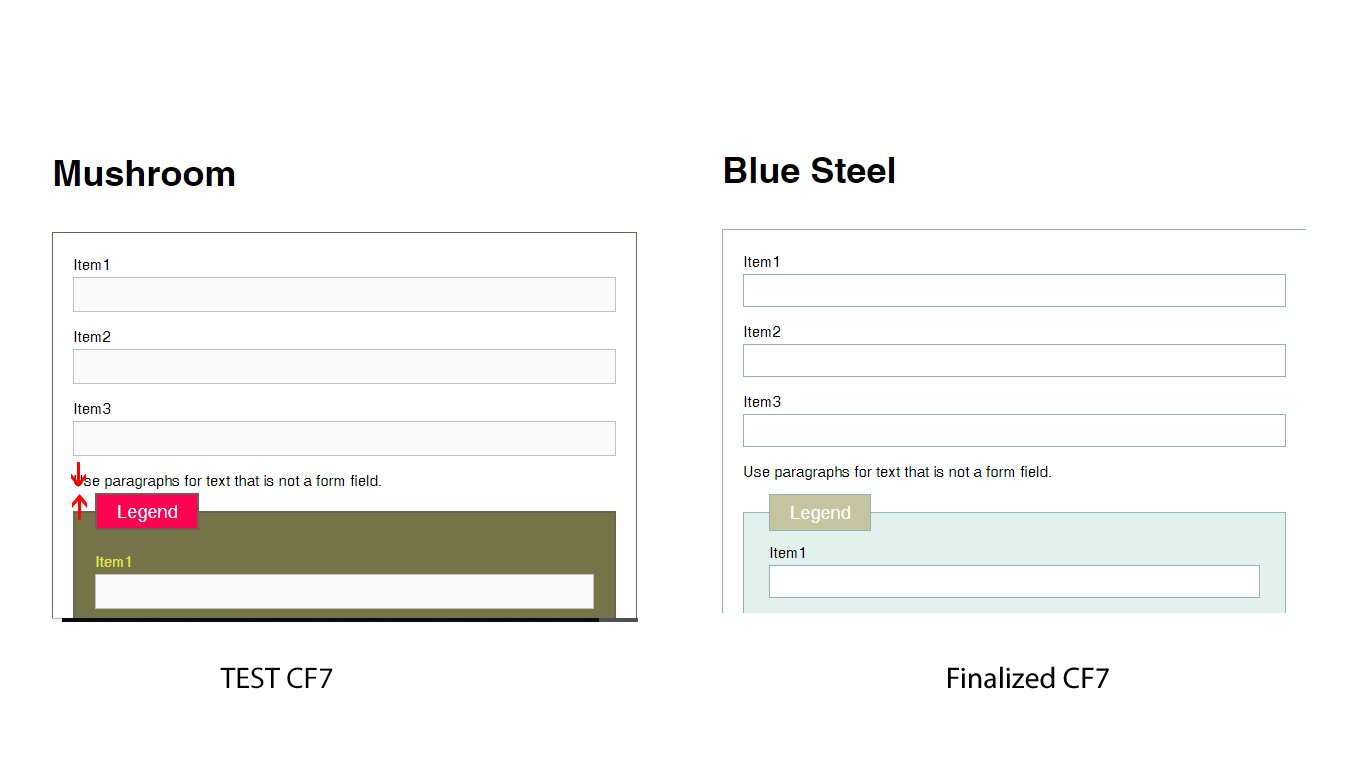
First of all we have to compare the legend padding and margin with finalized CF7 skin and make sure that both are equal. Refer the below screenshot
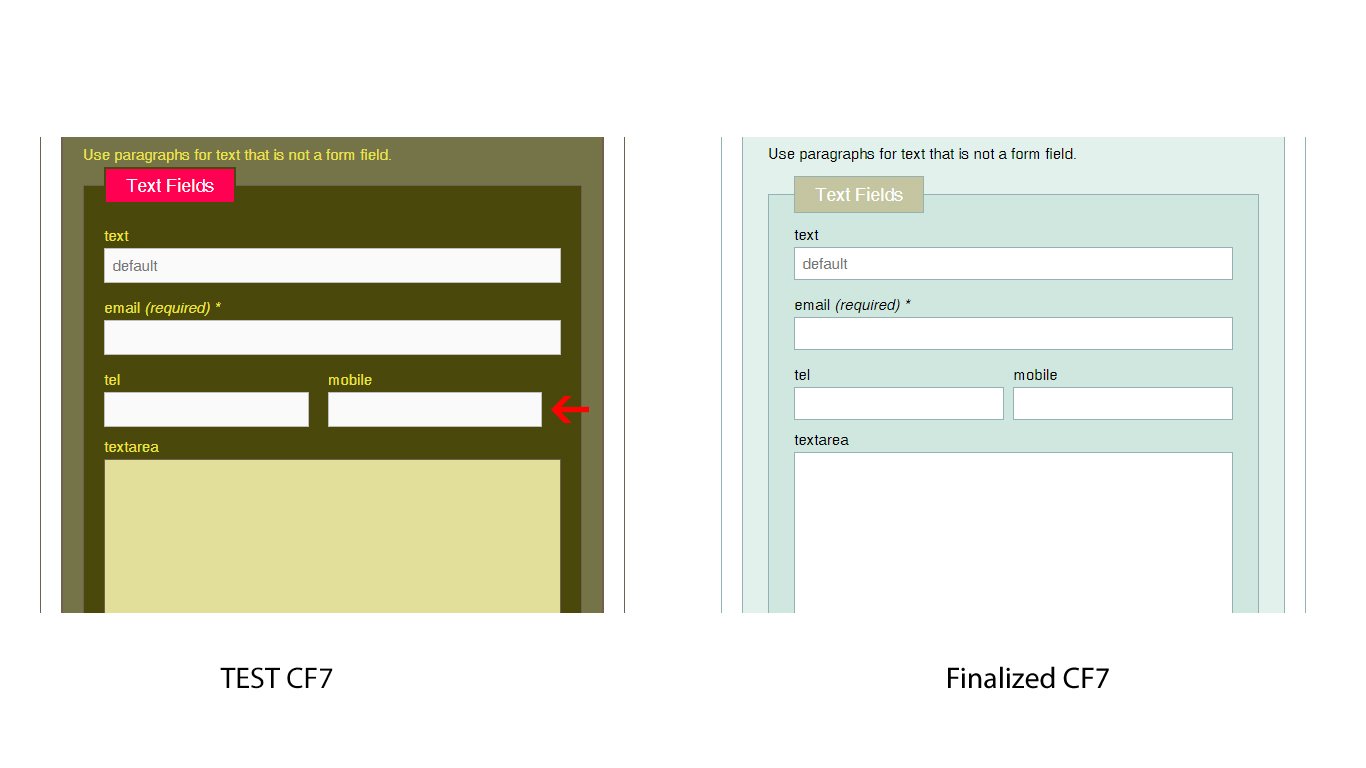
After that, we have to check the single line text boxes. And make sure that the right side mobile number text box touches the right side wrapper like shown on finalized cf7 skin. Refer the below screenshot
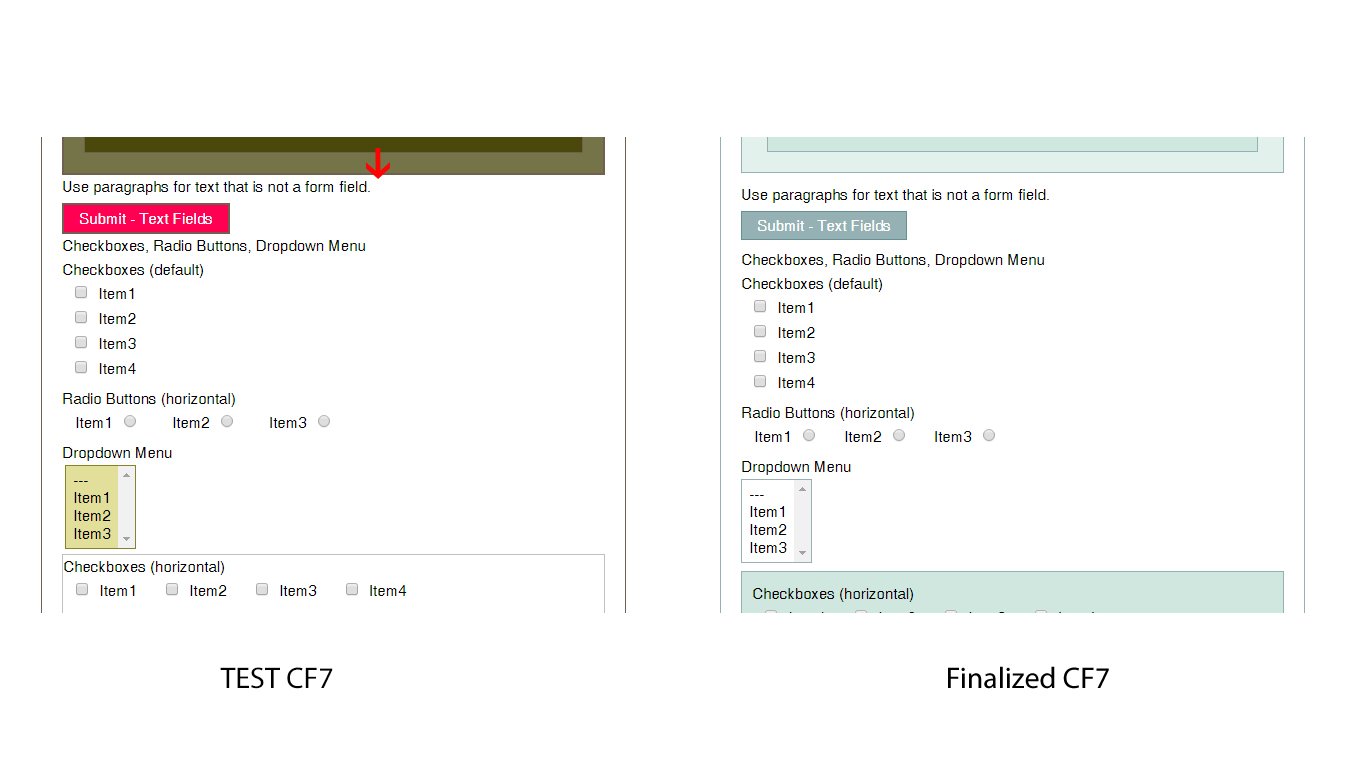
And also we have to make sure regarding the label padding and margin’s consistency like shown on finalized CF7 style. Refer the below screenshotAnd also we have to make sure the padding and margin’s consistency like on finalized CF7 style. Refer the below screenshot
Testing Ready
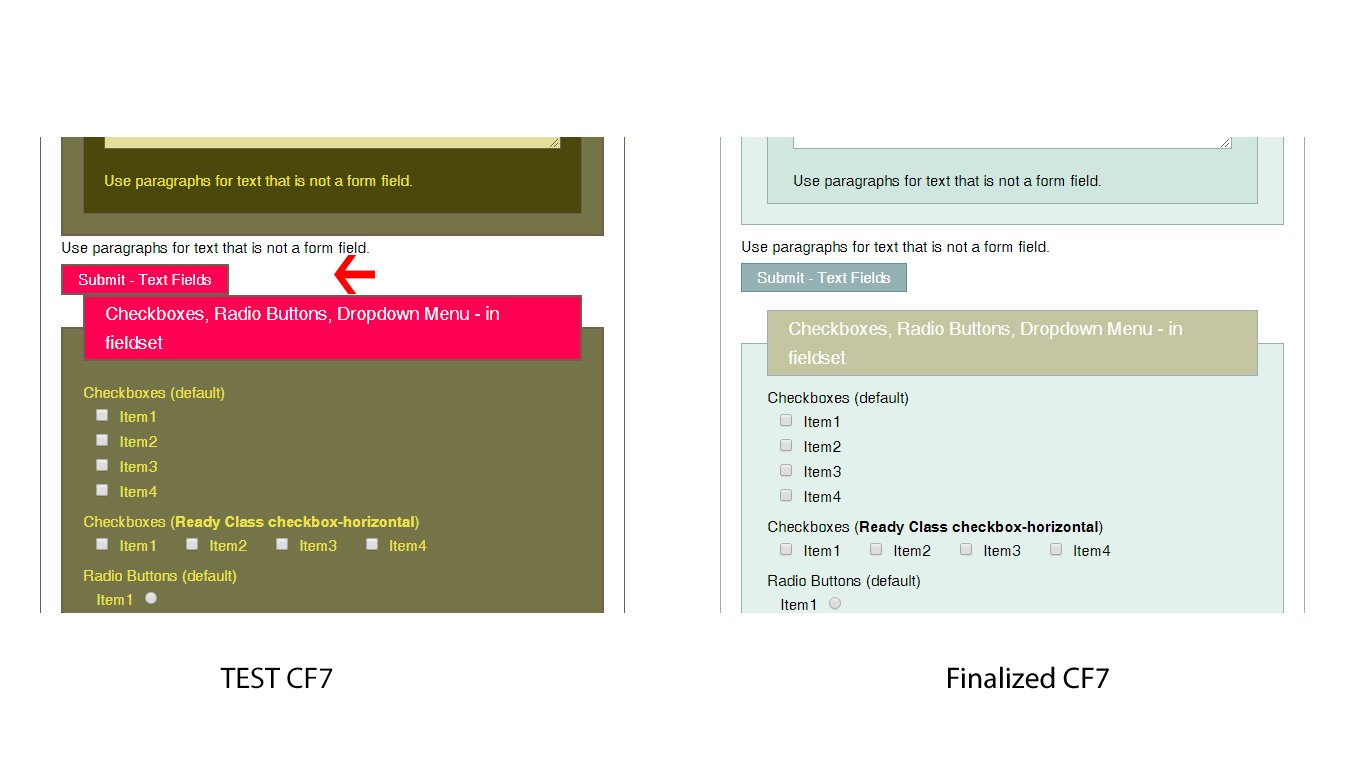
Speciallywe have to compare the legend padding and margin with finalized CF7 skin and make sure that both are equal. Refer the below screenshot
After that we must need to check the select box background colors and hover effects. refer the screenshot
Testing Multi
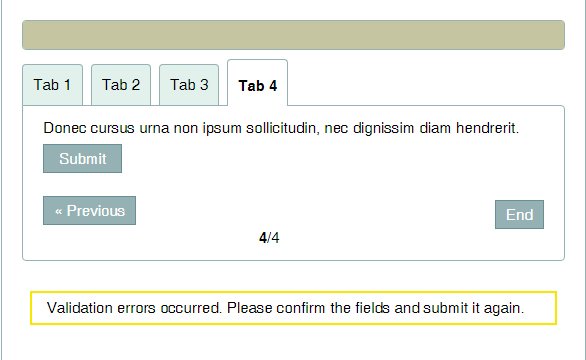
We have to make sure all the padding and margins of the labels, legends, Textboxes and the buttons on each tab. and finally, we have to click END button and check the error messages in each tab. Refer the below screenshot
Once done all we have to check the skin with Styles + Templates and Template + Styles. in this case, we have to compare each and every text boxes, labels, legends and buttons with finalized CF7 style. and make sure that they all are perfect.
Cross Browser Check
After that, we have to check the test CF7 skin with all major browsers such as Chrome, Firefox, IE and Safari
Responsive Check
Finally, we have to check the CF7 skin test style’s responsiveness in different screens. in this case, we can use google developer tool to check them.
Right-click > Inspect Element and we can select different devices from the drop box and check the page responsiveness. Refer the below screenshot