
Last Updated on March 29, 2018 by Neil Murray
If you think of an improvement, idea, or encounter an issue with CF7 Skins, you should record it where others can see it.
If you want, you can message others on the CF7 Skins Team to discuss the idea/issue first.
To submit it to the team follow the steps below.
Plugin (code-based) Ideas/Issues
- Create a Bitbucket issue at:
https://bitbucket.org/cf7skins/cf7skins-dev-cf7skins-visual/issues/
- Title – A short title
- Description – A short description of user flow with accompanying images
- Kind – Proposal
- Priority – Major (default)
- Create a Dropbox Folder in Dropbox\Support\Development Issues.
- Folder Name Format – Date bitbucketissue# bitbucket title
- Example: 2018-04-01 – #200 – Duplicate a CF7 Tag
- Folder Name Format – Date bitbucketissue# bitbucket title
- Inside the Dropbox folder:
- Add any screenshots
- Add .txt version of your issue submission
- Include the link to the Bitbucket issue and any other helpful links related to the idea/issue
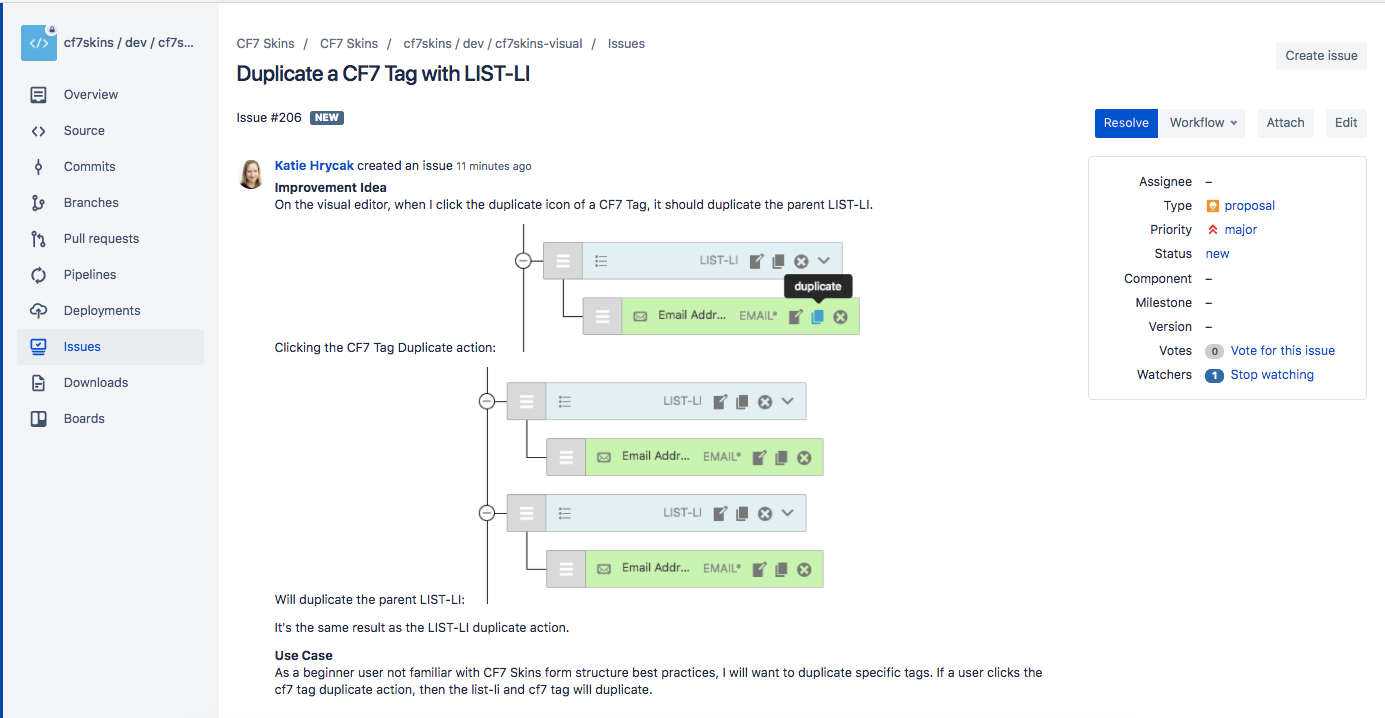

Submit only 1 idea/issue at a time. Do not combine them together in one issue.
Content Idea/Issue/Update
If there is something that needs attention in documentation, FAQs, or the website content:
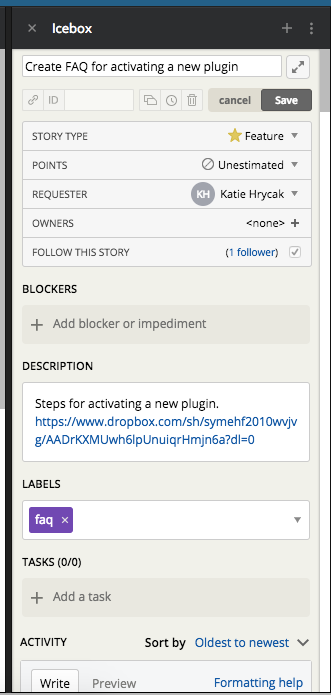
- Create a Pivotal Tracker Story.
- Click Add Story in the Icebox task list:
- Title – Brief title the idea/issue/update
- Description – Briefly describe the changes.
- Include a link to existing folder in Dropbox\Support\Documentation\Tasks if it exists. If it doesn't, see the instructions below
- Tasks – List any tasks you think are necessary to complete the story.
- Label – Add a label (faq, documentation, visual, etc.)
- Comment – Leave a comment about the story
- Click Add Story in the Icebox task list:
- Create a Dropbox Folder in Dropbox\Support\Documentation\Tasks
- Name it as "year-month-date" – type – title"
- Example: "2018-04-01 – FAQ – New FAQ title"
- Add any screenshots or notes you have taken about this task.
- Name it as "year-month-date" – type – title"
You can also use Content Audit to add notes on individual items.