
Last Updated on December 25, 2020 by Neil Murray
We need to manually move some selected data from our old help desk software Help Scout to our new system Freshdesk.
1. Move CF7 Ideas #
Help Scout
Login to Help Scout at https://secure.helpscout.net/members/login/
Navigate to:
- Help Scout
- Contact Form 7 Support
- idea
- Contact Form 7 Support
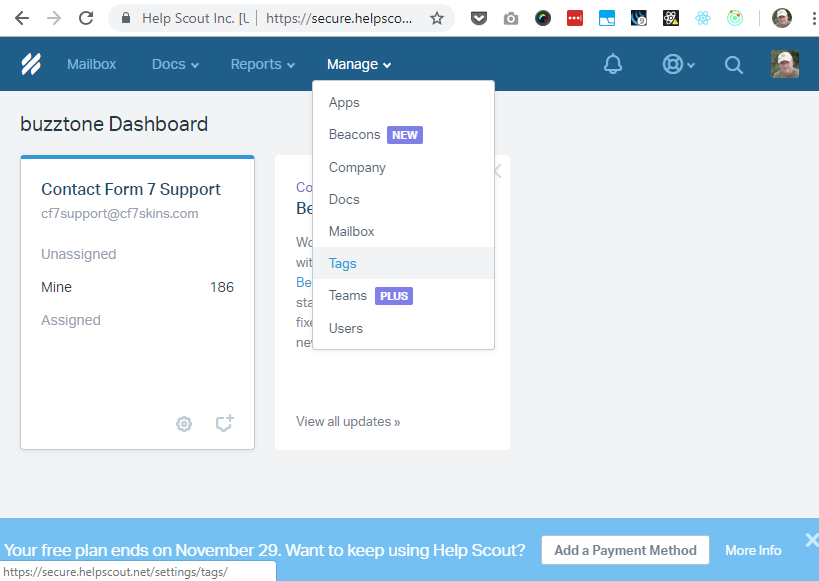
Select Manage > Tags
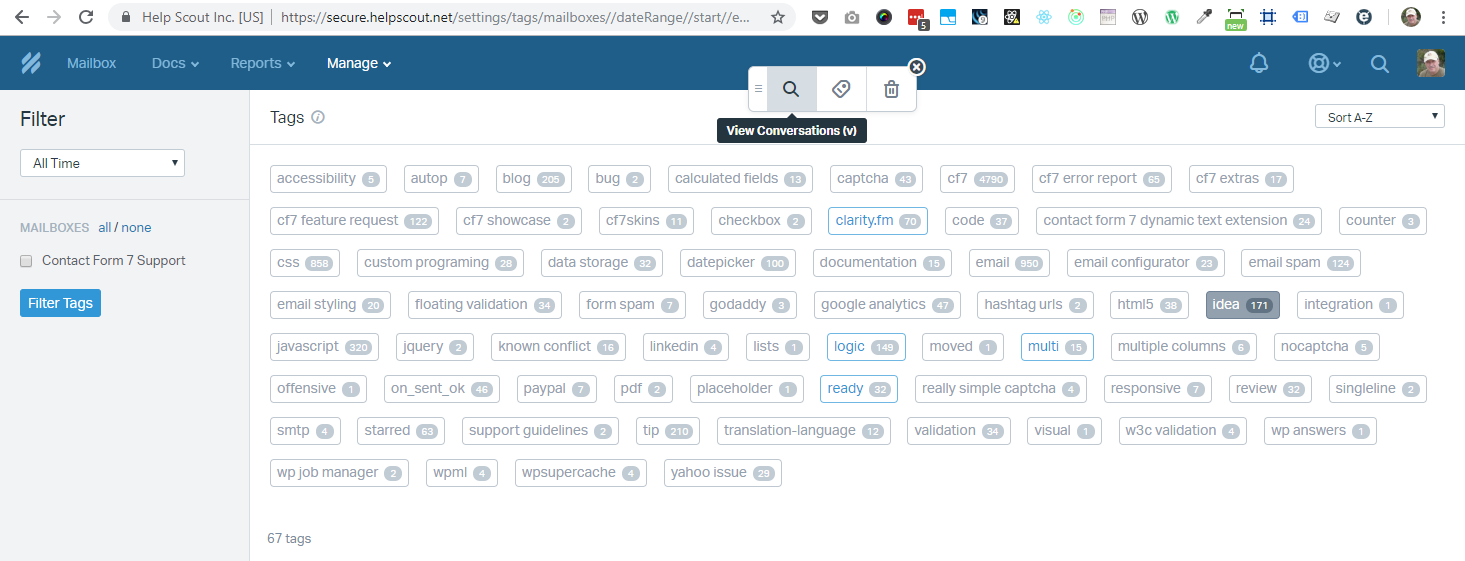
Select idea > View Conversations
All CF7 Ideas are displayed
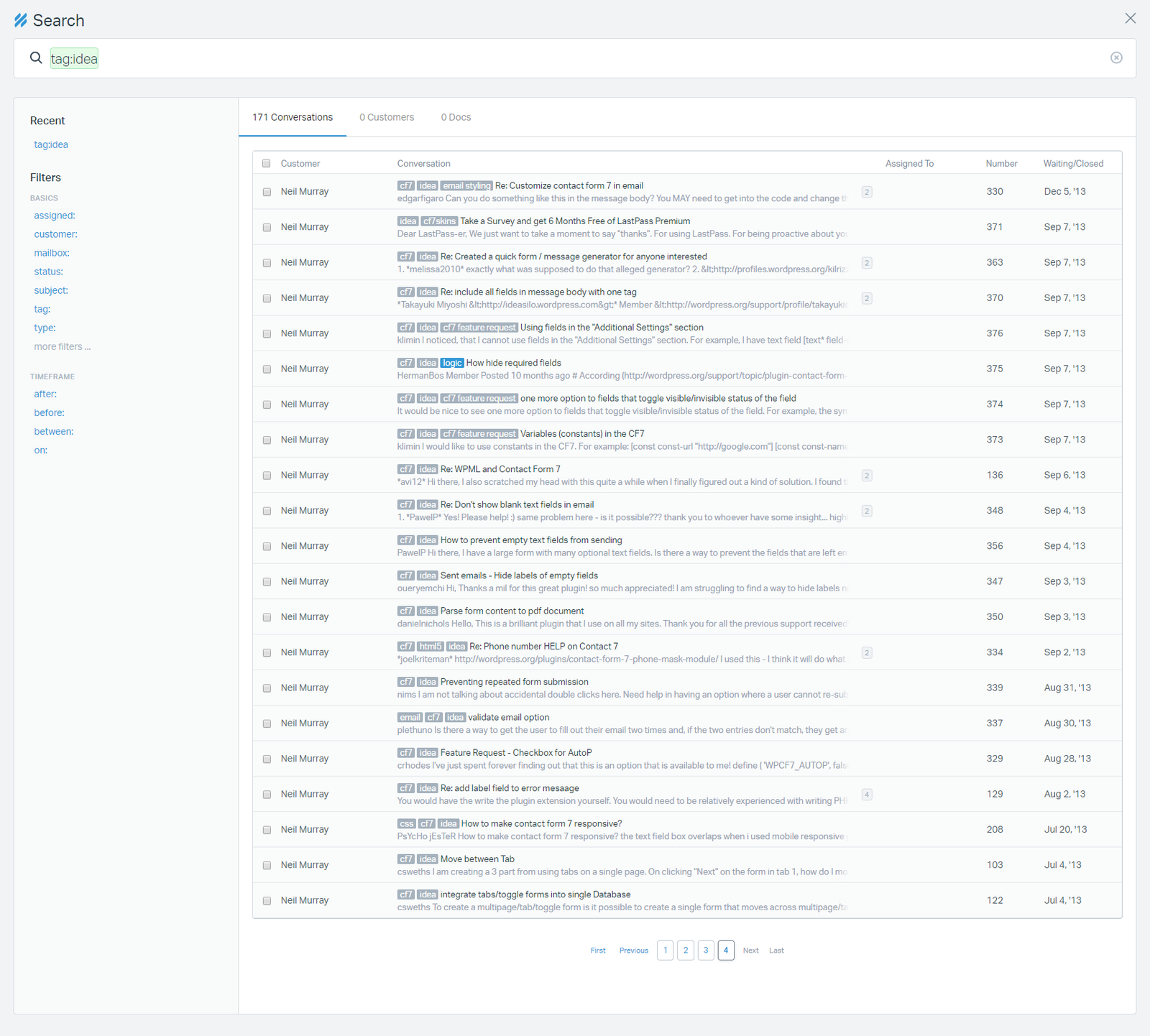
Navigate to the last page & then back through each page until you find the last item on the list that has not been moved.

Note: Moved items are tagged moved.
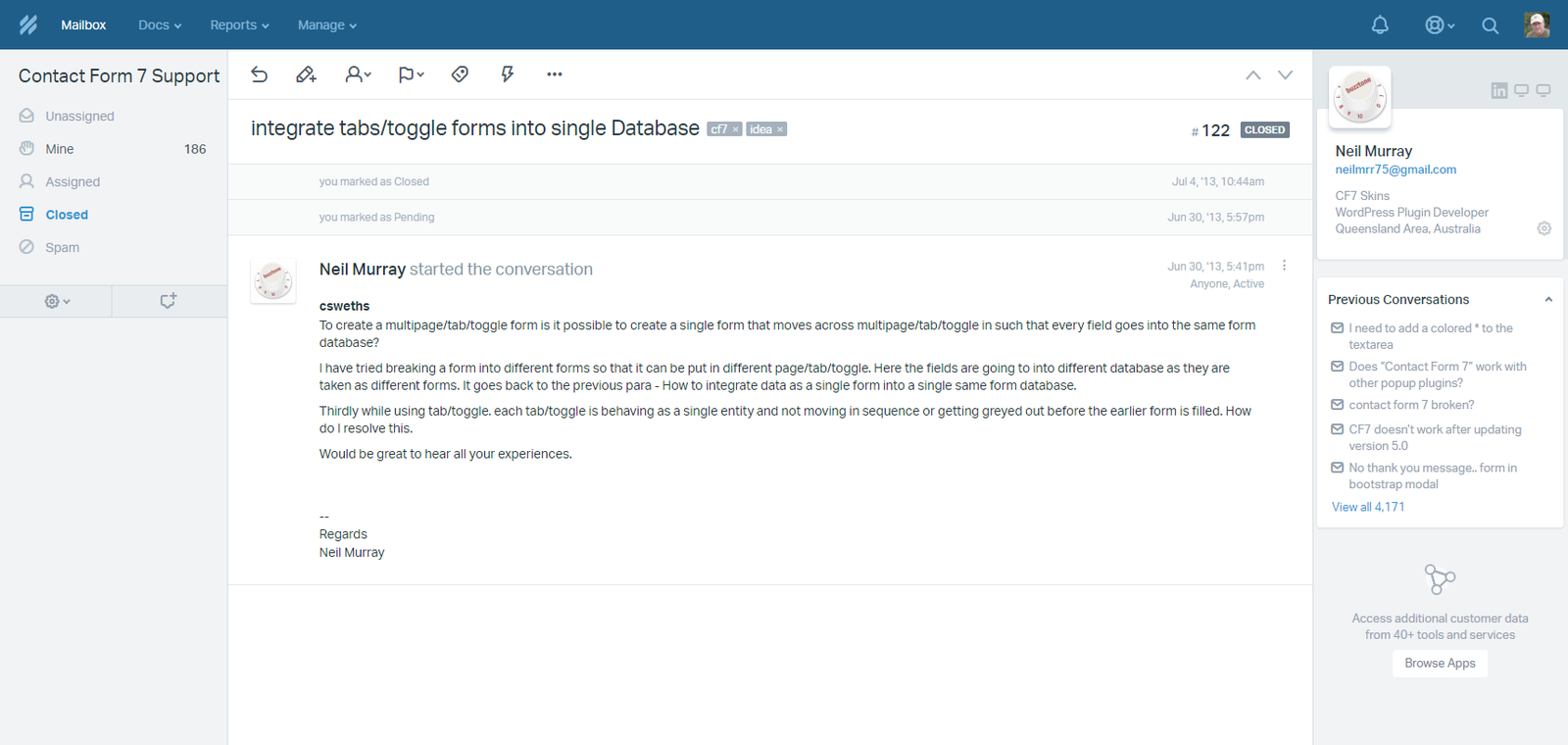
Open this item & examine it in detail.
Search wordpress.org
Find the question in the CF7 Support Forum shown in this item. Work through the following options in order until find the original question.
A. Search the CF7 Support forum – https://wordpress.org/support/plugin/contact-form-7
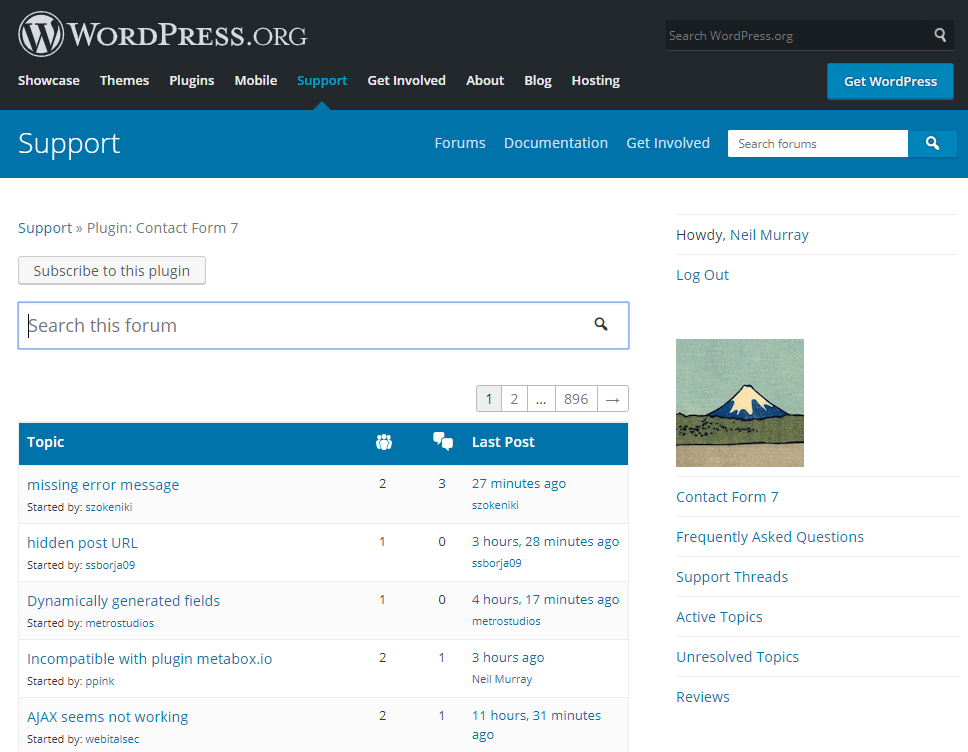
B. Search the WordPress Support forum – https://wordpress.org/search/
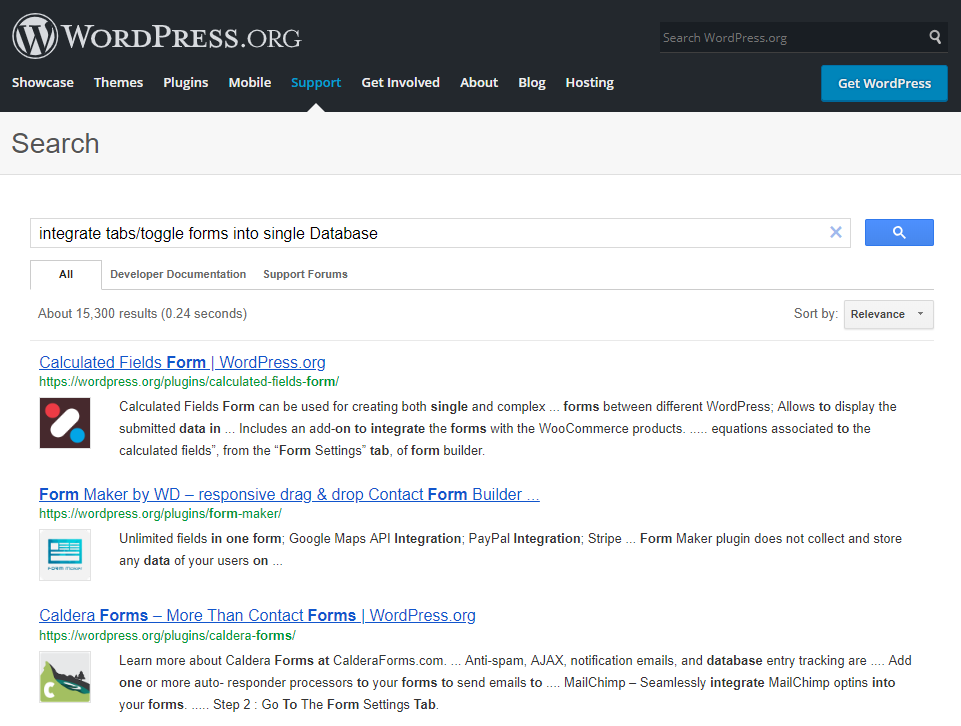
C. Visit the users WordPress profile e.g. https://wordpress.org/support/users/csweths/
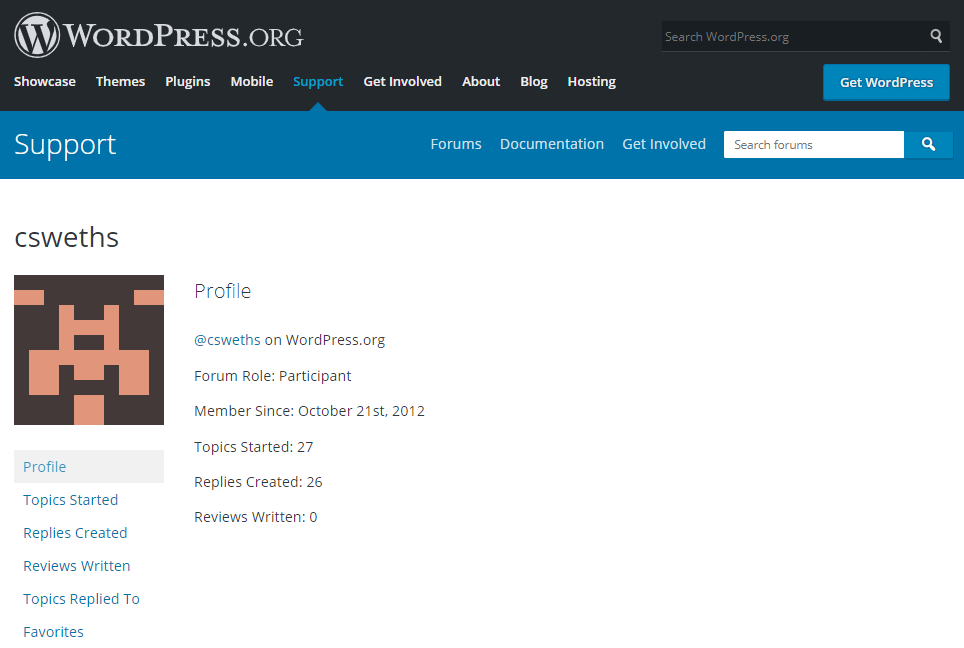
Look in their Replies Created
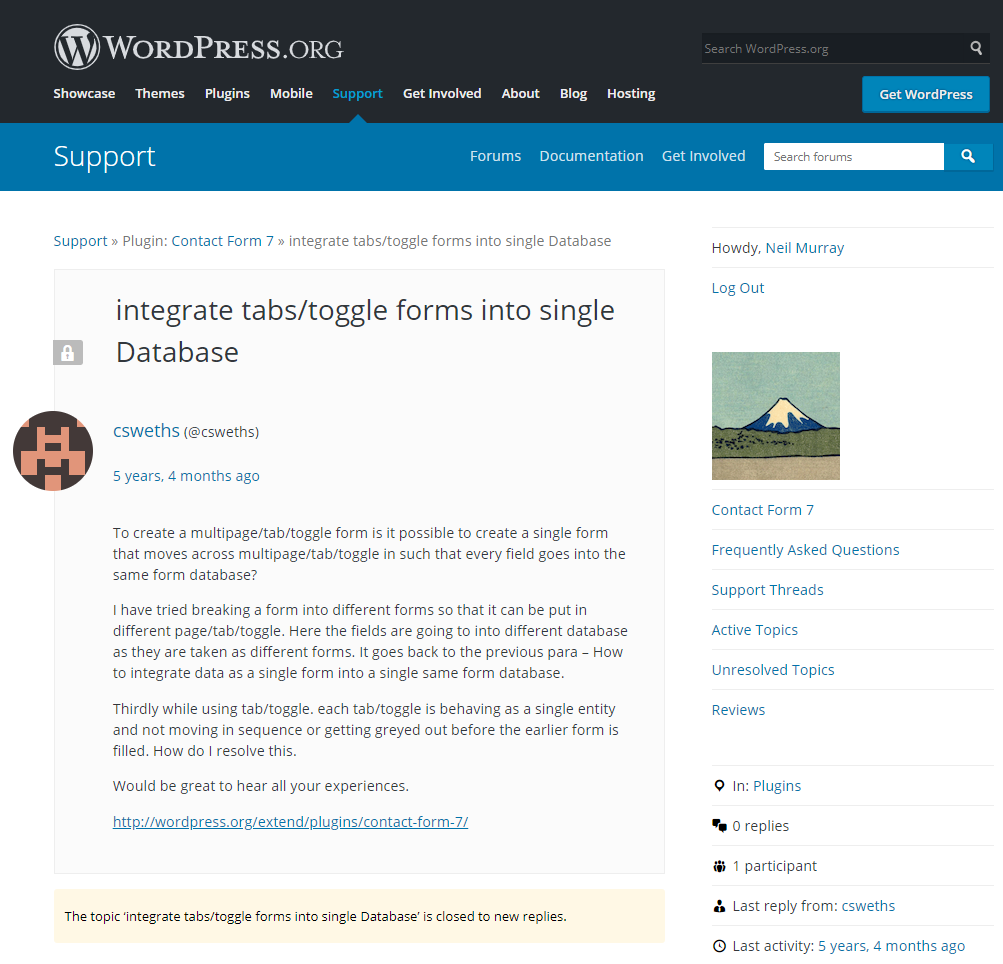
Freshdesk
Login to Freshdesk at https://cf7skins.freshdesk.com/.
Add the CF7 Idea to Freshdesk.
Easiest way to add is to send email
- Send email to support@cf7skins.freshdesk.com
- Copy CF7 support item Title to email Subject
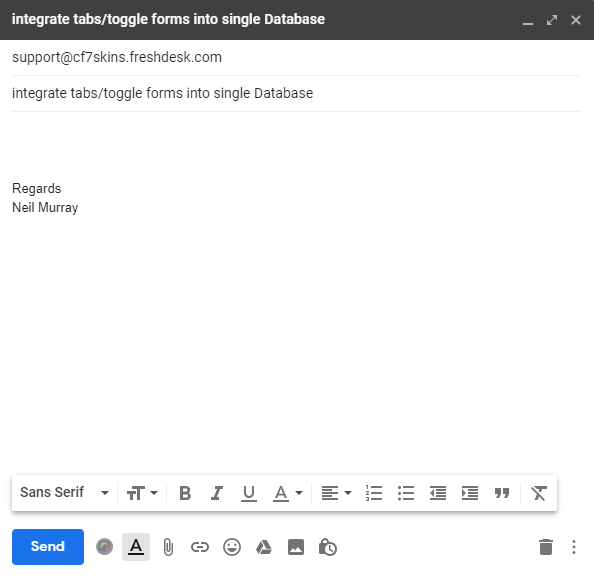
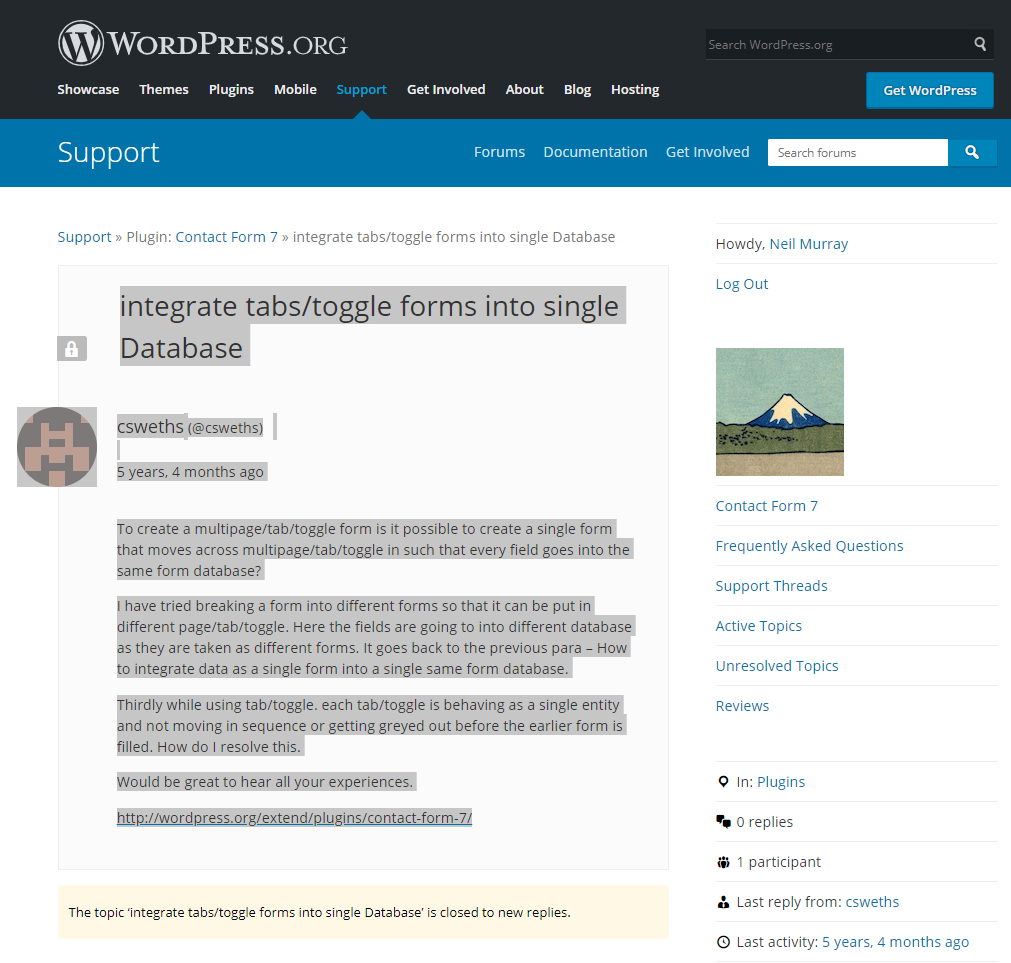
Copy the whole item in the CF7 Support forum
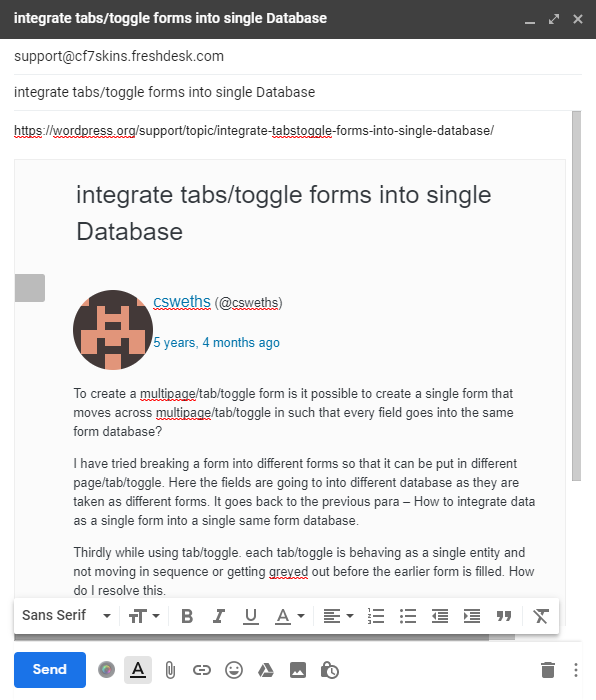
- Paste it into the email
- Copy the CF7 Support forum item URL & add it above
Send the email
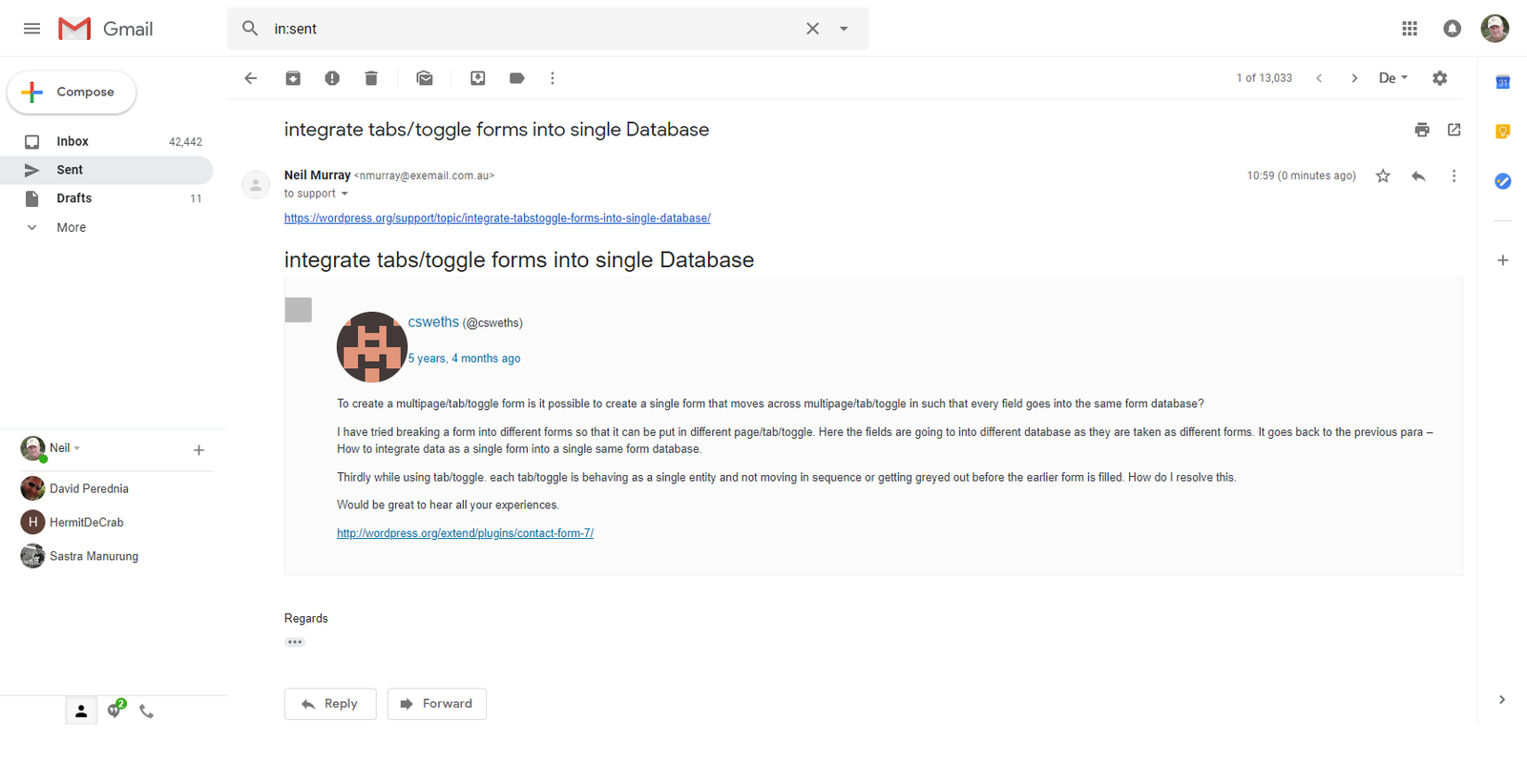
Tag the item in Help Scout as moved
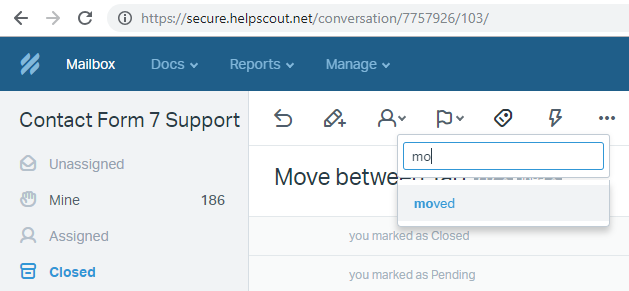
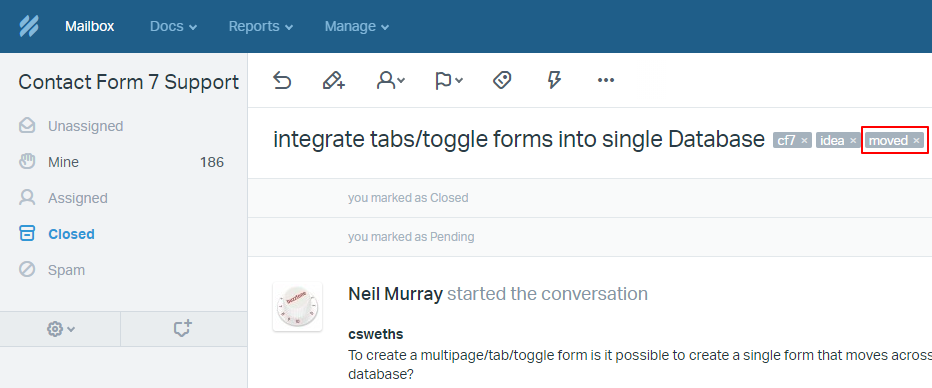
Open the CF7 Idea added to Freshdesk
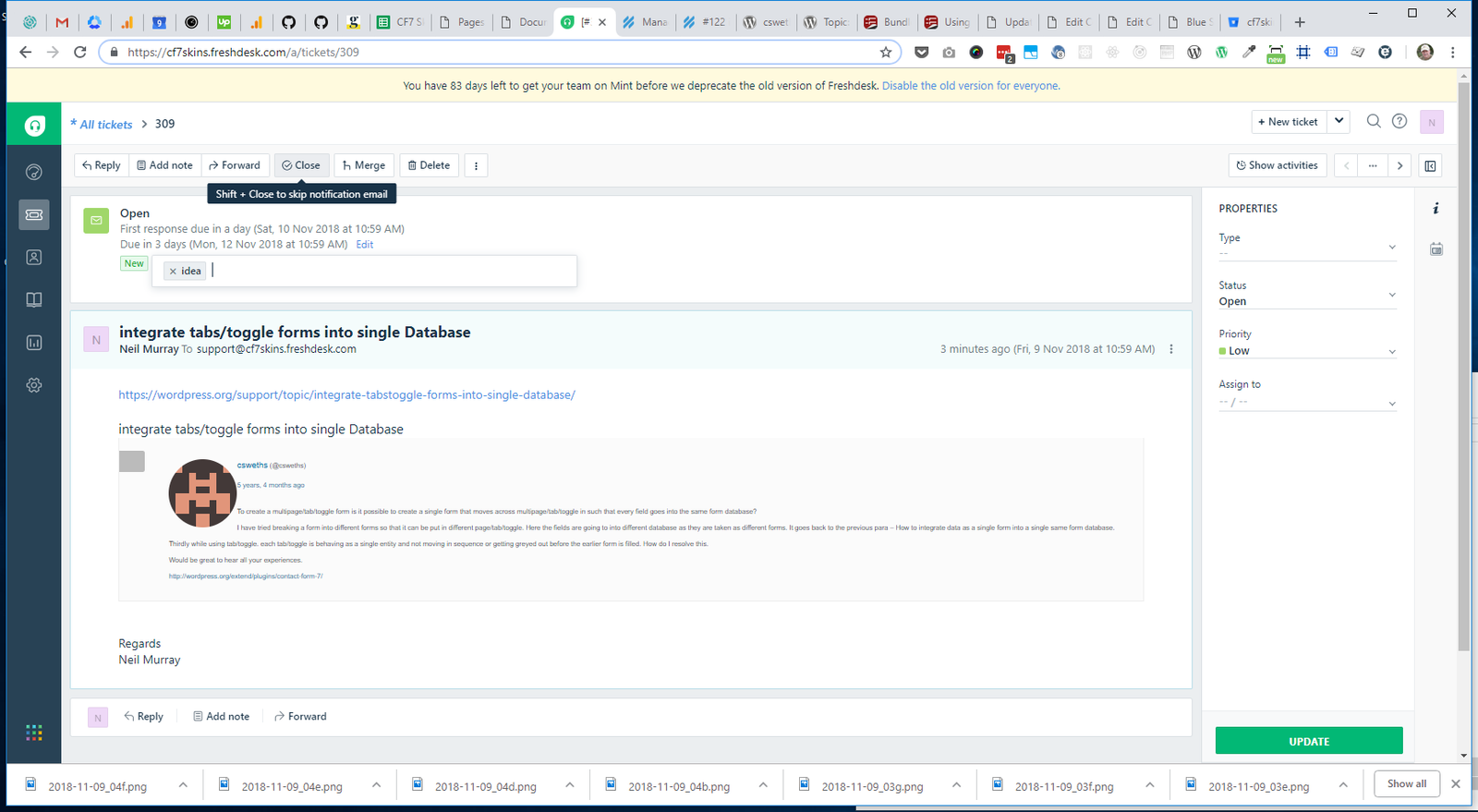
Tag the item in Freshdesk as idea
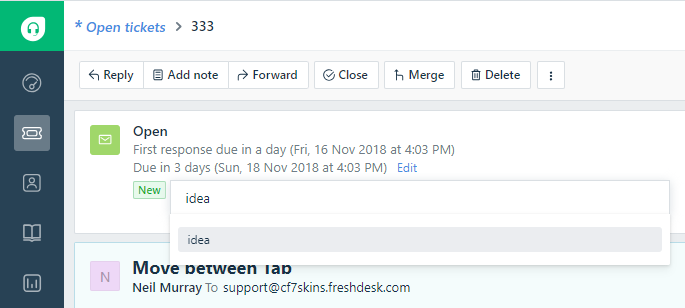
Compare with other tickets done previously to check everything has been done correctly.
Use https://cf7skins.freshdesk.com/a/tickets/309 as example of correctly completed ticket.
2. Move Saved Replies – CF7 #
Help Scout
Login to Help Scout at https://secure.helpscout.net/members/login/
Use the email address given to you to access this Help Scout used previously for CF7 support.
Navigate to:
- Help Scout
- Saved Replies
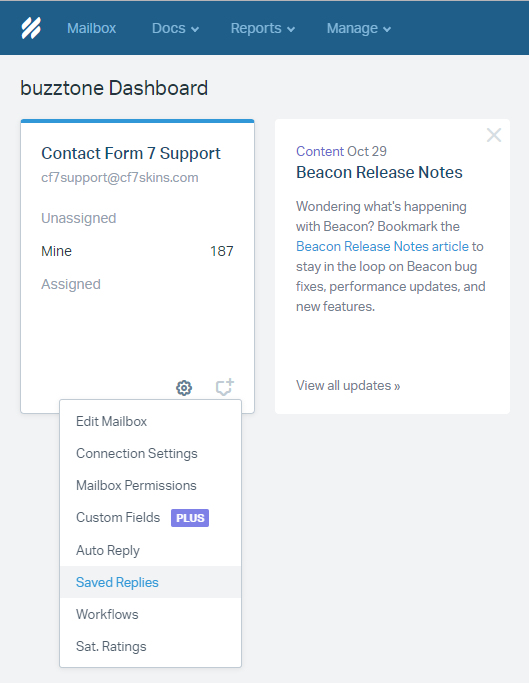
All Saved Replies are displayed
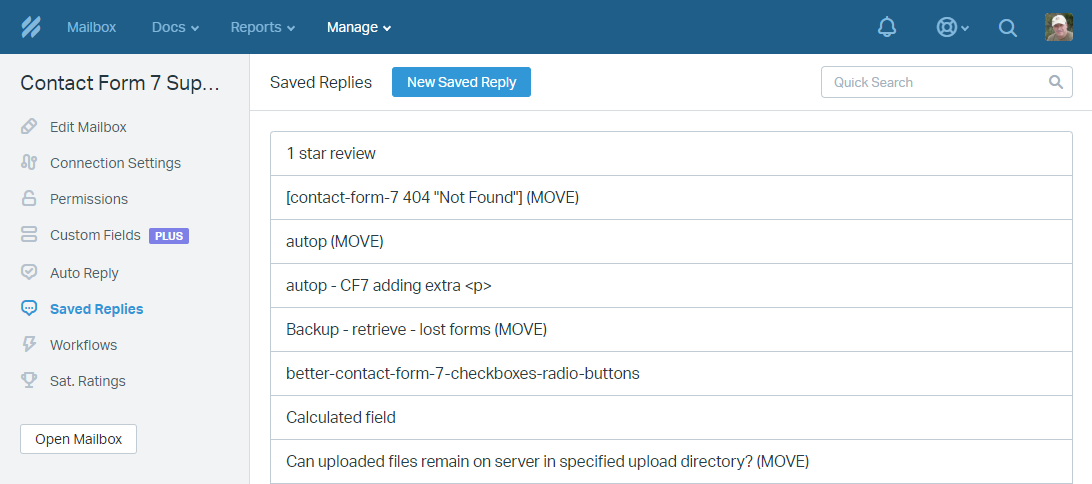
All items to be moved are tagged (MOVE). Open an item to be moved.
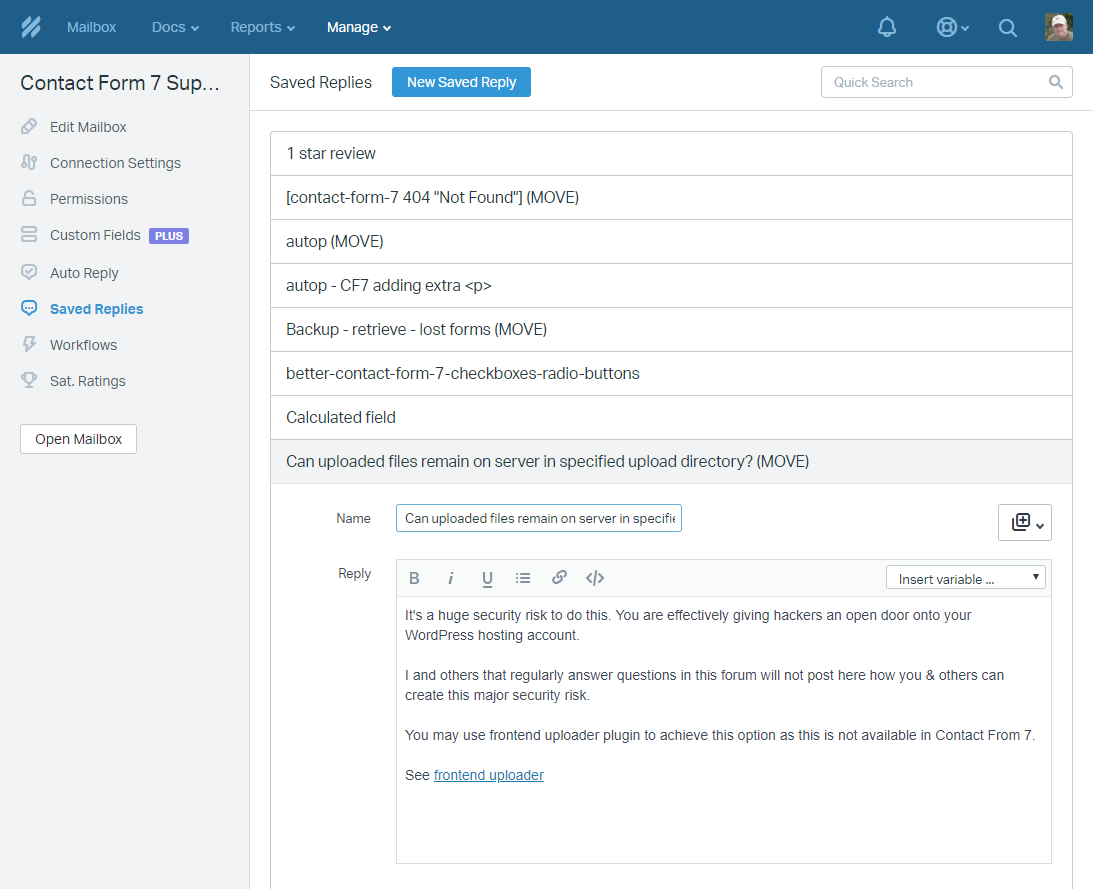
Keep this window open & switch to Freshdesk
Freshdesk
Login to Freshdesk at https://cf7skins.freshdesk.com/.
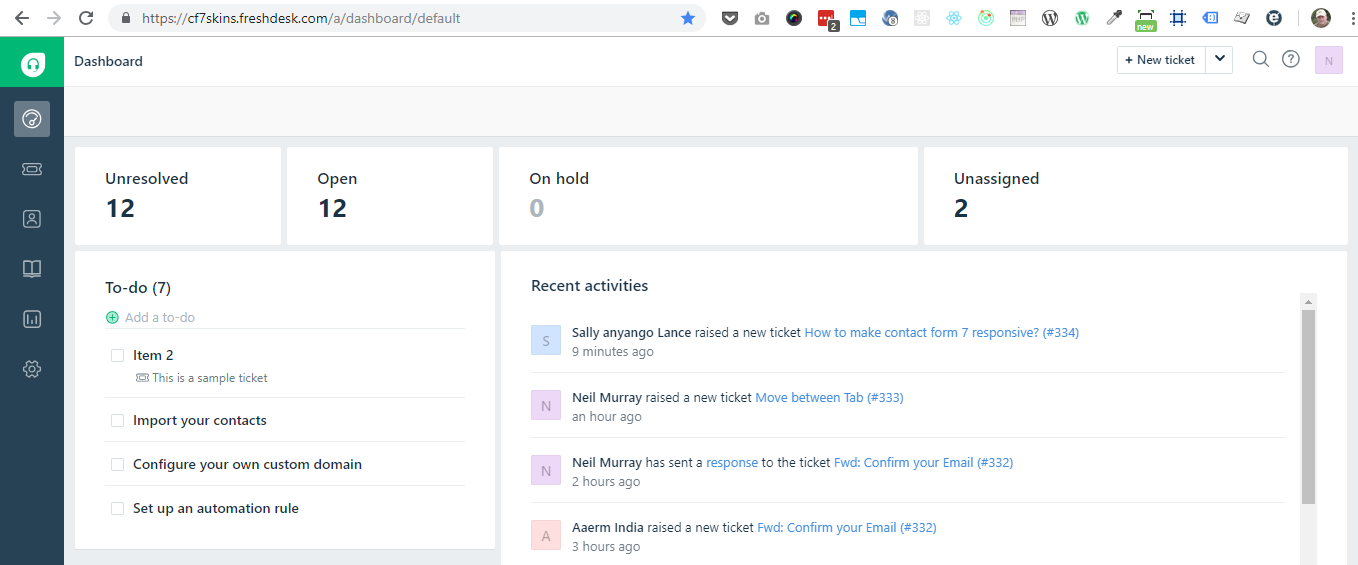
Select Admin on the left menu bar to the Freshdesk Admin
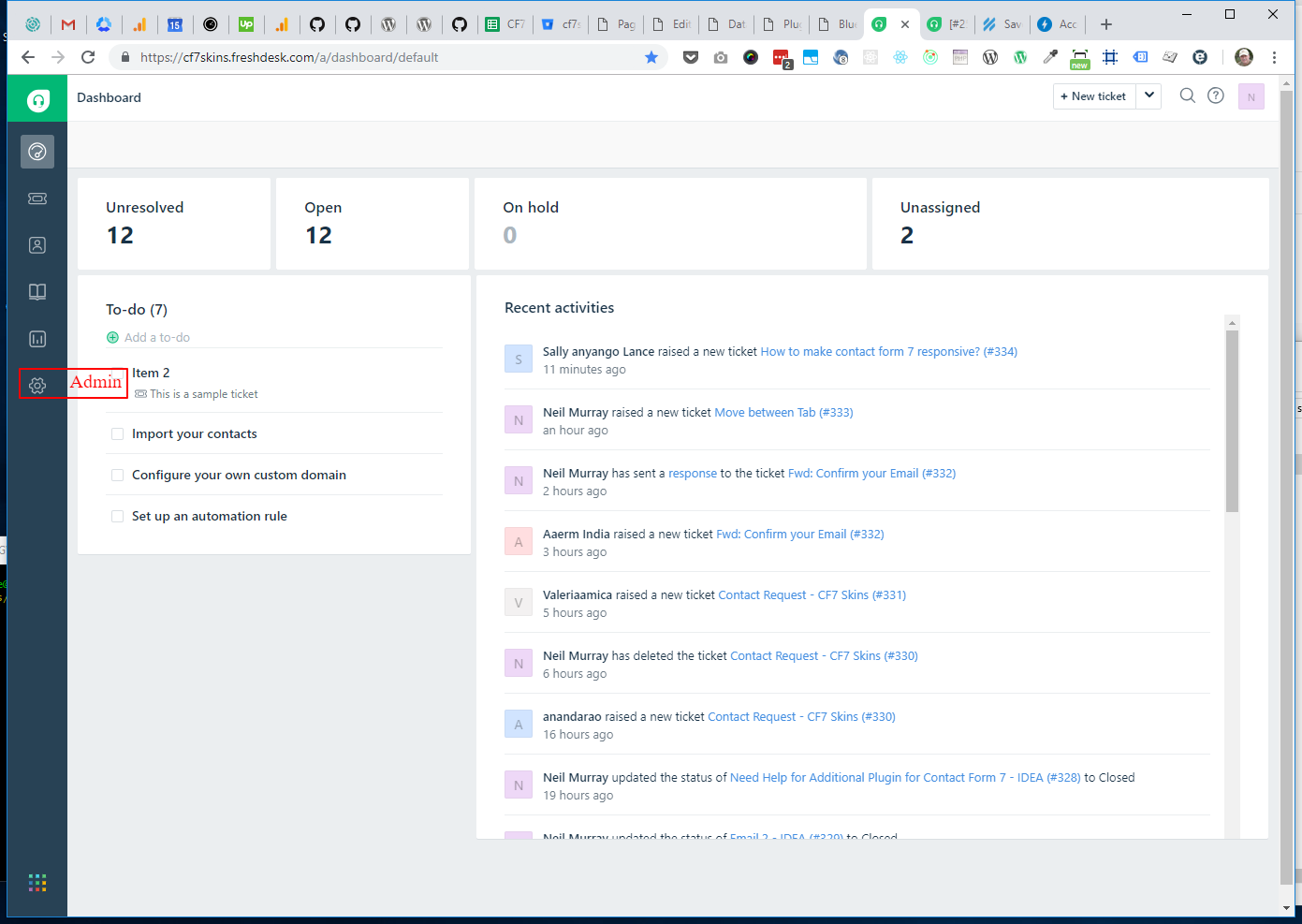
Freshdesk Admin opens
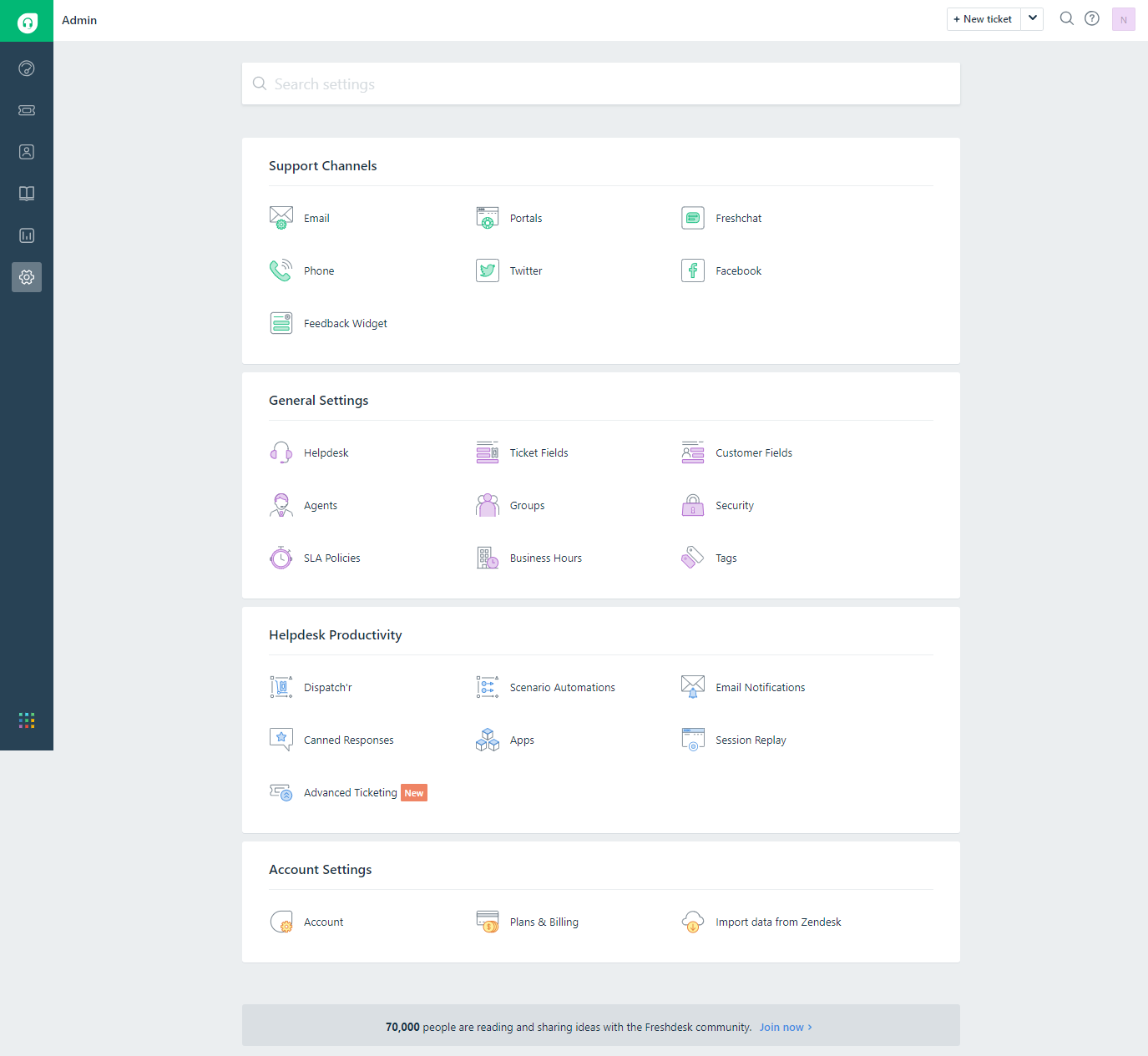
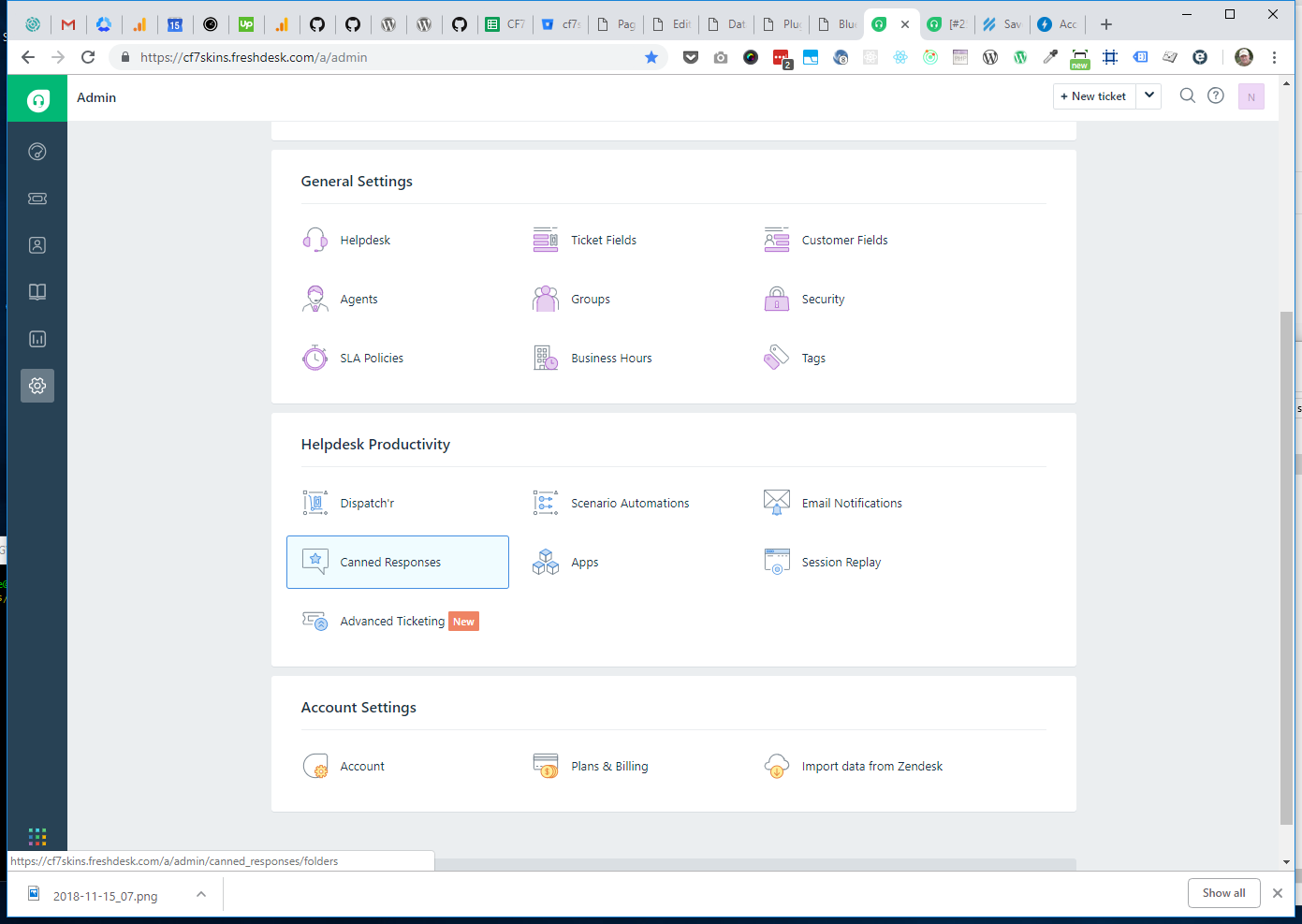
Select Canned Responses
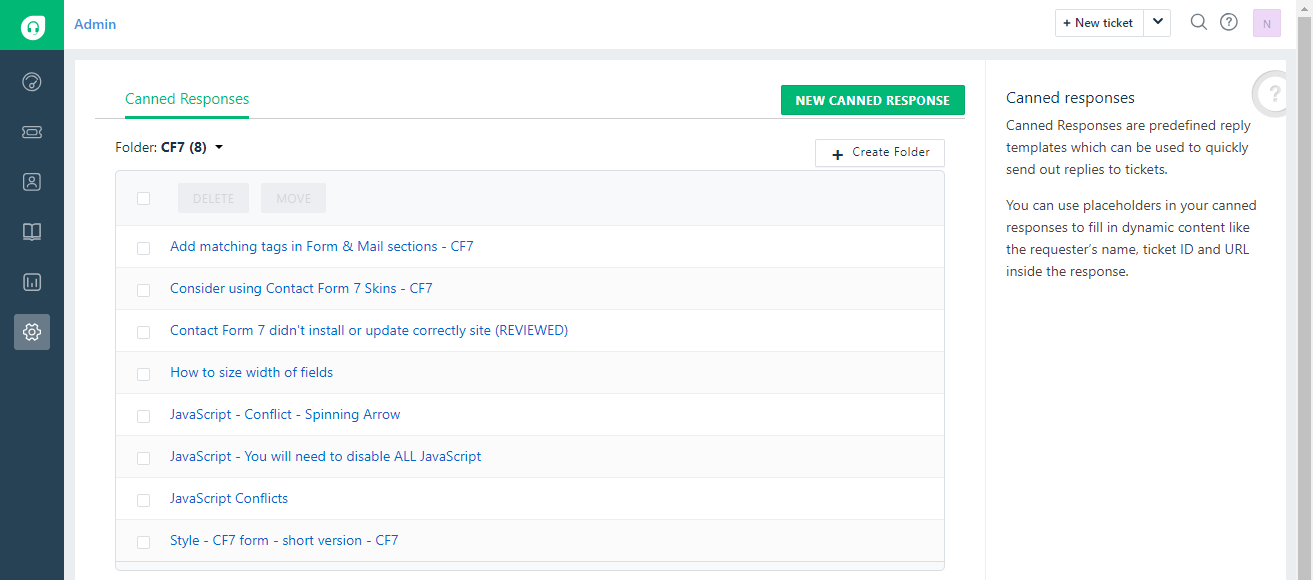
Select CF7 from the Personal drop down menu & click New Canned Response
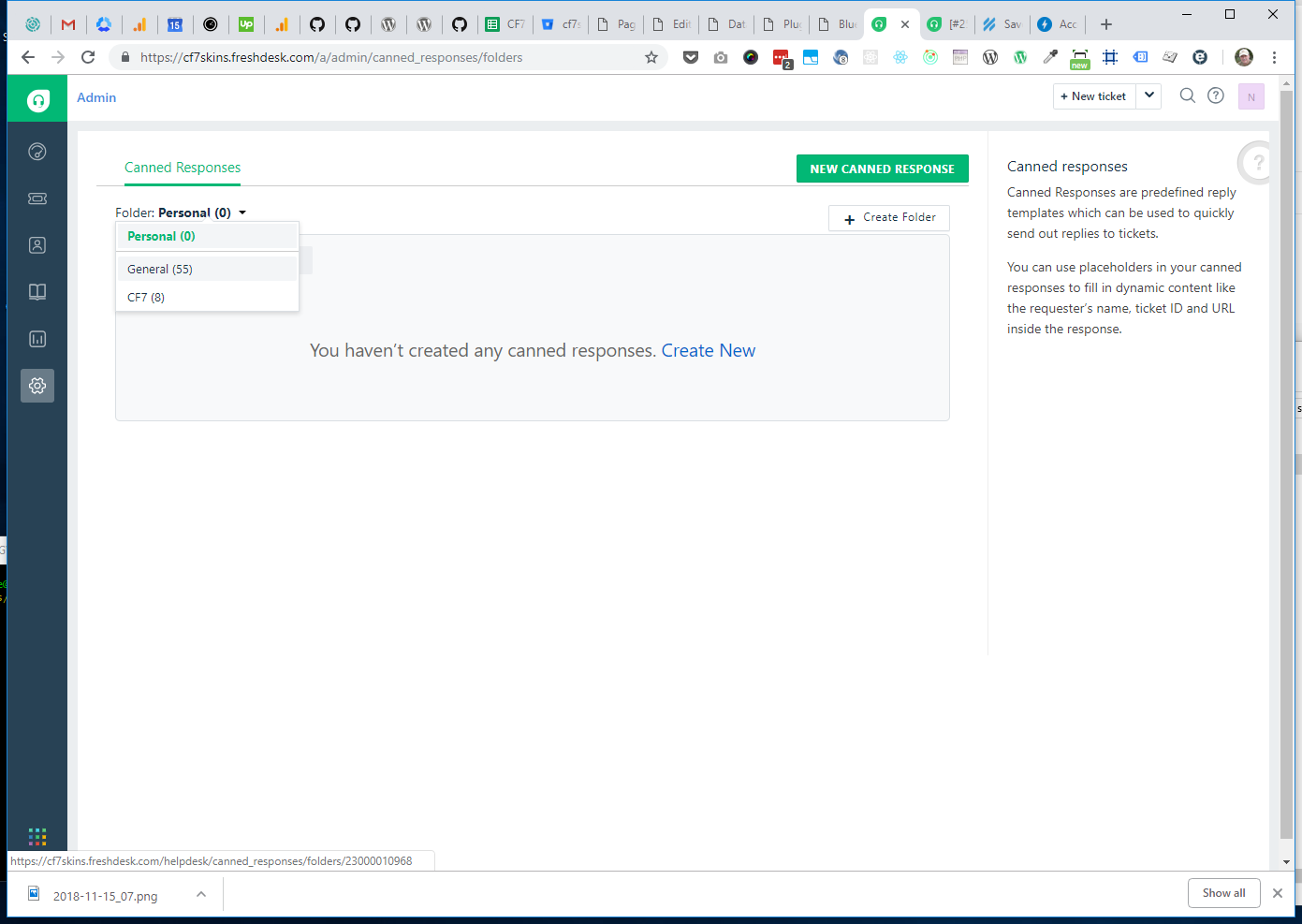
Make sure the Moved Canned Responses are added in the CF7 folder.
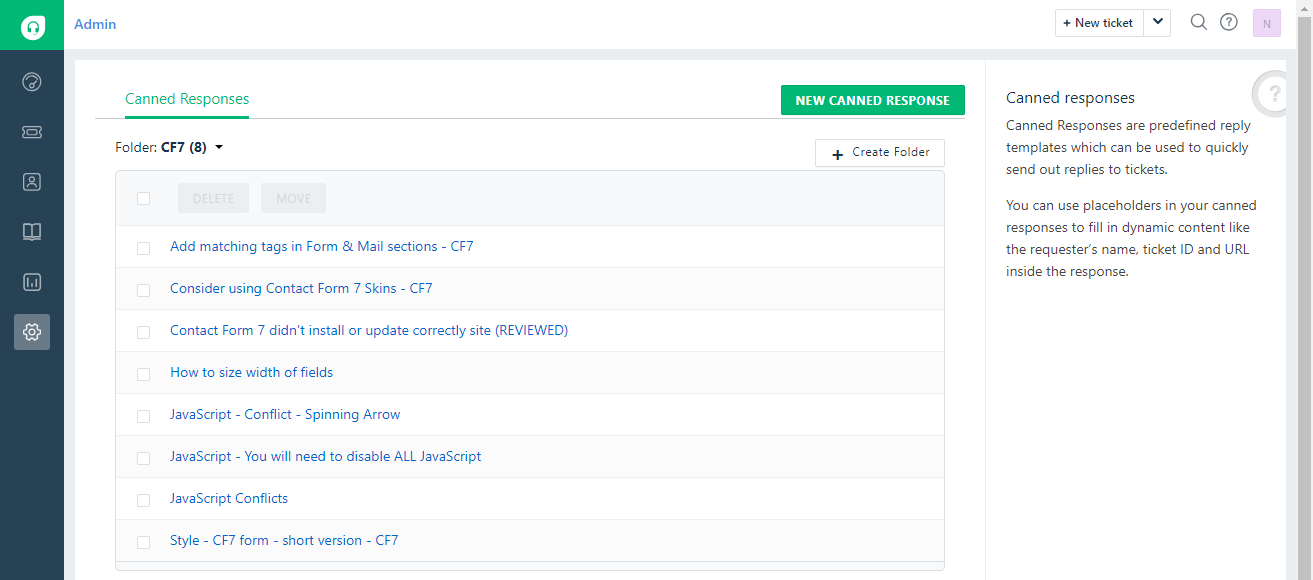
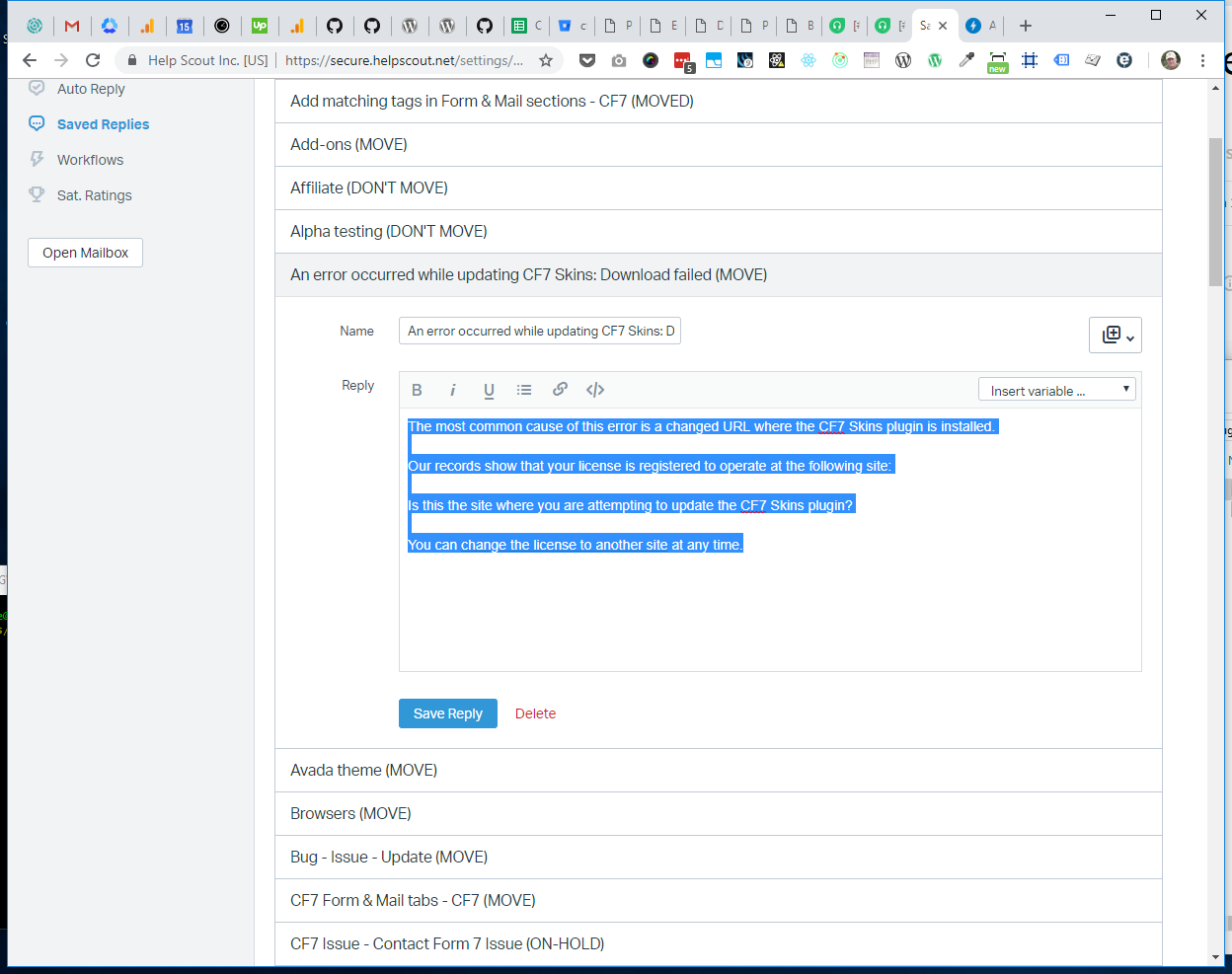
Now switch back to the Help Scout window & copy the Saved Reply content
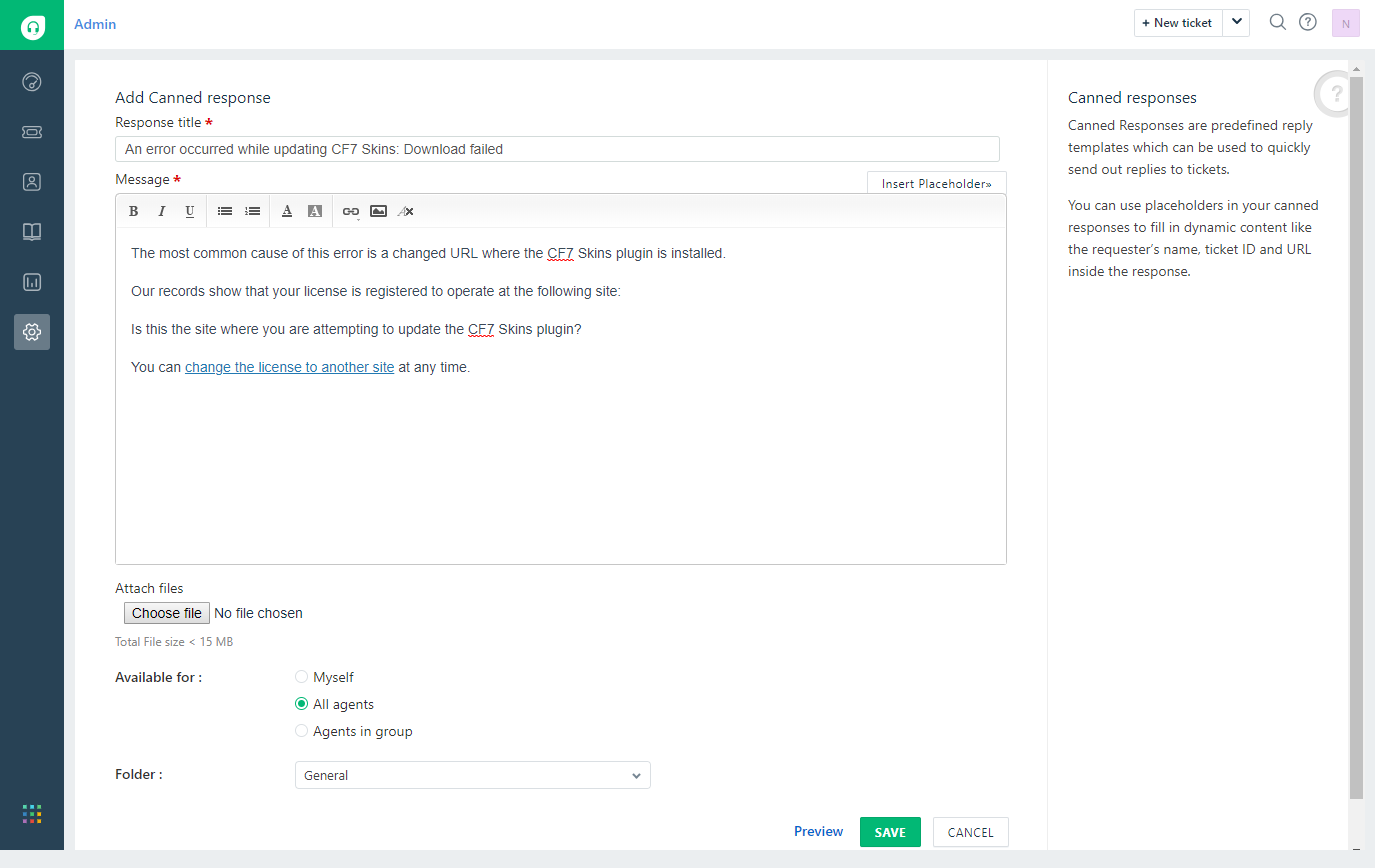
Paste the Saved Reply content & title into the Canned Response & press Save
Switch back to the Help Scout window & mark Saved Reply title as (MOVED)
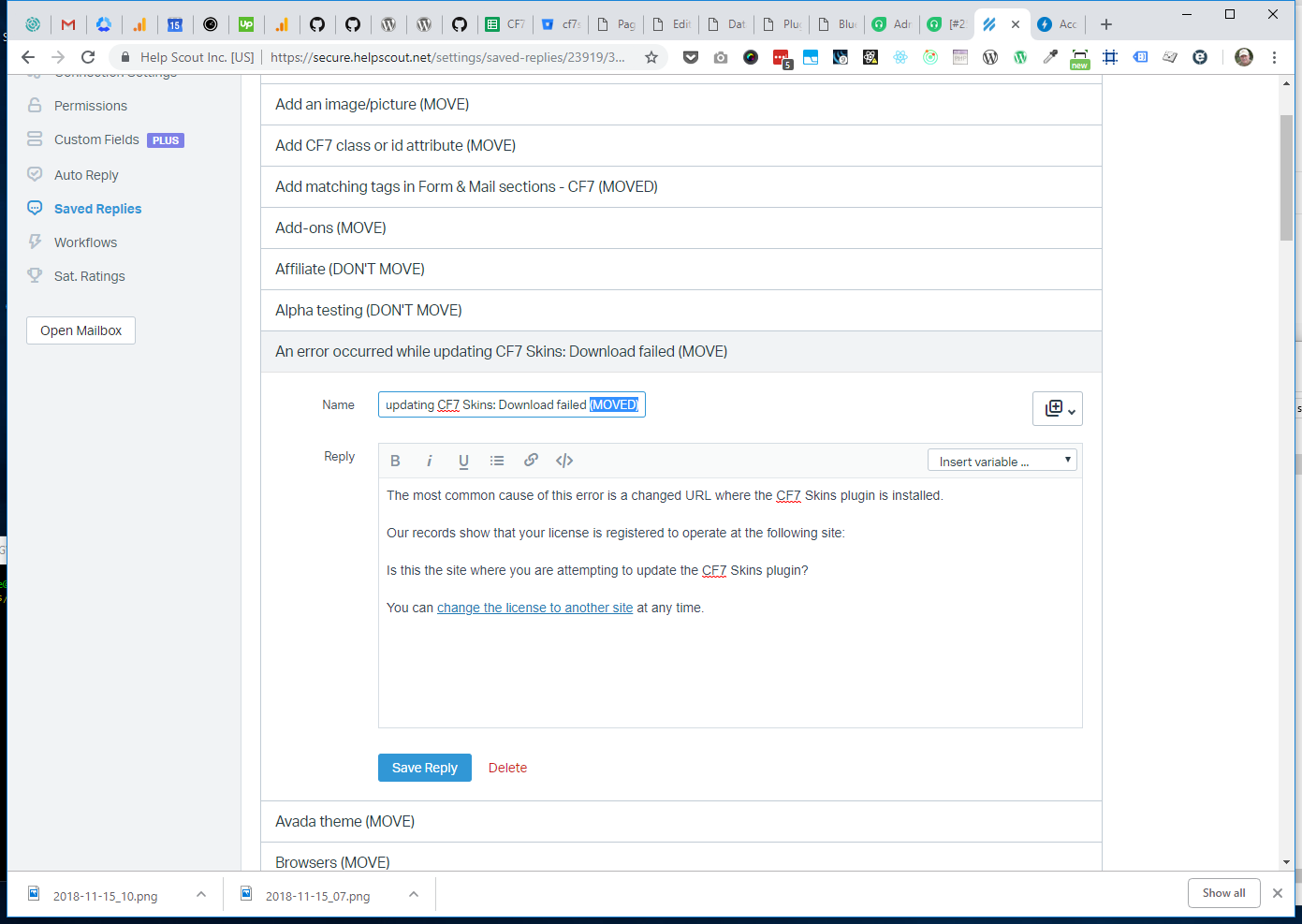
Press Save Reply
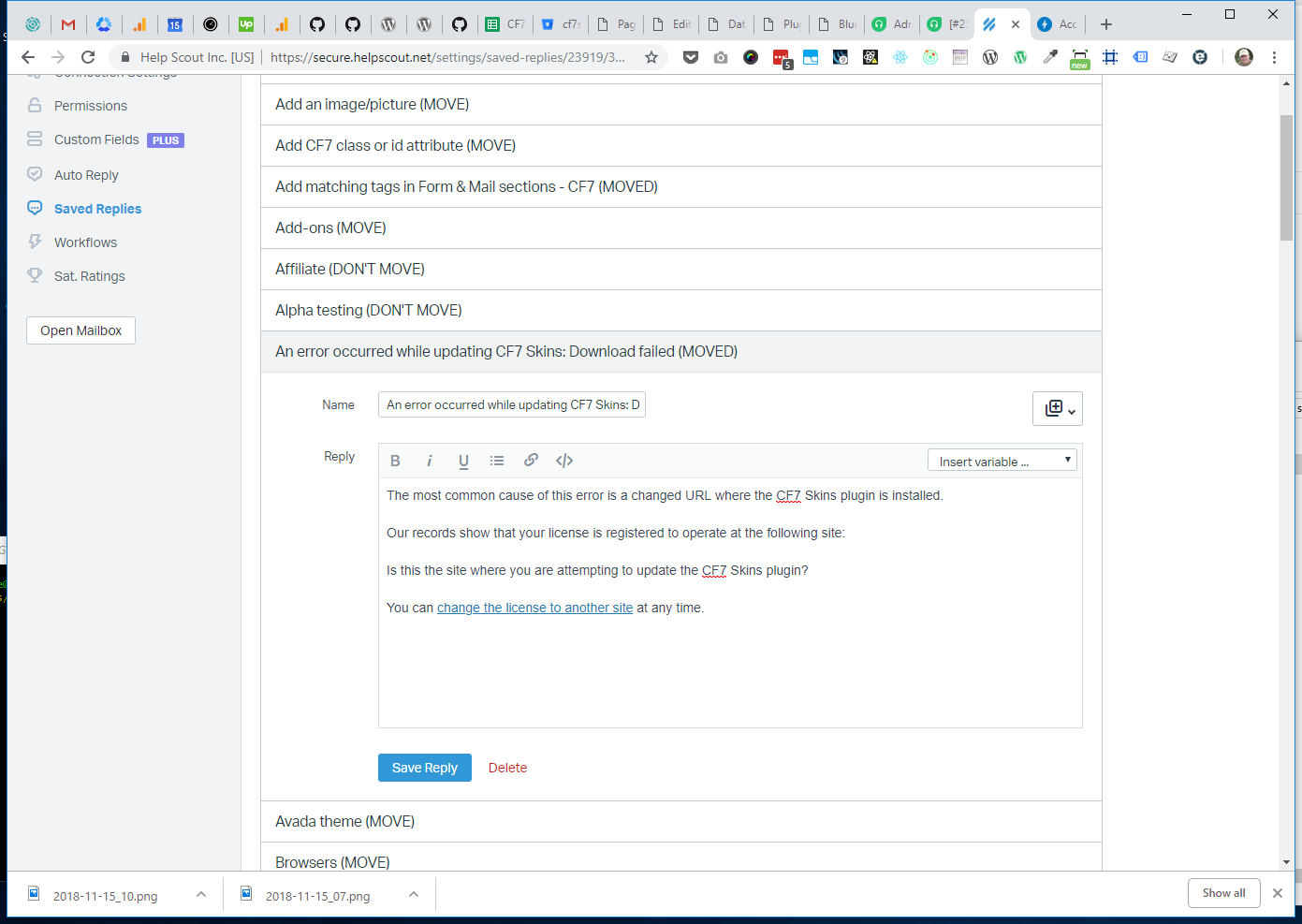
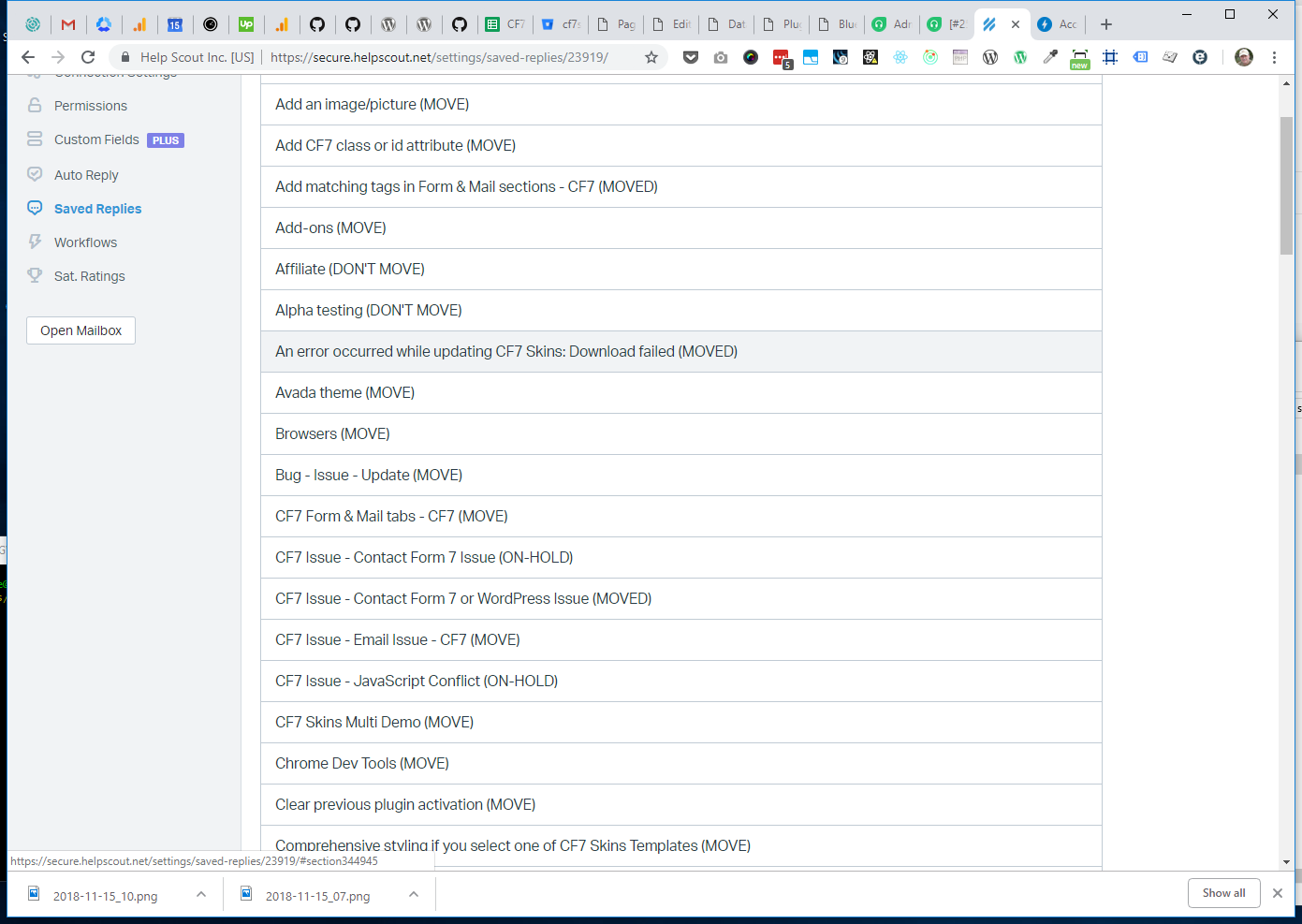
Click on the Saved Reply title to close it & see the full list
Canned Response is added to the list of Canned Responses
3. Move Saved Replies – CF7 Skins #
Help Scout
Login to Help Scout at https://secure.helpscout.net/members/login/
Note: You will need to use a different email address to access this Help Scout used previously for CF7 Skins support.
Navigate to:
- Help Scout
- Saved Replies
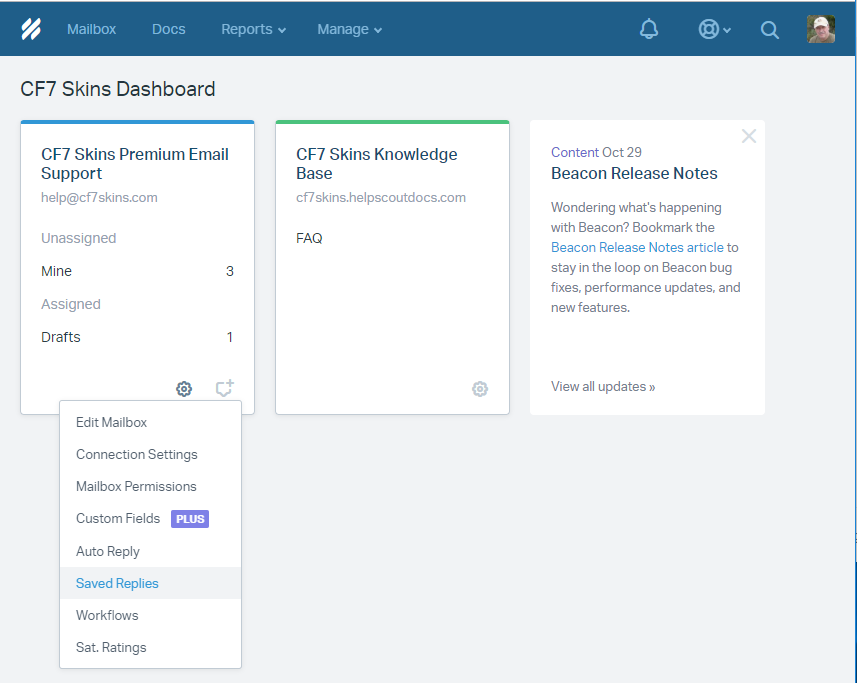
All Saved Replies are displayed
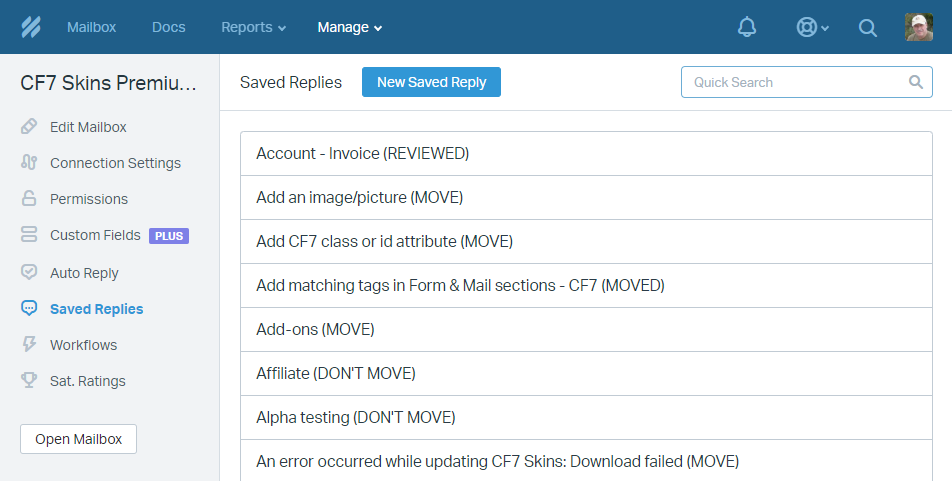
All items to be moved are tagged (MOVE). Open an item to be moved.
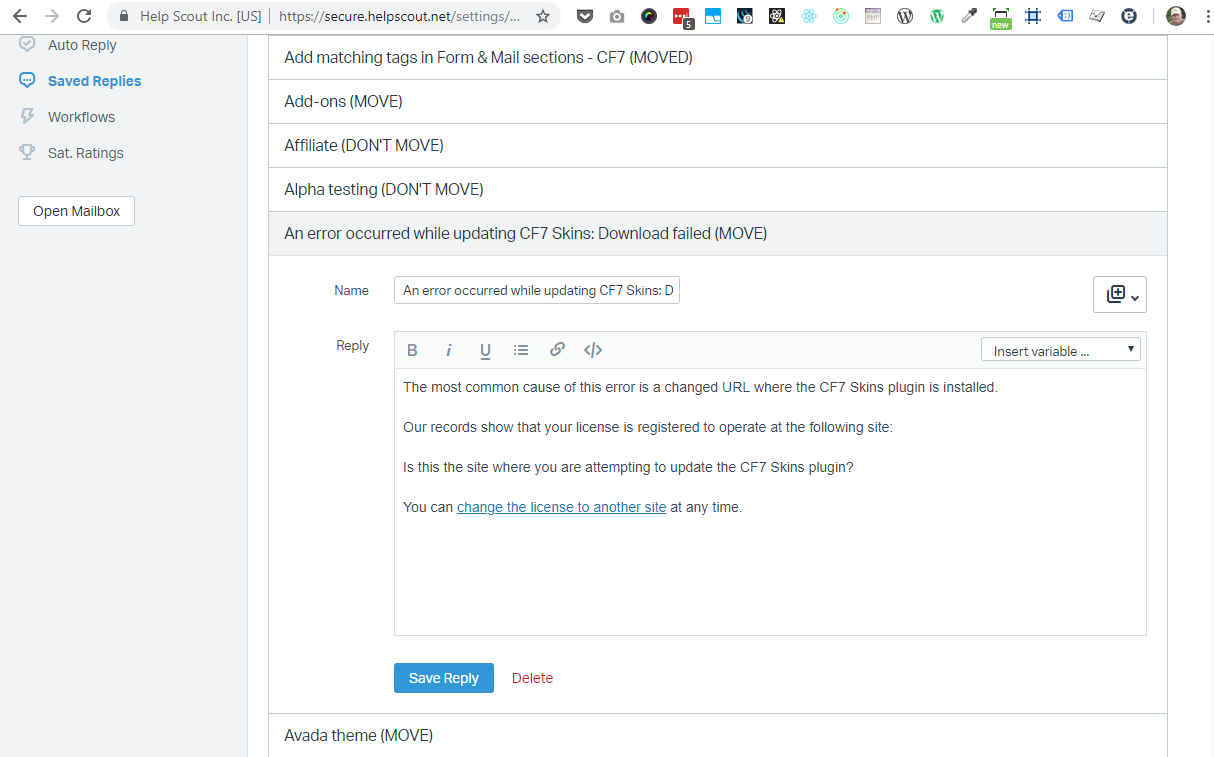
Keep this window open & switch to Freshdesk
Freshdesk
Login to Freshdesk at https://cf7skins.freshdesk.com/.
Select Admin on the left menu bar to the Freshdesk Admin
Freshdesk Admin opens
Select Canned Responses
Select General from the Personal drop down menu & click New Canned Response
Make sure the Moved Canned Responses are added in the General folder.
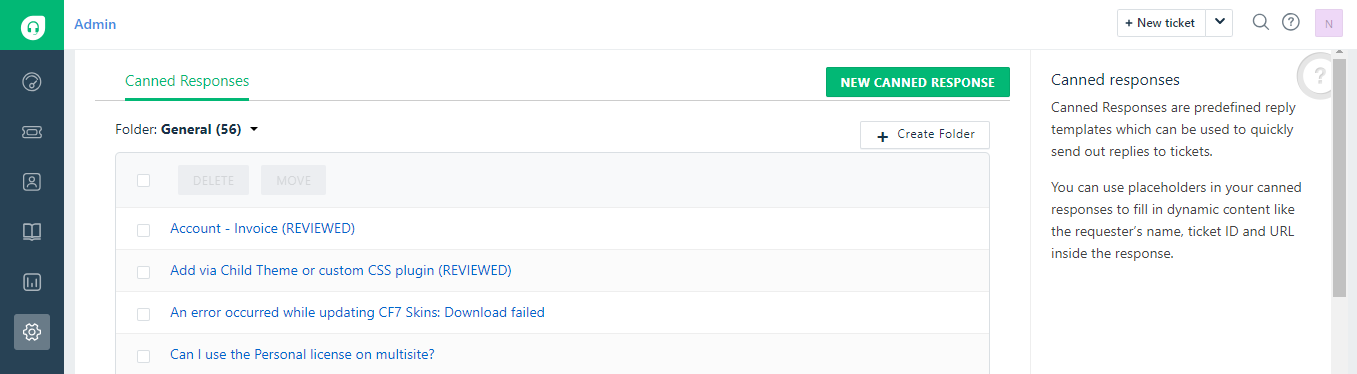
Now switch back to the Help Scout window & copy the Saved Reply content
Paste the Saved Reply content & title into the Canned Response & press Save
Switch back to the Help Scout window & mark Saved Reply title as (MOVED)
Press Save Reply
Click on the Saved Reply title to close it & see the full list
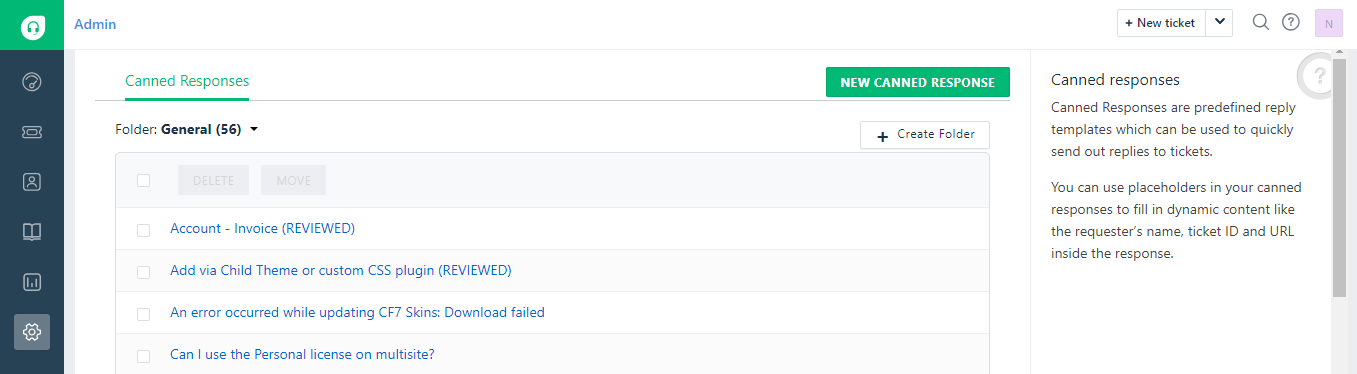
Canned Response is added to the list of Canned Responses
4. Keep CF7 Tags #
Navigate to Tags.
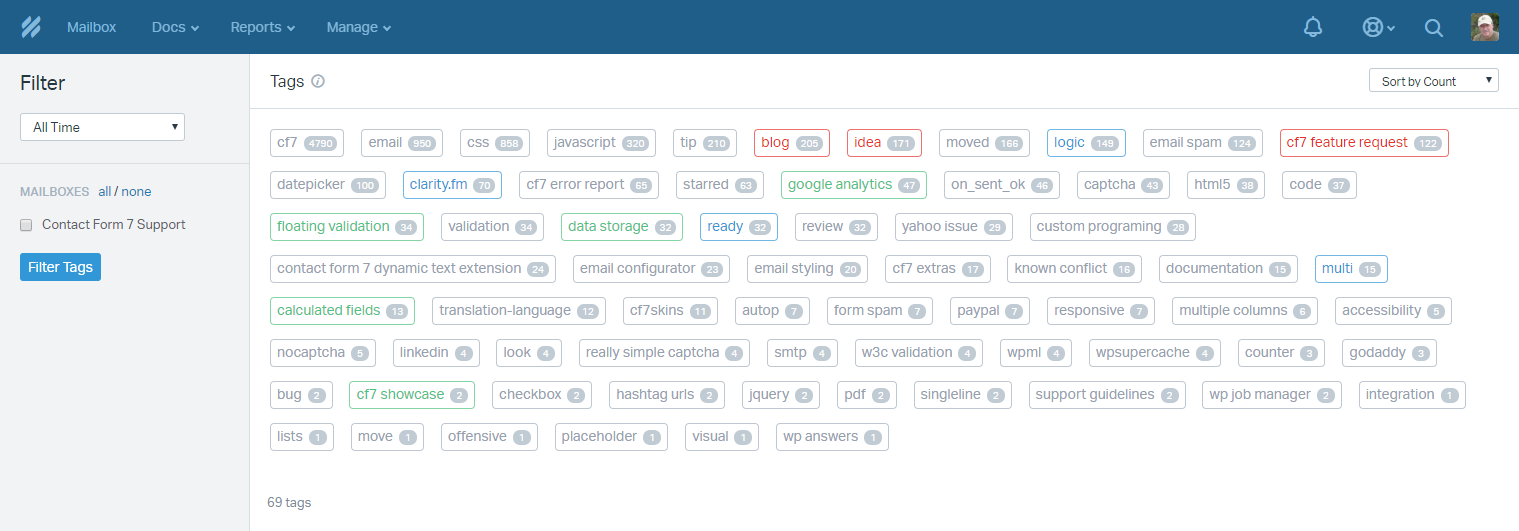
We are copying tags that are marked red.

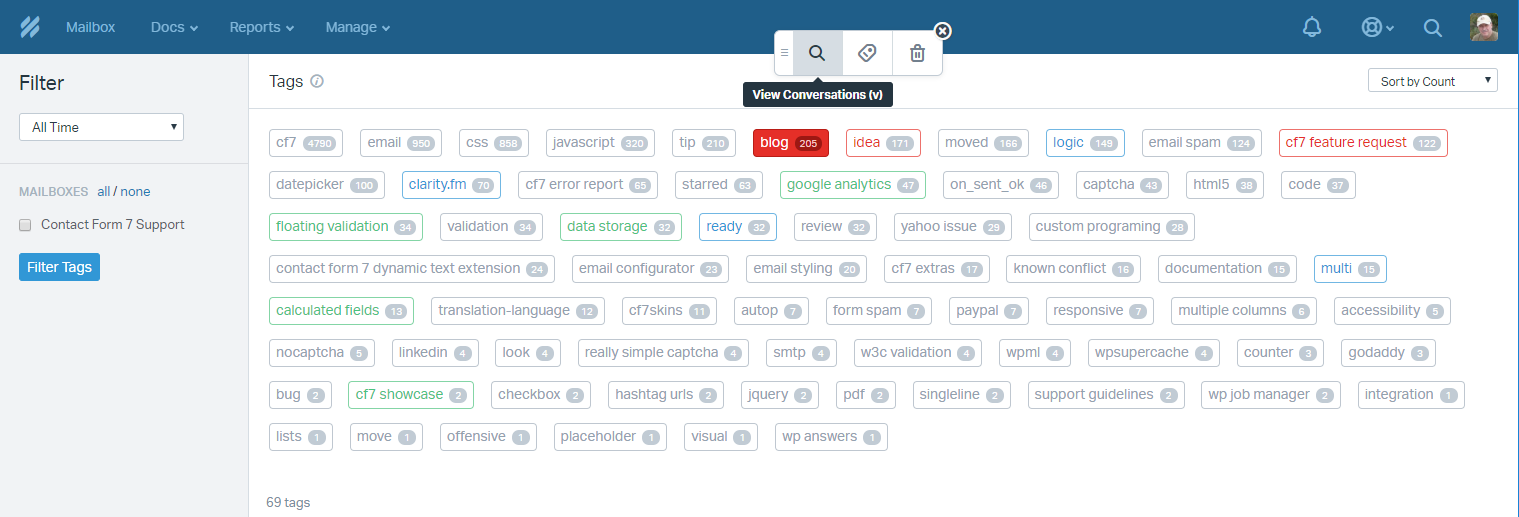
To start – open the blog tag.
All items are displayed.
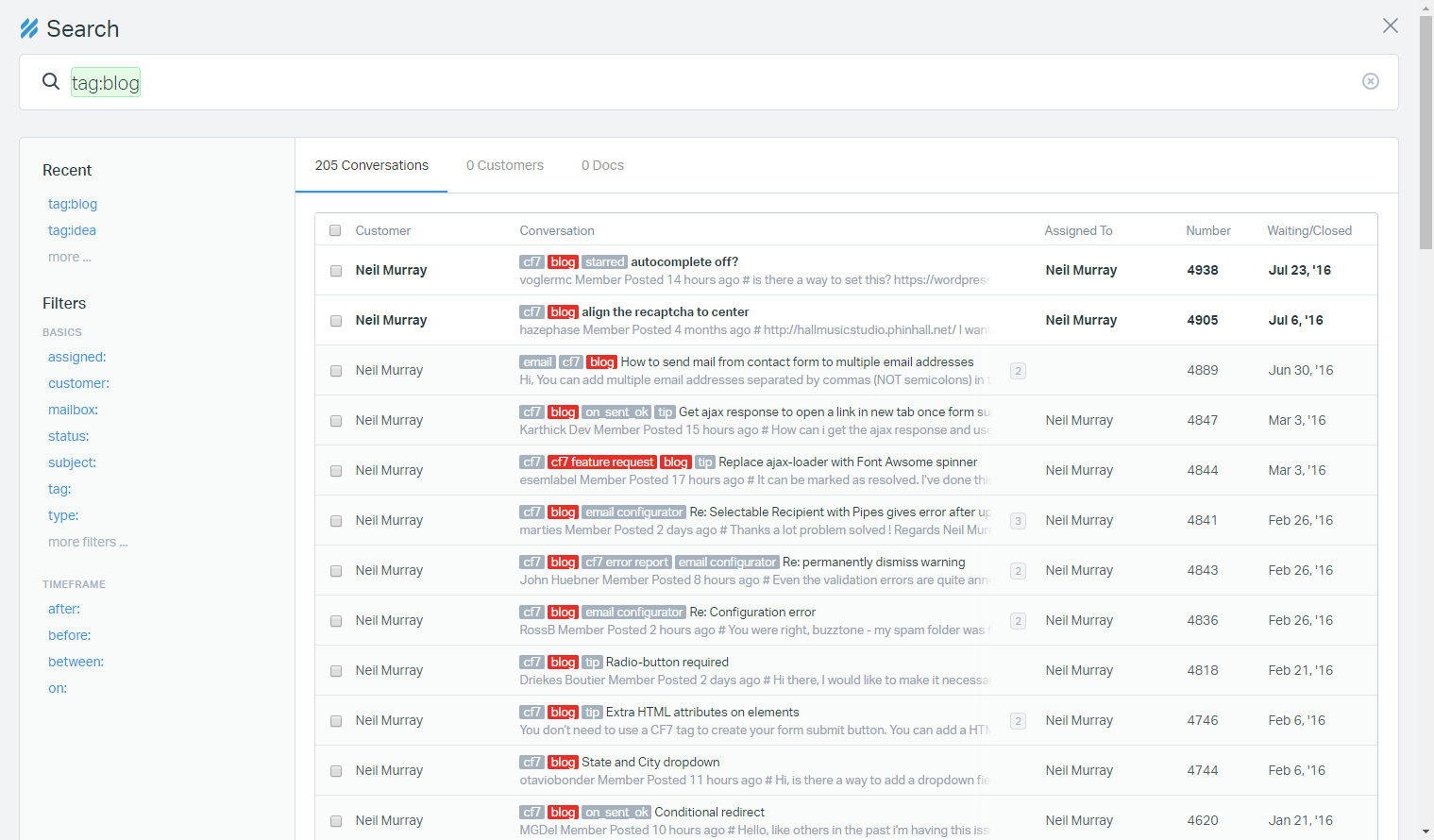
Open item that has not been Moved.
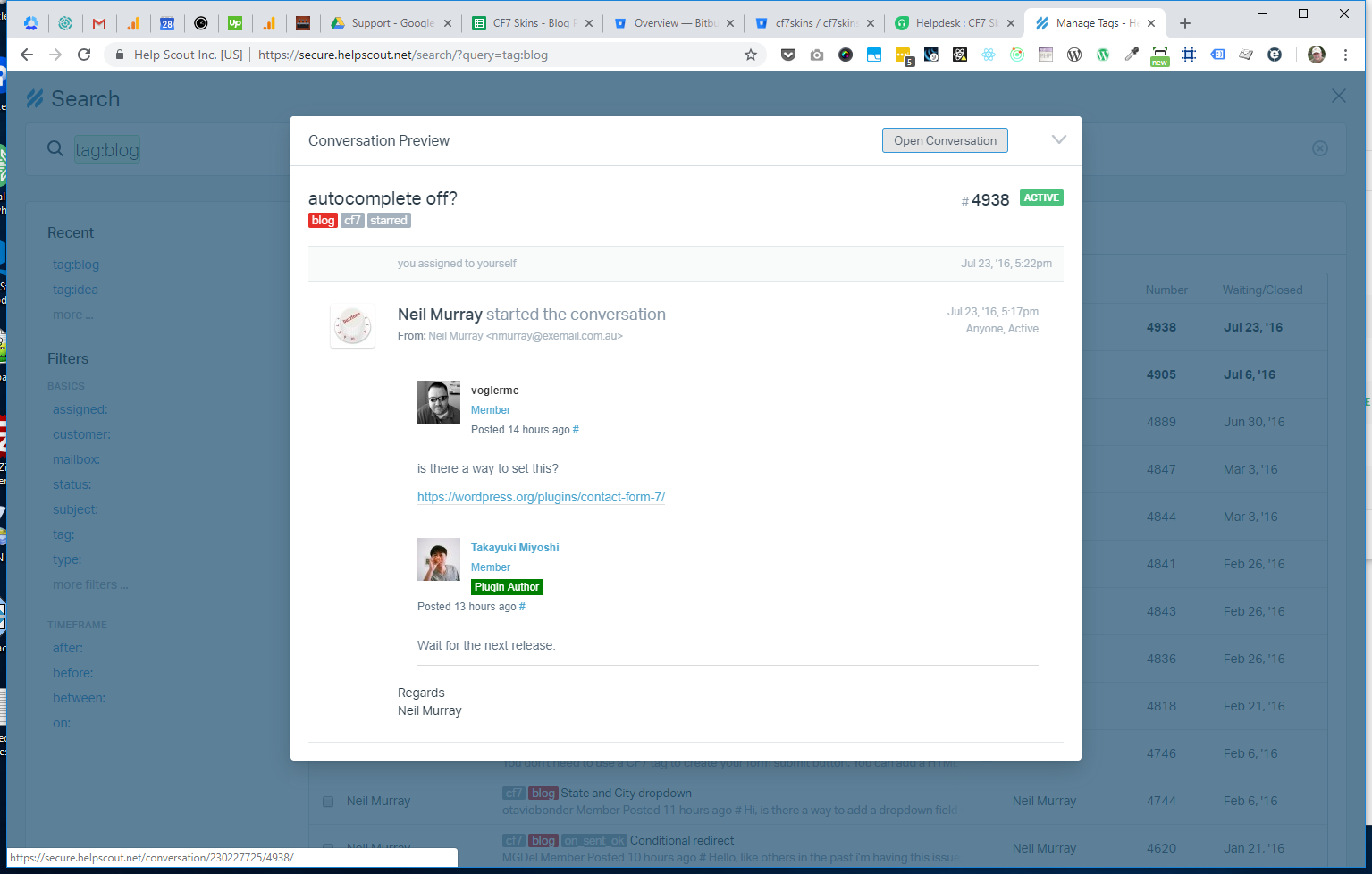
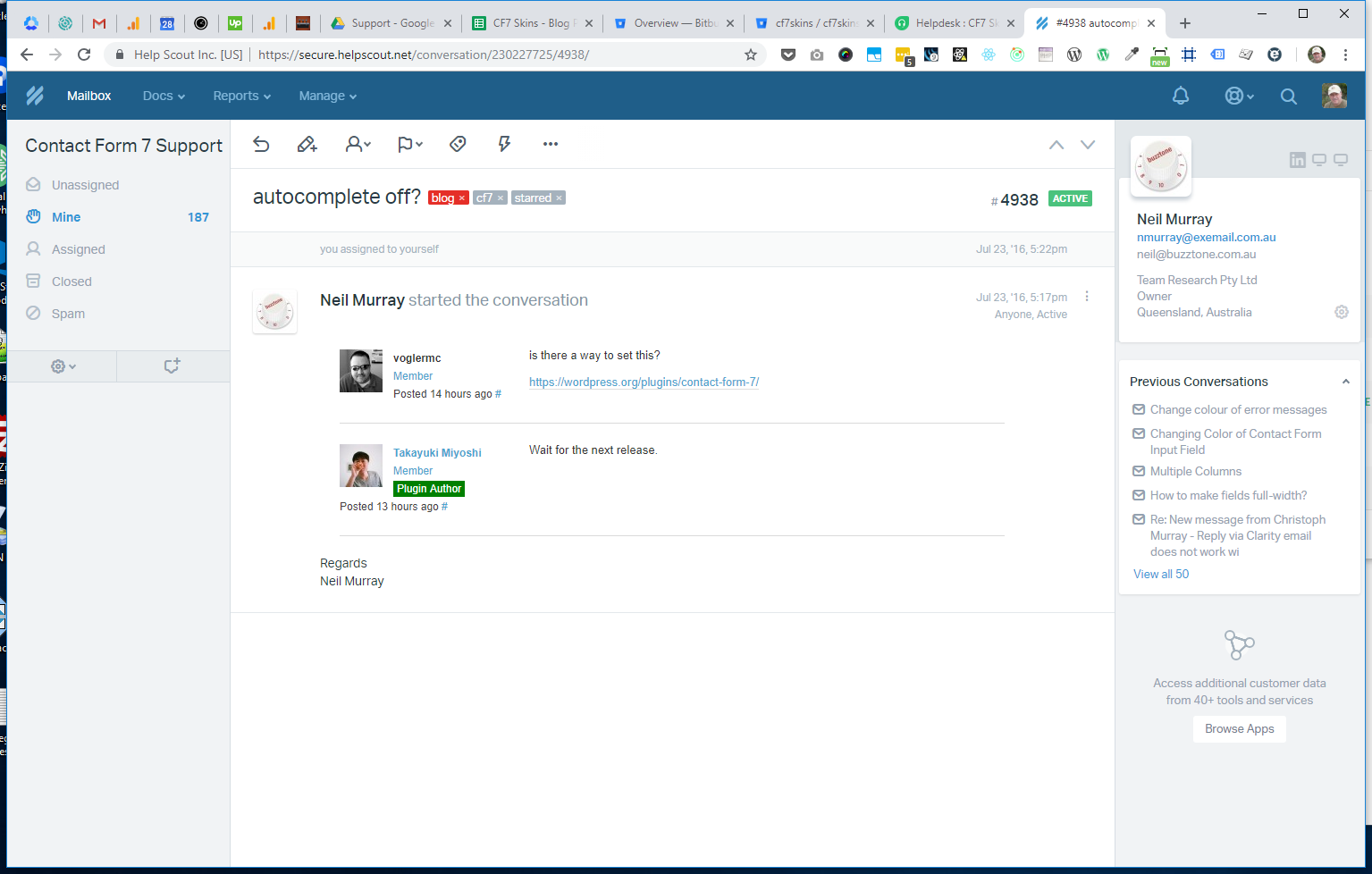
Find link to question in CF7 Support Forum. In this case clicking Member makes finding the question easy.
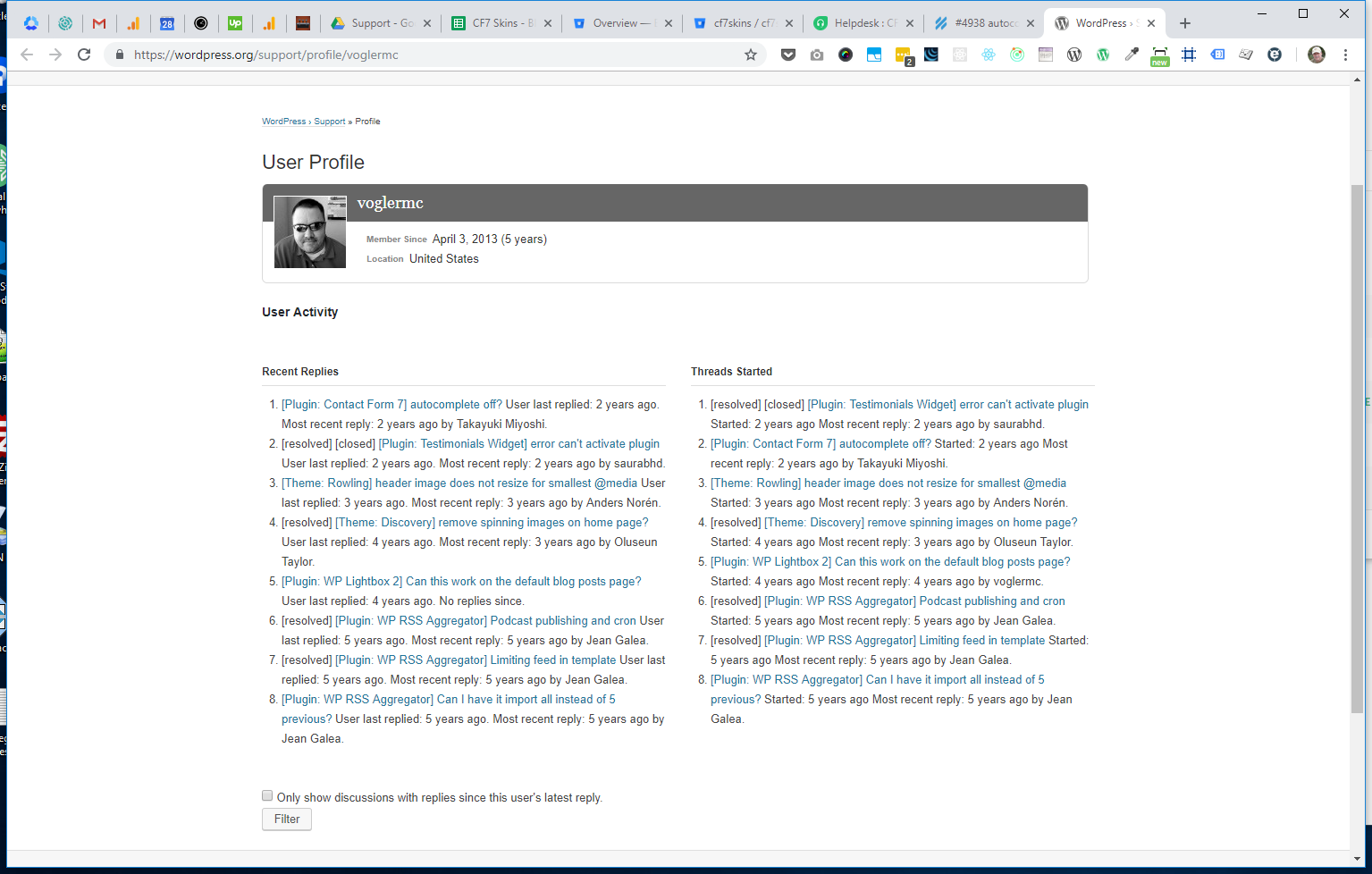
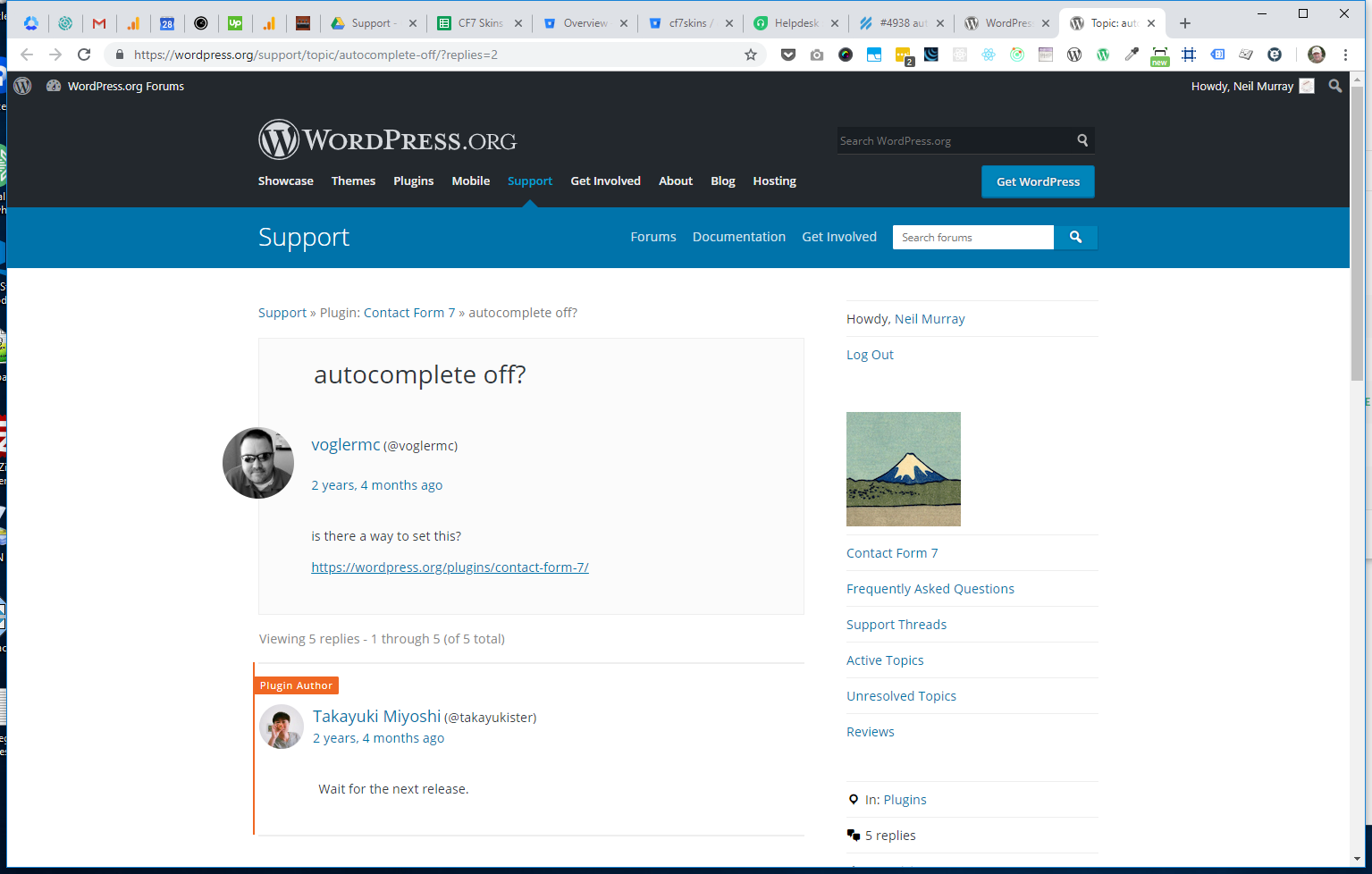
You can use any of the techniques given in Search wordpress.org to find the question in CF7 Support Forum.
Now open Help Scout Free Version Shutdown (Google Doc Spreadsheet).
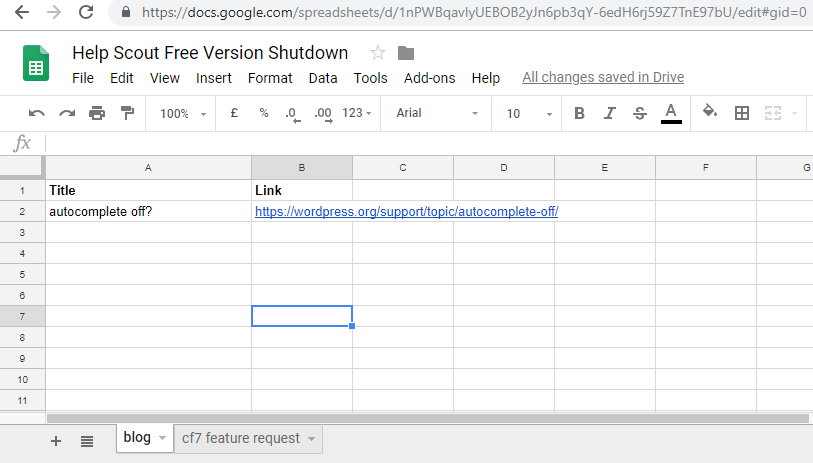
Add the Title & Link in the spreadsheet.
Switchback to Help Scout & tag the item as Moved.
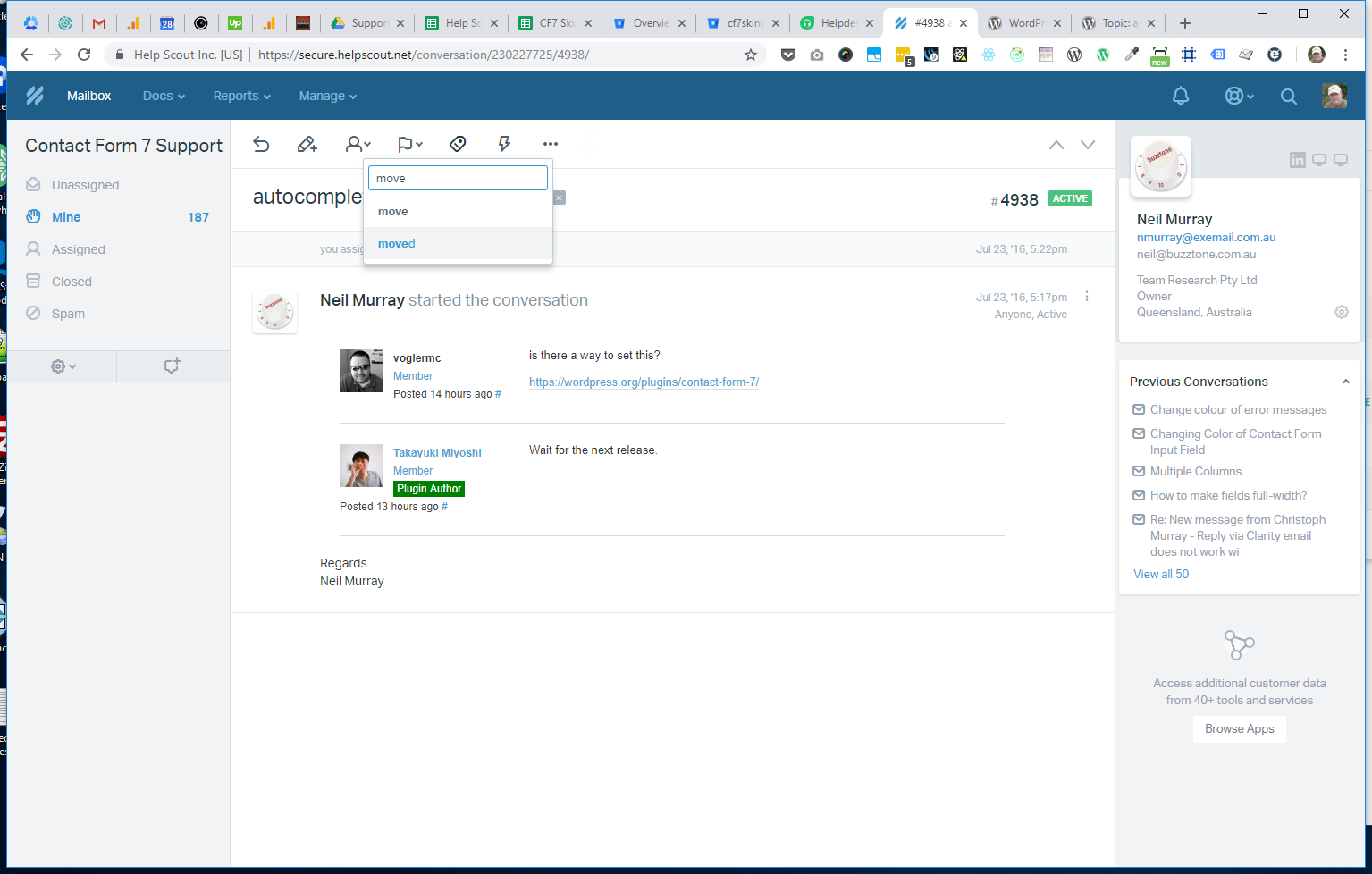
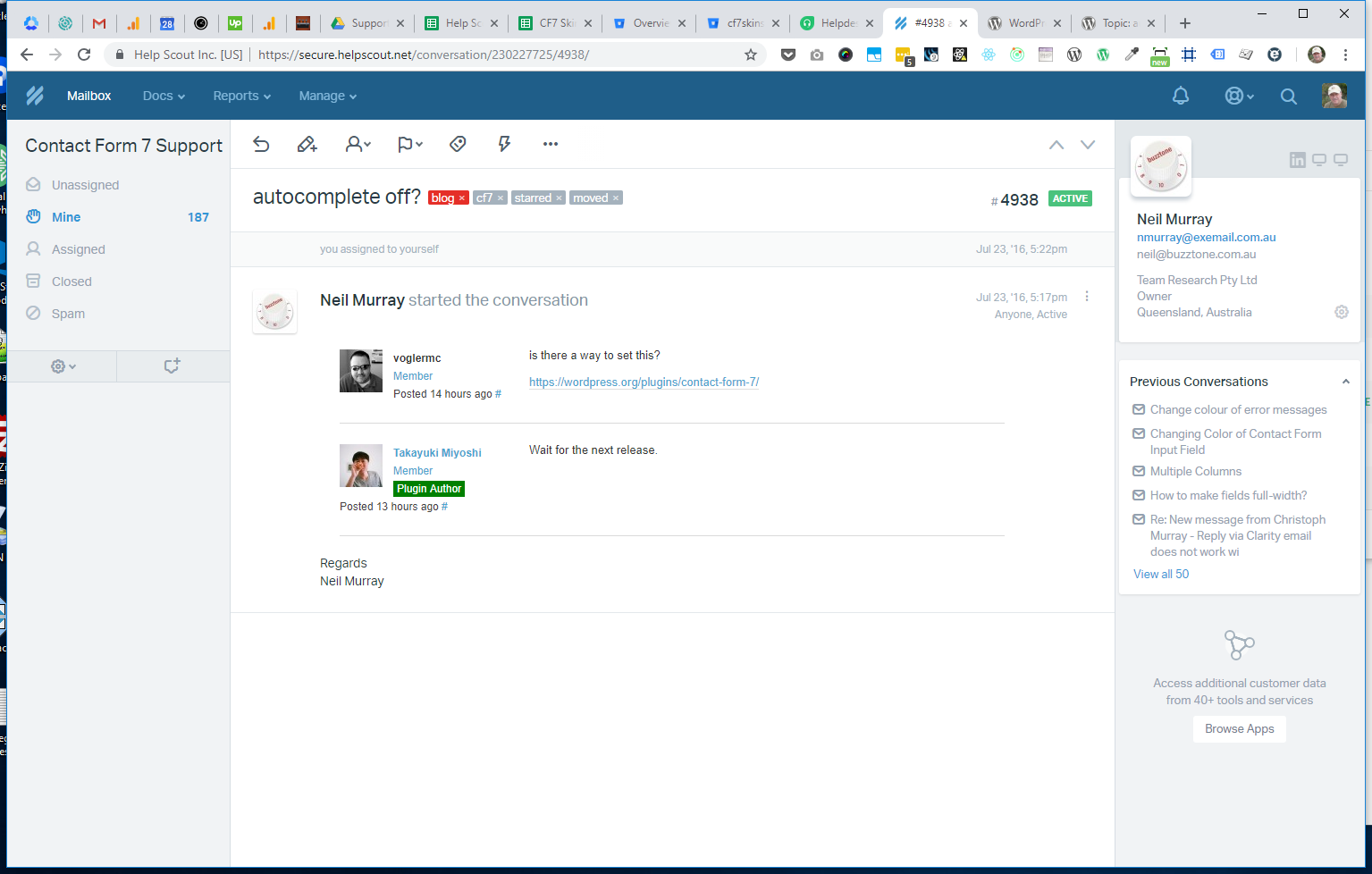
Then continue with other tags marked in red.
