
Last Updated on December 11, 2024 by Neil Murray
Table of Contents #
Full Site #
To create an extra local site based on test.cf7skins.com you can follow the instructions at Full-Site Exports and Import to Local. This is a simpler & quicker process if you’re happy to create new local site.
Tip: We found this method is no longer practical as the CF7 Skins Test website got larger.
Export Database #
To create a local copy of all the tests and procedures recorded on the CF7 Skins Test site, its database can be exported over to a local site. This allows offline testing with the same forms as used on the test site.
Follow the steps below.
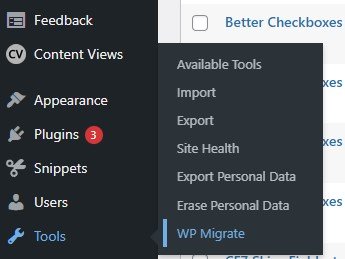
1. Go to Tools > WP Migrate.
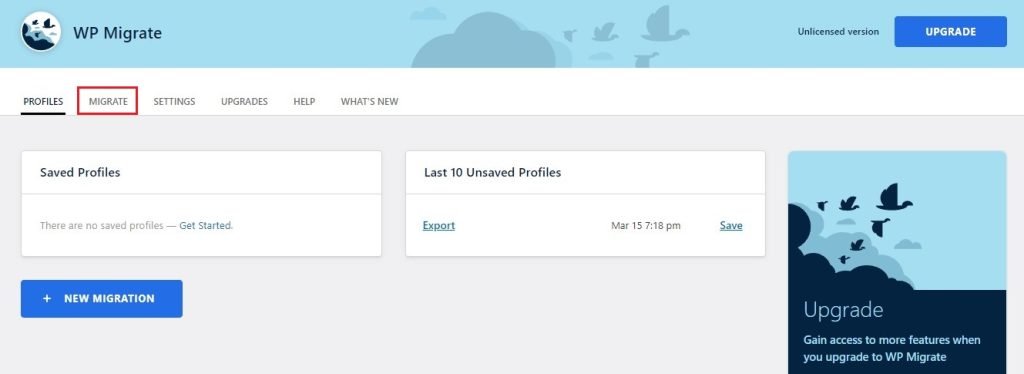
2. Go to Migrate tab.
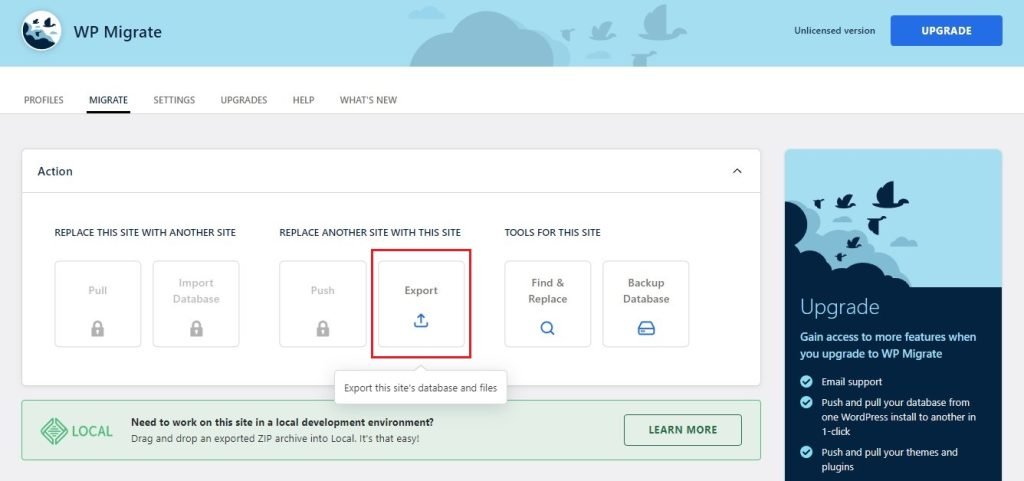
3. Click the Export button.
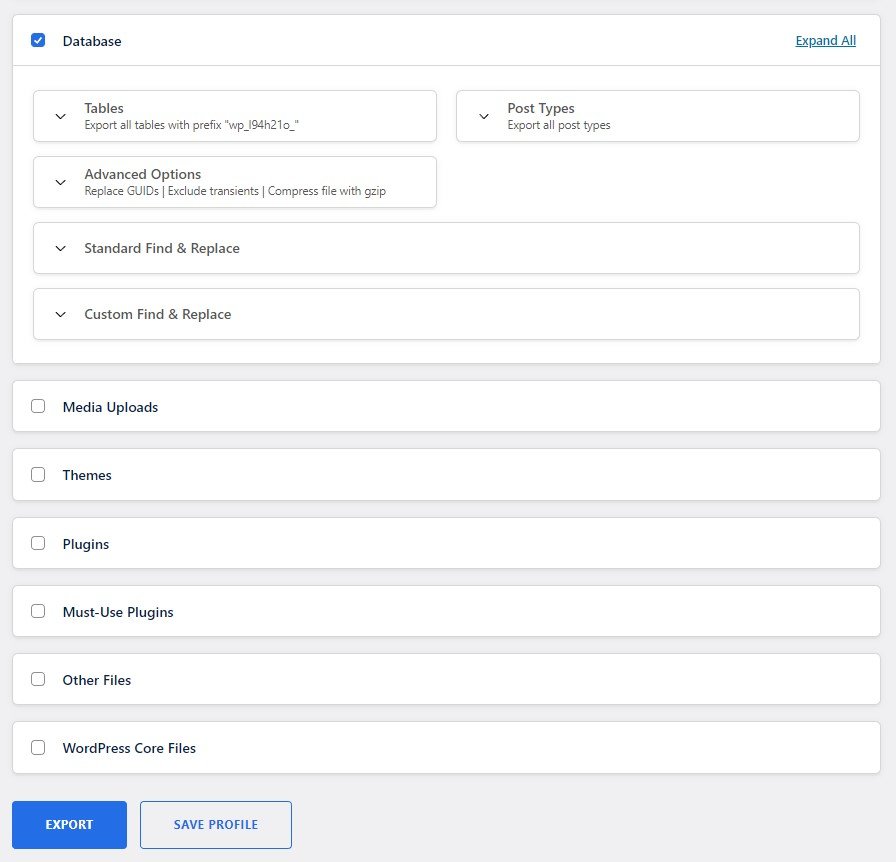
4. In the Database section, expand all the fields to see the available options.
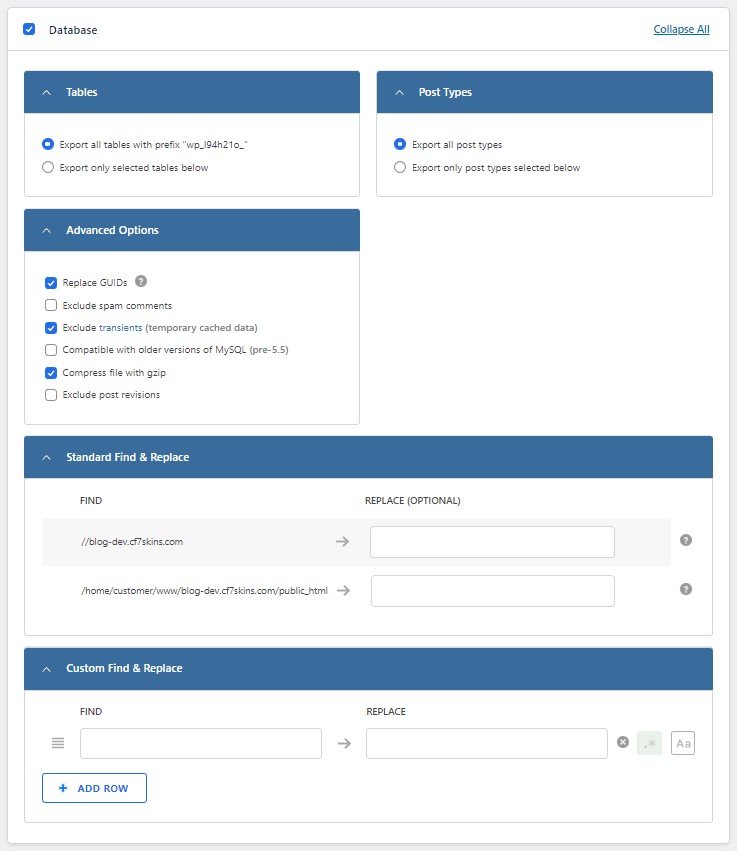
5. Replace the base URL and storage directory path to reflect the proper links for the local website. This step is crucial for proper functioning and allocation of the local website.
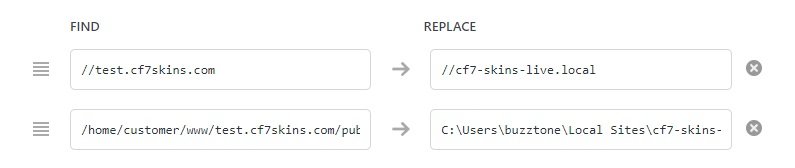
Tip: You can also use this method to copy databases to a different Local site.
You can save your preferences and export settings by clicking on Save Profile. This allows you to quickly export with the saved settings every time.
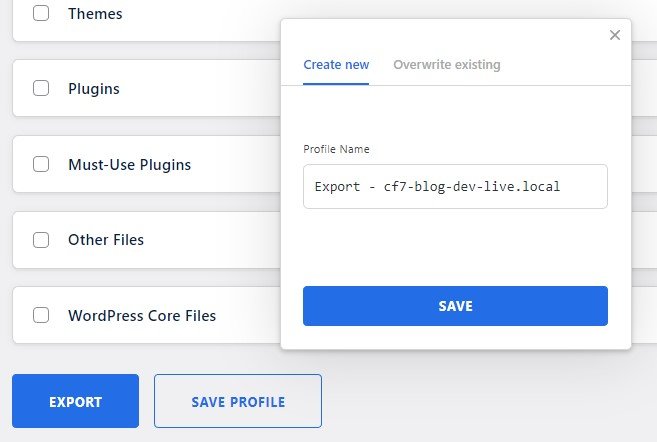
Tip: Your saved export profiles will appear in the Profiles tab.
6. Once you have set all your preferences, click Export.
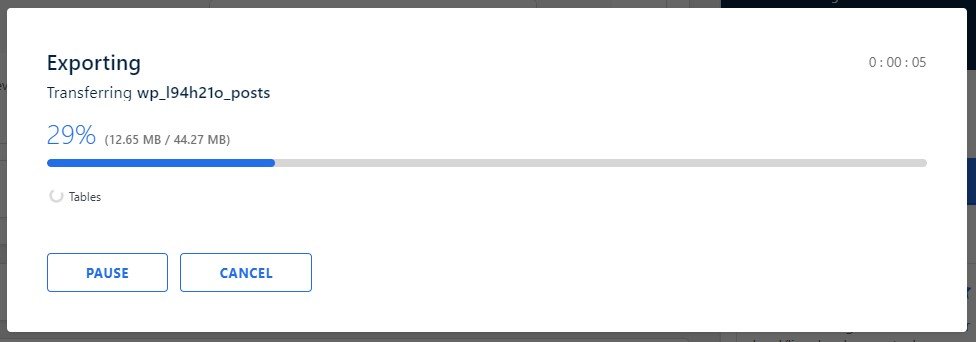
A dialogue box will appear showing the export progress and elapsed time.
Tip: You can Pause or Cancel the process if you want to change your export settings at this stage.
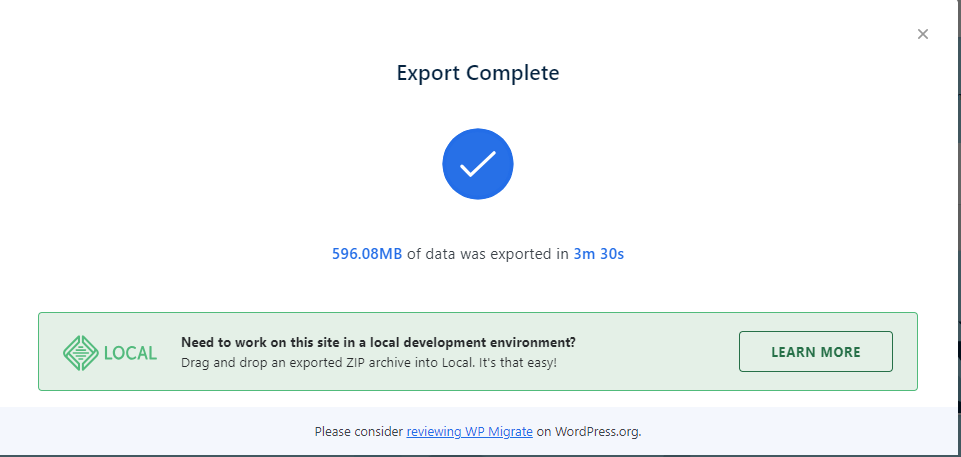
Once the process is complete, the database can be downloaded to your computer.
Tip: Rename the file to identify important information like date and versions etc.
Import Database #
We’ve had ongoing problems importing the CF7 Skins Test Database into Local on Windows as the database got larger.
See Importing CF7 Skins Test Database Issues for the errors we’ve had & how we overcame these problems.
To import the database onto your local website, do the following;
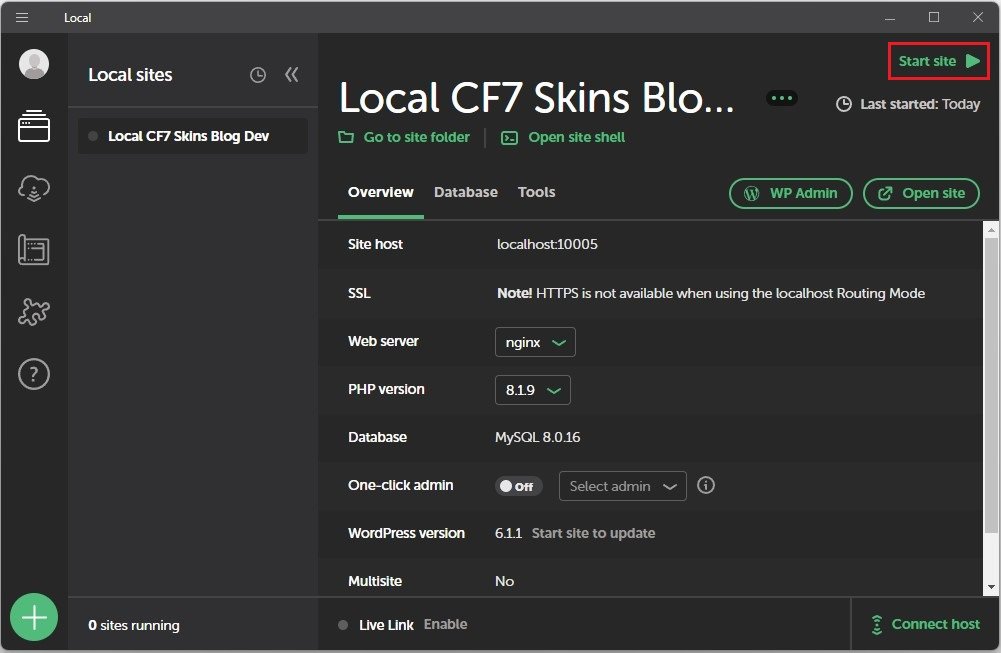
1. In Local, click on Start site to run your local WordPress site.
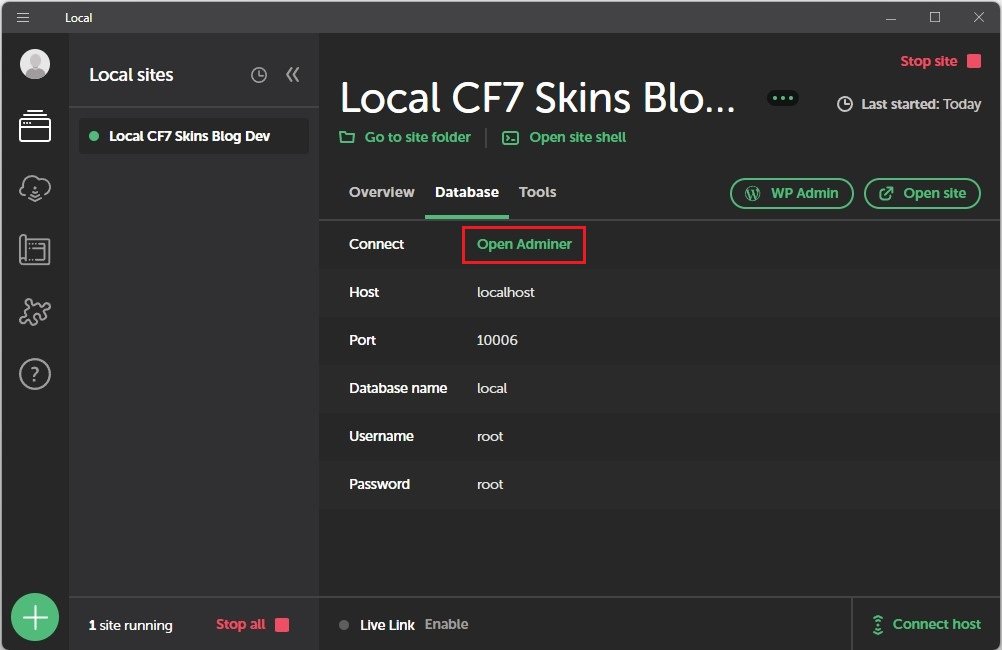
2. Go to Database tab and click Open Adminer.
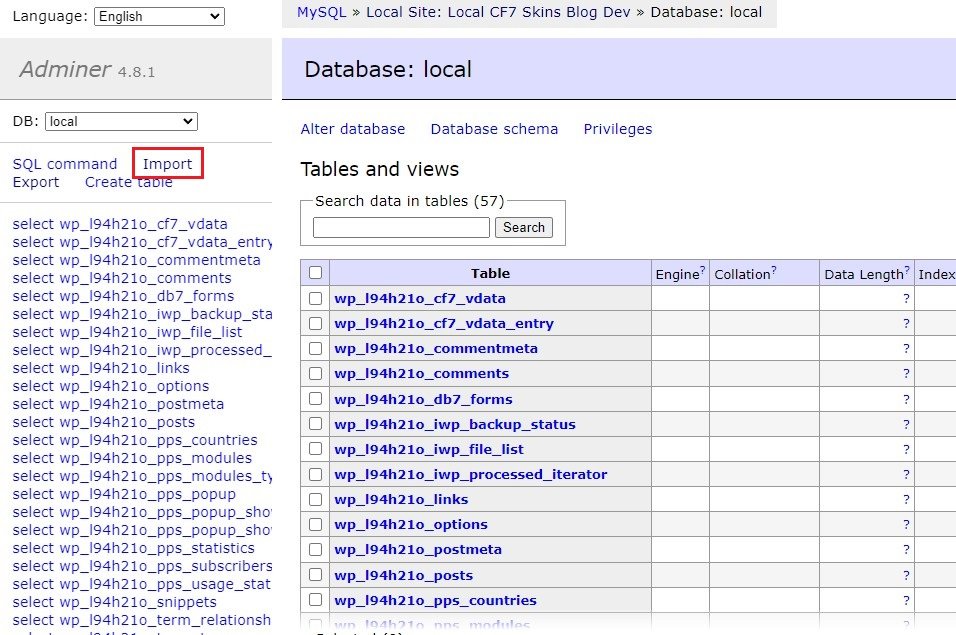
3. Click Import.
4. Click on Choose file. A dialogue box will open where you navigate to the location of your saved .sql file and open it.
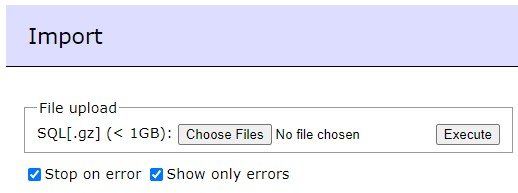
5. Click Execute.
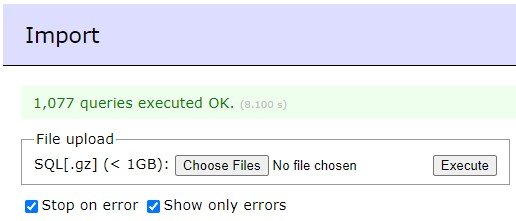
An OK message signals that the database has successfully been imported to your local website.
We’ve had ongoing problems importing the CF7 Skins Test Database into Local on Windows as the database got larger.
See Importing CF7 Skins Test Database Issues for the errors we’ve had & how we overcame these problems.
Further reading
Notes
Add notes here
Save all Images to Sync – use ..\Sync\..\Development\Development Guidelines\Development Team Tools\Local Development Environment\Export & Import CF7 Skins Test Database\