
Last Updated on August 13, 2020 by Neil Murray
Table of Contents
Frontify is used by some CF7 Skins Team Members for more comprehensive management of the many different images used on our various websites.
This allows us to:
- item
Regularly review content #
Regularly review (generally once each month) all images used at the following websites:
- cf7skins.com – our main website
- blog.cf7skins.com – blog
- kb.cf7skins.com – knowledge base
Tip: Reviewing images used will usually be done in conjunction with reviewing Pages & Posts.
Add images to Frontify #
We also need to add any new images on Frontify.
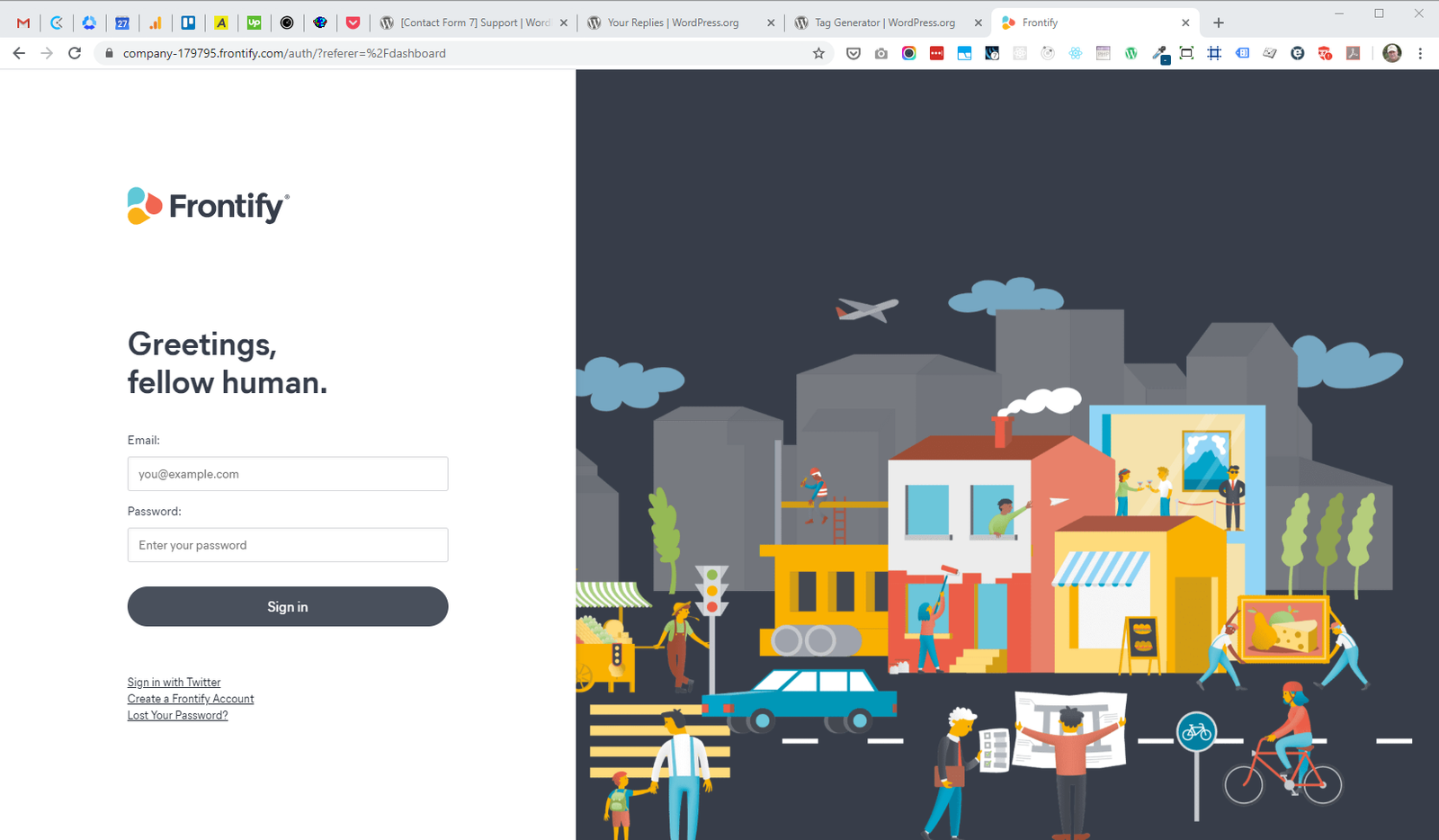
A. Login to Frontify.
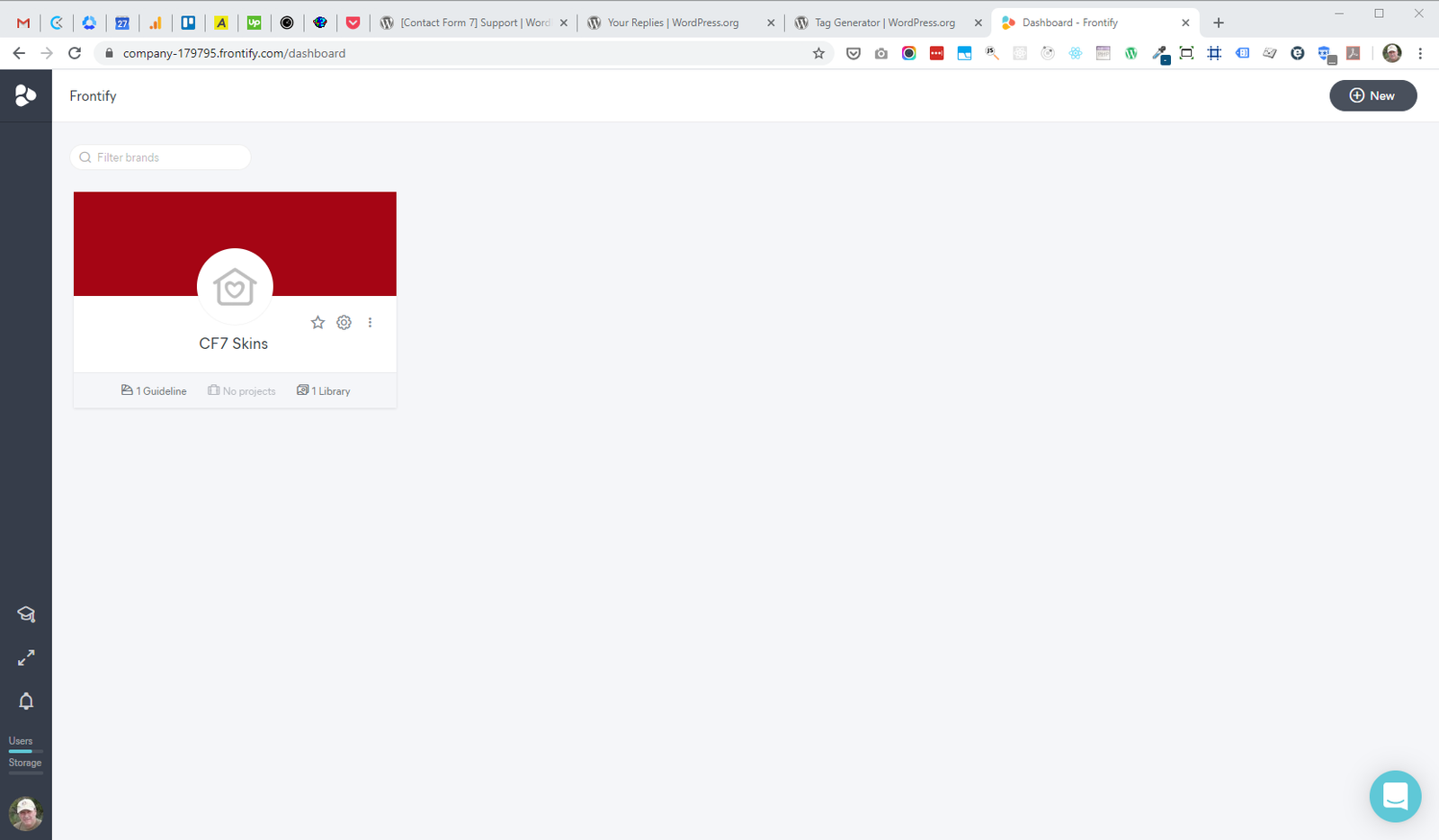
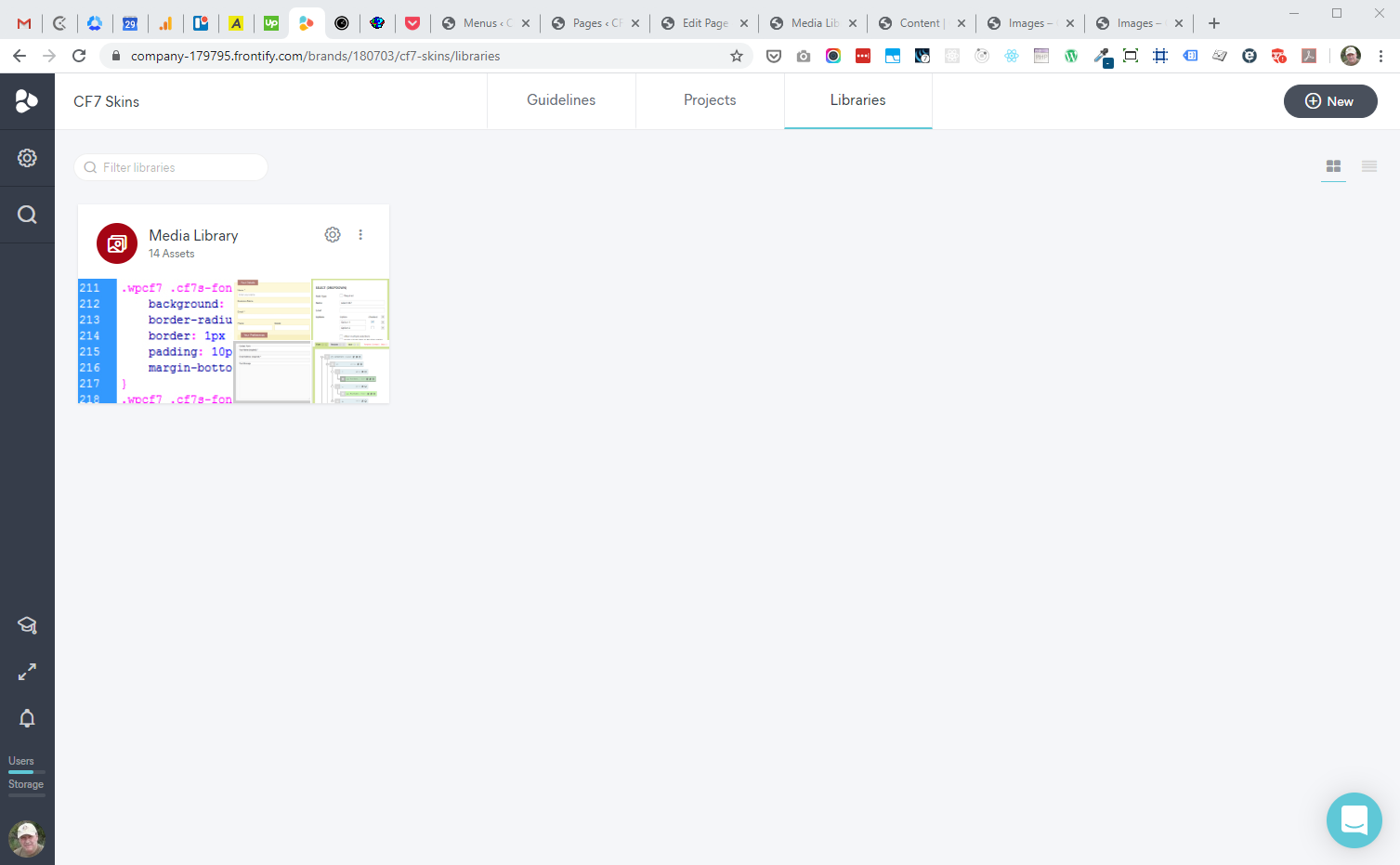
B. Click on the CF7 Skins Card to go the Media Library & then click on the CF7 Media Library Card.

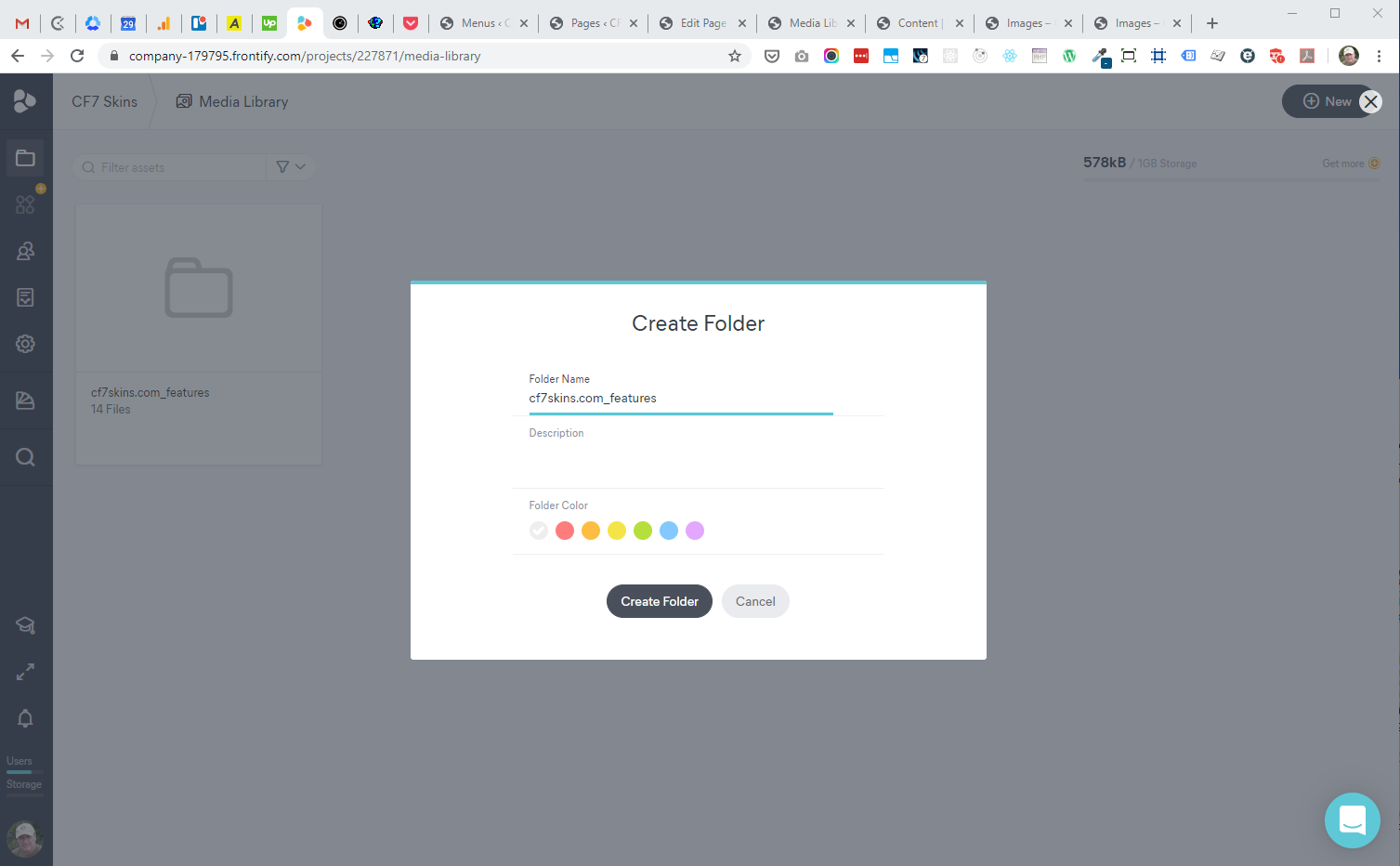
C. Click on the + New button & create a new folder.
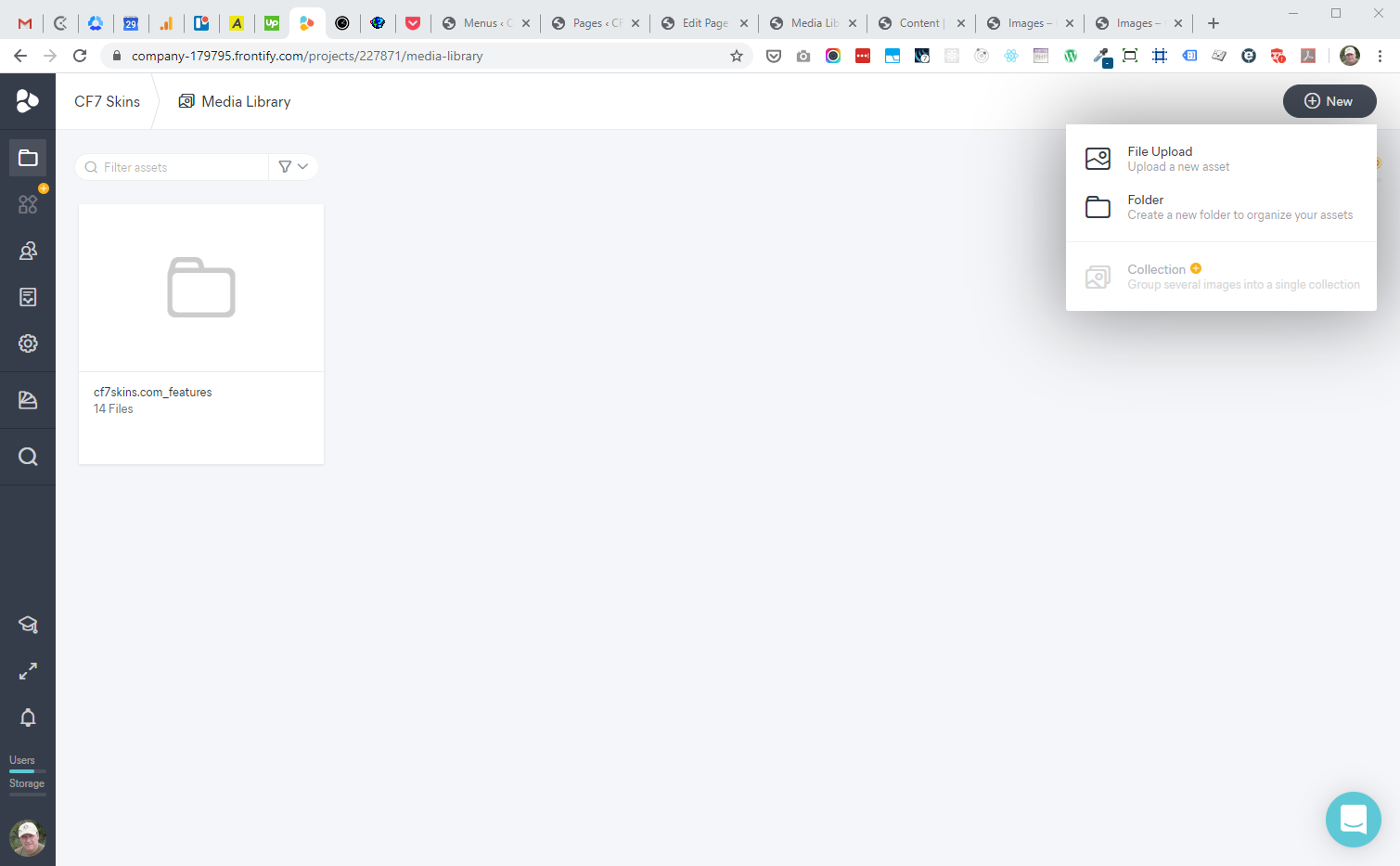
D. Name the folder as follows:
website_page e.g. cf7skins.com_features
E. Open ../Dropbox/Images & then find the relevant website & page folder where you previously added the images.
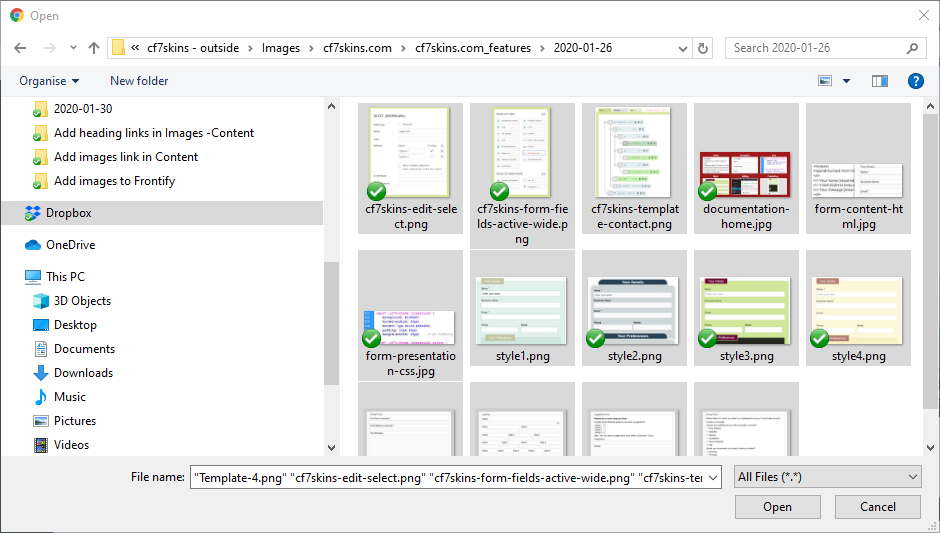
F. Back in the Frontify Media Library click on the Upload Files button.
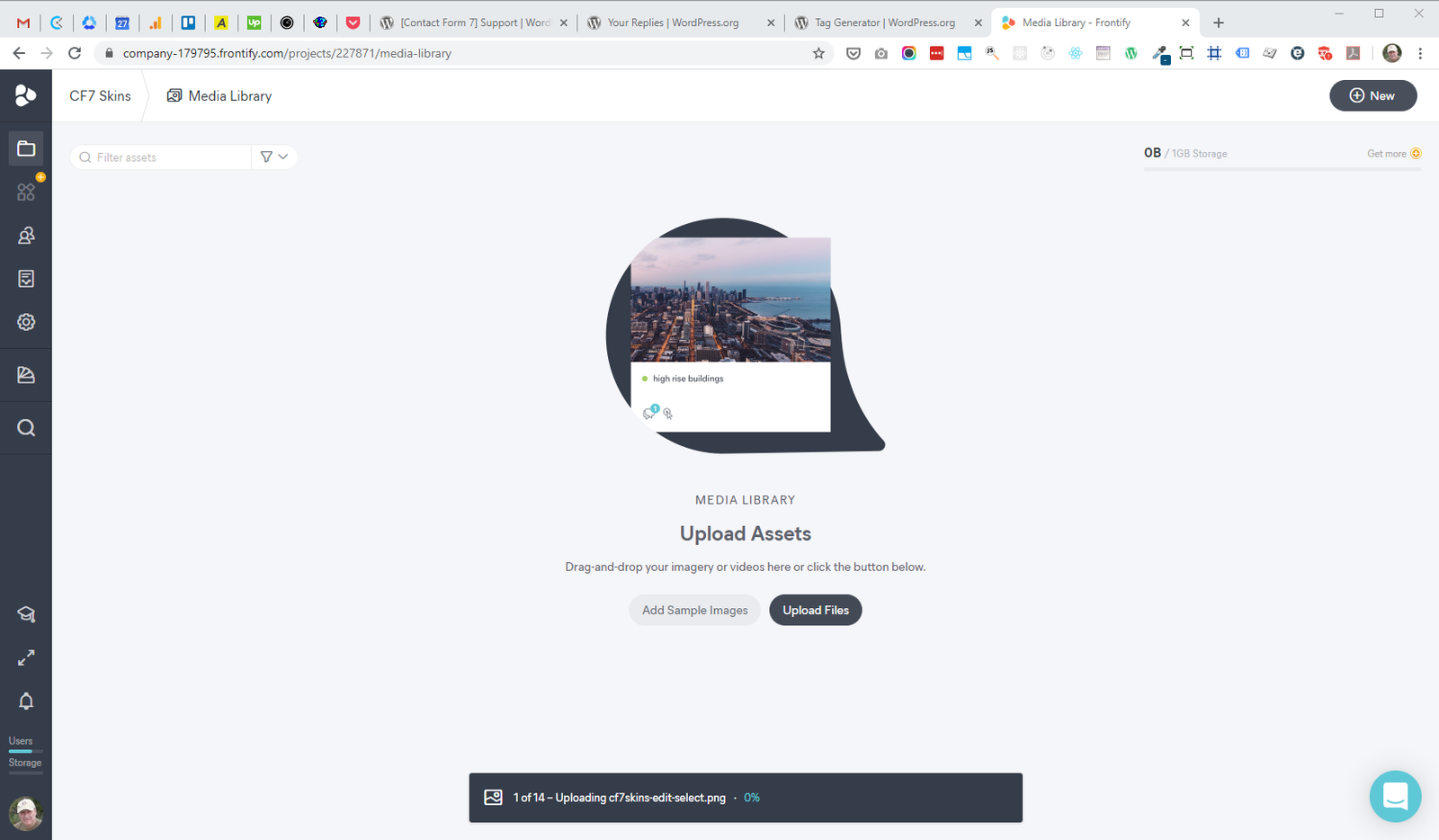

Add Tags in Frontify #
We also need to add Tags to any images uploaded to Frontify.
A. Use Shift Click to select a range of images.
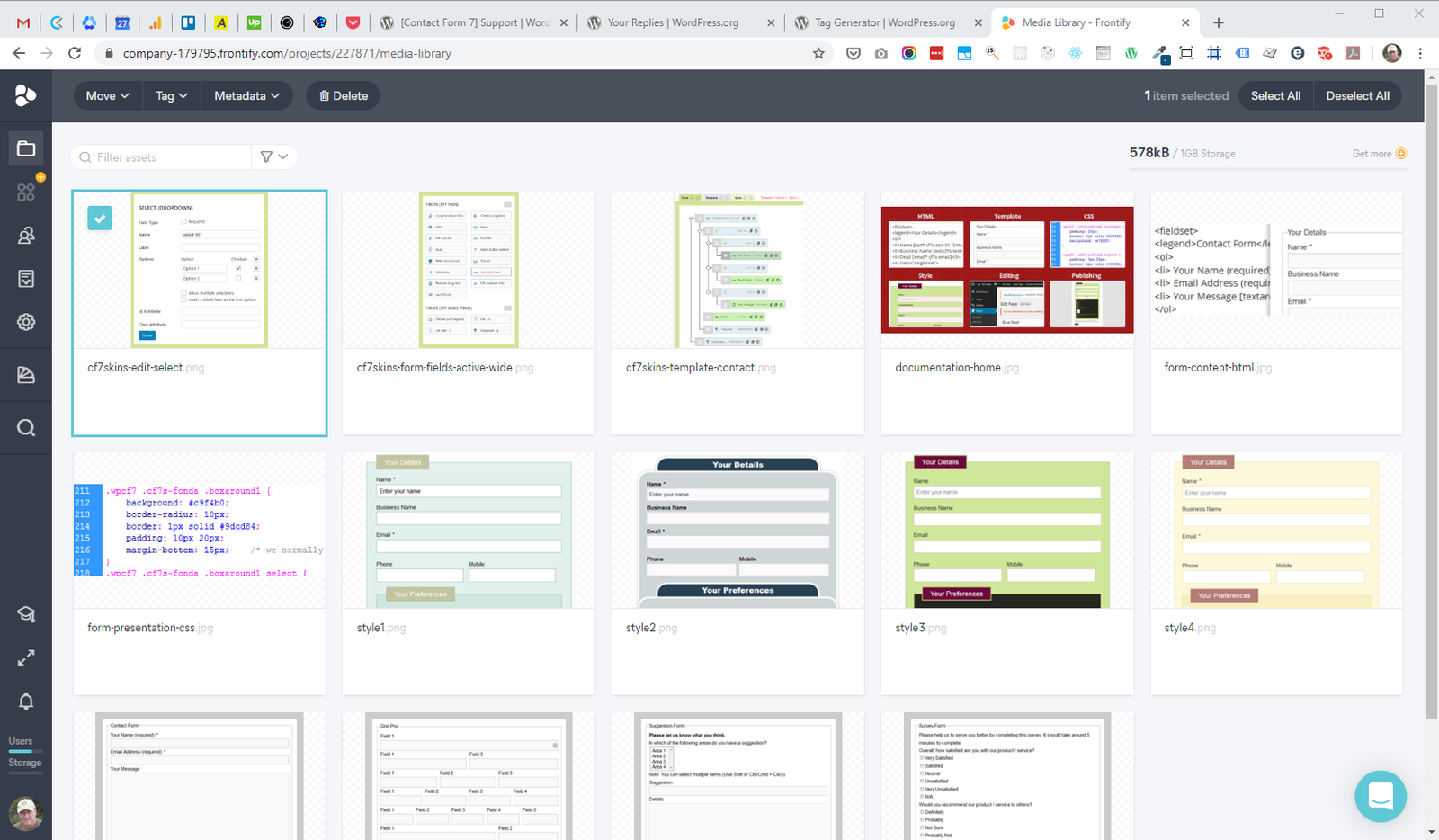
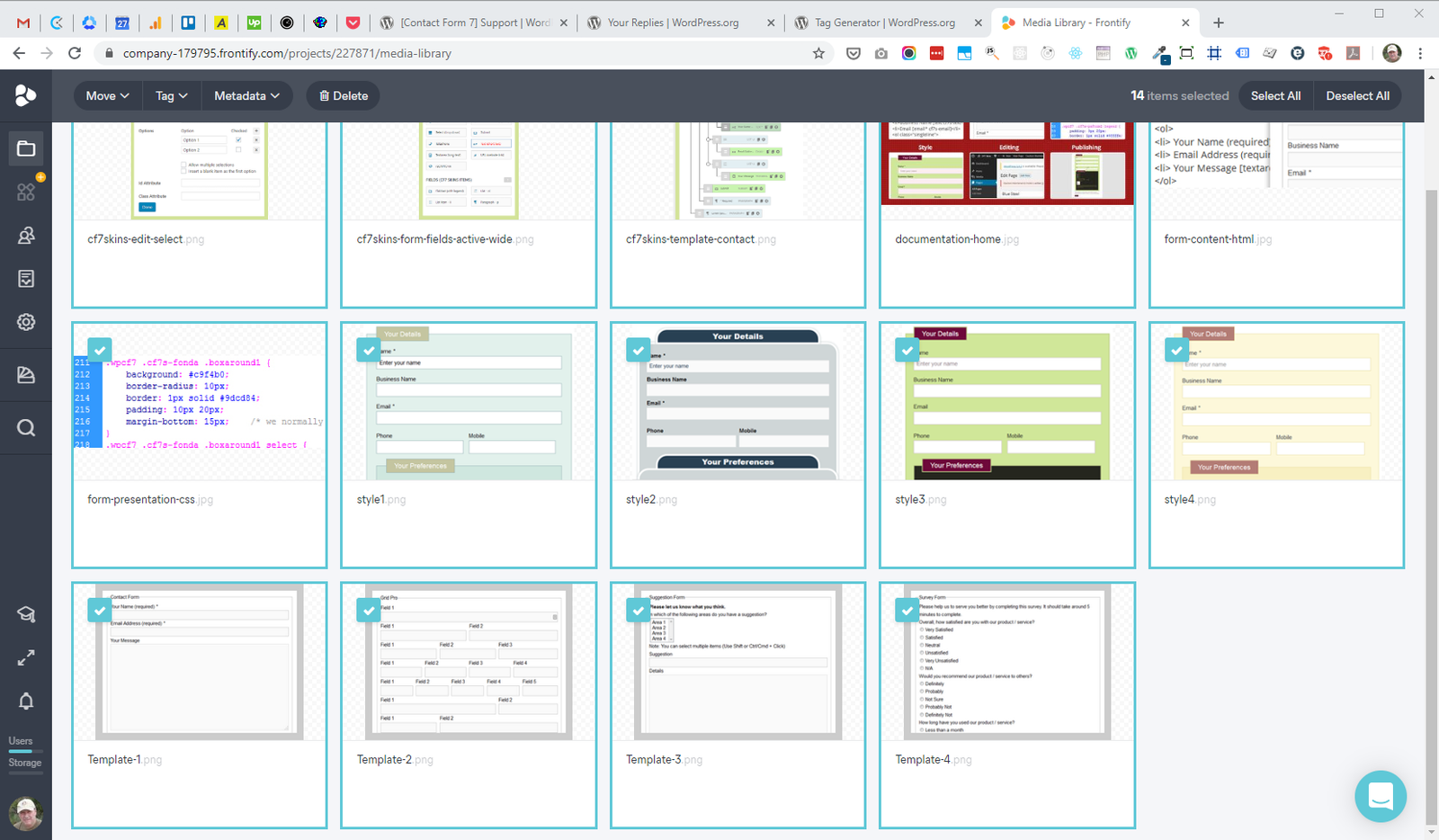
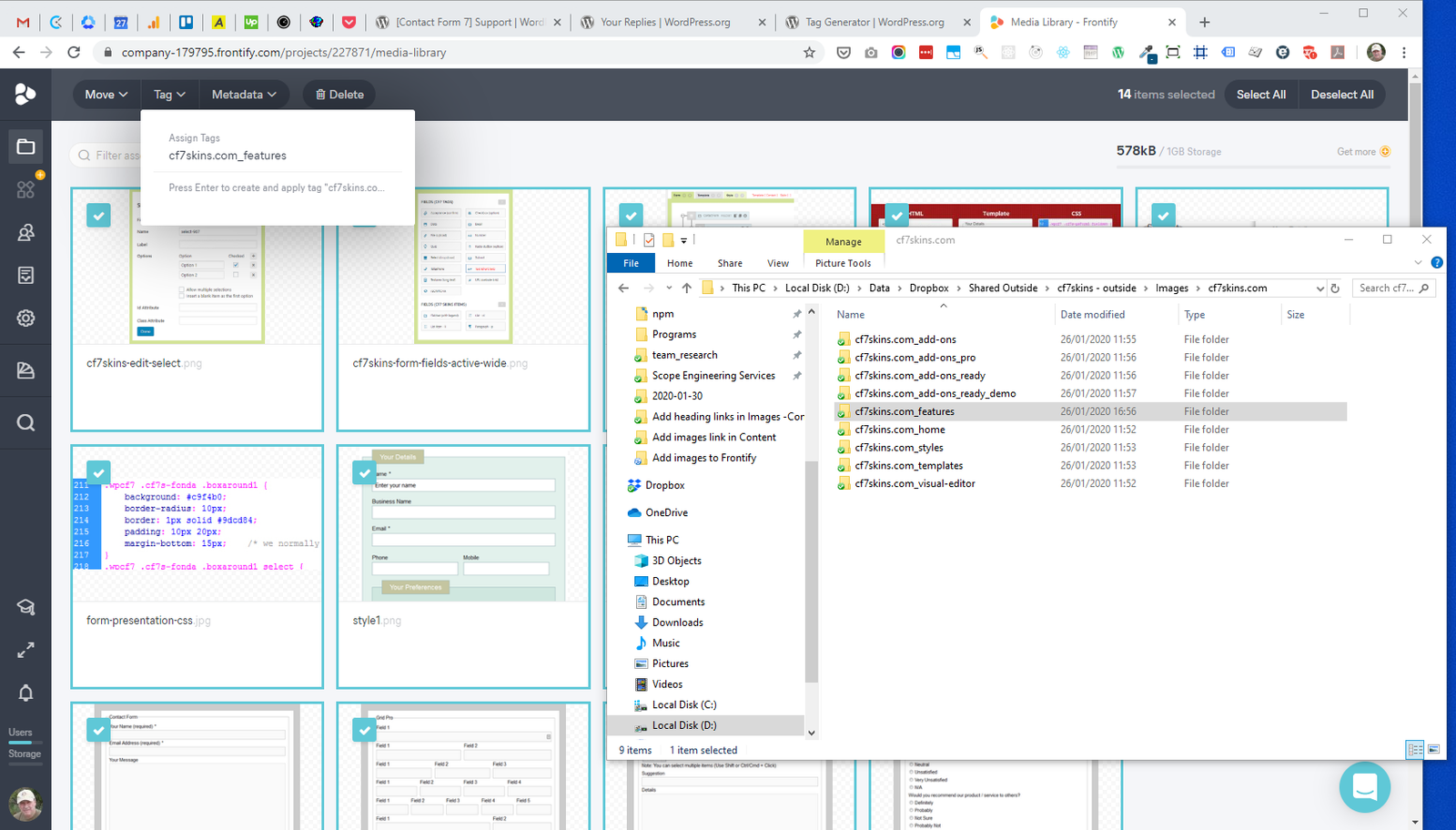
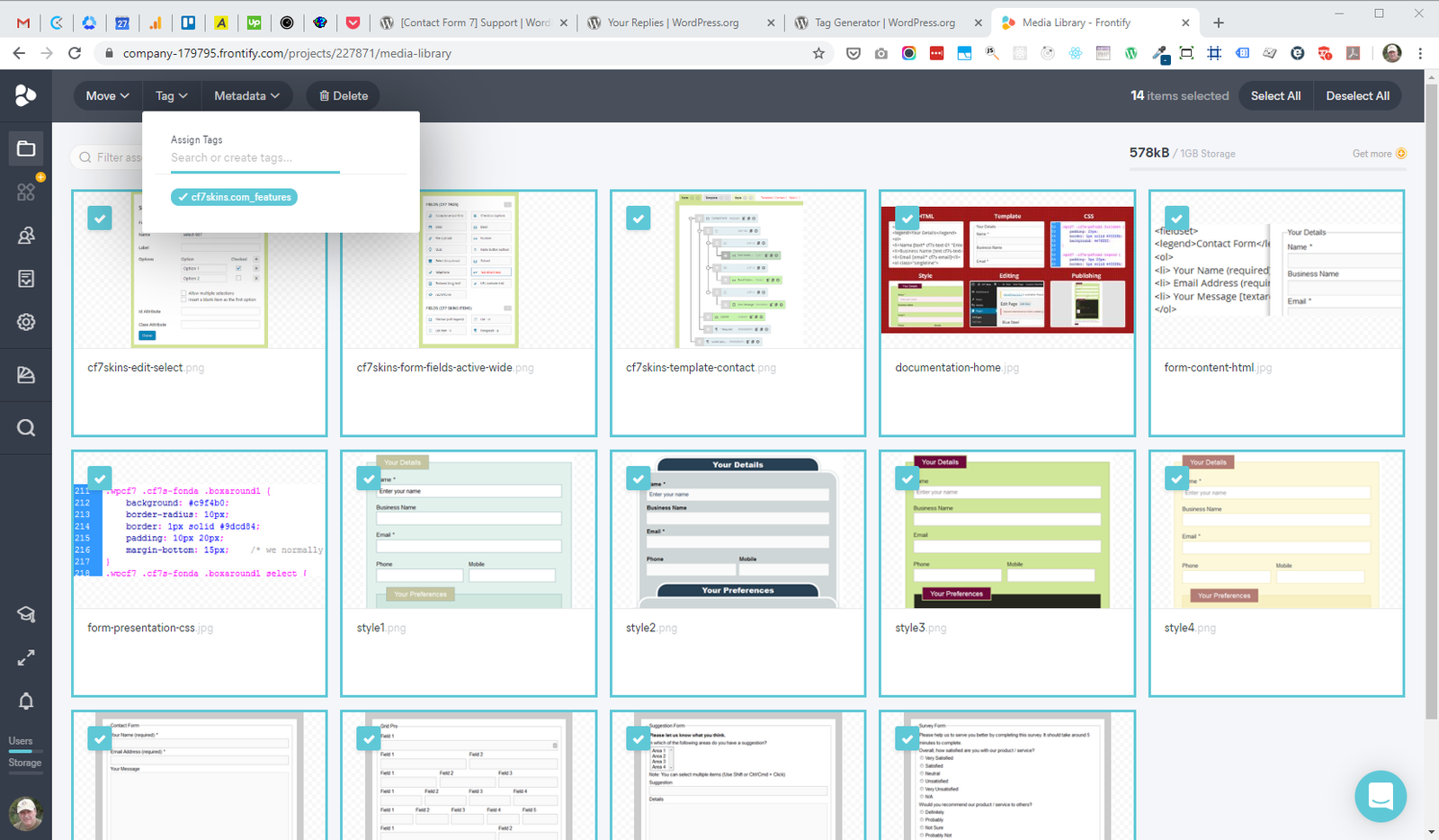
B. Click on Tag menu & select Assign Tags & add the website & page where the images are used as follows:
website_page e.g. cf7skins.com_features
Further reading:
Notes
Save all Images used to create this page to Dropbox – use ..\Dropbox\Support\Development\Development Guidelines\IMAGES\Images – Content\