
Last Updated on July 4, 2024 by Neil Murray
New Post Template #
When you start to create a new article, you should clone our New Post Template.
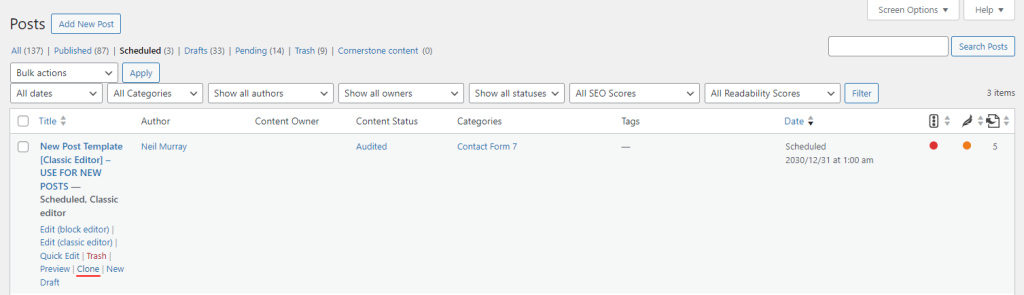
Cloning a New Post Template:
- ensures that the format for each article is consistent
- is quicker than starting from scratch
- helps avoid simple mistakes.
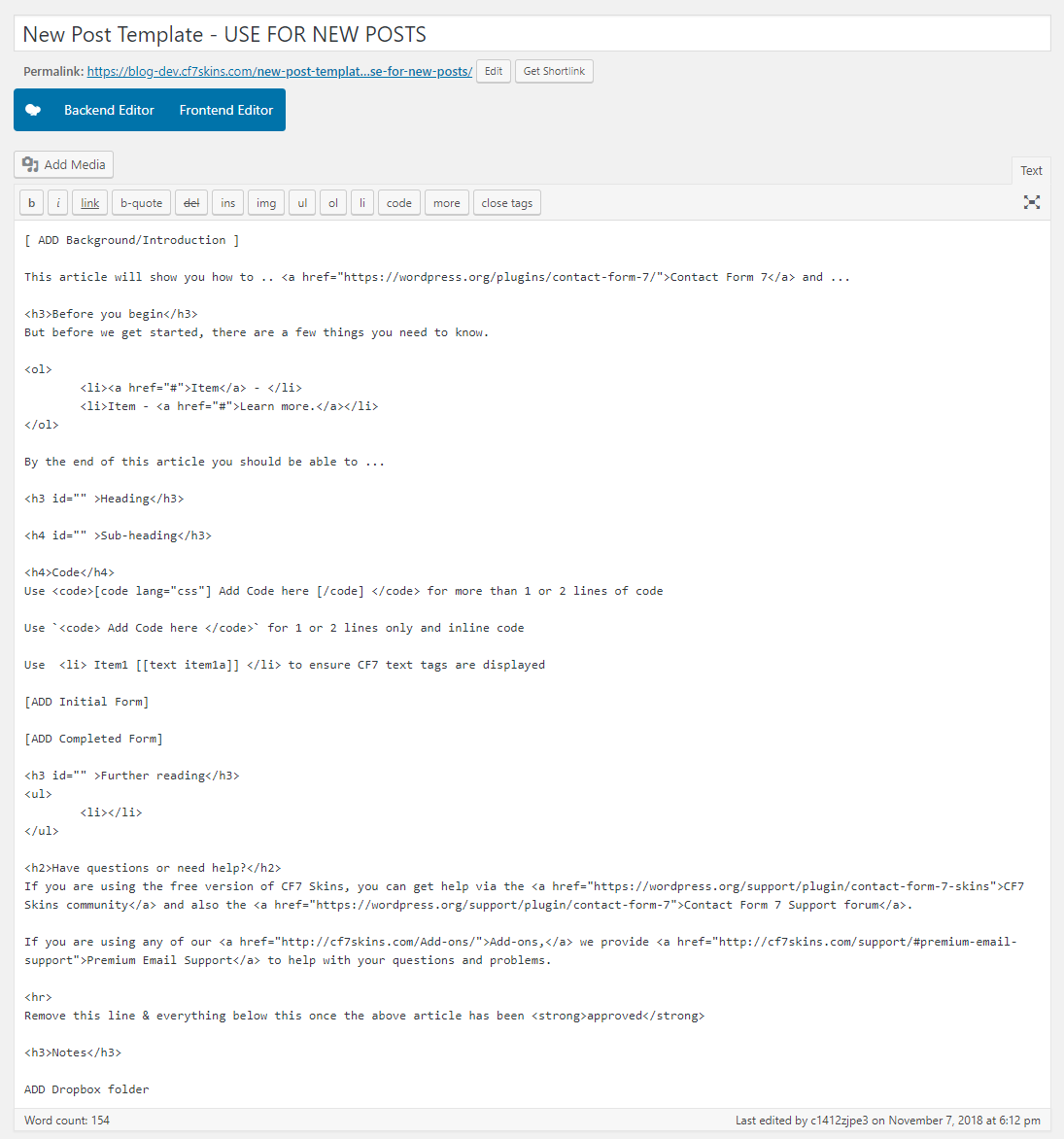
If you short comings with an existing New Post Template you should discuss updating it with other team members.
CF7 Skins Promotion #
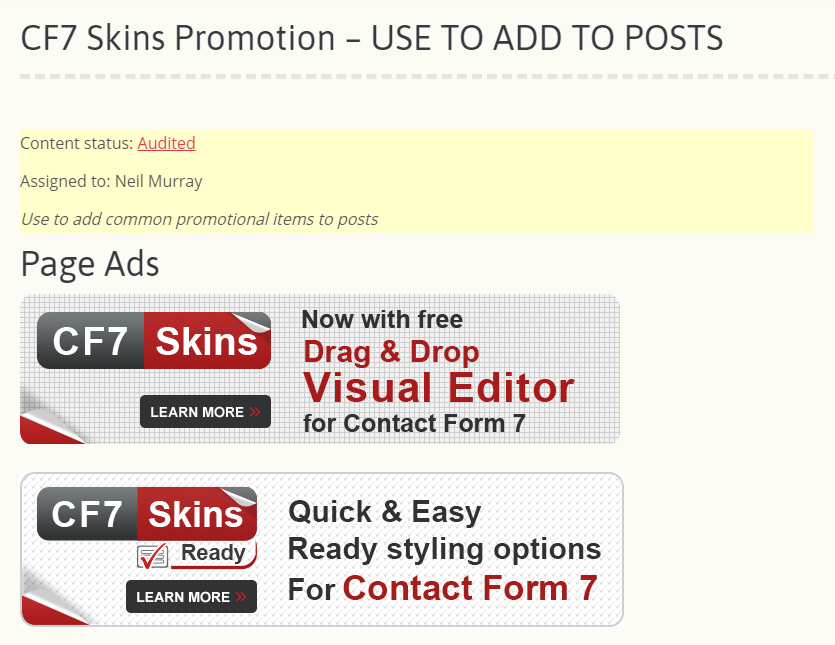
Use CF7 Skins Promotion to add Promotional items to our articles
Communication with others #
- We use status in Content Audit & CF7 Skins – Blog Planning to keep other team members informed – it’s quick, easy & effective.
- Once an article is ready for review, you should update the status as Ready to Review in both Content Audit & CF7 Skins – Blog Planning.
- Once the article is reviewed, the reviewer should change
the status to Audited.
Checklist #
- Check image and content formatting on the article view. [ADD example image]
- Check image and content formatting on the category view. [ADD example image]
- SEO Excerpt ..
- Update Content Audit status.
- Dropbox folder has been created and images (if any) are stored inside.
- ‘Finish’ the Pivotal Task story (if there is one.)
WordPress Guidelines #
Rewrite and Republish #
Yoast provides an option to Rewrite and Republish posts so that you can edit published articles without changing them on the live website until the changes are finalized.
You can Edit a published post and click Rewrite and Republish to create a new draft post on the website and make changes in the post.
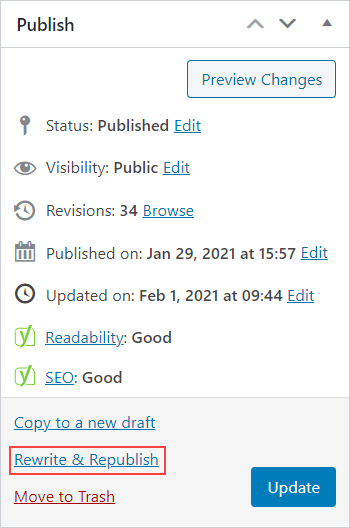
On the new draft, you can use the Compare feature to compare the current draft with the published post.
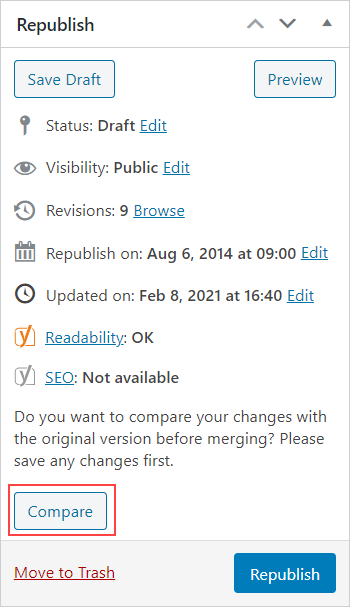
Once satisfied with the changes, click Republish to merge the new draft with the original post. Now, the new draft is displayed on the website and the previous post is over-written.
Hashtags #
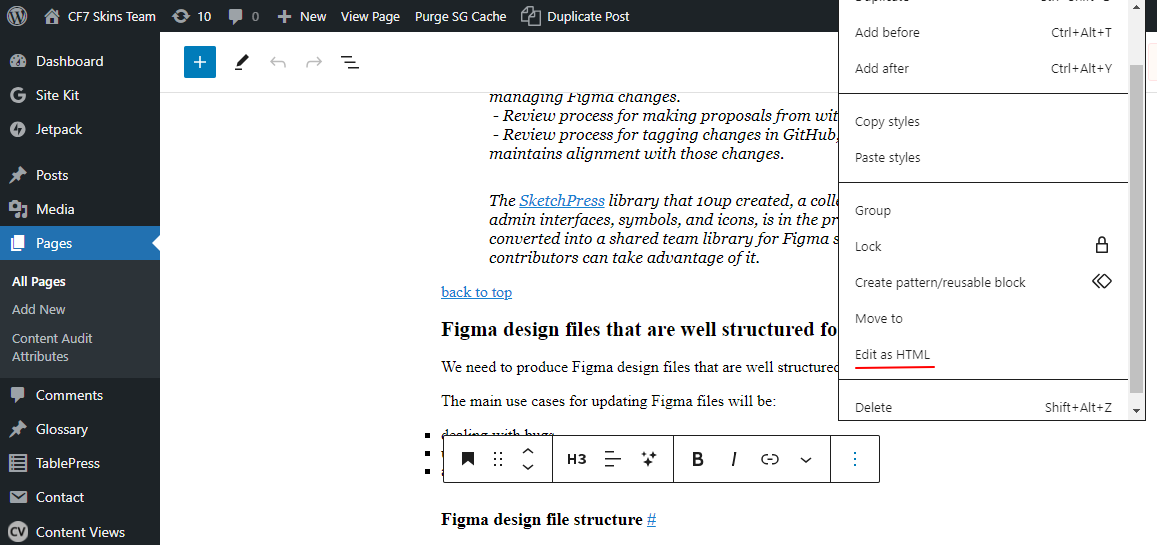
We add Hashtags (#) to all Headings H1 – H4, so readers can easily get a link to each heading. We use these links frequently in Skype chat/comments & Bitbucket Issues.

Select the Heading, go to More (three vertical dots) & choose Edit as HTML.
Edit the HTML – copy the content from a nearby heading as an example to follow.
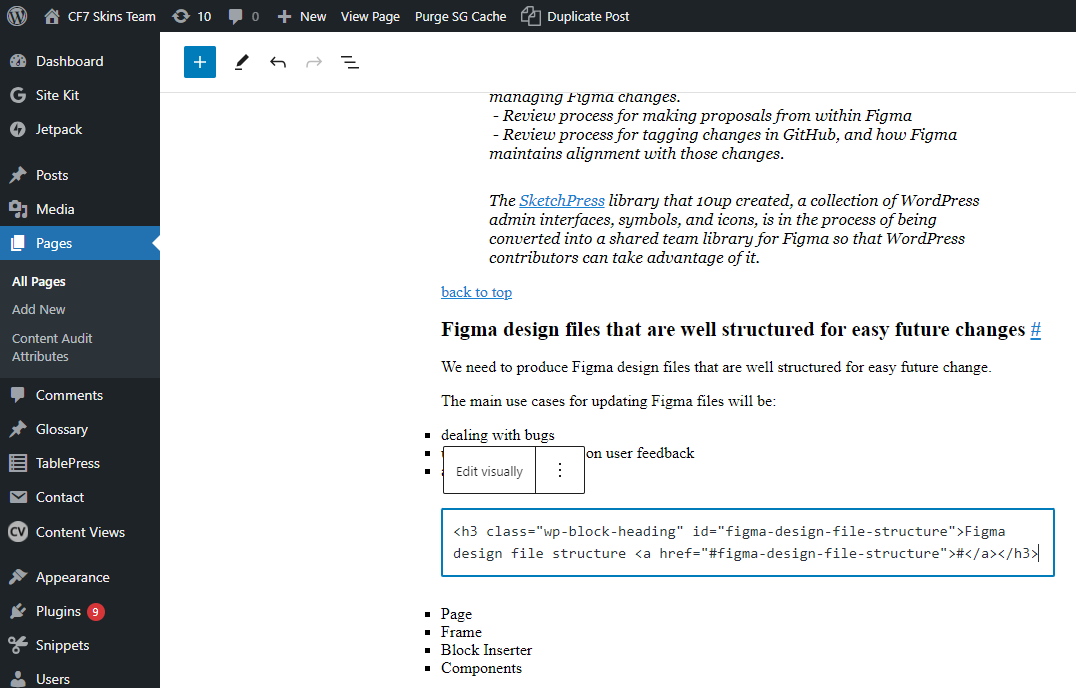
Image Links #
We add links to most images so readers can easily view a larger version of the image if needed.
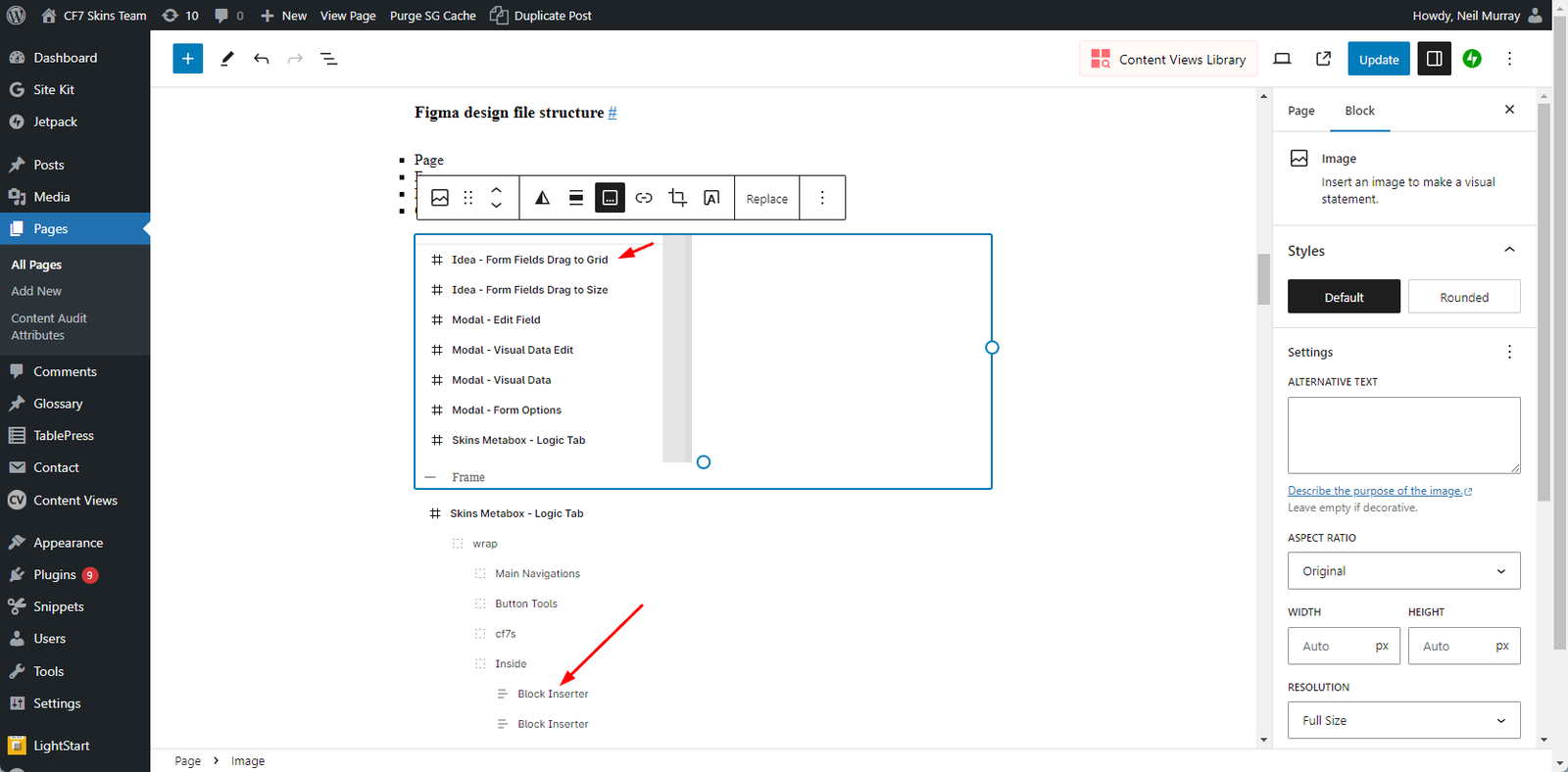
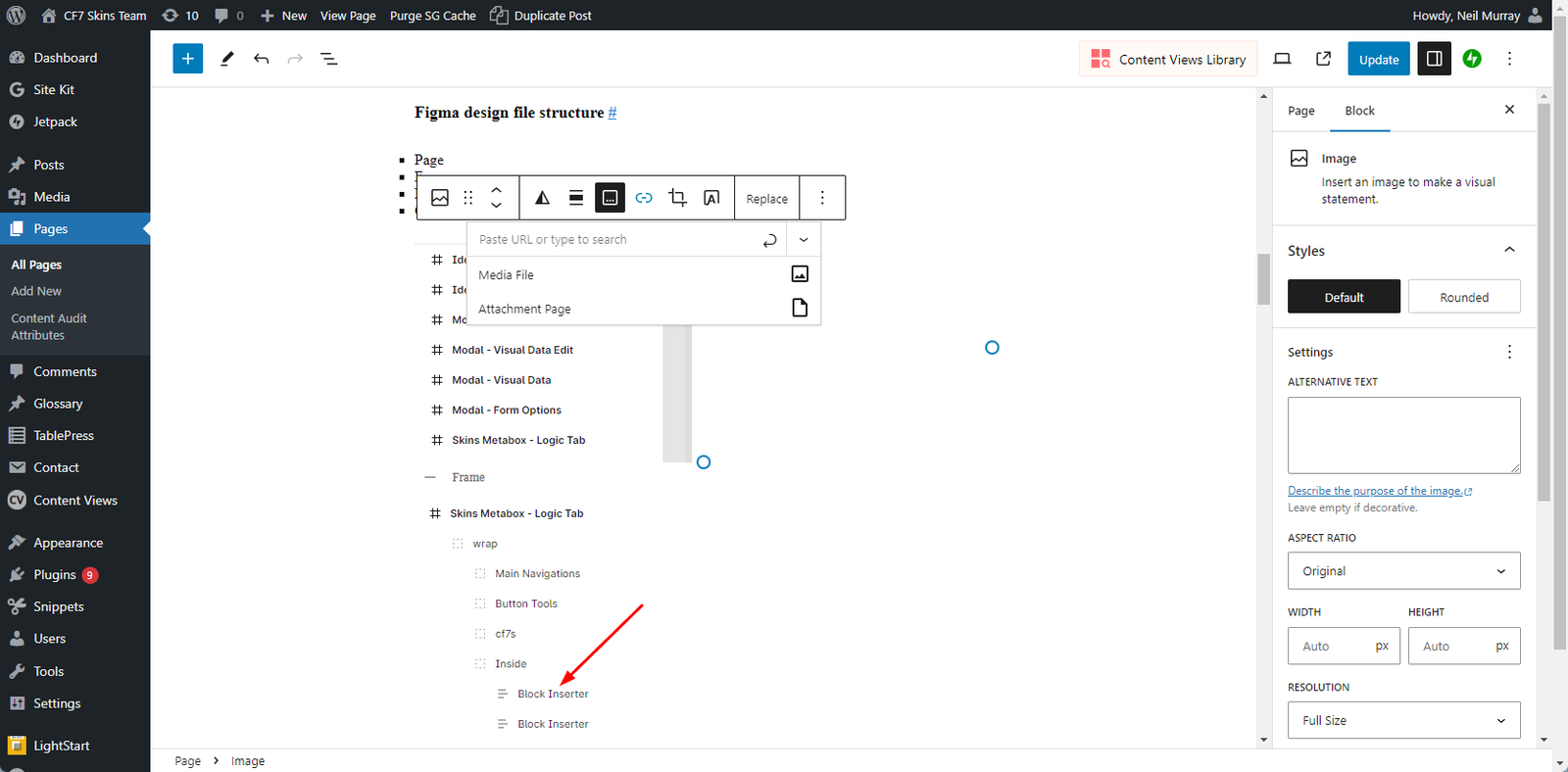
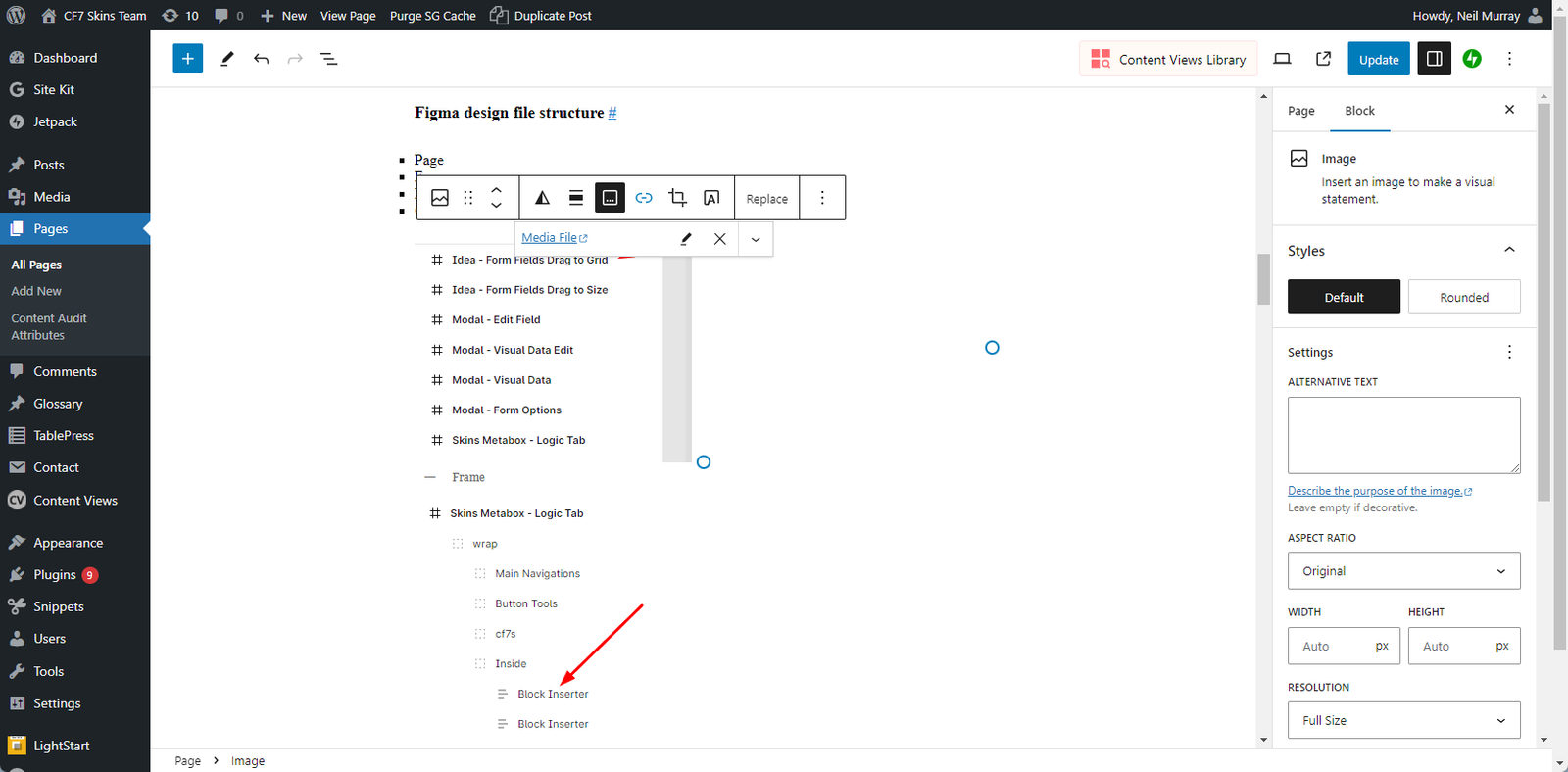
Readers can now right click on the image to view the image full size in their browser.
Example Articles #
Blog #
- Your Contact Form 7 email may be going to spam
- Using default values in your Contact Form 7 forms
- Use a suitable From: address
Documentation – KB #
FAQ #
CF7 Extensions #
NOTES
Add comments, questions & notes here
Save all Images to Sync – use ..\Sync\..\Documentation\Documentation Guidelines\Writing Tools\