
Last Updated on July 1, 2024 by Neil Murray
Table of Contents #
Introduction #
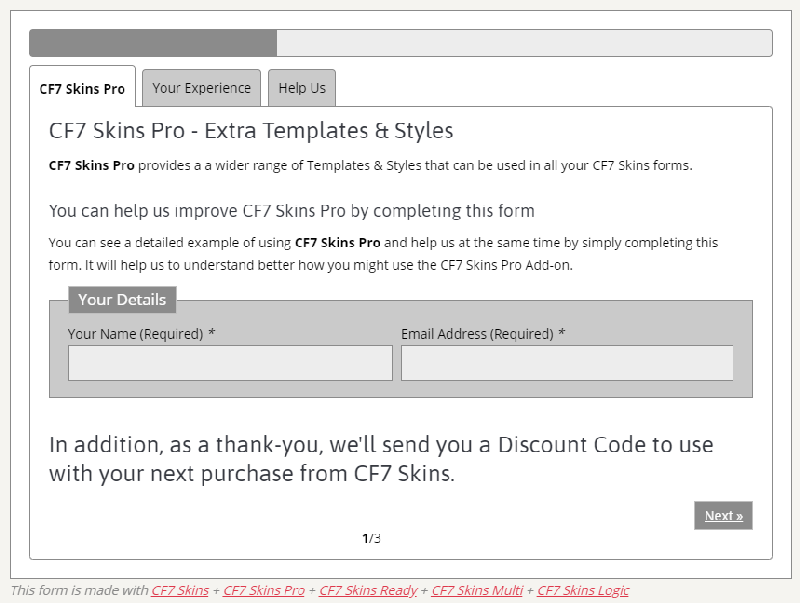
We have many CF7 Skins forms used on our various sites:
- active operating forms within articles
- basis of screenshots used in article or video
- demo form which shows CF7 Skins in action
- for user help & feedback plus general info collection.
Setting up & maintaining forms #
Find an existing form & modify it #
In many cases you can find an existing form & modify it to your requirements for documentation.
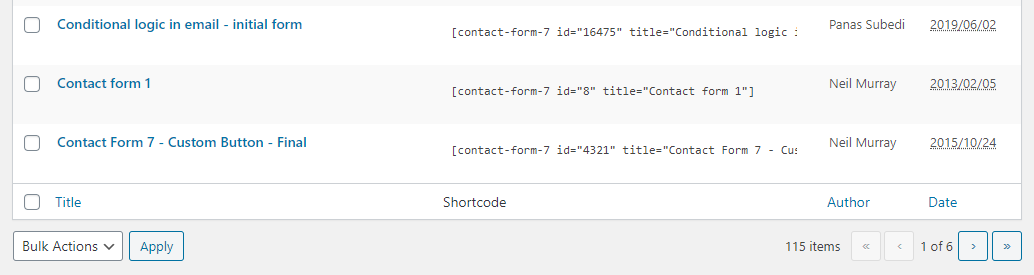
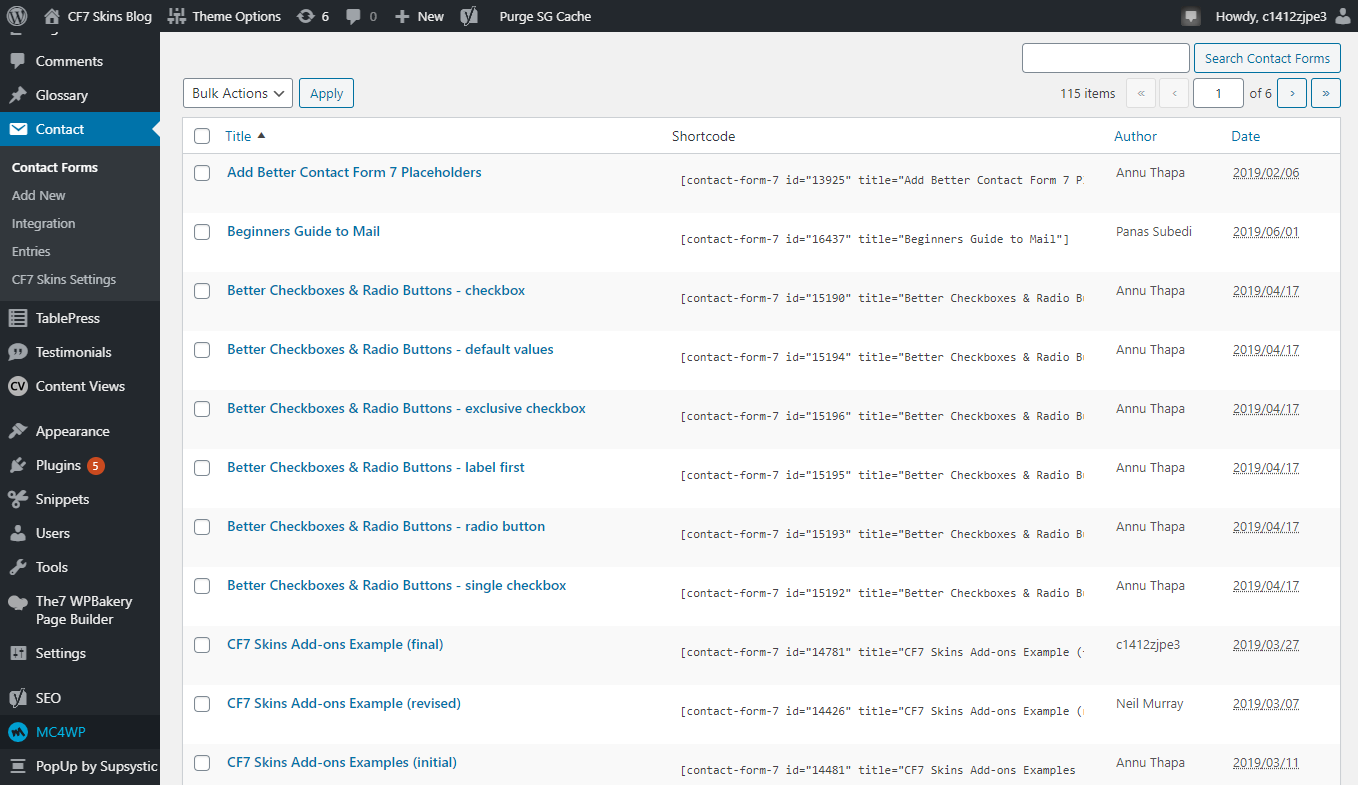
Go to Contact > Contact Forms.

This shows all the Contact Form 7 forms used on this site.
Tip: You can use the Search Contact Forms to narrow down the range of CF7 forms visible.
You can also find info on the CF7 Skins forms used at:
- CF7 Skins Forms – list & collection of forms used on our sites
Don’t create a new form from scratch if an existing form exists that can be modified to meet your current needs.
Create forms where others have easy access #
It’s easier if you build the form on the website where the form will appear or screenshots taken from the form will be used.
Do not build forms on your local computer.
Consistent form naming pattern #
We use a consistent naming pattern to make forms easy to find & identify.
Suggested format:
- If there is only one form for an article – <Title of the respective article>
- If there are more than one forms – <Title of the article> – <Respective component>
Examples:
- Beginners Guide to Mail
- Better Checkboxes & Radio Buttons – checkbox
- Better Checkboxes & Radio Buttons – default values
Add CF7 form ID of any form used on each article #
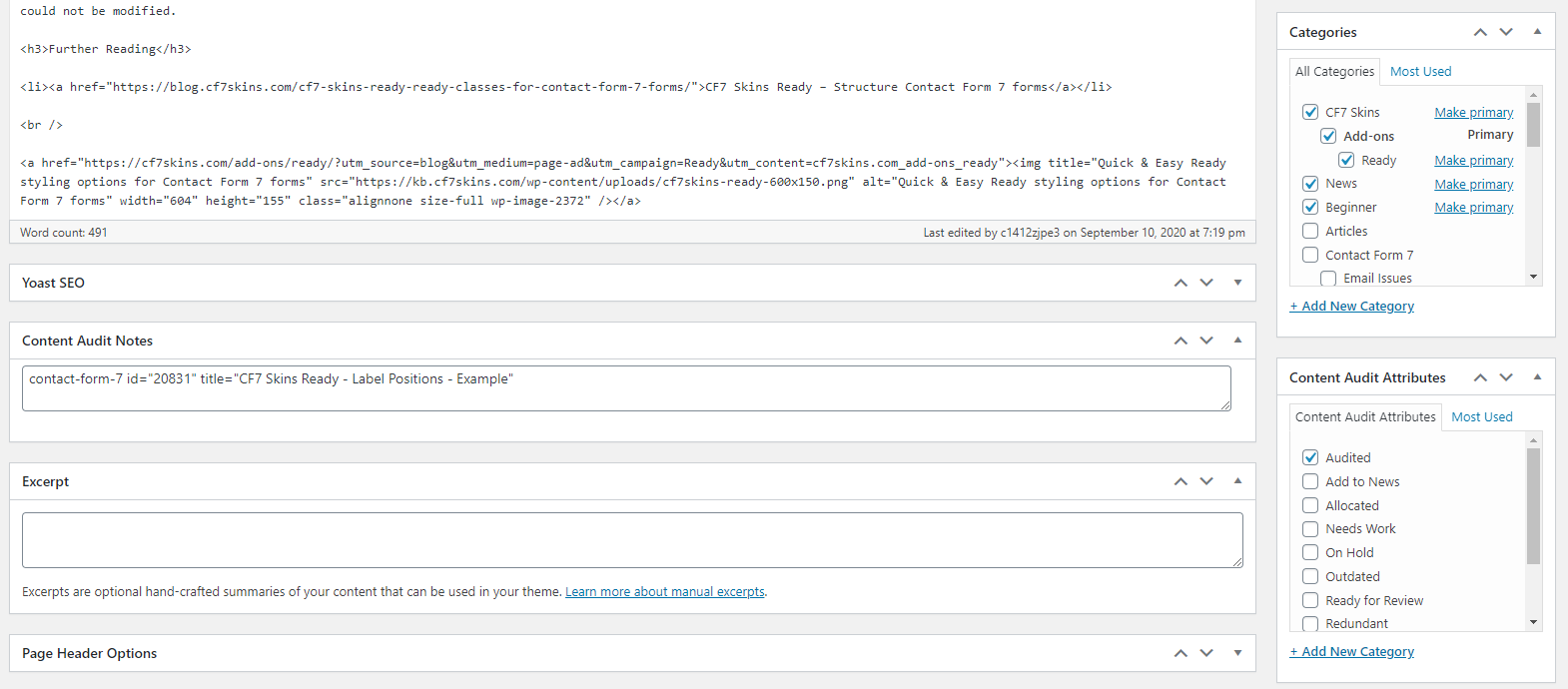
We include a link to any form used for screenshots on the article.
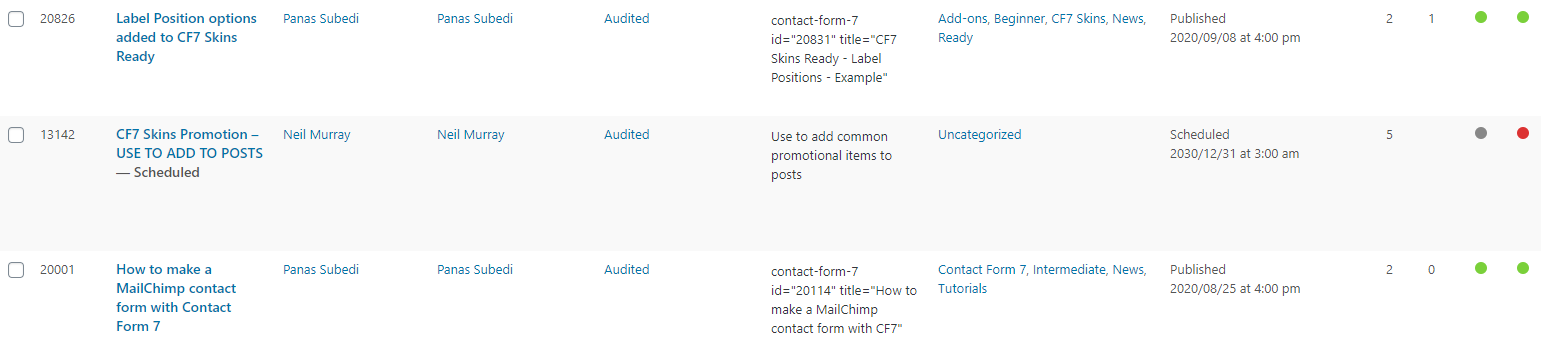
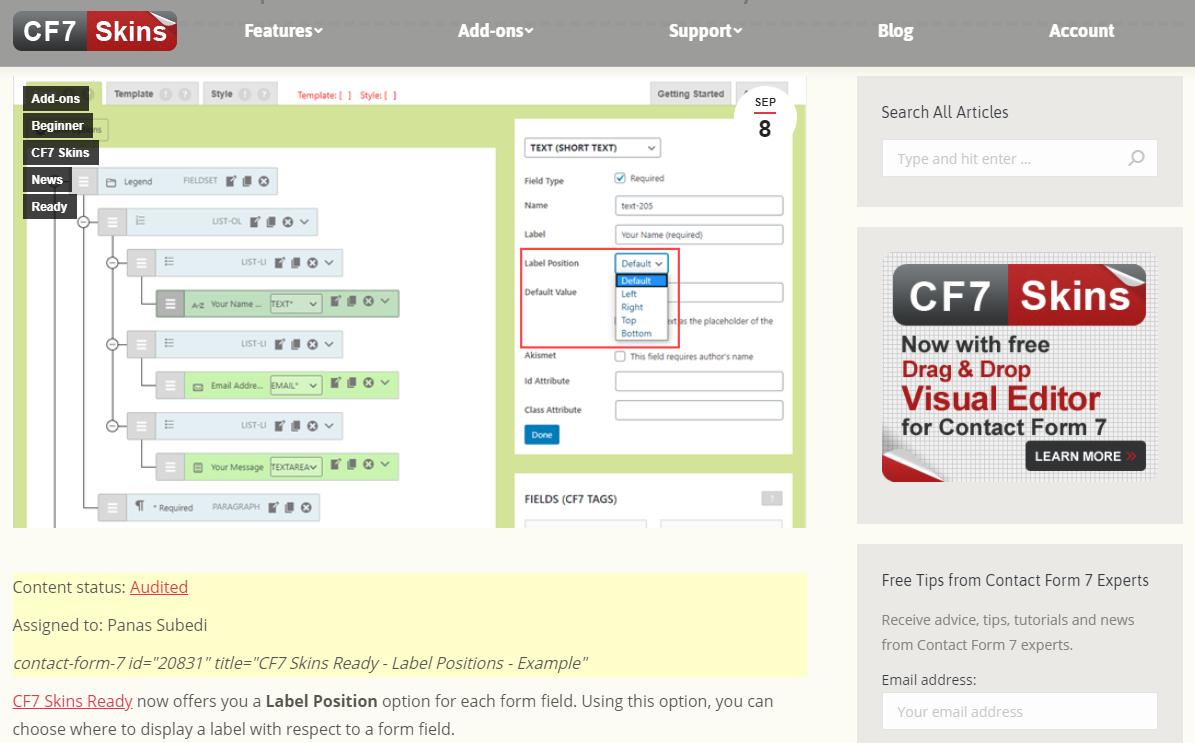
Form Content #
Start with Default CF7 Form #
For articles that are primarily about Contact Form 7, the screenshots should match what CF7 users will see (without CF7 Skins).
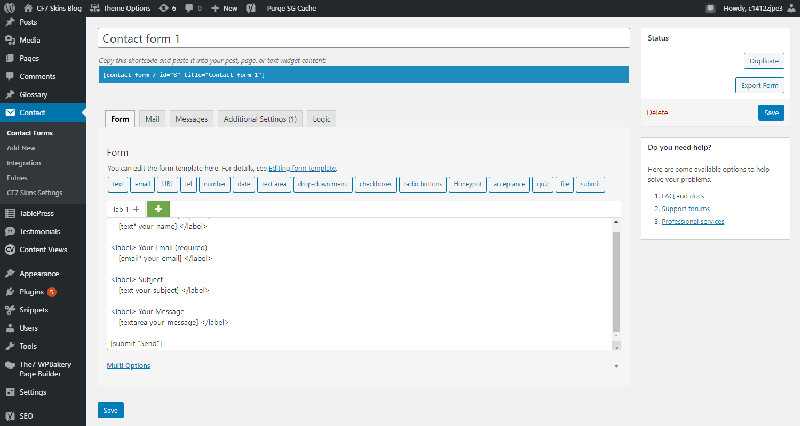
Don’t show CF7 Skins Addon features in forms #
In general screenshots should match what free version users will see.
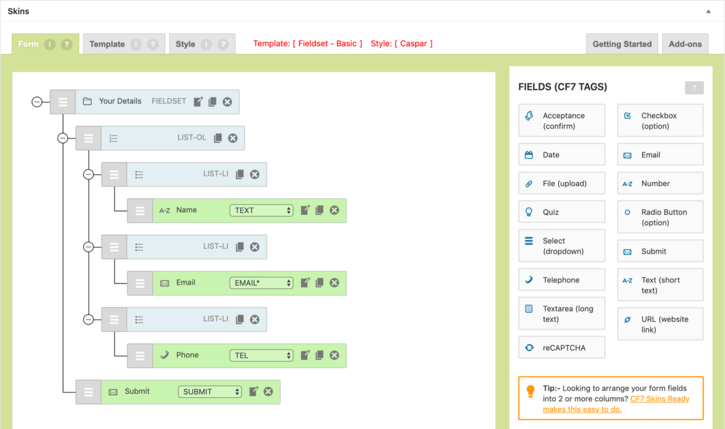
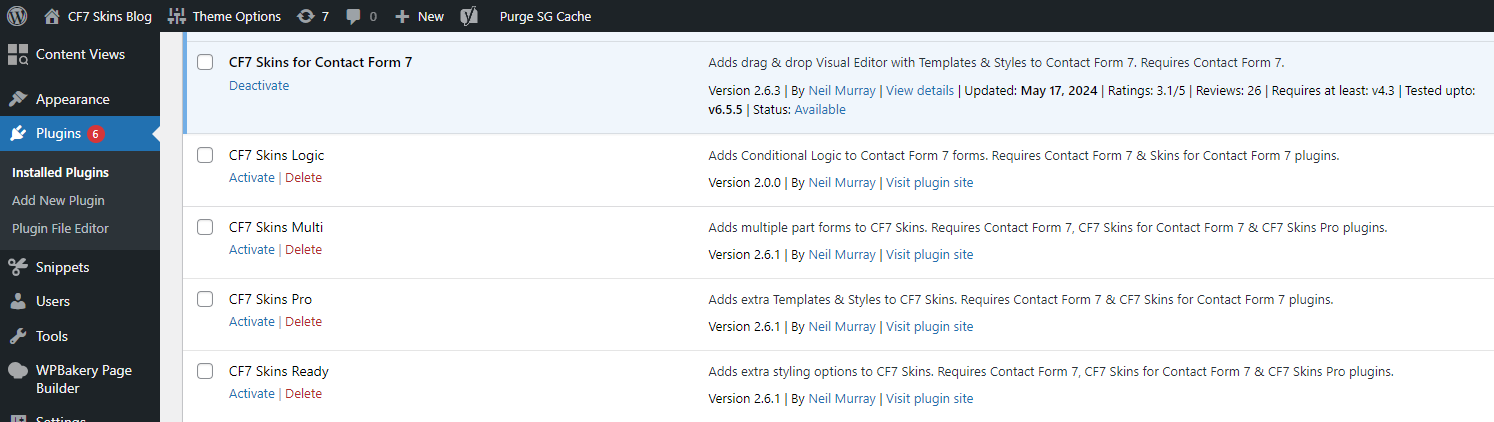
Don’t show CF7 Skins Addon features in forms unless article is about the Addon.
You should activate & de-activate plugins as required to give you the screenshots you need.
Set Demo Mode on forms #
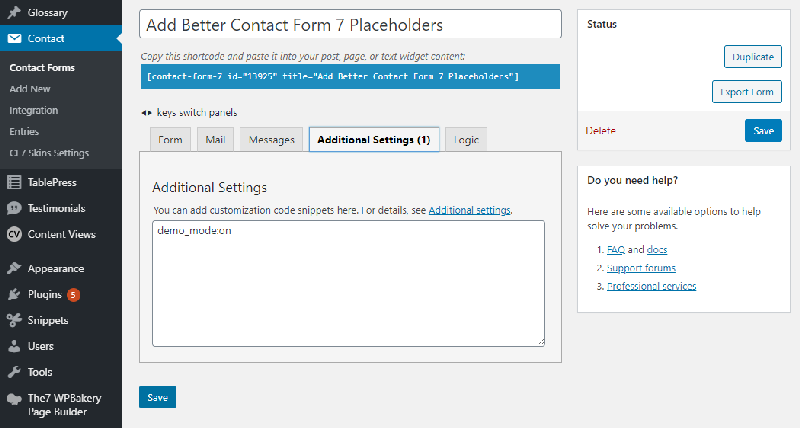
Setting Demo Mode on all forms stops the forms being submitted & sending emails.
Form Instructions #
For all CF7 Skins Logic forms, add instructions on how to use the forms logic at the bottom of the form.
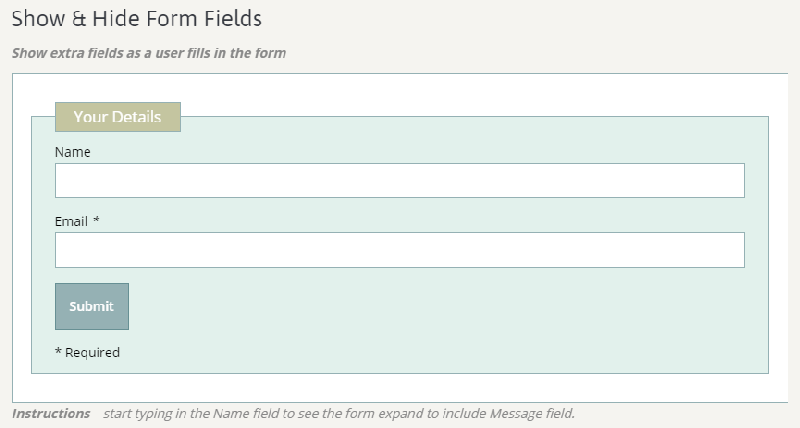
You can do this:
– within the form
– in text after the form
Promotional Links #
Add Promotional Links to all active forms.
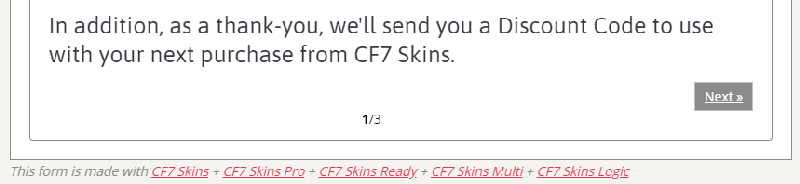
The links should match the plugins actually used in the form.
Copying Forms #
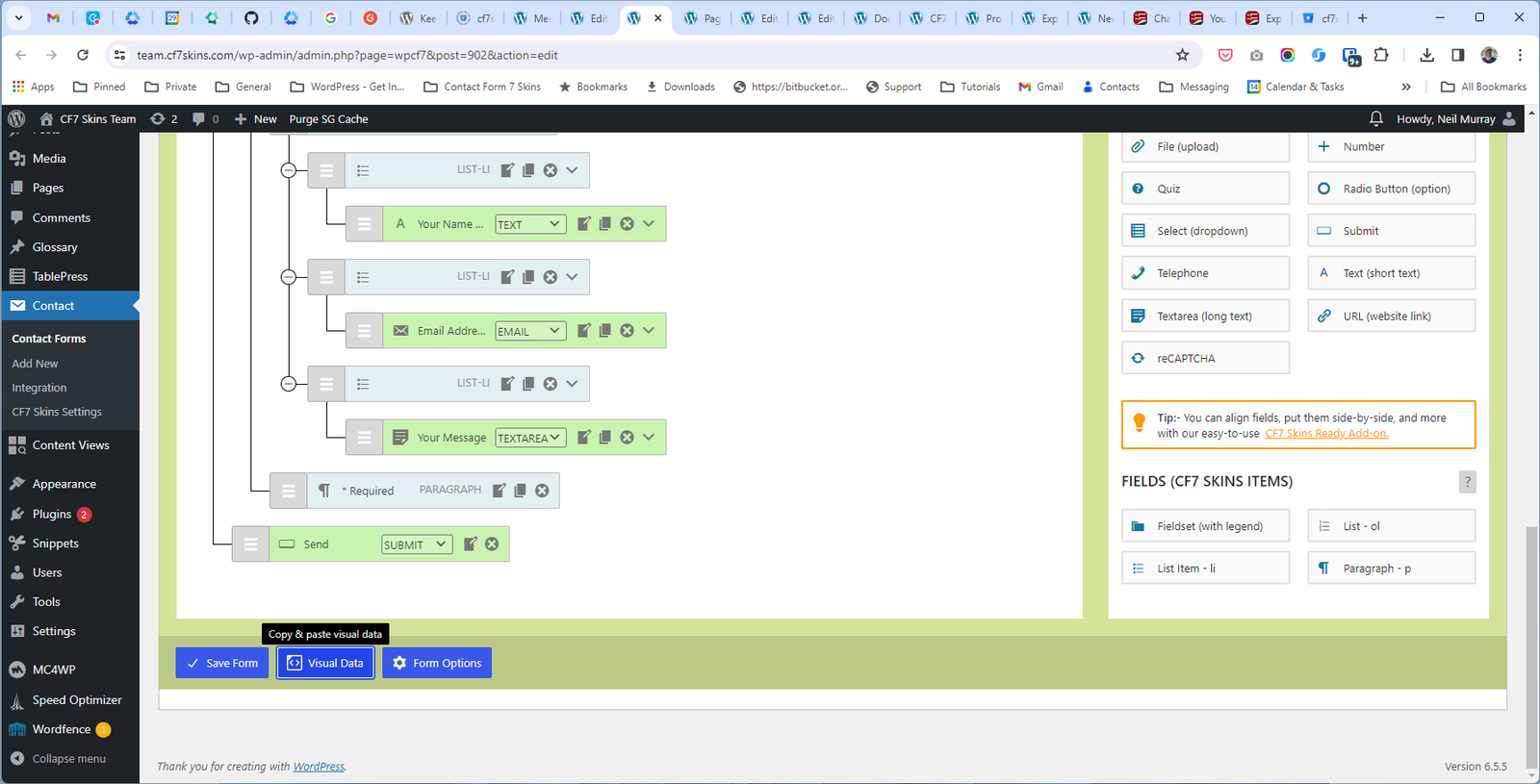
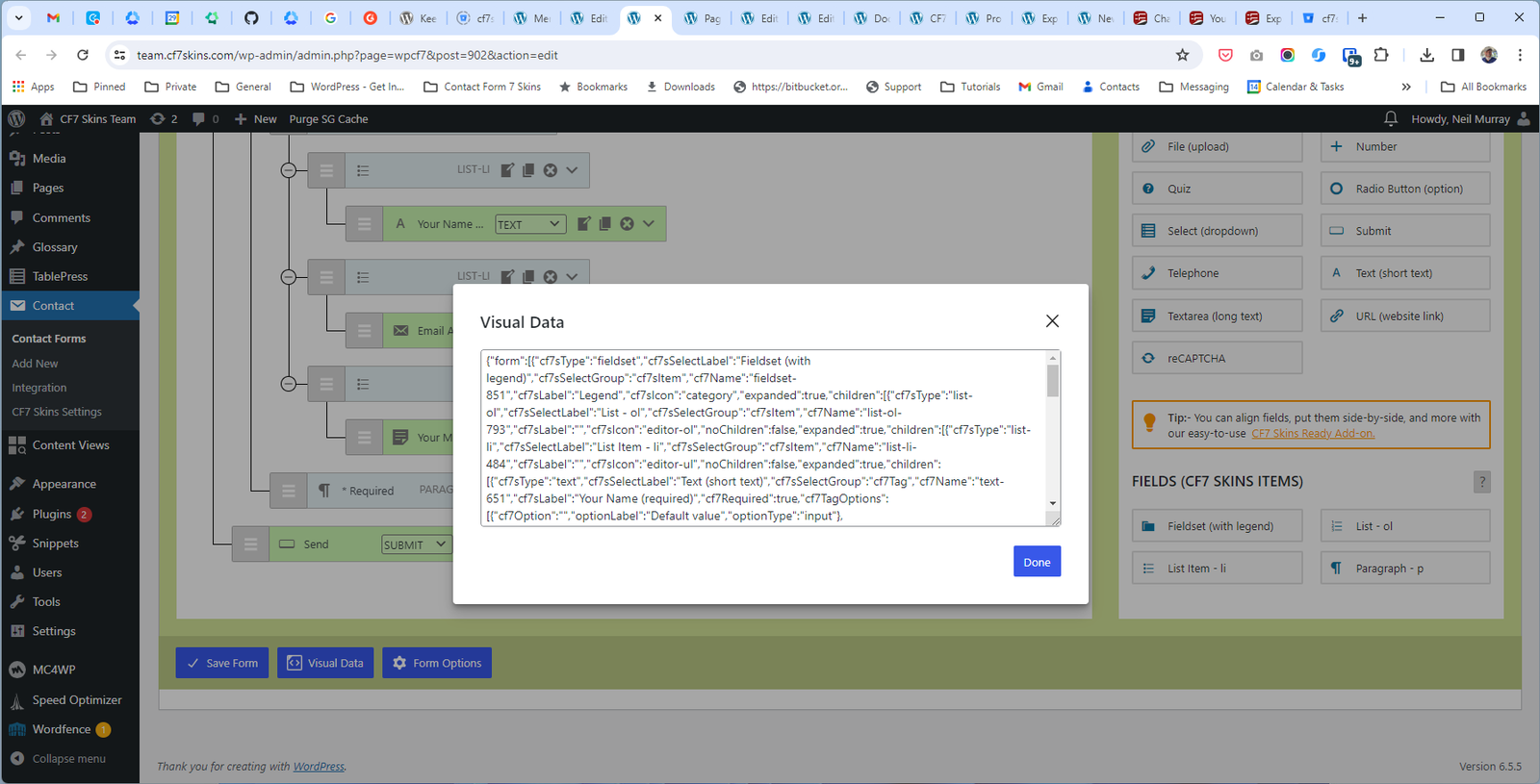
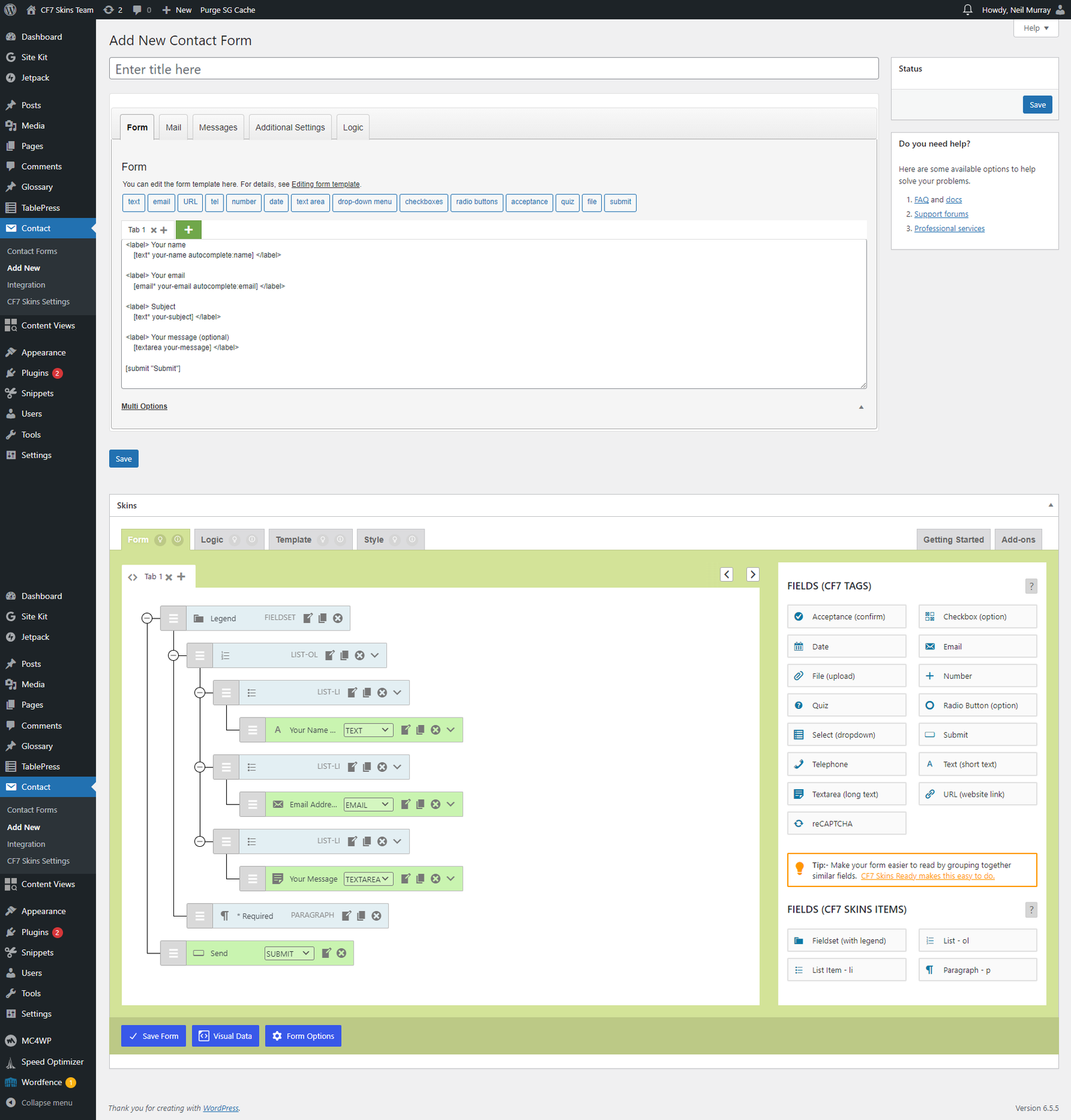
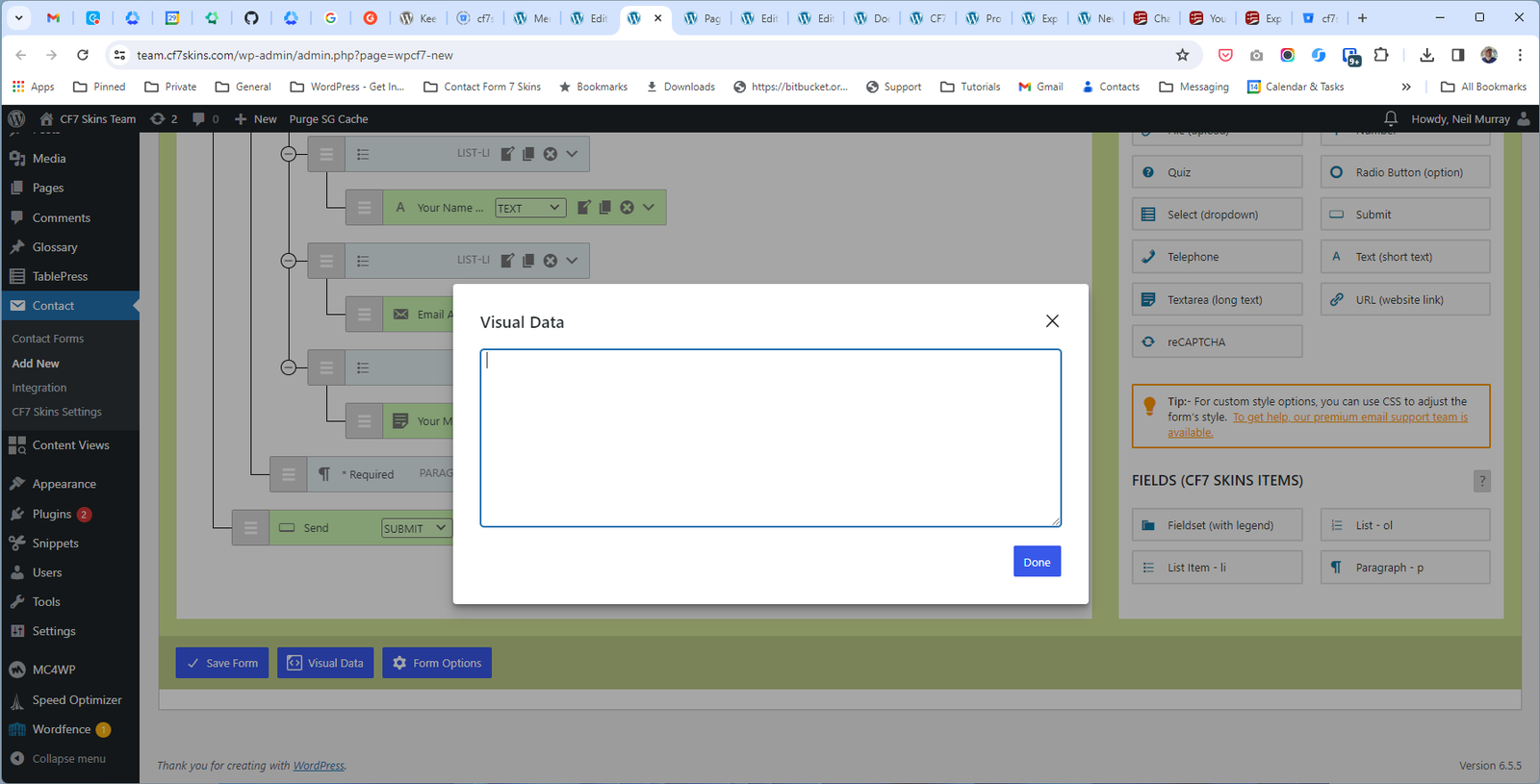
You can copy an existing form using the forms Visual Data option:
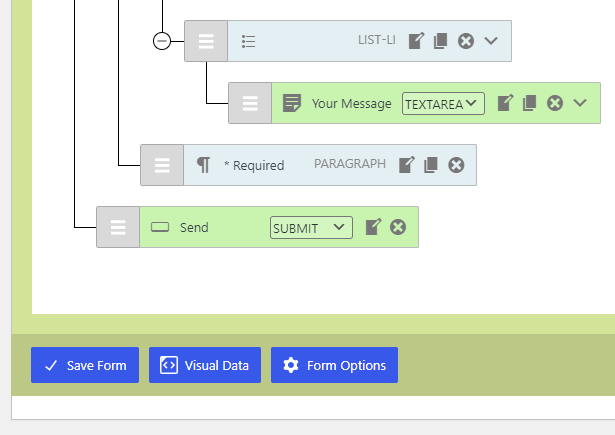
Refer:
Collecting Forms #
We need an easy way to collect all the many different forms used on our various websites.
This will allows us to:
- item
Further Reading:
- CF7 Skins Forms – list & collection of forms used on our sites
- Content – Data Entry – Forms – how to add forms to our list & collection
Notes
Explain how we create & maintain the many CF7 Skins forms used on our various sites.
Please add a note of any items you think should be added.
Save all Images to Sync – use ..\Sync\..\Documentation\Documentation Guidelines\CF7 Skins Forms\Documentation Forms\