
Last Updated on October 26, 2024 by Neil Murray
Table of Contents #
- Copy Form
- Export Single Form
- Export Multiple Forms
- Import CF7 Form/s
- Selective CF7 Form Export/Import
Copy Form #
You can copy a form using the forms Visual Data option:
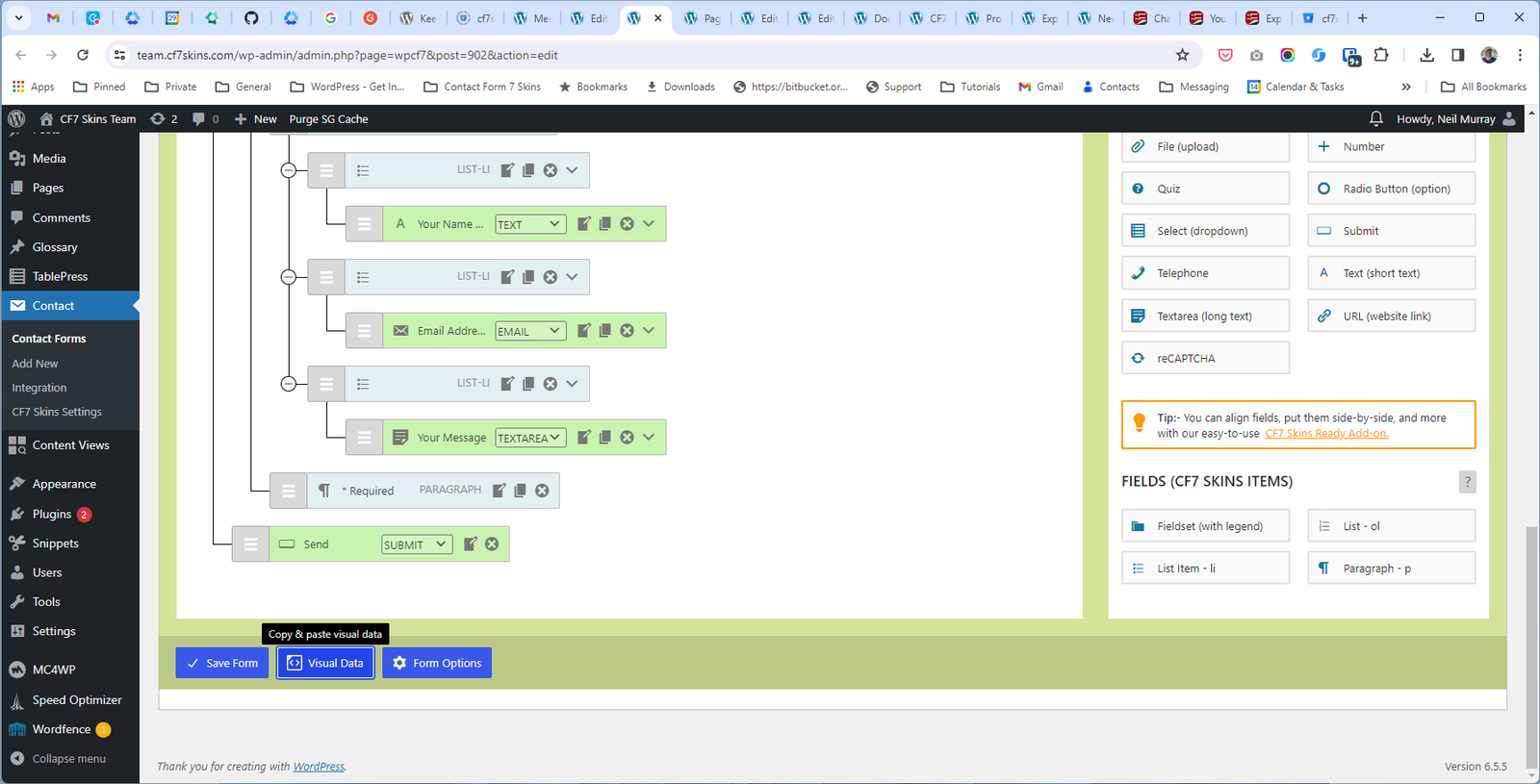
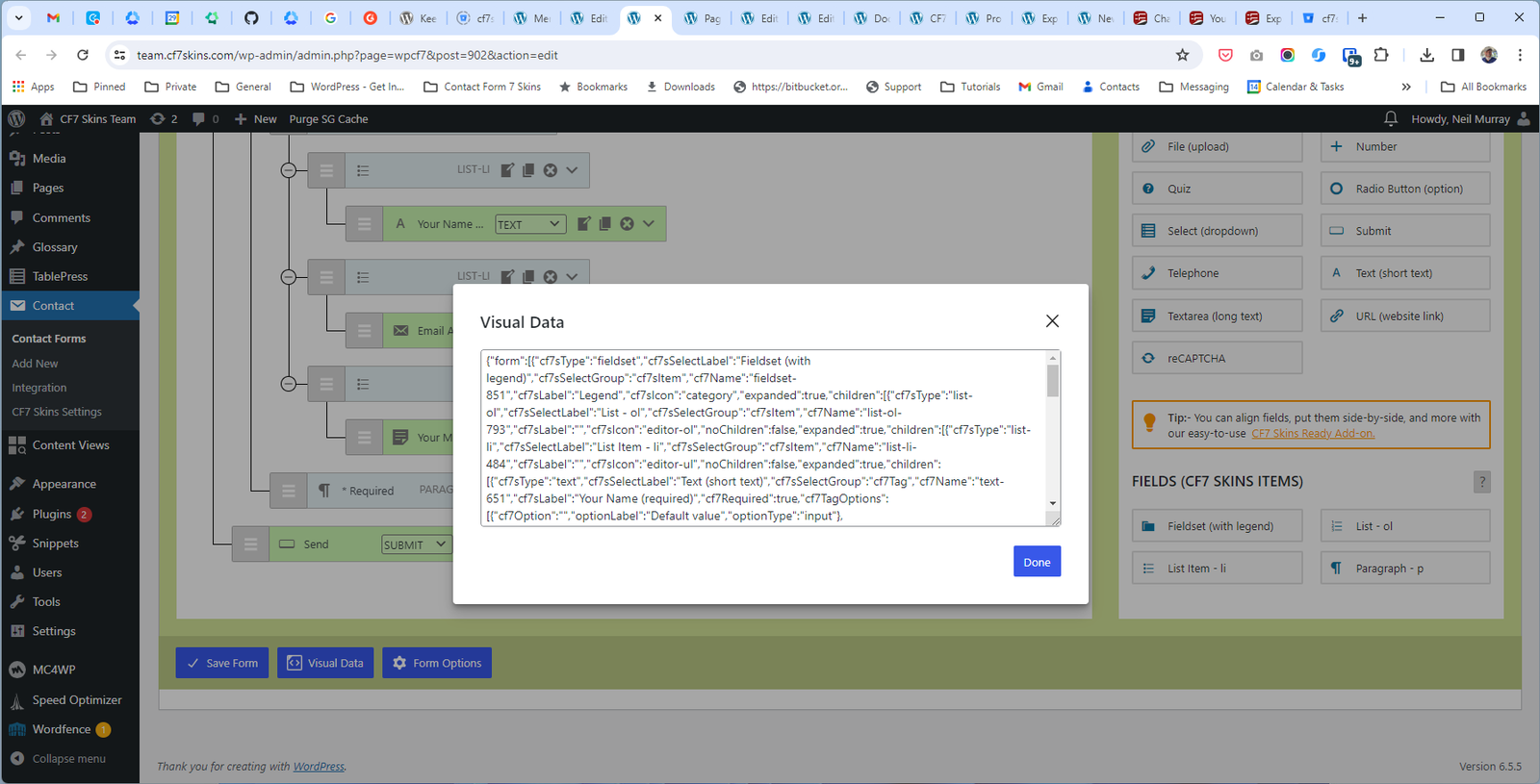
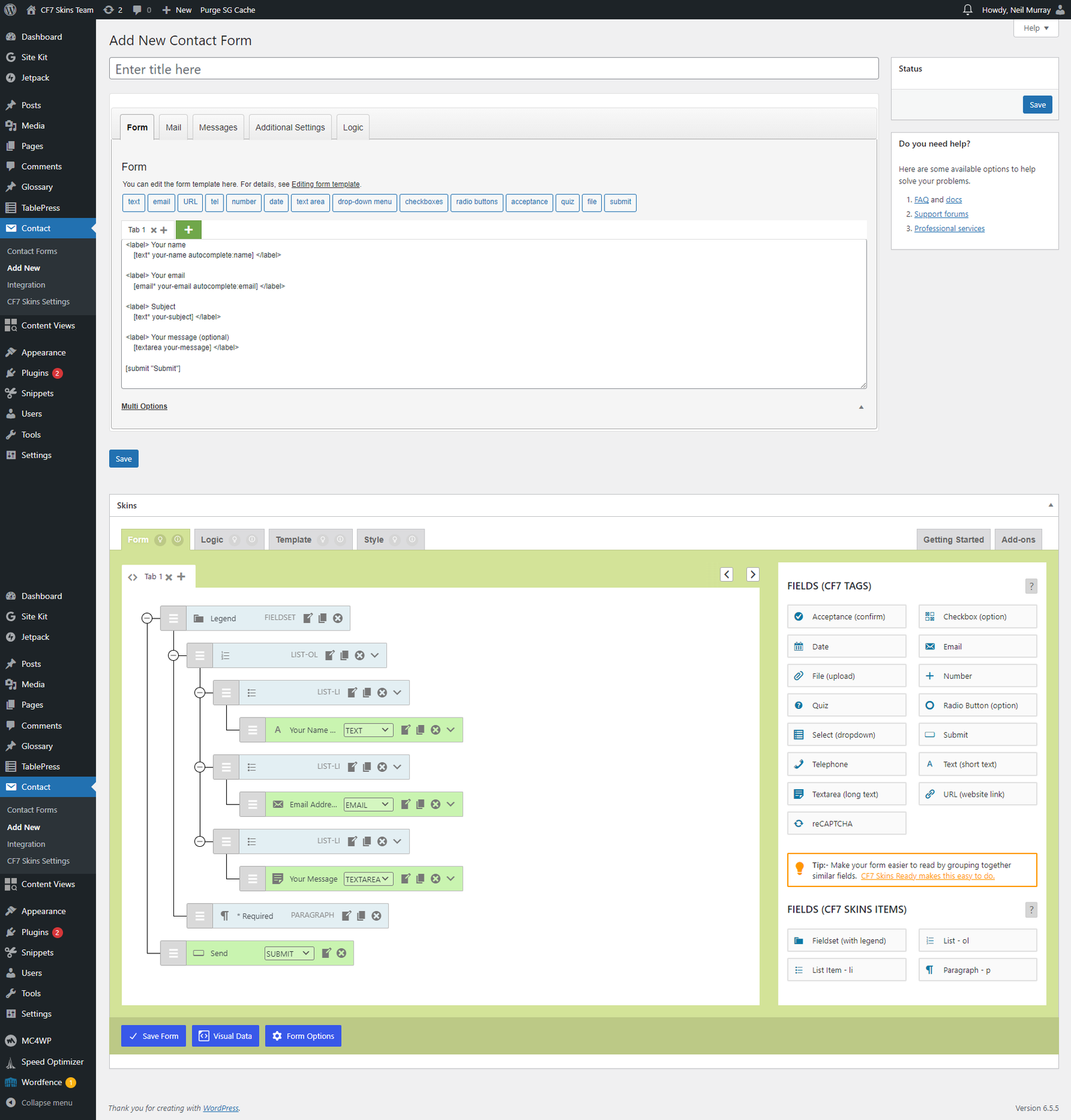
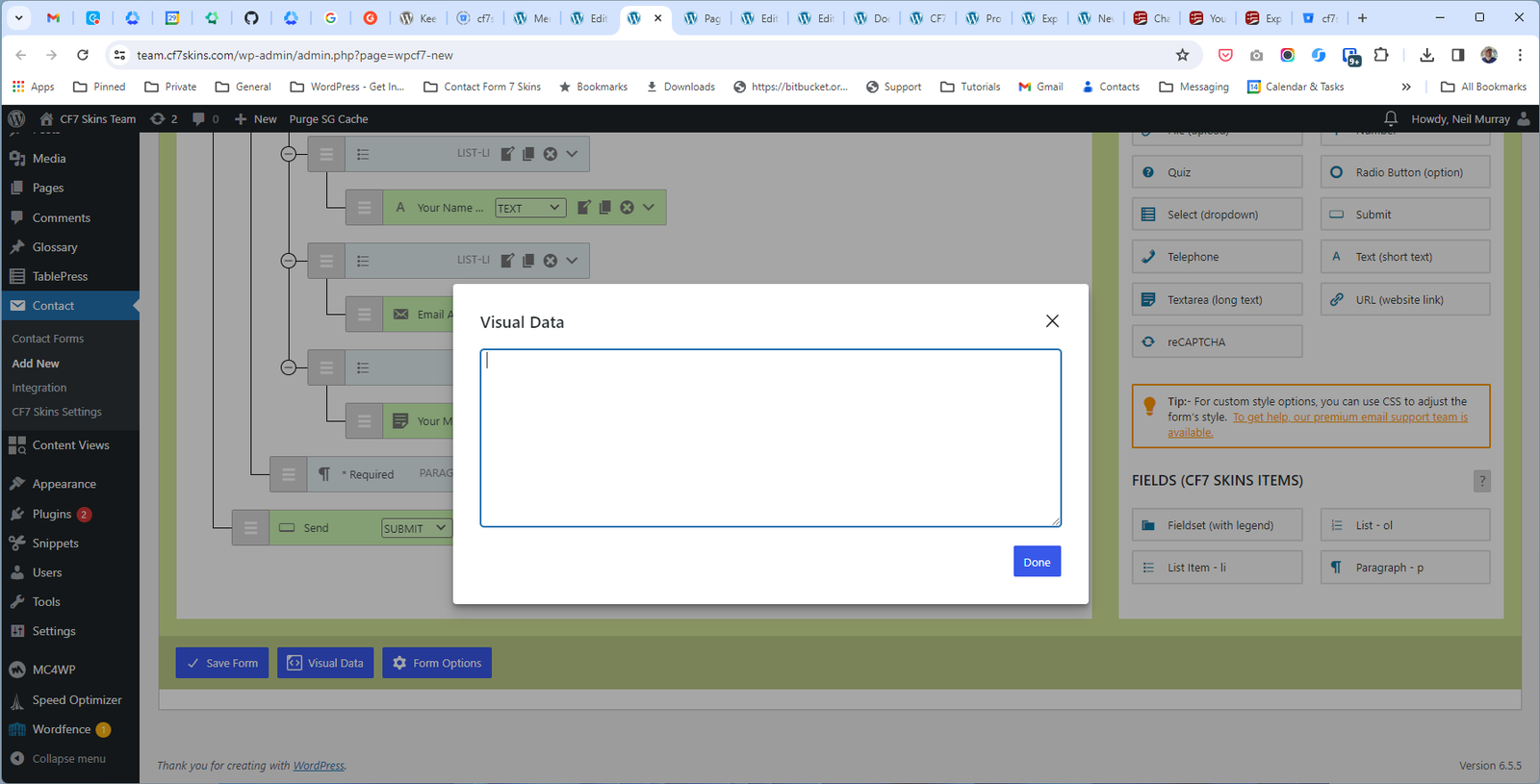
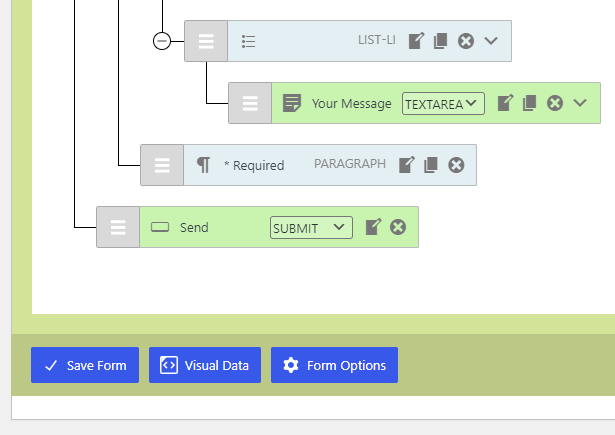
Refer:
Export Single Form #
CF7 Skins provides a handy single-form export functionality that is not available within the Contact Form 7 plugin.
Tip: The feature to export an individual CF7 form is disabled by default. You need to enable it in CF7 Skins Settings before exporting a form.
Enable Export in CF7 Skins Settings #
To enable export:
1. With WordPress Administrator access, go to Contact >> CF7 Skins Settings.
2. Check Enable export of individual CF7 Skins form.
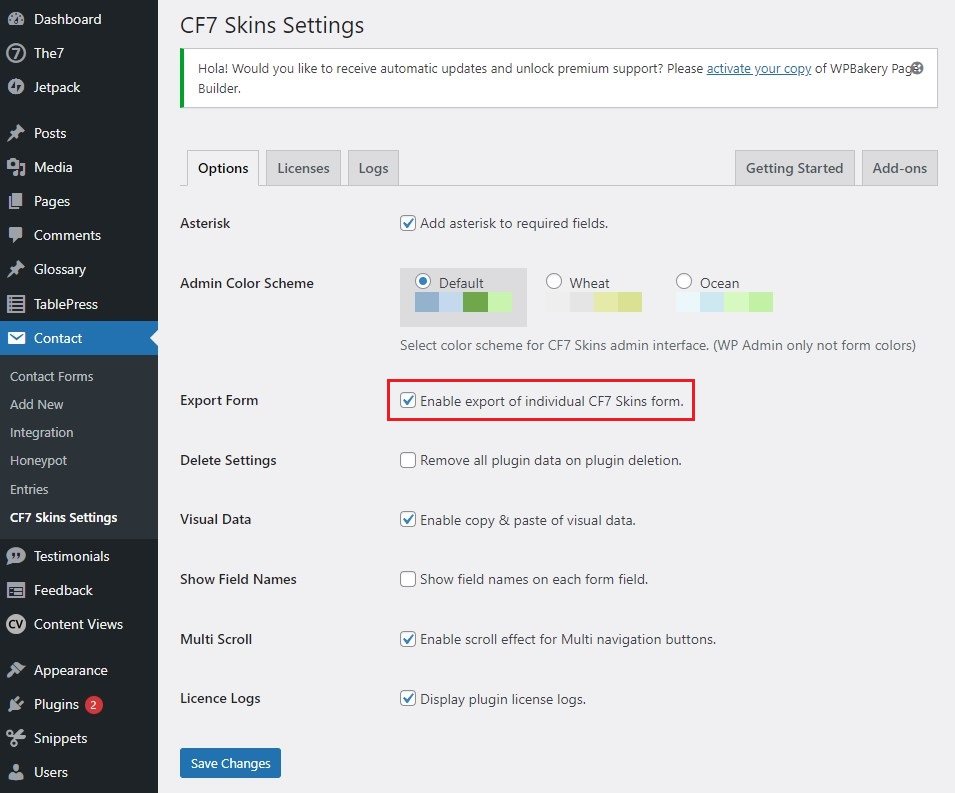
3. Click Save Changes.
Export Form (xml) #
After enabling export, you can export a CF7 form using the following steps:
1. Go to your Contact Form.
2. Click Export Form.
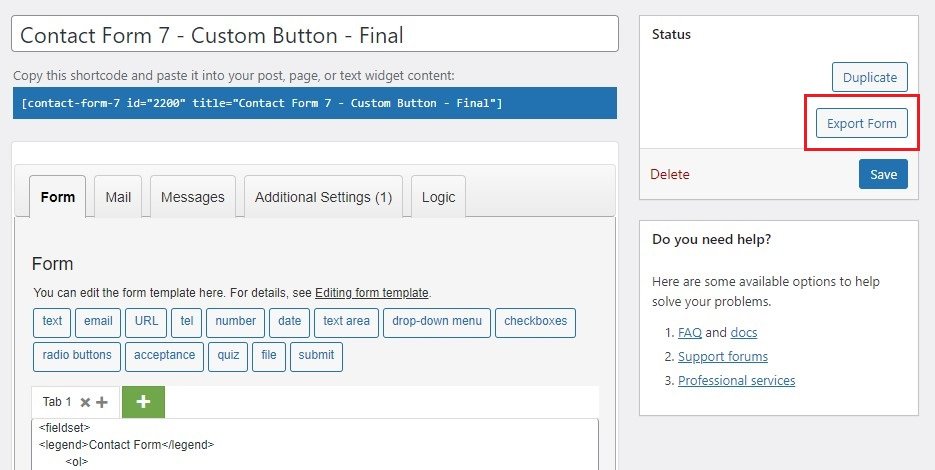
Tip: The Export Form button is only displayed if you have enabled export in your website.
The form will be downloaded in an XML format file at your browser’s default download location.
Tip: Rename the .xml file to identify the form and the site that it came from.
See Export and Import Contact Form 7 form.
Export Multiple Contact Forms #
You may need to export all your contact forms for things like recovery and backup, transfer to your local website copy, or using the same forms on another website. To save the time and hassle of exporting the forms one by one, you can use WordPress’s Export Tool to download them all at once.
1. Go to Tools >> Export.
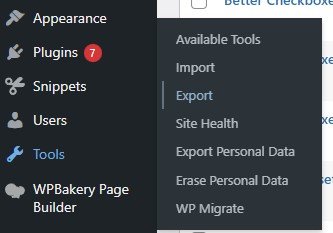
2. Select Contact Forms.
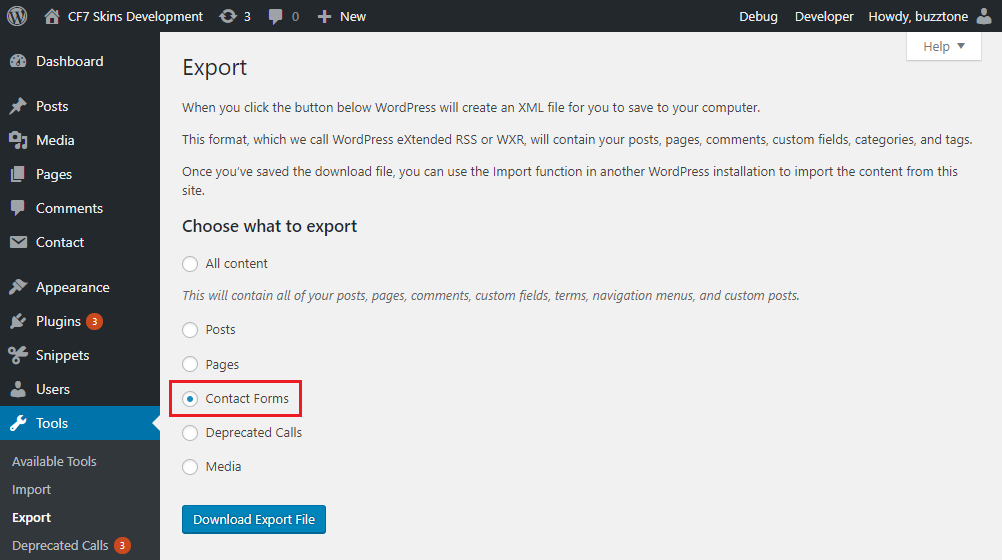
Tip: You cannot choose selective forms to export. This method will export every saved form in the Contact Forms list.
Jump to Selective CF7 Form Export/Import if you want to duplicate only certain forms.
3. Click Download Export File.

This will download all the Contact Forms in a single XML file at your browser’s default download location.
Import CF7 Form/s #
An XML file of a single form or a collection of forms can be easily imported onto a website.
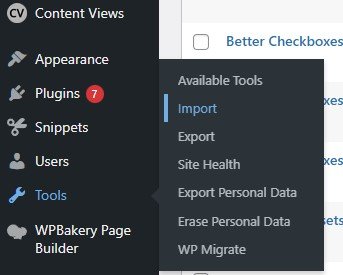
1. Go to Tools >> Import.
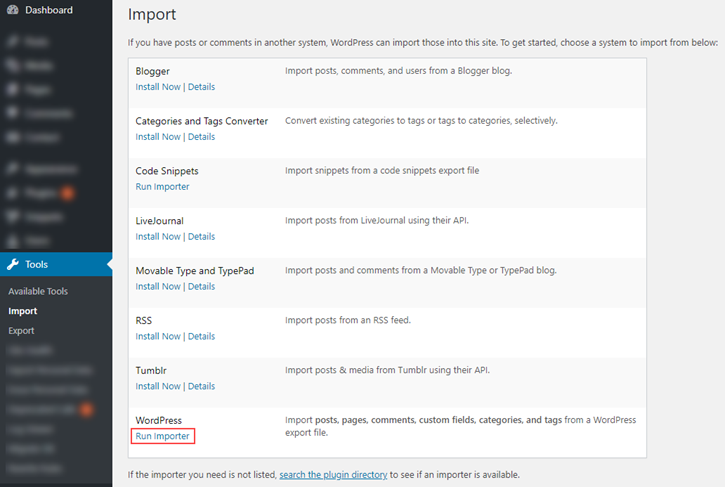
2. Select WordPress Run Importer.
3. Click on Choose File.
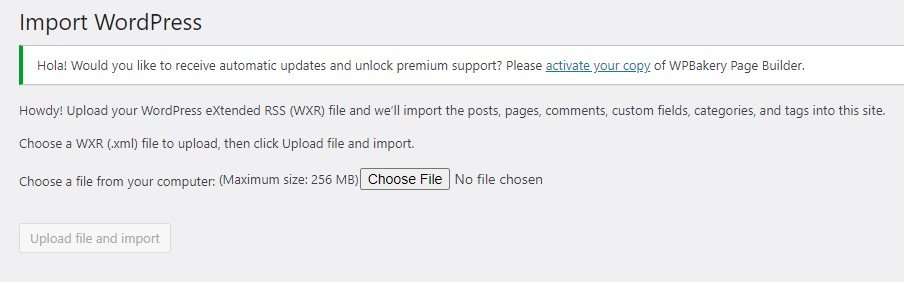
4. Select the required XML file.
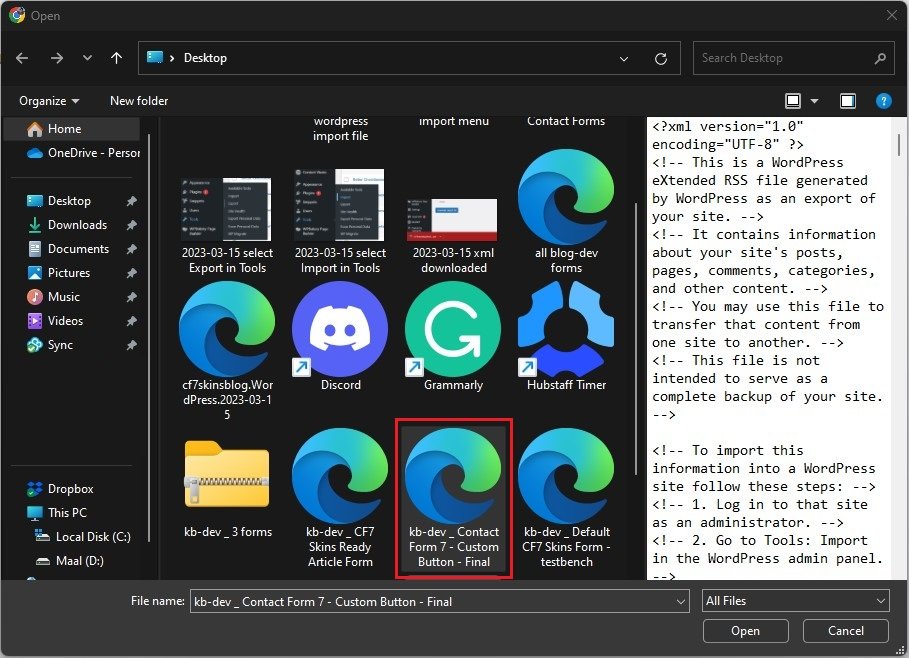
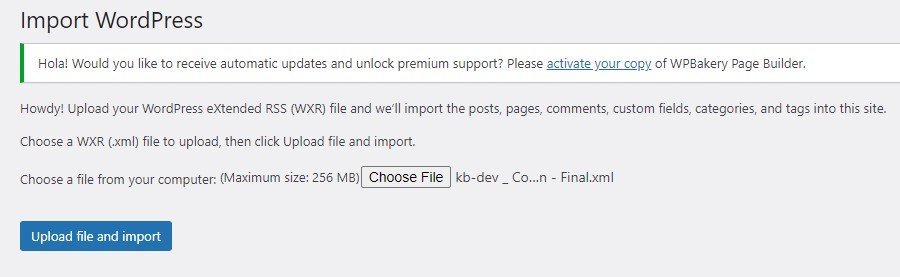
5. Click Upload file and import.
6. Assign an author if needed, and click Submit.
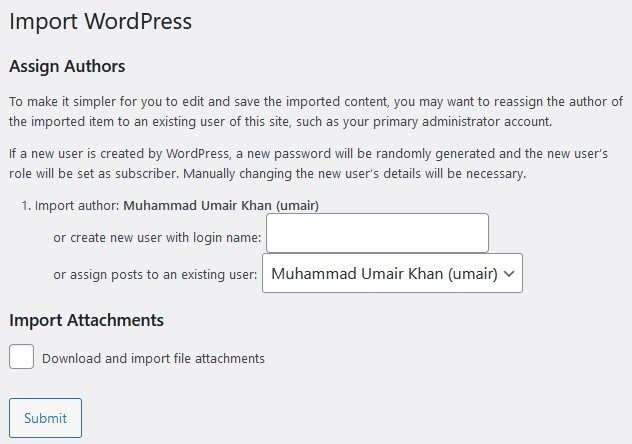
Tip: If you don’t assign a user, the form will be attributed to the current user.
You have successfully imported your form/s from one website to another.
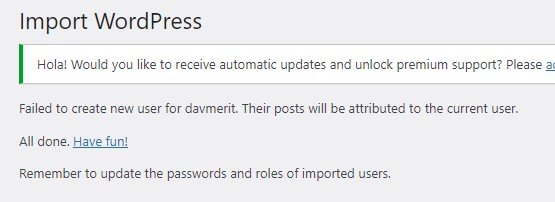
Now, you’ll be able to find this form in your new website’s Contact Forms list.
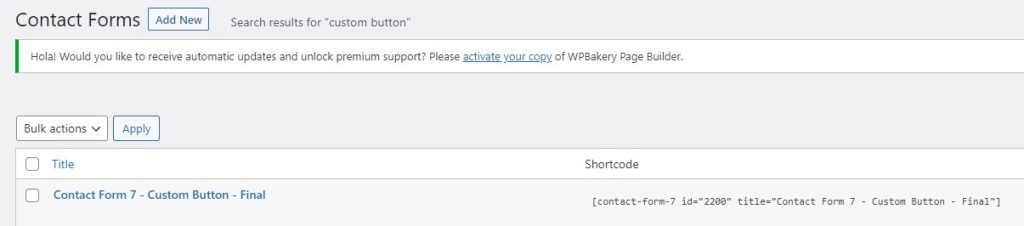
Tip: The imported form will have the same name and id as on the previous site.
Note: If the new website has a form with the same name, but a different id, a new id will be assigned to the imported form. And if it already has a form with both, the same name and id, the import will fail!
See Export and Import Contact Form 7 form.
Selective CF7 Form Export/Import #
By default, WP doesn’t let you select forms of your choice to export or import collectively. If you don’t want to export and import one by one, you’ll have to first download the whole contact form directory in a single XML file. Refer to Export Multiple Contact Forms for instructions.
To get the required forms, do the following;
1. Open the XML file in a text editor or an IDE (VS Code or Sublime text etc.).
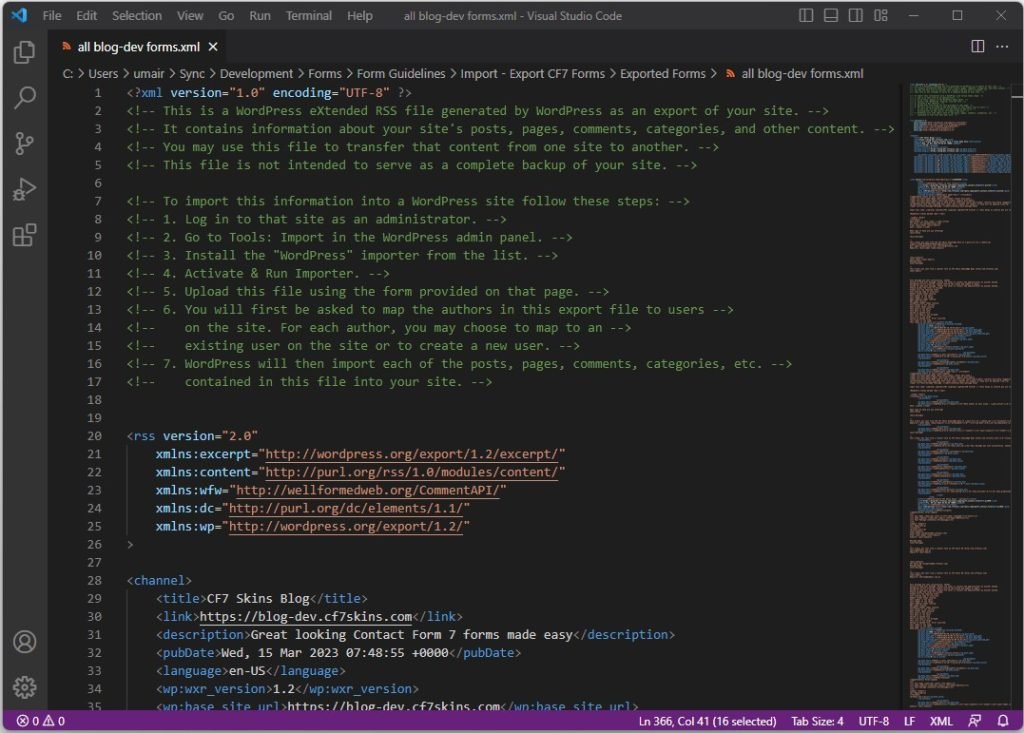
2. Identify the required forms. You can use the Find function (Ctrl+F) to search the form name or id.
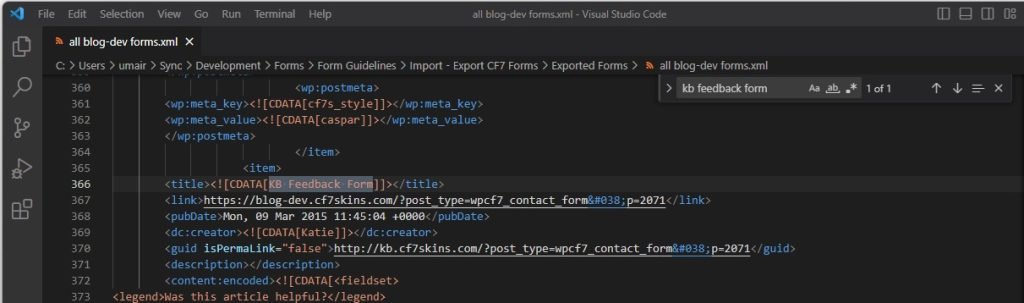
3. Once you have isolated all the required forms, delete all the other form blocks.
Tip: You can identify the limits of a form’s block by the <item></item> tags.
4. Save the file.
Tip: It’s a good idea to rename the new .xml file to differentiate it from its previous version.
5. Follow the steps in Import CF7 Form/s to import these chosen forms.
Further reading
Notes
[Add step-by-step instructions with screenshots showing how to export & import CF7 Forms from a test site to your local WP install]
Save all Images to Sync – use ..\Sync\..\Development\Forms\Form Guidelines\Import – Export CF7 Forms\
- A plugin, Advanced CF7 DB, might allow multi-form upload in a zip file. We can explore that avenue if deemed fit.
- Will the form be imported and duplicated if the same name form is already present? – NO