
Last Updated on September 28, 2022 by Neil Murray
Tip: Before editing an existing page & post you need to consider whether the Gutenberg/Block Editor or Classic Editor was used previously on this item.
Code #
We currently mainly use SyntaxHighlighter Evolved to display code in pages, posts & FAQ.
<br>
#wpcf7-f47-p339-o1 {<br>
	font-family: Verdana;<br>
}</p>
<p>#wpcf7-f47-p339-o1 .wpcf7-form fieldset {<br>
	padding:10px;<br>
	background:#fff;<br>
	margin-bottom:10px;<br>
	border:1px solid #000;<br>
}<br>
We also use WP-Syntax in some cases where this gives a better result.
#wpcf7-f47-p339-o1 { font-family: Verdana; } #wpcf7-f47-p339-o1 .wpcf7-form fieldset { padding:10px; background:#fff; margin-bottom:10px; border:1px solid #000; } |
Shortcodes #
We currently use SyntaxHighlighter Evolved to display shortcodes.
[code language="html"] This is an example of a shortcode. [/code] |
Don’t use The 7 theme shortcodes to display shortcodes.
Shortcode Examples #
How do I create a form with CF7 Skins? Error: Contact form not found.
Contact Form 7 Configuration Validator
<br> [select* your-recipient "CEO|ceo@example.com" "Sales|sales@example.com" "Support|support@example.com"]</p> <p>To: [your-name] <[your-email]><br>
Inline code #

This is an example of how inline code can be used.
Examples #
HTML:
<br>
<p><label for="name">Name (required)</label><br>
[[text your-name akismet:author id:name ]] </p><br>
<p><label for="email">Email Address (required)</label><br>
[email* your-email akismet:author_email id:email] </p><br>
<p><label for="subject">Subject (required)</label><br>
[select* your-subject id:subject include_blank "I would like to develop an eShop add-on plugin" "I want a custom theme" "I need you to install WordPress for me" "I need you to troubleshoot my WordPress site" "I just want to rant!"]</p><br>
<p><label for="message">Your Message</label><br /><br>
[textarea your-message id:message] </p><br>
<p class="right">[submit "Send"]</p><br>
Using SyntaxHighlighter Evolved – preferred.
<br>
Copy this block for HTML code.
<p><label for="name">Name (required)</label> [text 1="your-name" 2="akismet:author" 3="id:name" language="*"][/text] </p> <p><label for="email">Email Address (required)</label> [email* your-email akismet:author_email id:email] </p> <p><label for="subject">Subject (required)</label> [select* your-subject id:subject include_blank "I would like to develop an eShop add-on plugin" "I want a custom theme" "I need you to install WordPress for me" "I need you to troubleshoot my WordPress site" "I just want to rant!"]</p> <p><label for="message">Your Message</label><br> [textarea your-message id:message] </p> <p class="right">[submit "Send"]</p> |
Using WP-Syntax.
Copy this block for HTML code.
CSS:
#wpcf7-f47-p339-o1 { font-family: Verdana; } #wpcf7-f47-p339-o1 .wpcf7-form fieldset { padding:10px; background:#fff; margin-bottom:10px; border:1px solid #000; } |
Using WP-Syntax – preferred.
Copy this block for CSS code.
<br>
#wpcf7-f47-p339-o1 {<br>
	font-family: Verdana;<br>
}</p>
<p>#wpcf7-f47-p339-o1 .wpcf7-form fieldset {<br>
	padding:10px;<br>
	background:#fff;<br>
	margin-bottom:10px;<br>
	border:1px solid #000;<br>
}<br>
Using SyntaxHighlighter Evolved.
<br>
Copy this block for CSS code.
SHORTCODE:
[] |
Copy this block for shortcode.
NOTE: If it’s too complex to display a shortcode, you can always use a small image of just the shortcode – we have to do that sometimes.
Don’t use Visual Editor #
Don’t use the Gutenberg/Block Editor or Classic Visual Editor on any pages, posts or FAQ, created with the Classic Editor, that display code, at this stage.
This will damage the item & your changes will need to be reverted using Revisions.
Because of this, we disable the use of the Visual Editor on any pages displaying code, by using the Disable Visual Editor WYSIWYG plugin.
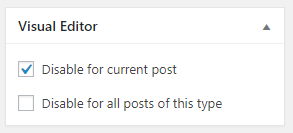
Tip: Before editing an existing page & post you need to consider whether the Gutenberg/Block Editor or Classic Editor was used previously on this item.
Code Highlighter plugin problem #
There is a problem that can occur with the Code Highlighter plugin we currently use.
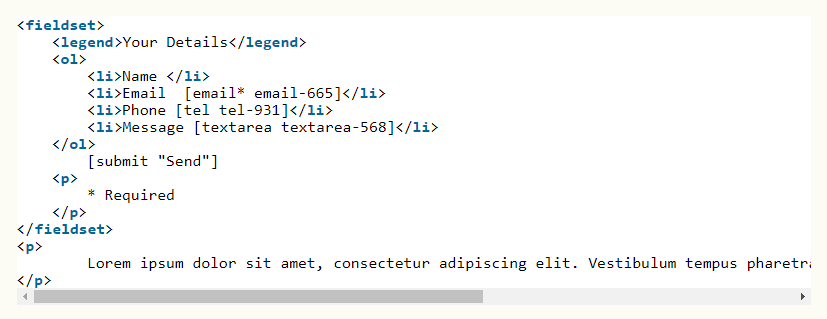
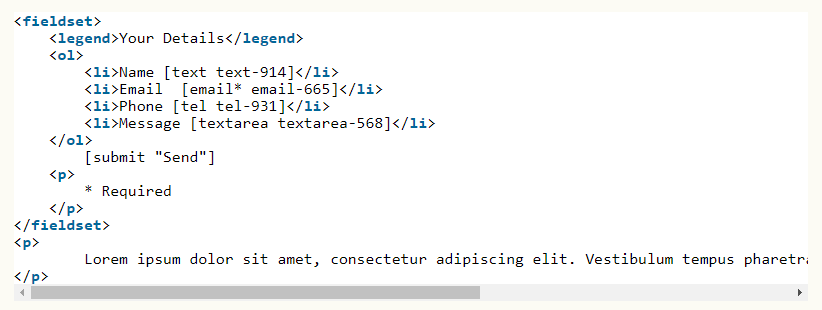
Notce that [ text text-914 ] is missing. It is added correctly but it doesn’t work.
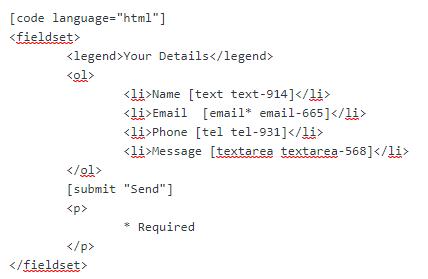
This can generally be fixed by adding extra square [ ] brackets.
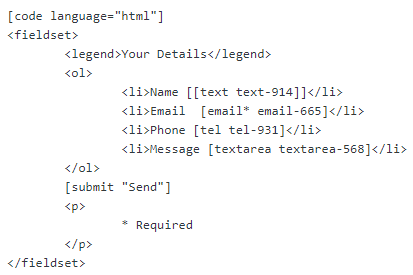
Now it works.
This is an intermittent problem – we don’t know why.
Note: In some cases we’ve found the only option is to use HTML Entities.
Editing Pages Via Top Menu Bar #
WordPress displays a black admin top menu bar at the very top of each WordPress admin page (if you haven’t disabled this option in your WP user profile). When showing pages it has an Edit Page button.

You need to be aware that clicking this button will lead to using either the Gutenberg/Block Editor or Classic Editor, depending on the Settings of the WP site. Importantly you can’t choose whether to use the Gutenberg/Block Editor or Classic Editor.
Further reading:
- SyntaxHighlighter Evolved – Options
- Editing Existing Pages & Posts
- Displaying Code – Gutenberg/Block Editor
Post Notes:
Anurag: I’m struggling to find ways to display shortcodes that don’t have a closing tag. If you have any past experience with this, let me know. If not, I’ll research on this. Using SyntaxHighlighter did not work.
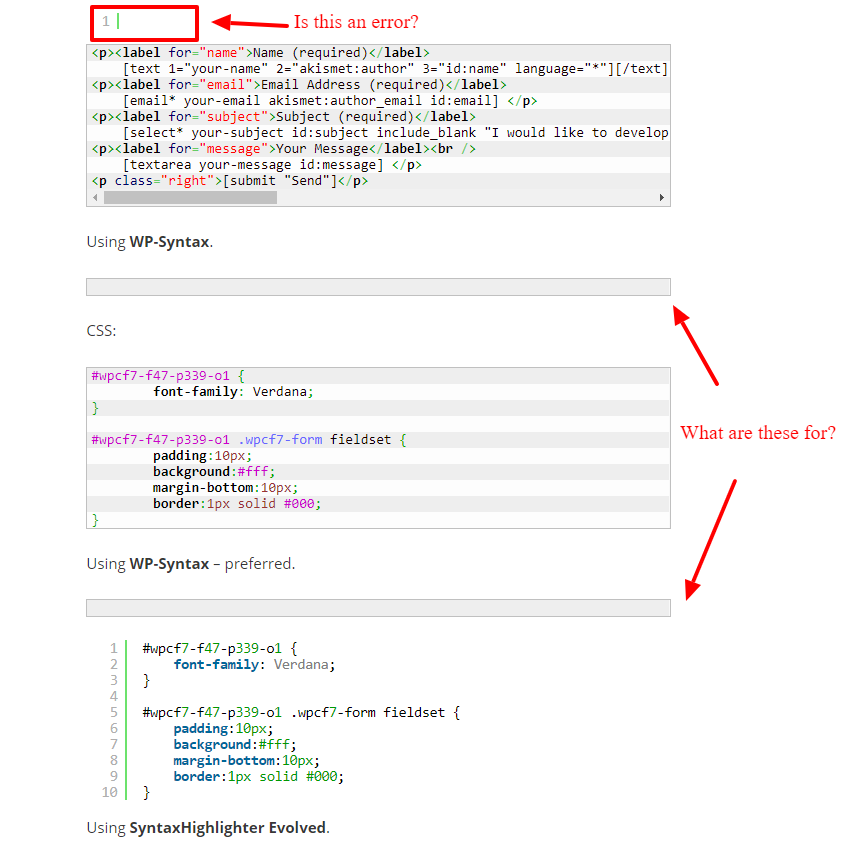
Anurag:I don’t understand the two empty code line after HTML part and in the middle of CSS part. Are they serving as separators? If yes, is it an accident that the one that should go after CSS ended up in the middle of the segment? (See pic below)
NOTES
Add comments, questions & notes here
Save all Images to Sync – use ..\Sync\..\Documentation\Documentation Guidelines\Displaying Code\Classic\