
Last Updated on November 13, 2024 by Neil Murray
Table of Contents
- Writing a Bitbucket Issue
- Bitbucket issue hashtag-number
- Add a comment on the Bitbucket issue for each commit
- Bitbucket Comments
- How to link to multiple lines of code
- Bitbucket formatting problem
- Line numbers
- Task Lists
- Link to Comments
- Report results & problems on Bitbucket Issues
Writing a Bitbucket Issue #
Images – ..\Sync..\Development\Development Guidelines\Working with CF7 Skins\Working with Bitbucket\Writing a Bitbucket Issue\
Guide on what to include when you are writing a Bitbucket Issue. It will provide details on which format and order should be followed to add the details.
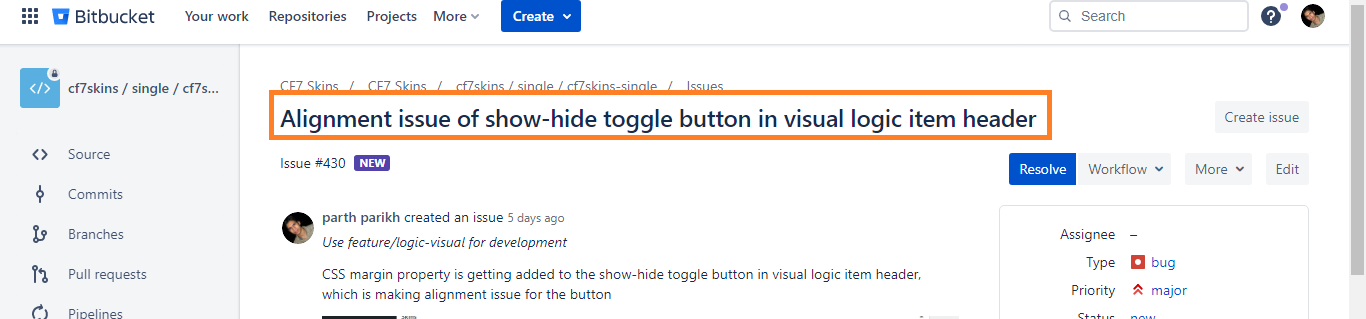
Title #
The title should be short and to the point so that anyone can figure out what could be the issue from the title.
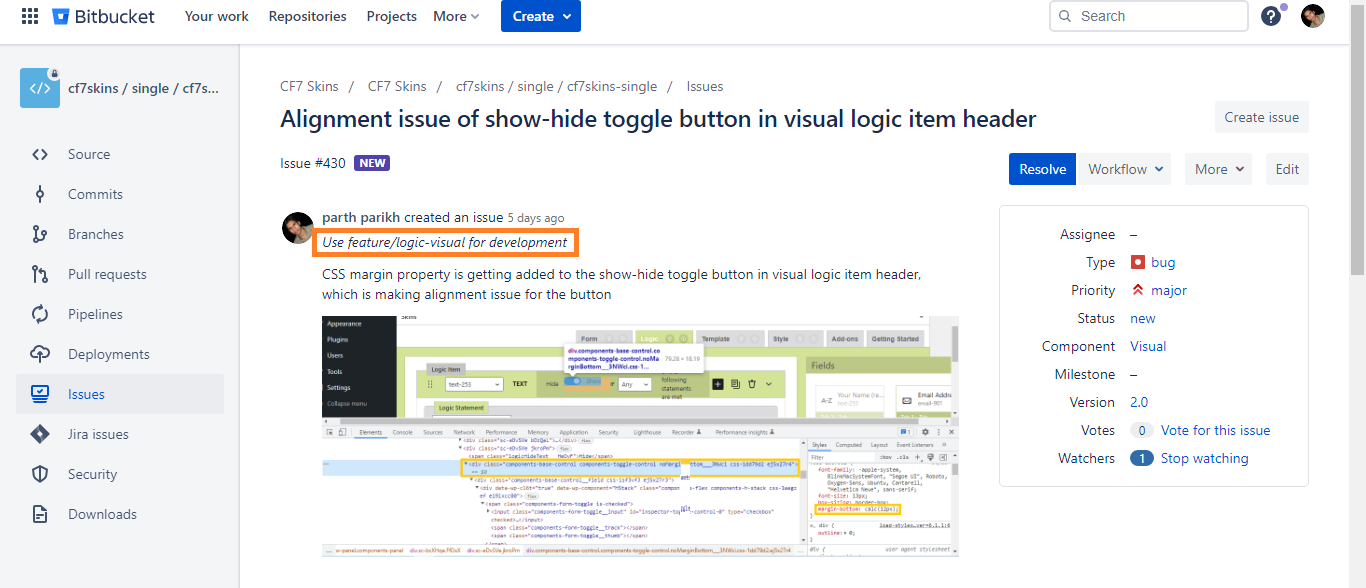
Branch #
The first thing in the description should be the Branch you are working on or testing.
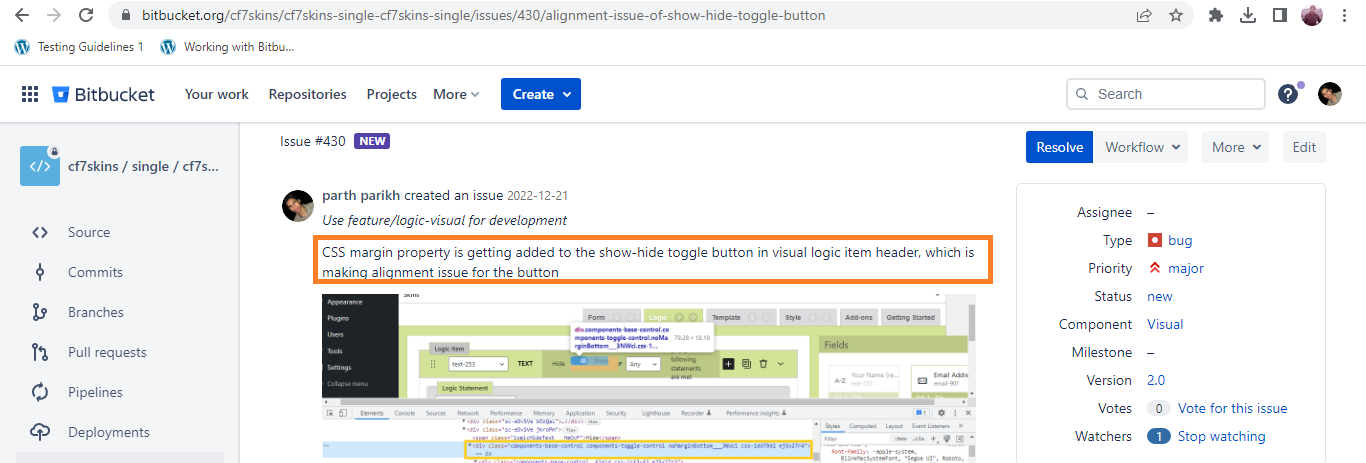
Details #
Details should include information about the issue faced. If reason of the issue is identified, it should be added to the information which can help team to understand the problem.
Good Example:
Bad Example:
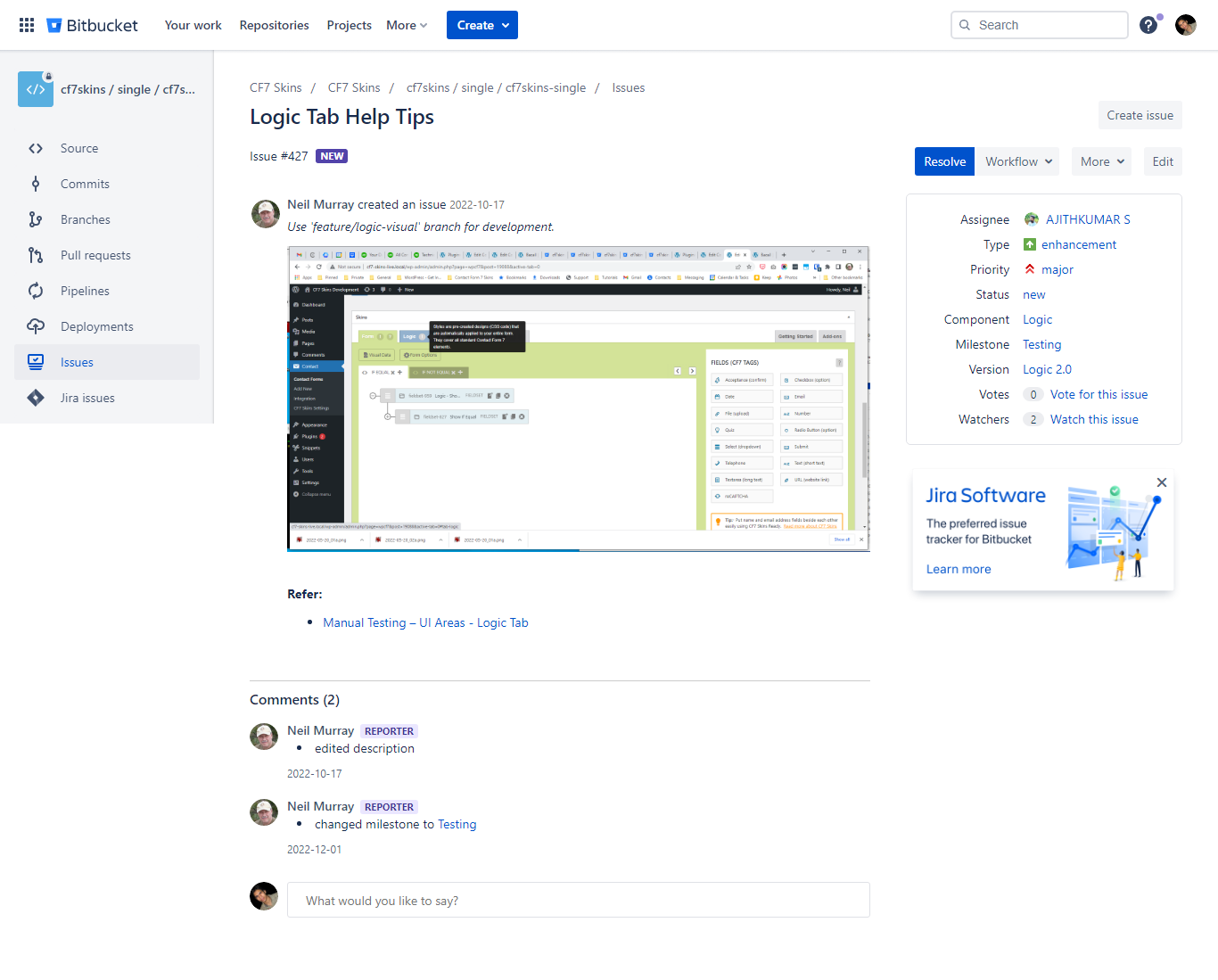
Screenshot #
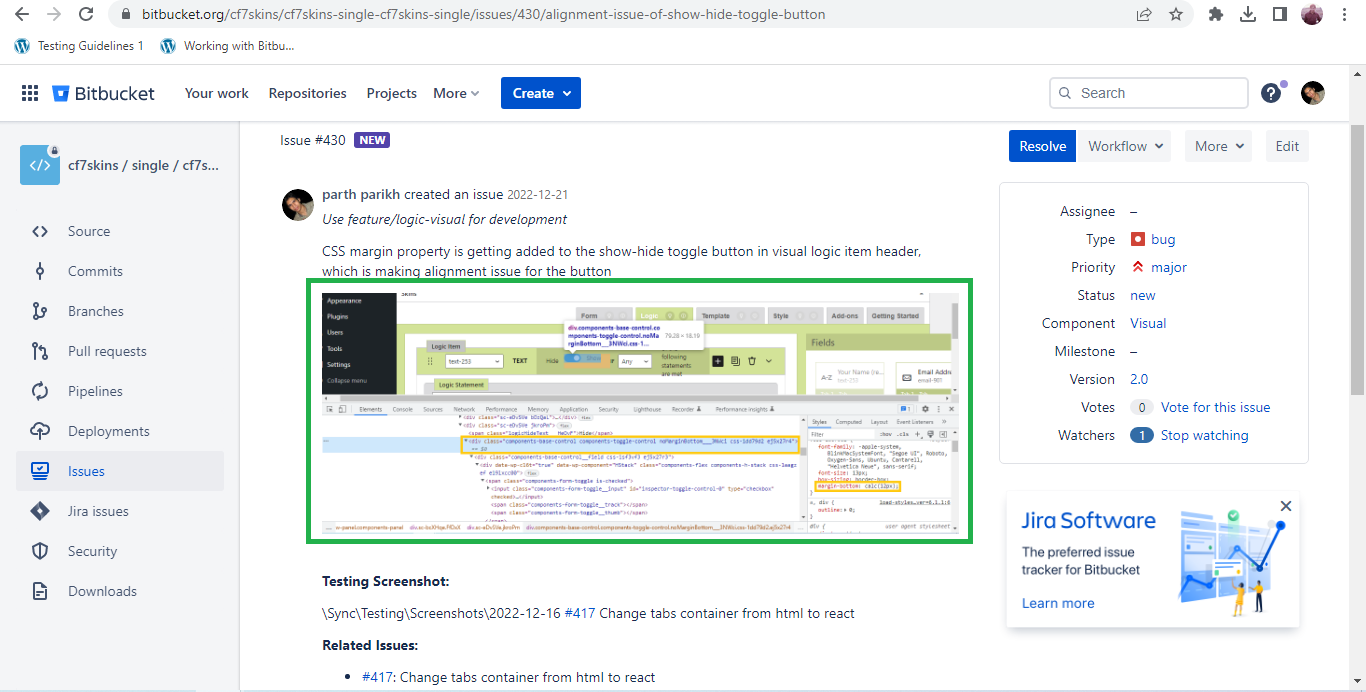
Add screenshot of the issue with a highlight over the issue and any other information present in the screenshot. Make sure the screenshot is cropped properly and only required part is shown over this shot.
Path to screenshots #
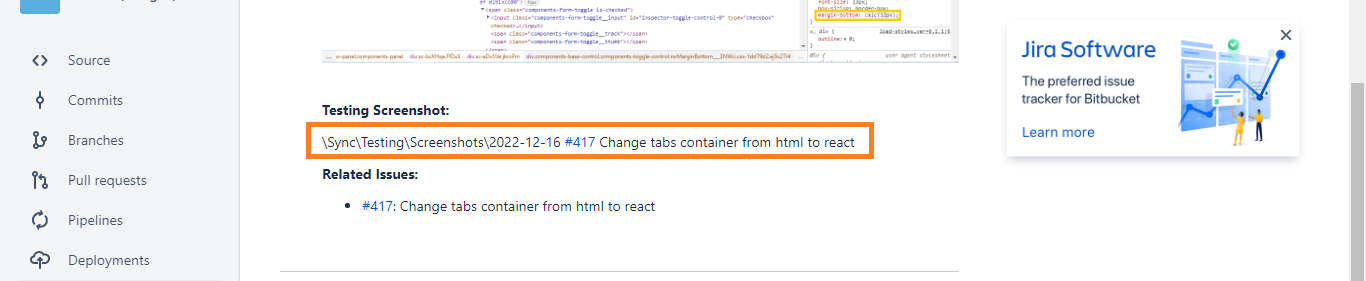
Add Path of Sync Folder where screenshots of test are saved.
See Screenshot Guide.
Related Issues #
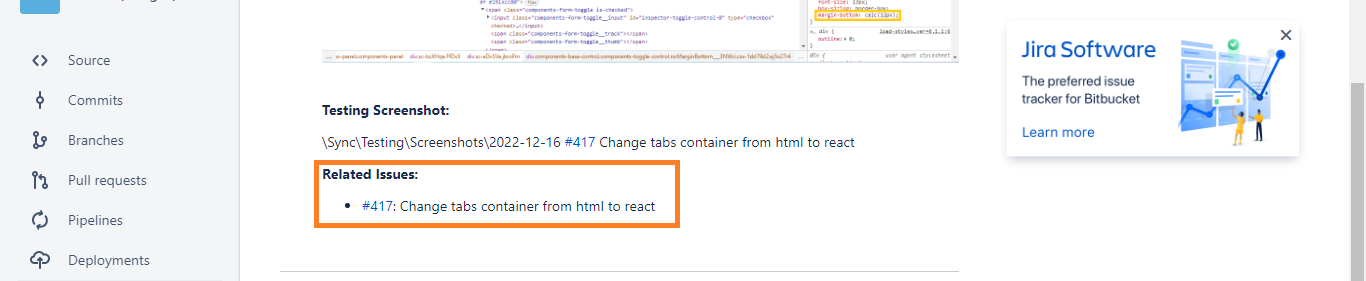
At the end of description include any issues that are related to current issue with number(having link to issue) and name of the issue.
Examples #
Good examples on how to write a issue:
- #430 – Alignment issue of show-hide toggle button in visual logic item header.
- #399 – Checkbox issue with “Make checkboxes exclusive” option and Logic – Selecting other option doesn’t deselecting the currently selected one.
Bitbucket issue hashtag-number #
Images – ..\Sync..\Development\Development Guidelines\Working with CF7 Skins\Working with Bitbucket\Bitbucket issue hashtag-number\
Add the Bitbucket issue hashtag-number at the beginning of each Git commit message. It helps us knowing what issue we’re working on and provides an automatic link to it.

Add a comment on the Bitbucket issue for each commit #
Images – ..\Sync..\Development\Development Guidelines\Working with CF7 Skins\Working with Bitbucket\Add a comment on the Bitbucket issue for each commit\
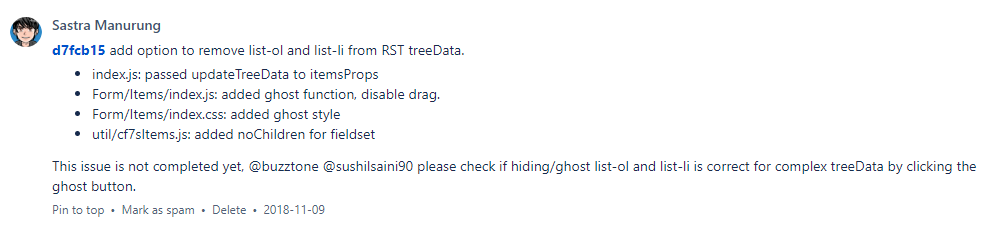
Add a comment on the Bitbucket issue, for each commit you make, giving details of the commit. If you are in training it’s a message for us to check your code.

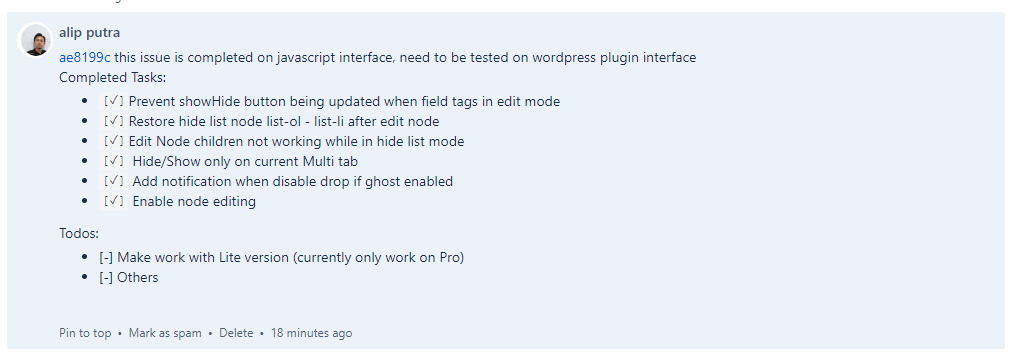
When your code is ready for testing include:
- a link to the commit
- a summary of what you have done via some screenshots
The comment should show what we can expect to see when we test your code.
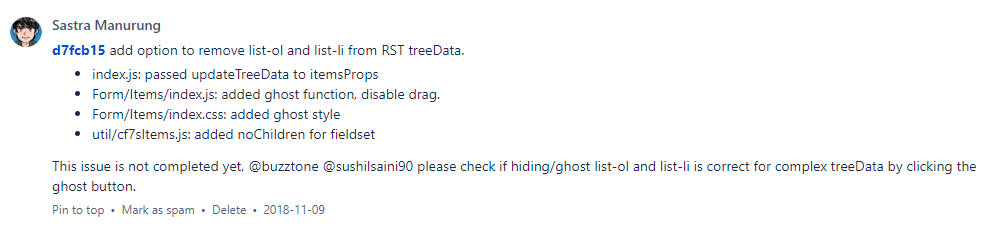
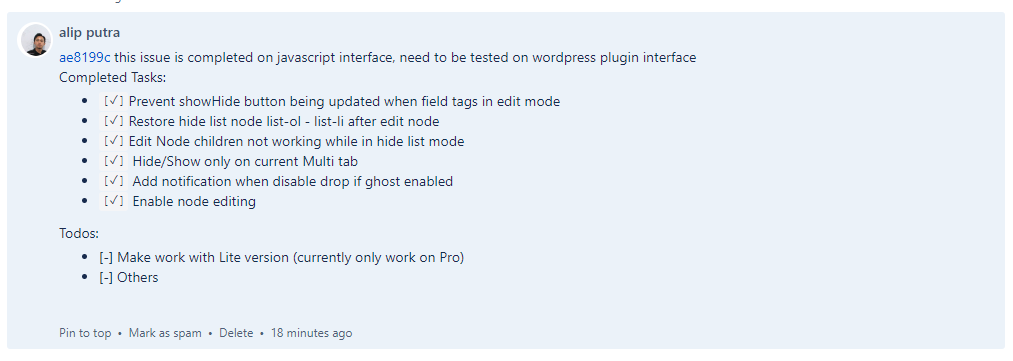
[ ADD examples including screenshots taken before and after each commit]
Bitbucket Comments #
Images – ..\Sync..\Development\Development Guidelines\Working with CF7 Skins\Working with Bitbucket\Bitbucket Comments\
Each comment needs to give enough info so other CF7 Skins Team members can understand.
Also when one of us looks again at this comment, much later, we want to easily see why this comment was added.
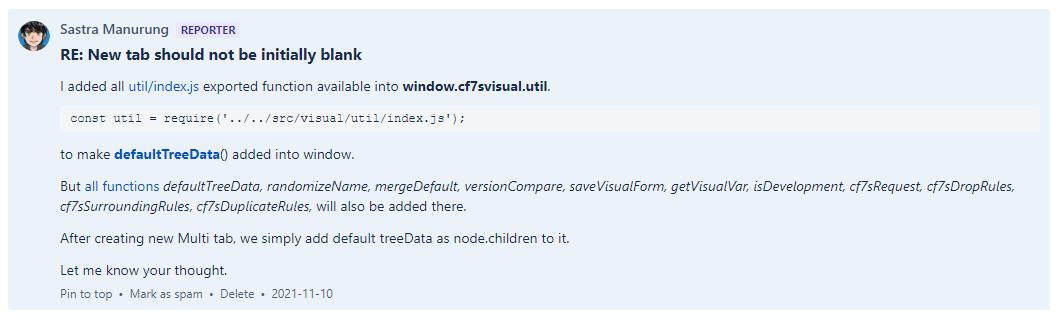
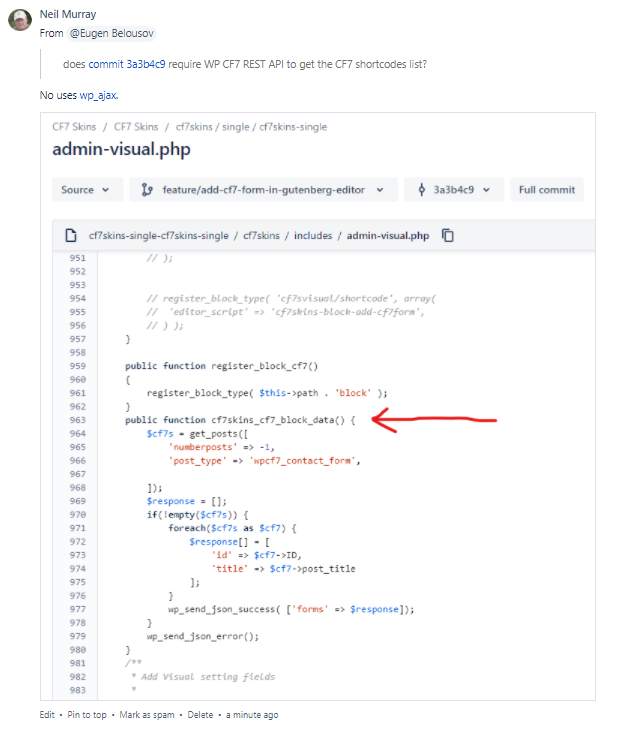
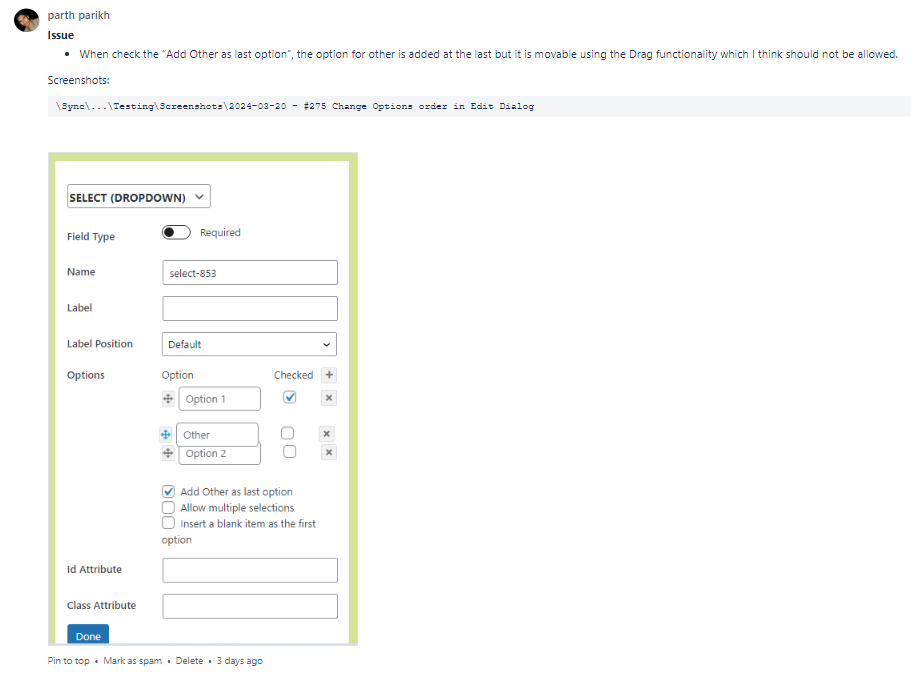
[ADD update on comment example]
NOTES:
1. You can edit your own Bitbucket comments
2. Add updates to your Bitbucket comments to make it easier for others to follow.
How to link to multiple lines of code #
Images – ..\Sync..\Development\Development Guidelines\Working with CF7 Skins\Working with Bitbucket\How to link to multiple lines of code\
On Windows, use:
- CTRL + click to select lines, example
https://bitbucket.org/cf7skins/cf7skins-single-cf7skins-single/src/0cc9fdc7b381956bc20da5878e9526a03d81fc8a/index.php#lines-26,28,30 - SHIFT + click start and end line for consecutive lines
https://bitbucket.org/cf7skins/cf7skins-single-cf7skins-single/src/0cc9fdc7b381956bc20da5878e9526a03d81fc8a/index.php#lines-26:30
- lines-26,28,30
- lines-26:30
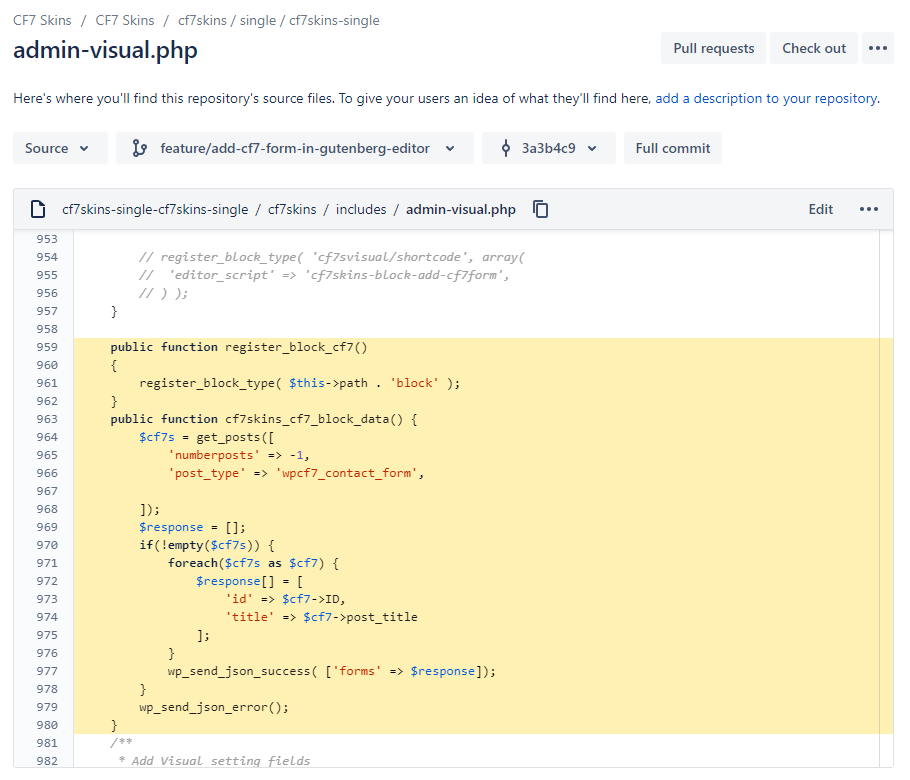
Refer: Working with Bitbucket – Line numbers for detailed instructions.
Bitbucket formatting problem #
Images – ..\Sync..\Development\Development Guidelines\Working with CF7 Skins\Working with Bitbucket\Bitbucket formatting problem\
This issue is only noticeable if you have a wider screen. You can easily solve the issue by always adding an extra empty line after any images.
Tip: Please fix this issue in any of your comments when you are made aware of this by other team members using wider screens.
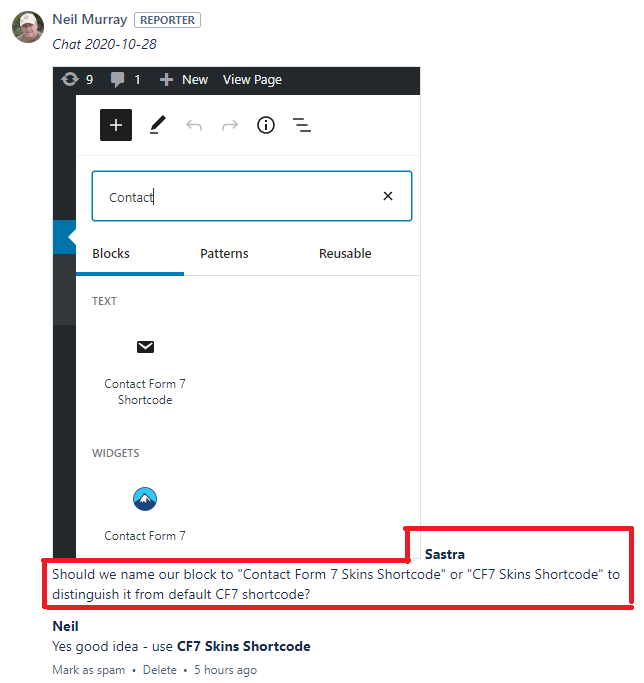
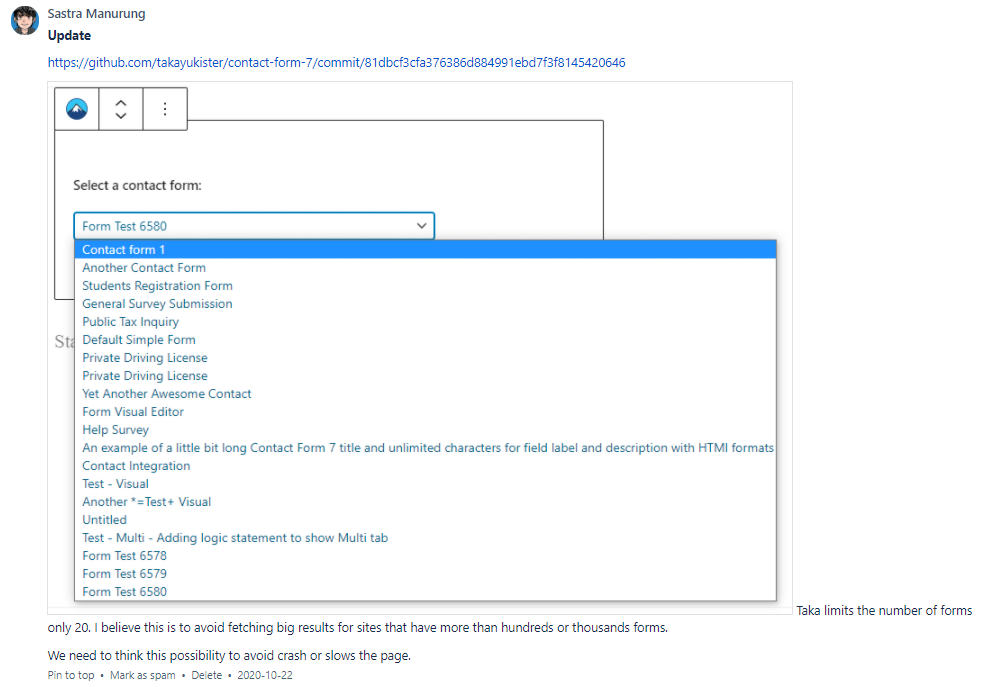
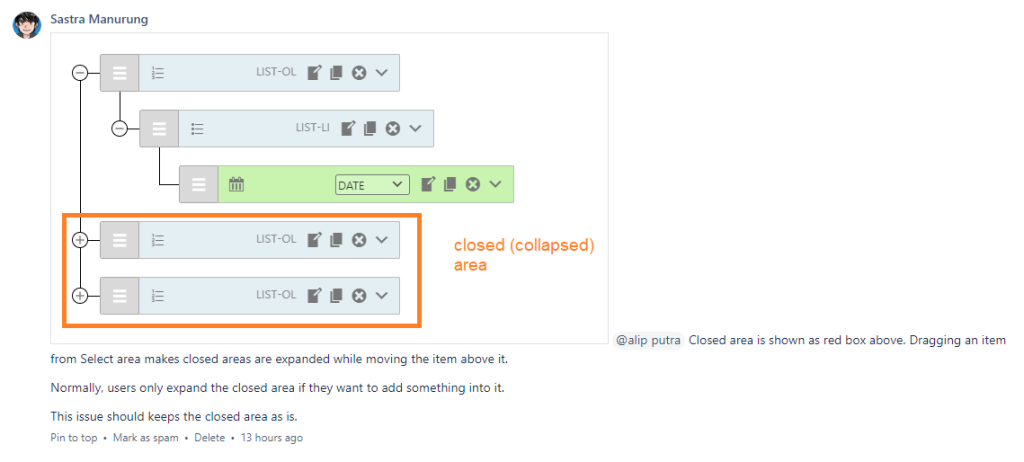
Tip: You can fix this formatting problem on Bitbucket by adding an extra line after each image.
Line numbers #
Images – ..\Sync..\Development\Development Guidelines\Working with CF7 Skins\Working with Bitbucket\Line numbers\
It’s often useful to refer to relevant numbers when commenting in Bitbucket.
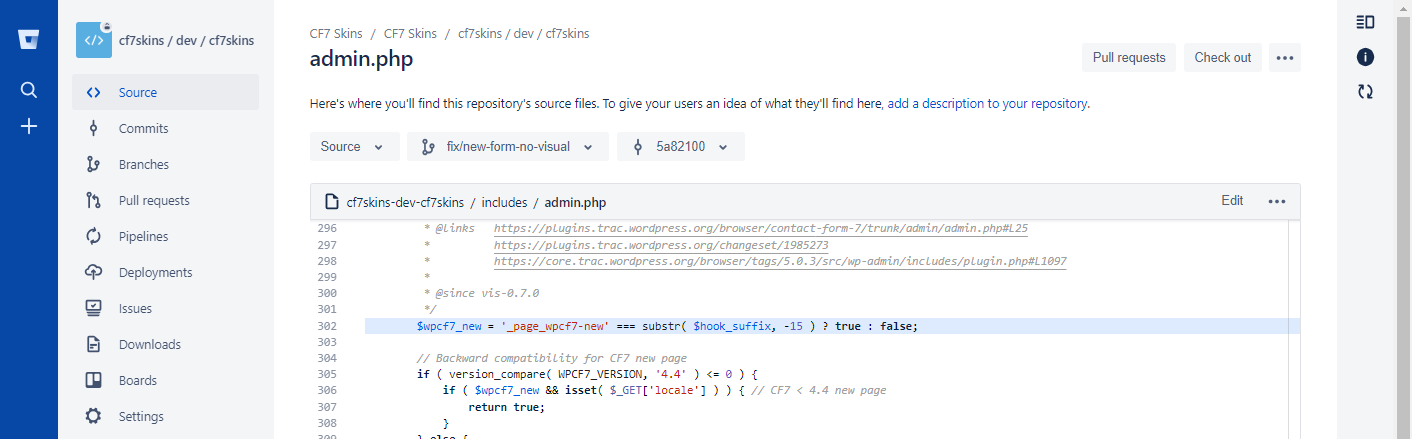
Note: Bitbucket does not provide any documentation at this stage on this feature (if it’s there we can’t find it).
Select single line #
Click on a line number to select the line.
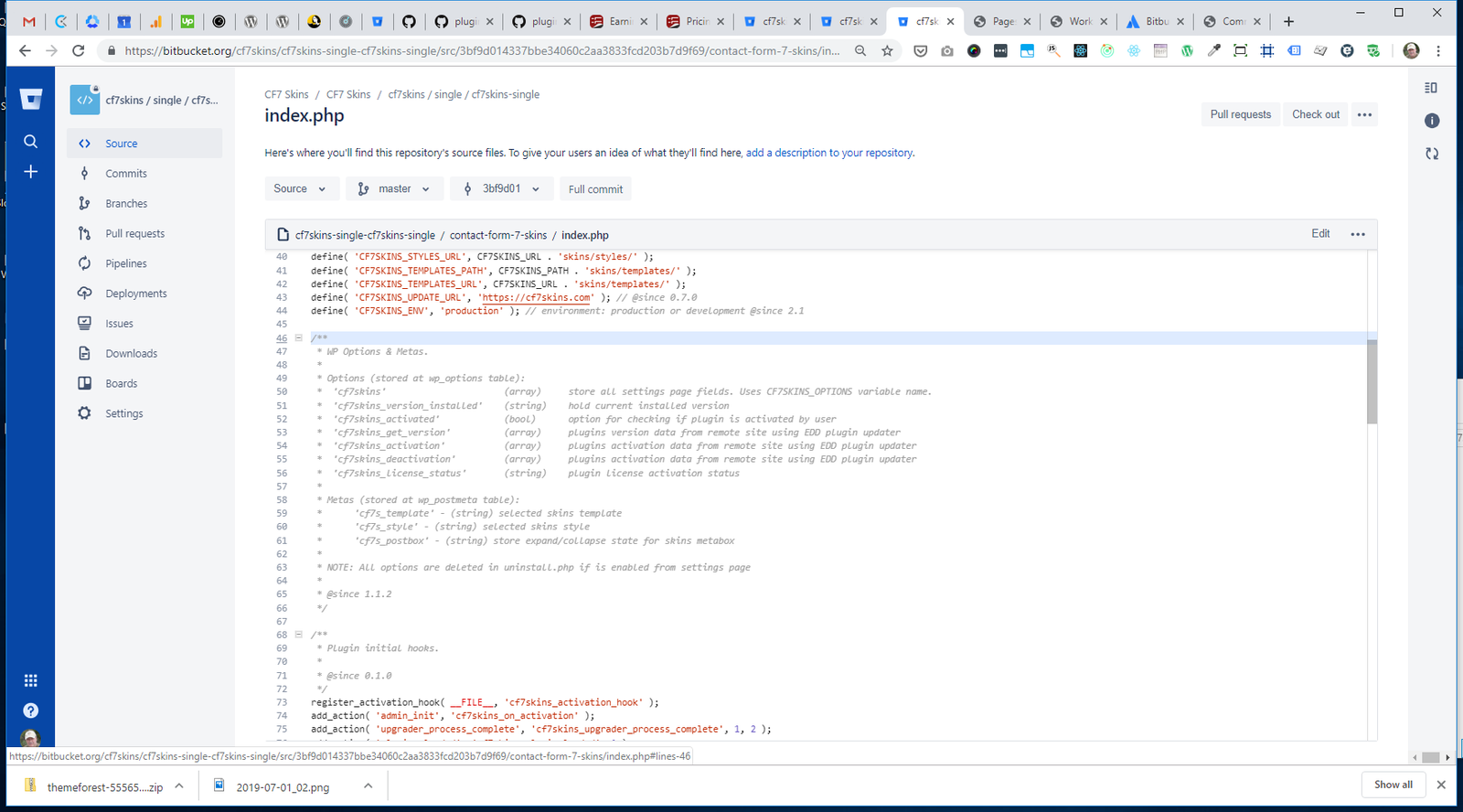
The selected line is added at the end of the page URL.
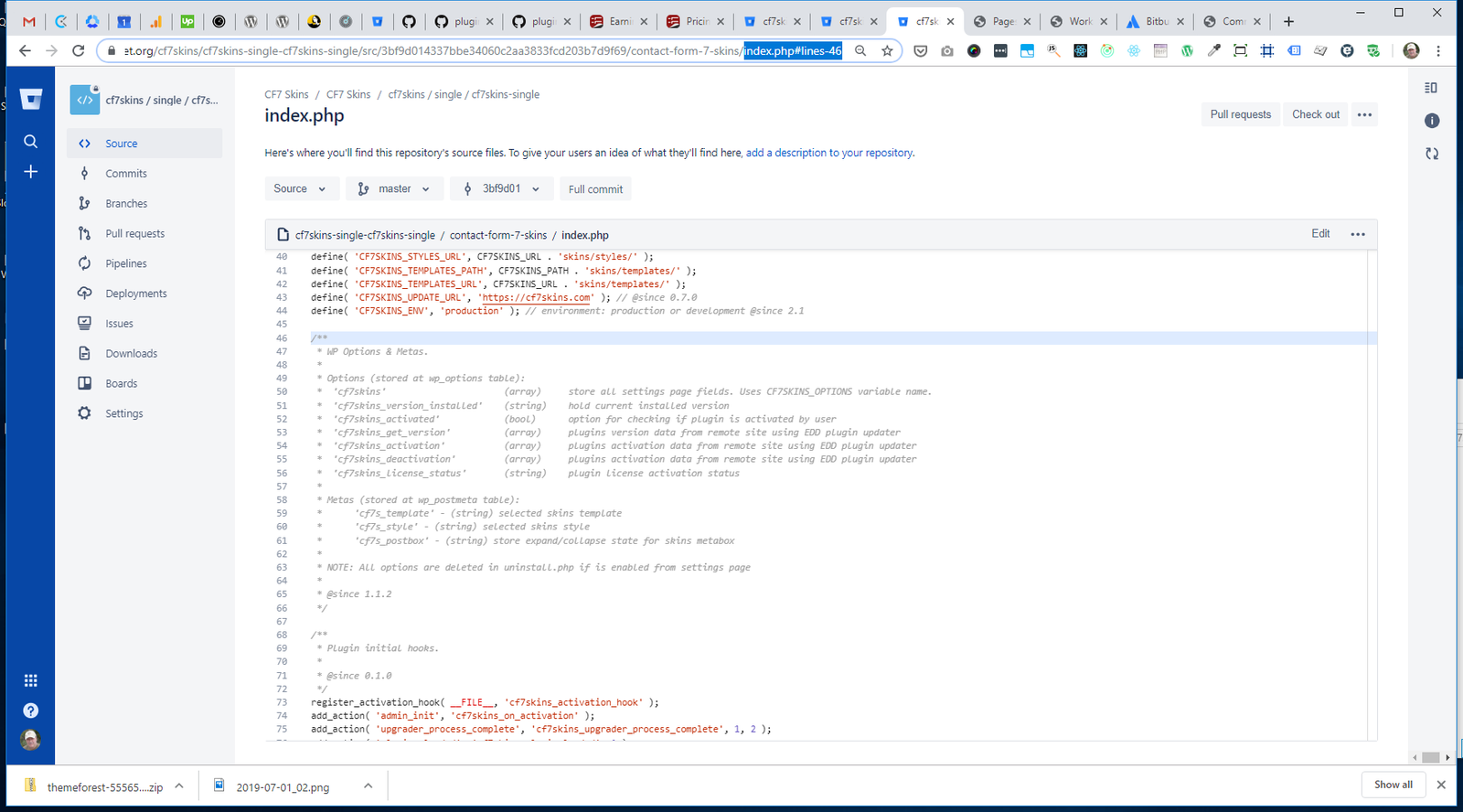
.../index.php#lines-46Copy the page URL & add it as a link in your Bitbucket comment.
Select group of lines #
- Click on a line number to select the first line.
- Shift click on the end line number to select the line group.
- The selected line group is added at the end of the page URL.
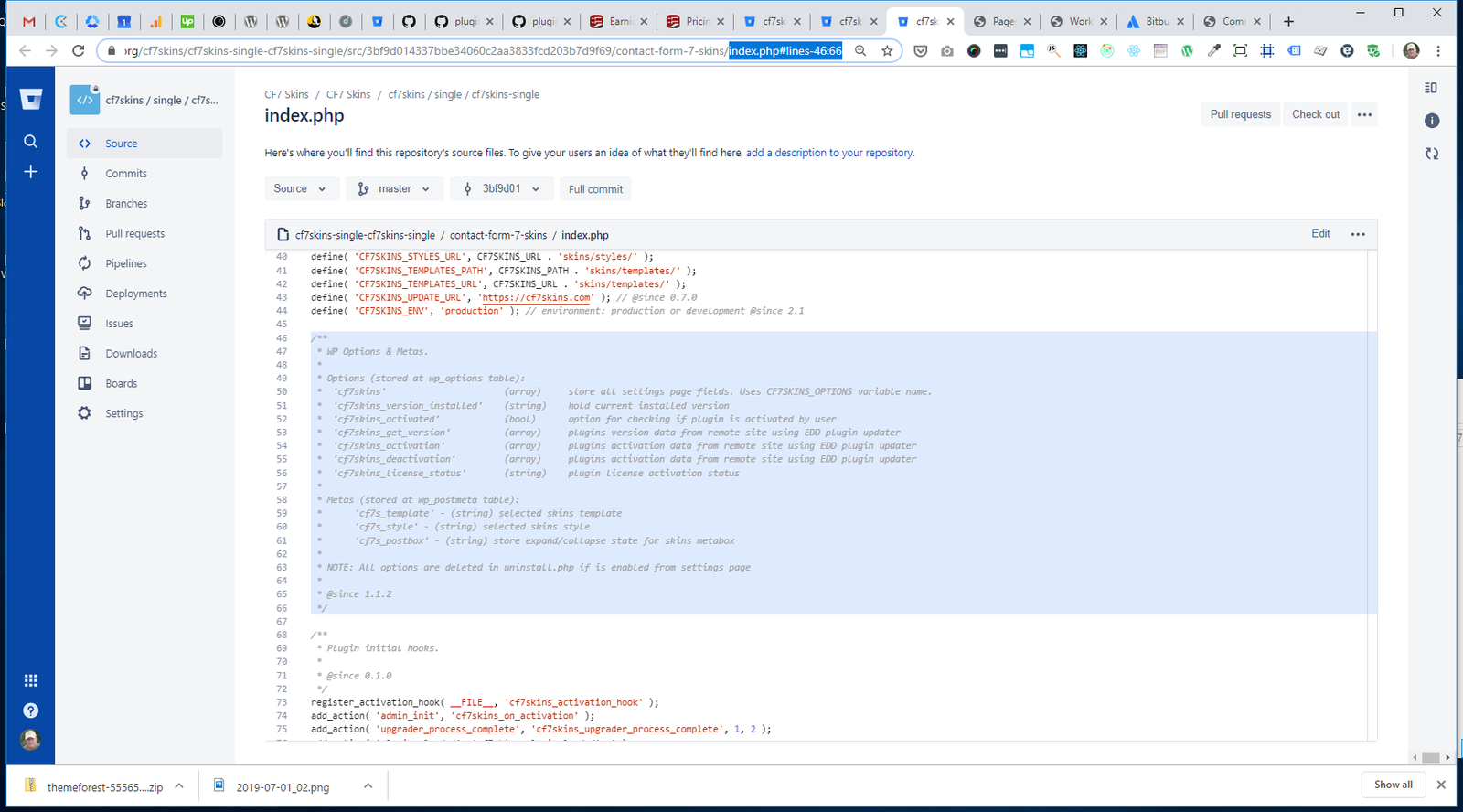
.../index.php#lines-46:66Select separated lines #
Use Ctrl click to add separated lines.
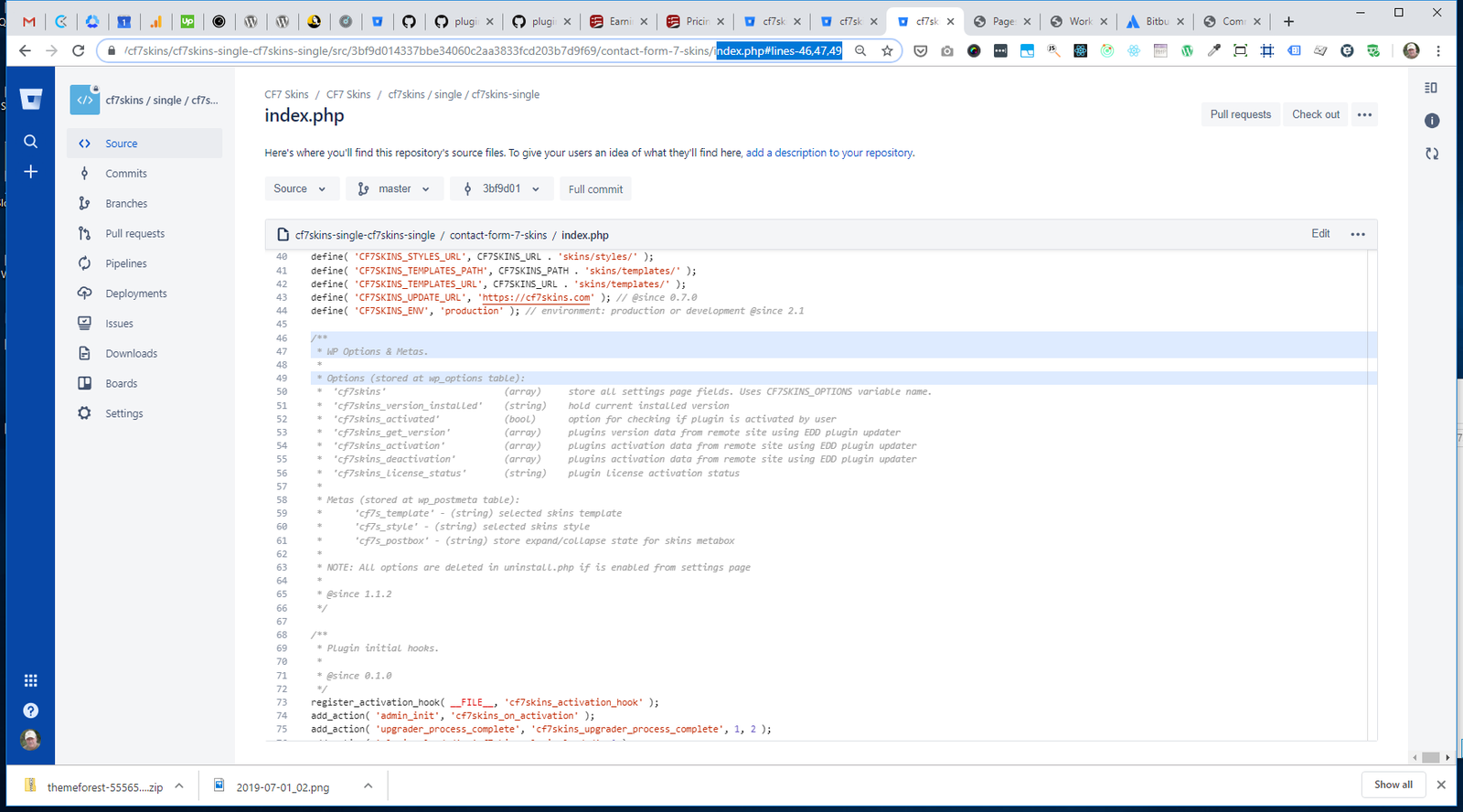
.../index.php#lines-46,47,49Deselect separated lines #
You can also use Ctrl click to remove separated lines.
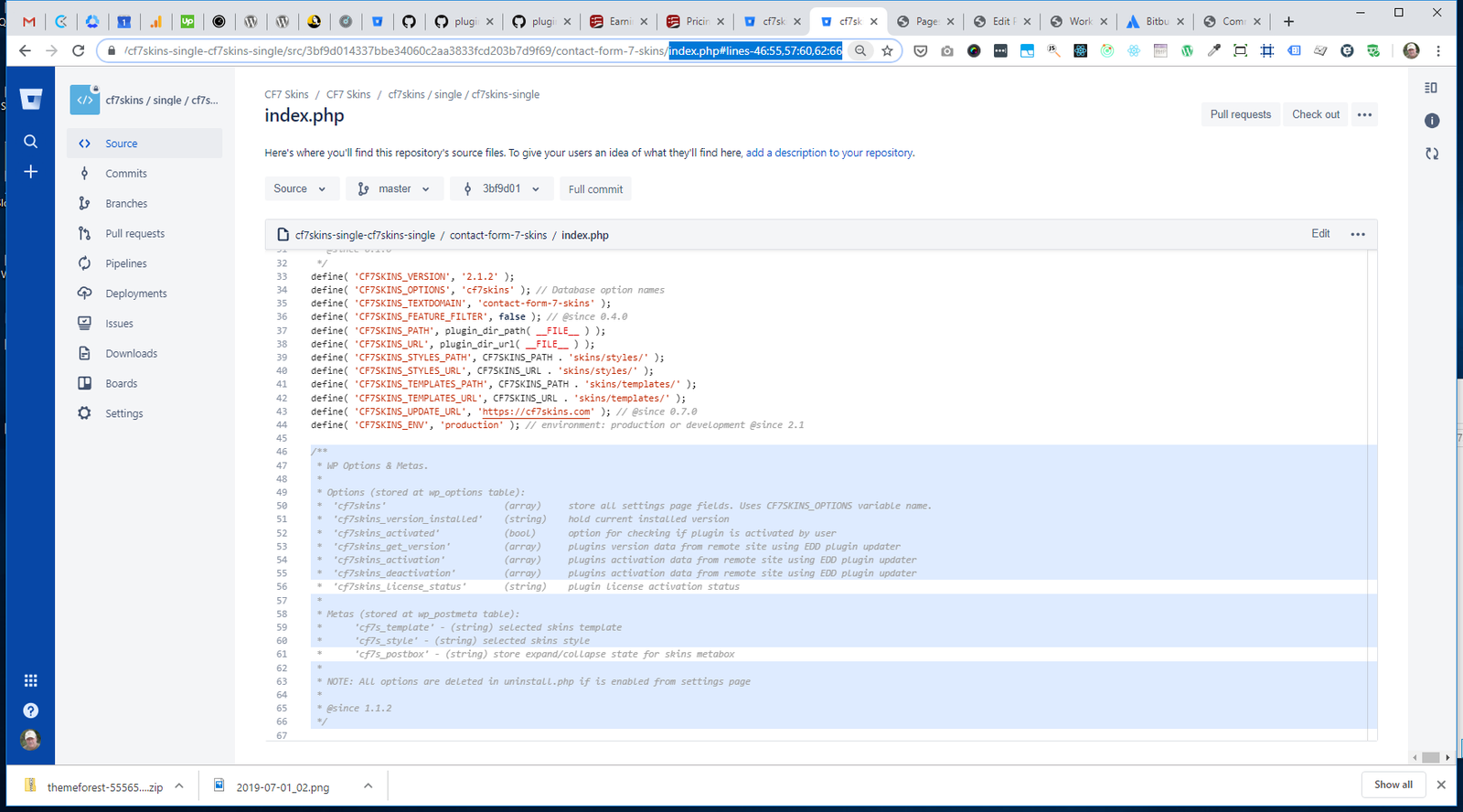
.../index.php#lines-46:55,57:60,62:66Further reading:
Task Lists #
Images – ..\Sync..\Development\Development Guidelines\Working with CF7 Skins\Working with Bitbucket\Task Lists\
We often use task lists to create a list of items with check-boxes within issue comments.
We generally add the task list to the Bitbucket Issue Description so users can view the task list summary information in issue and pull request lists.
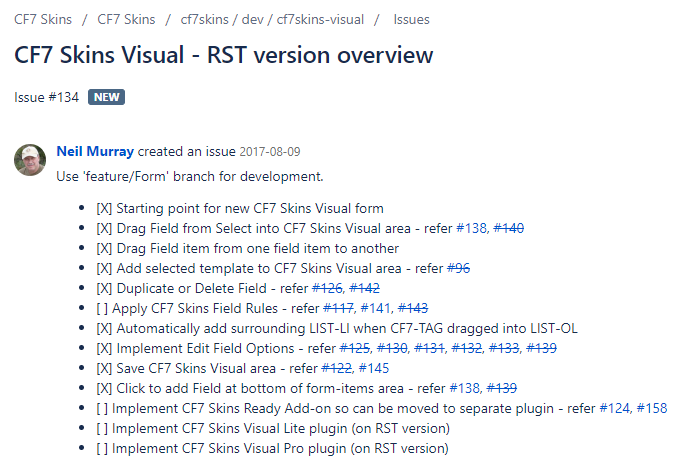
Note: Bitbucket does not at this stage offer the functionality available for task lists on GitHub.
Link to Comments #
Images – ..\Sync..\Development\Development Guidelines\Working with CF7 Skins\Working with Bitbucket\Link to Comments\
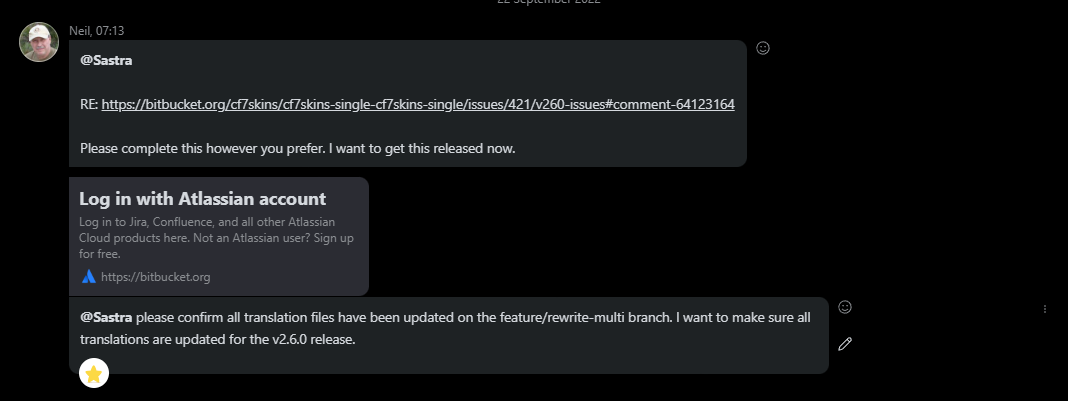
We often need to link to particular Bitbucket comments in:
- Task Lists
- Skype chat
Task Lists
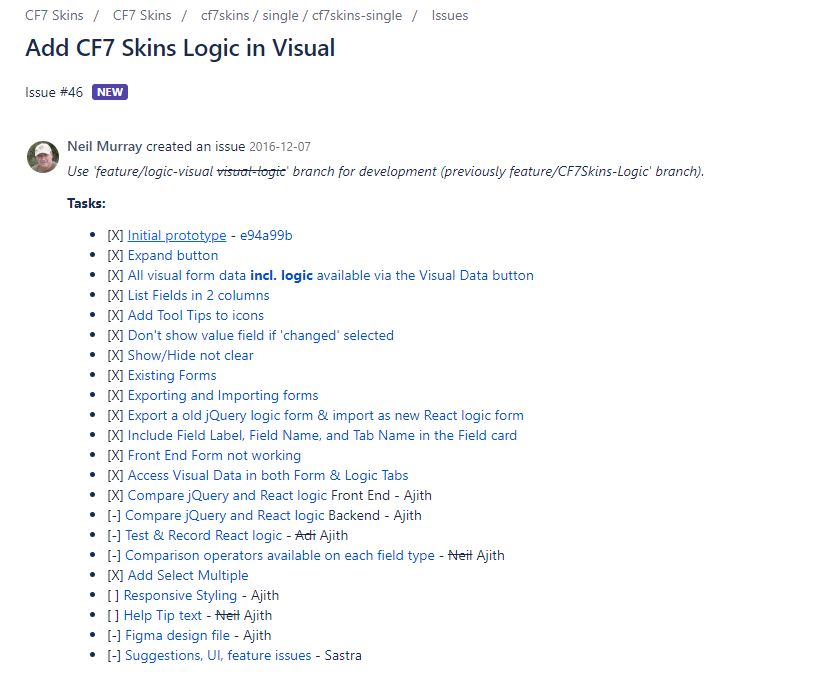
Skype Chat #
In Bitbucket the date of the comment gives a link to the comment.
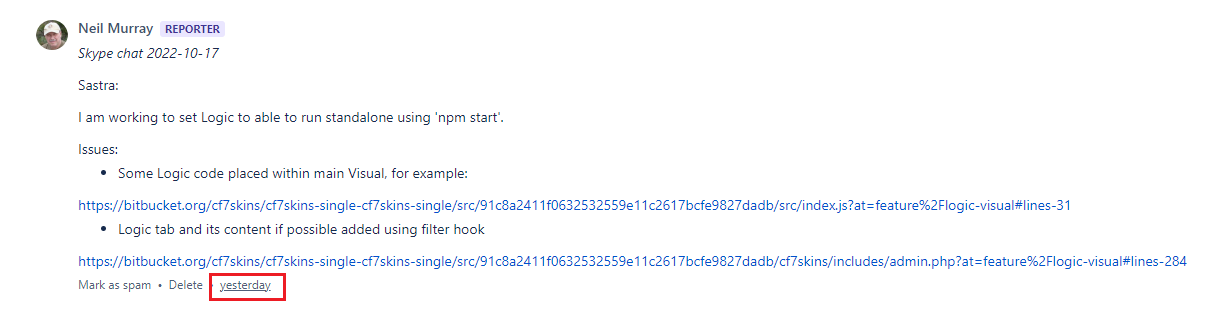
Simply hover over the date & right click to copy the link address.
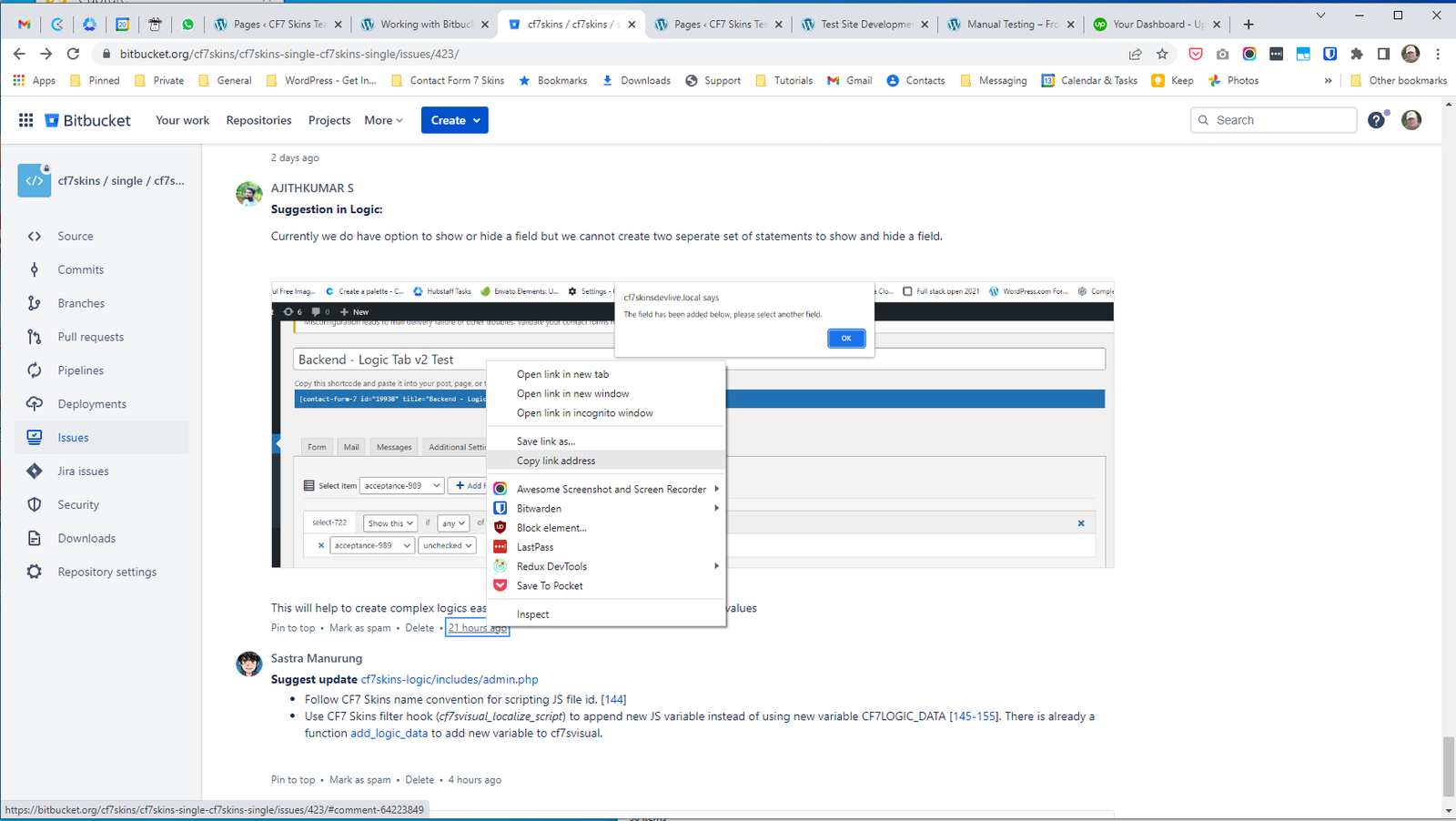
This link can then be used in Task List or Skype Chat to connect to the related comment.
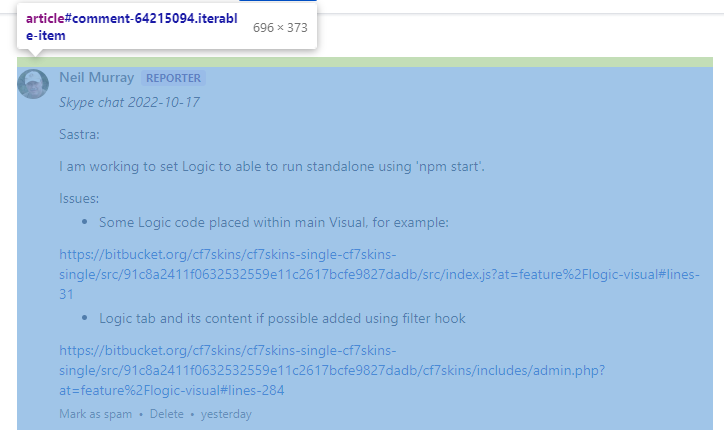
NOTE: It is important to use the full URL, comment id cannot be used directly to link to the comment (i.e, #comment-id).

Using comment id will work only the first time, if we update the post the link will no longer work.
We can find the id of particular comment at the end of this URL after #
Bitbucket documentation #
Report results & problems on Bitbucket Issues #
TODO
Further reading:
Notes
As Assignee you should be notified of all comments.
To get notified on other issues you need to Follow the issue.
You can always edit any comments you create, which I find is a good way to update these sort of comments over time.
This should be added on the Bitbucket issue – that is we communicate actions & progress on individual issues with the rest to the CF7 Skins team.
I really don’t want updates like this via Skype.
Nobody else can see them unless I make extra effort to copy them to a more appropriate location.
Save all Images to Sync – use ..\Sync\..\Development\Development Guidelines\Working with CF7 Skins\Working with Bitbucket\