
Last Updated on August 20, 2023 by Neil Murray
Table of Contents #
Manual Testing – Front End Forms #
Page: Manual Testing – Front End Forms
We add an image to record how each CF7 Skins forms displays on the front end of a WordPress website. This allows us to check for any unexpected changes in new plugin versions.
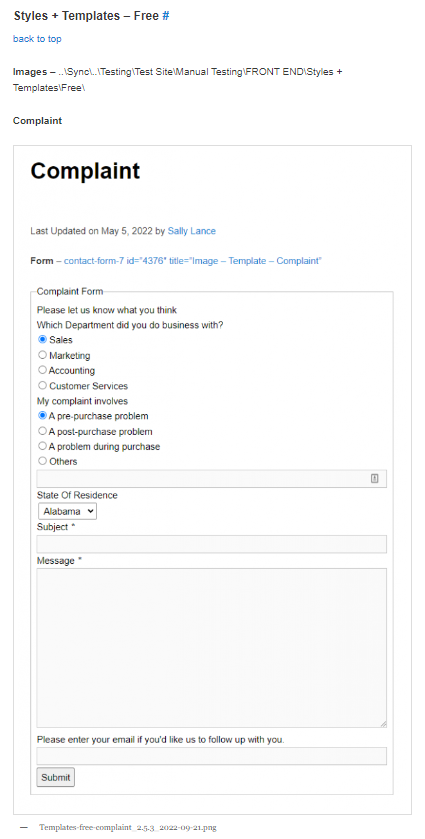
1. Save Form Images #
We save an image of how each CF7 Skins forms displays on the front end of a WordPress website. We do this each time, how the CF7 Skins forms displays, changes.
A. Go to Manual Testing – Front End Forms to see a list of pages displaying our range of CF7 Skins forms.
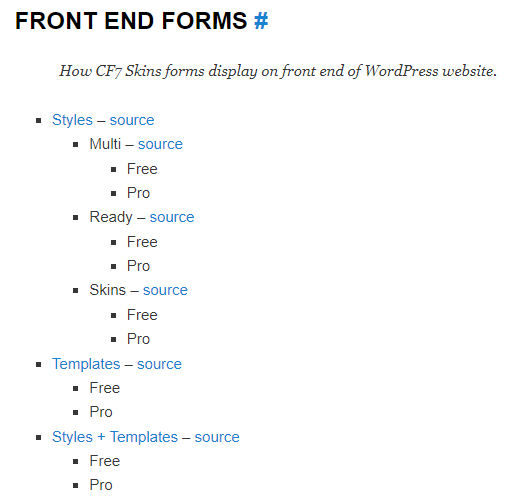
B. Visit the source pages listed there & work your way through each page displaying our range of CF7 Skins forms.
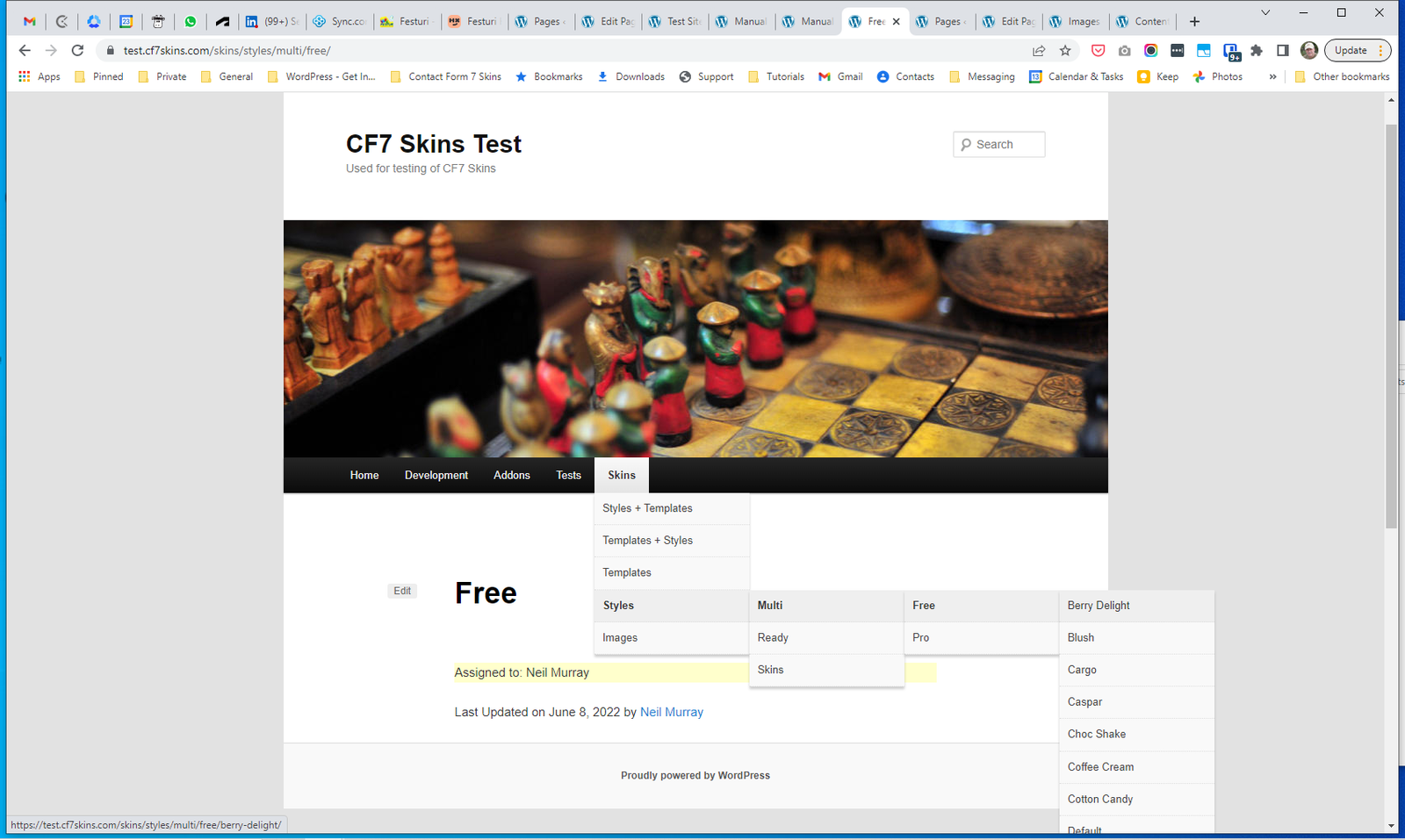
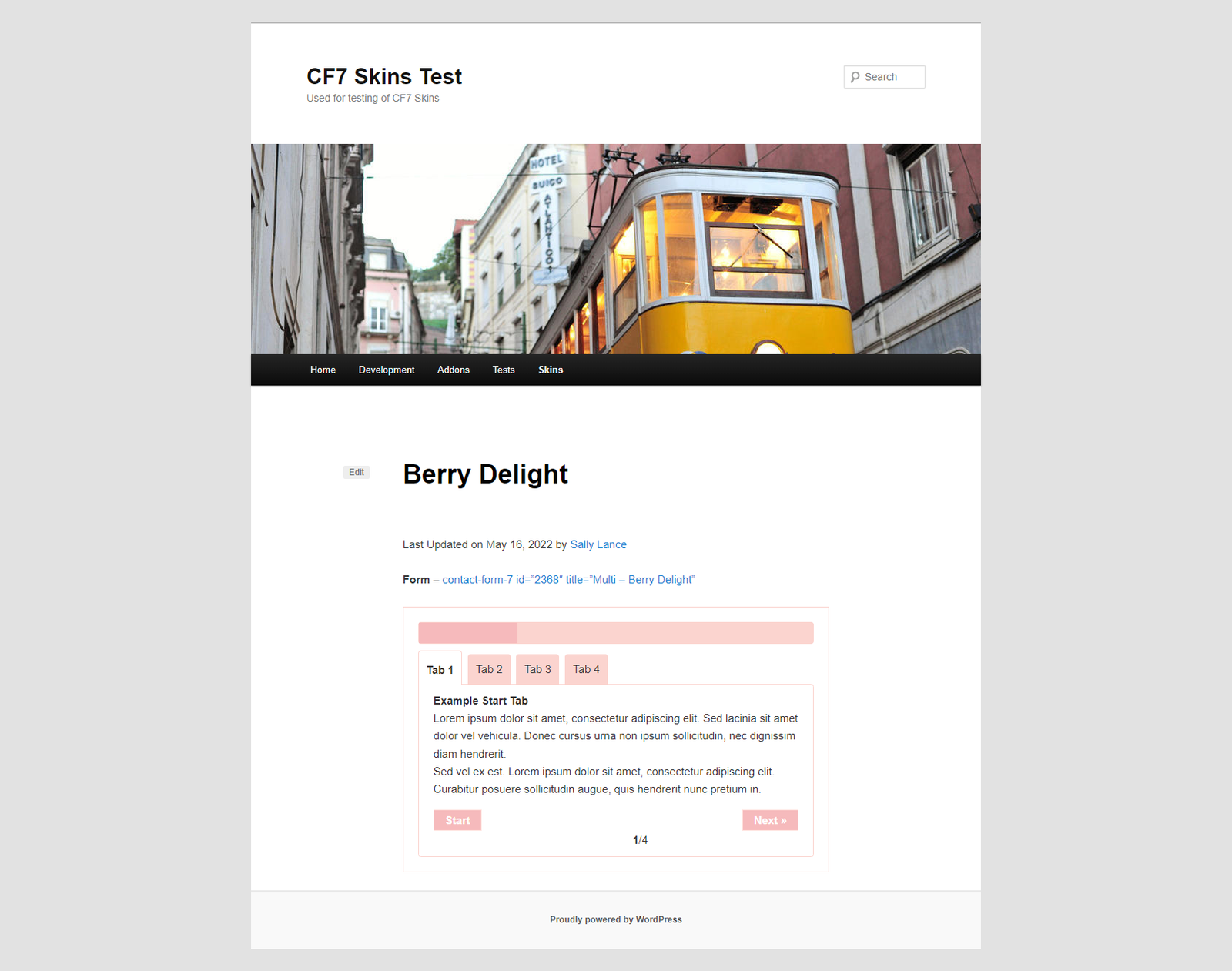
C. Take a screenshot of the CF7 Skins form.
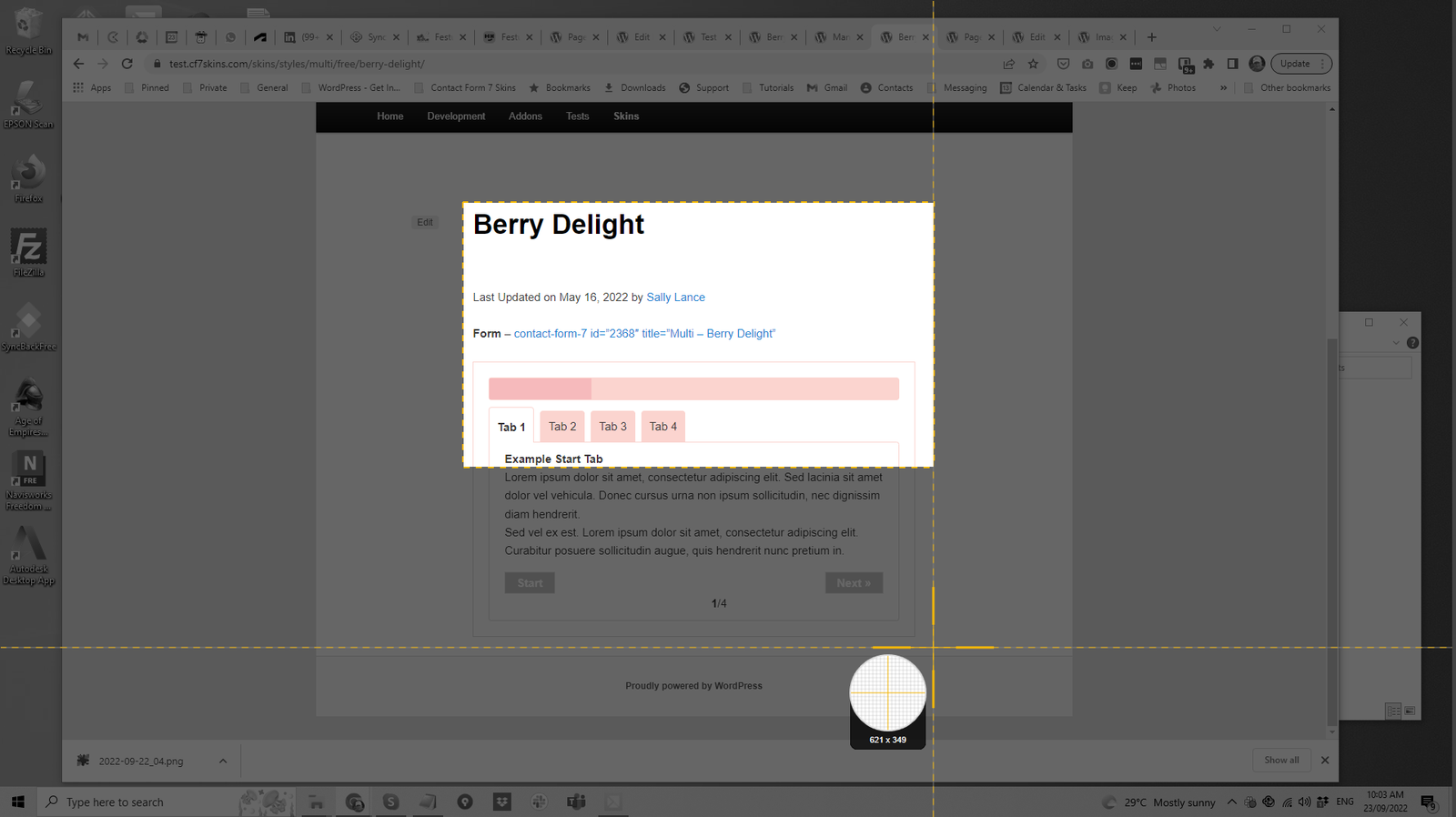
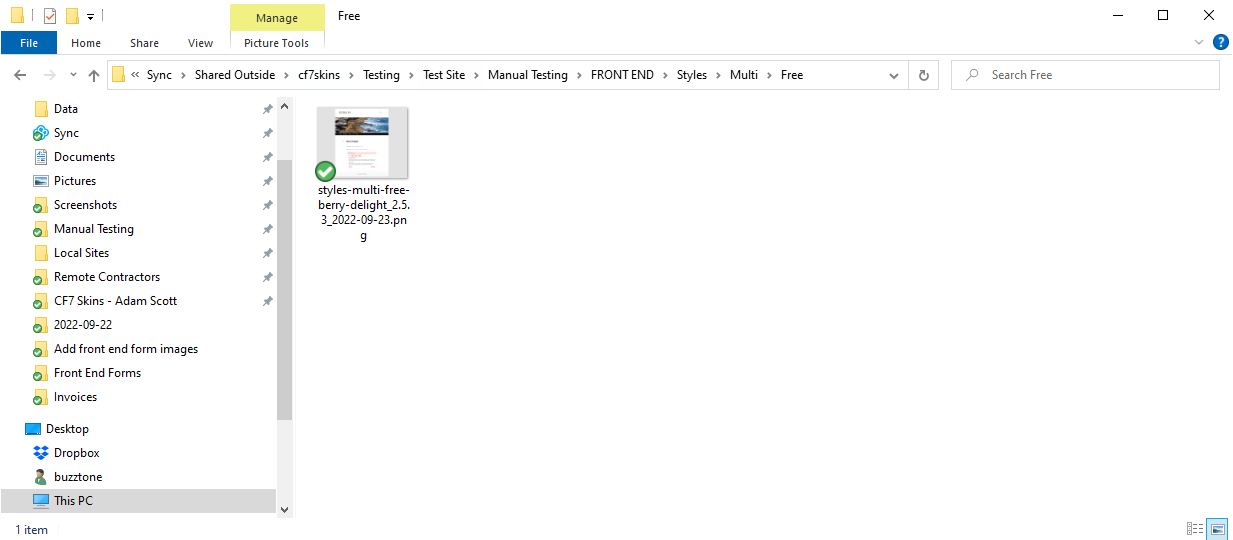
C. Navigate to .. Sync..\Testing\Test Site\Manual Testing\FRONT END\ & select the relevant folder where you need to add the image.
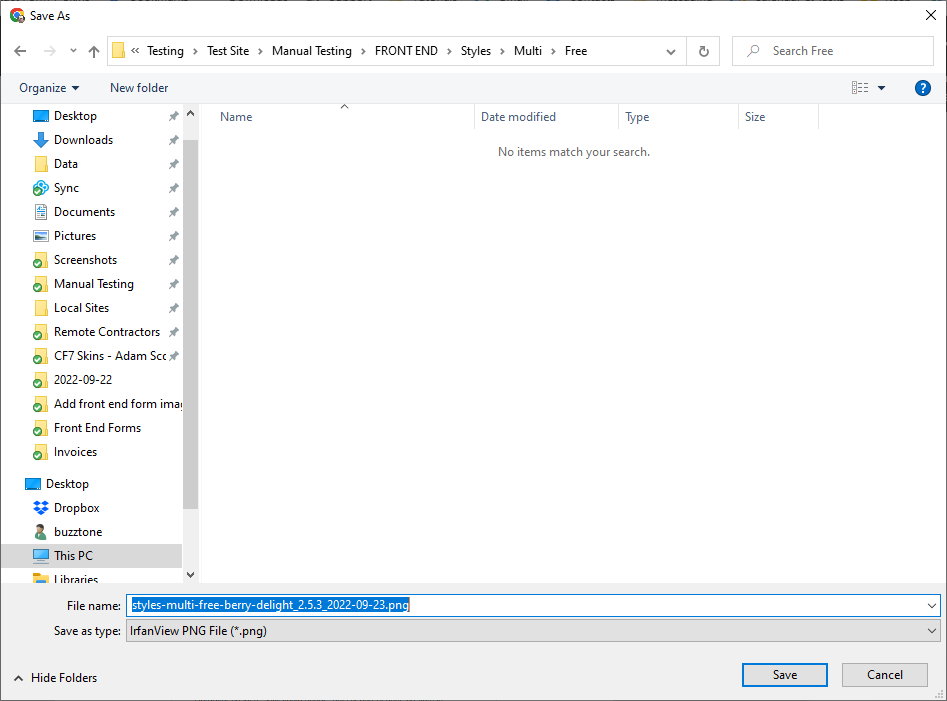
D: Name the images using the following format:
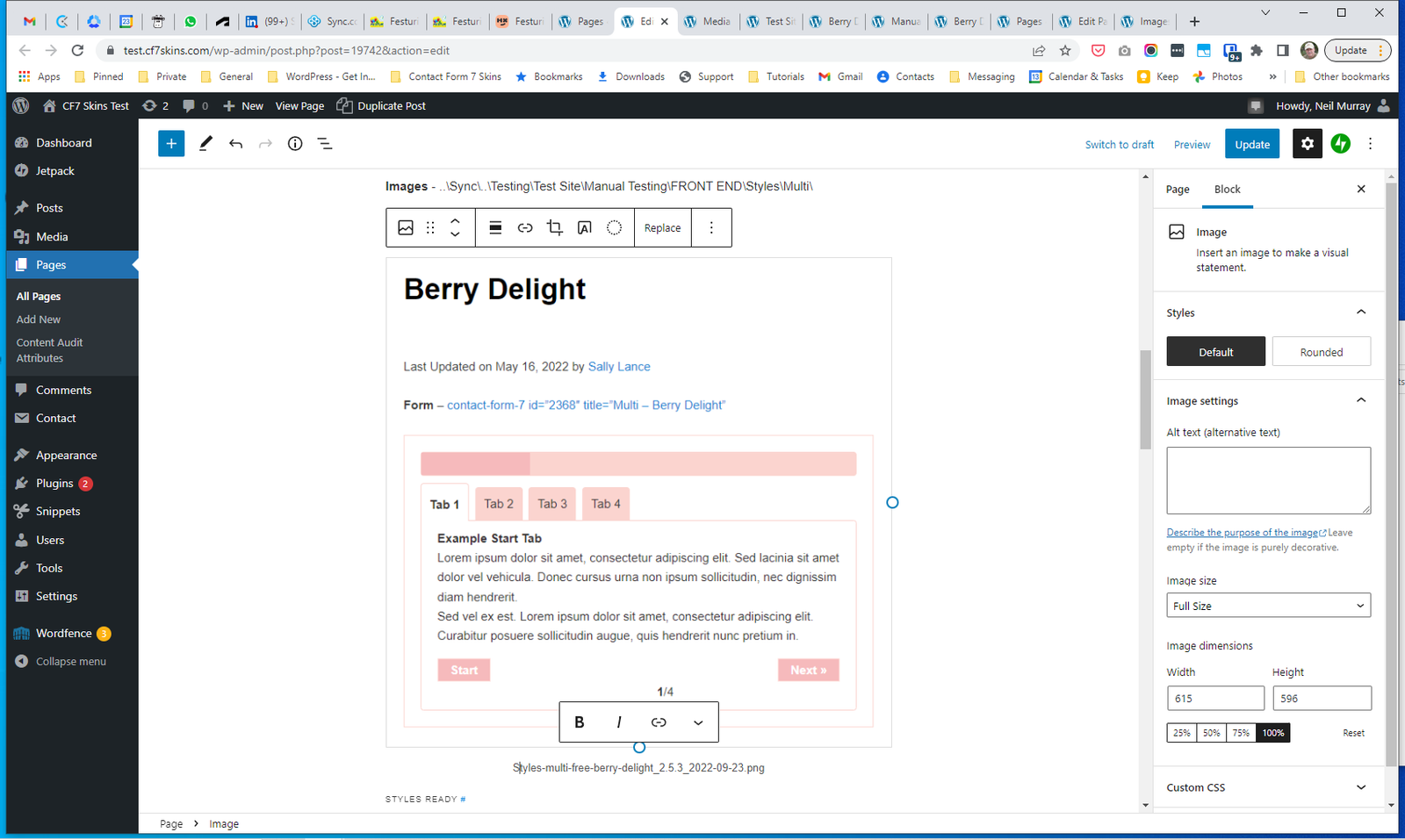
Image-file-source_version_date e.g. Styles-multi-free-berry-delight_2.5.3_2022-09-23.png
E: Save the image in this folder.
2. Add Form Images at Manual Testing – Front End #
We add or update an image of how each CF7 Skins forms displays on the front end of a WordPress website. We do this each time, how the CF7 Skins forms displays, changes.
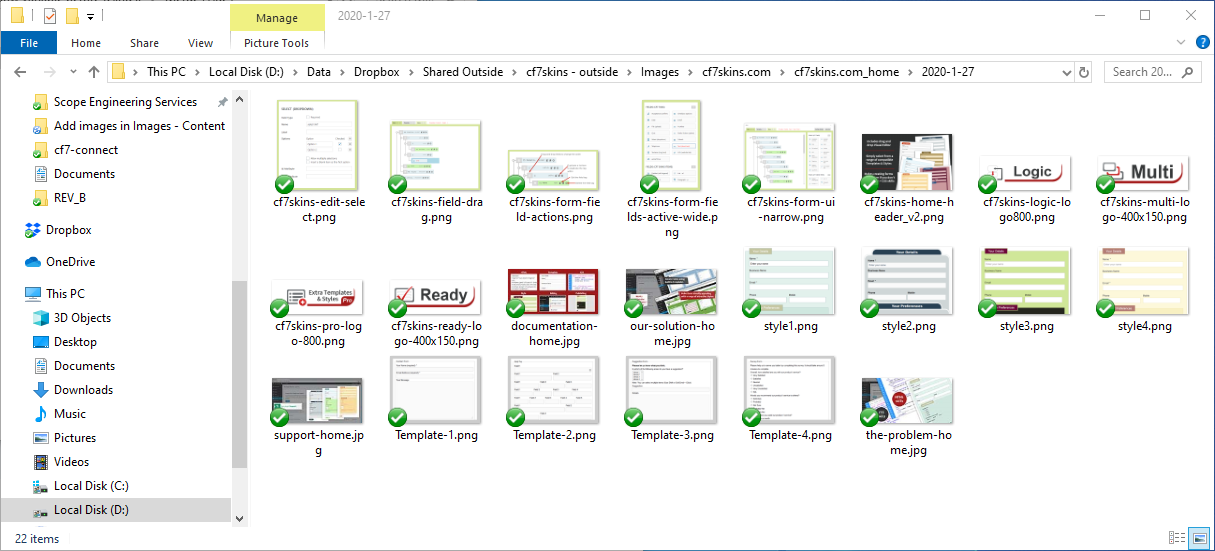
A. Find the folder that contains the images of the forms you are working on.
B. Open the Manual Testing – Front End page using the Gutenberg Block Editor.
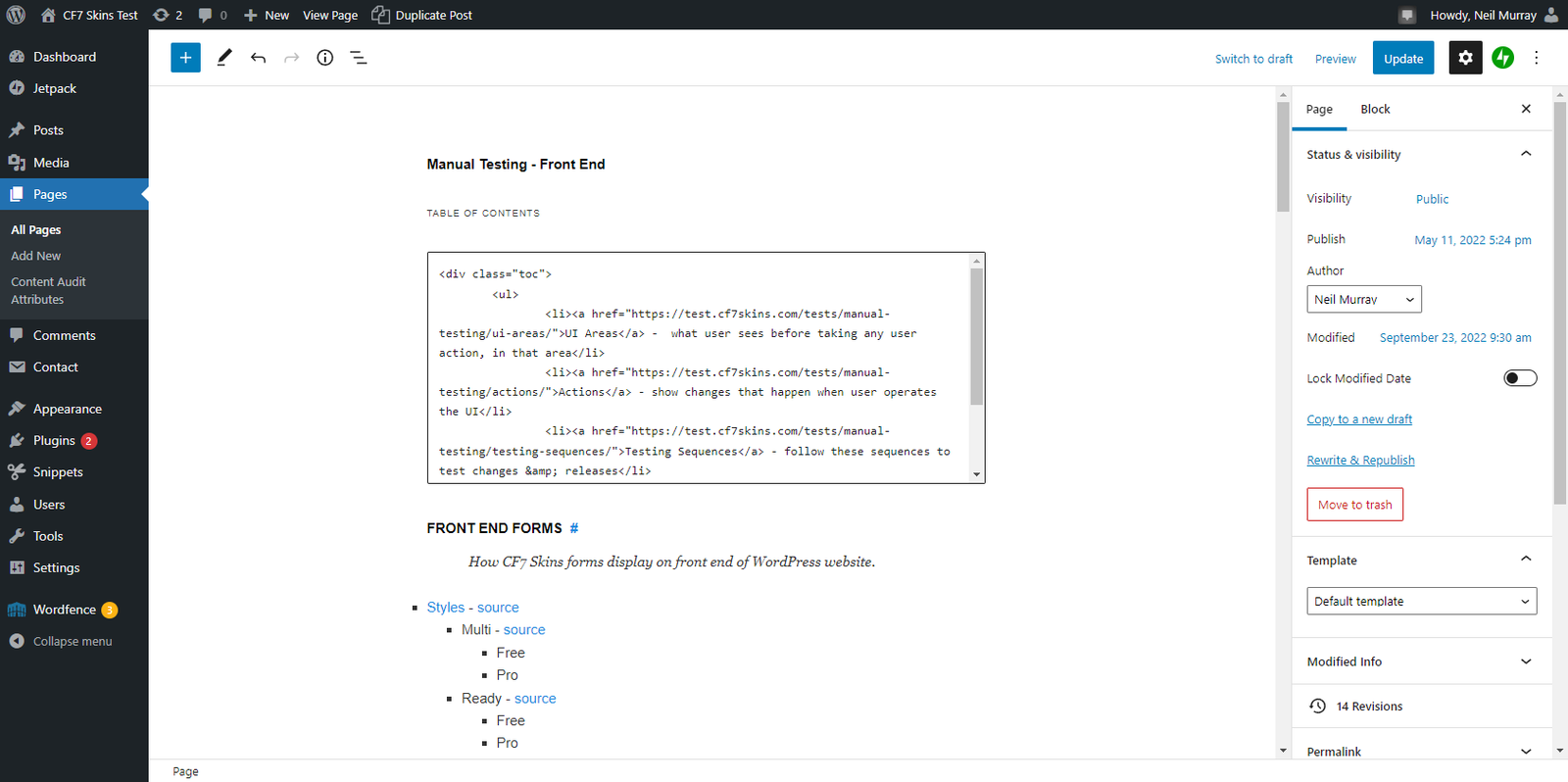
C. Scroll to the section showing the CF7 Skins form you are updating.
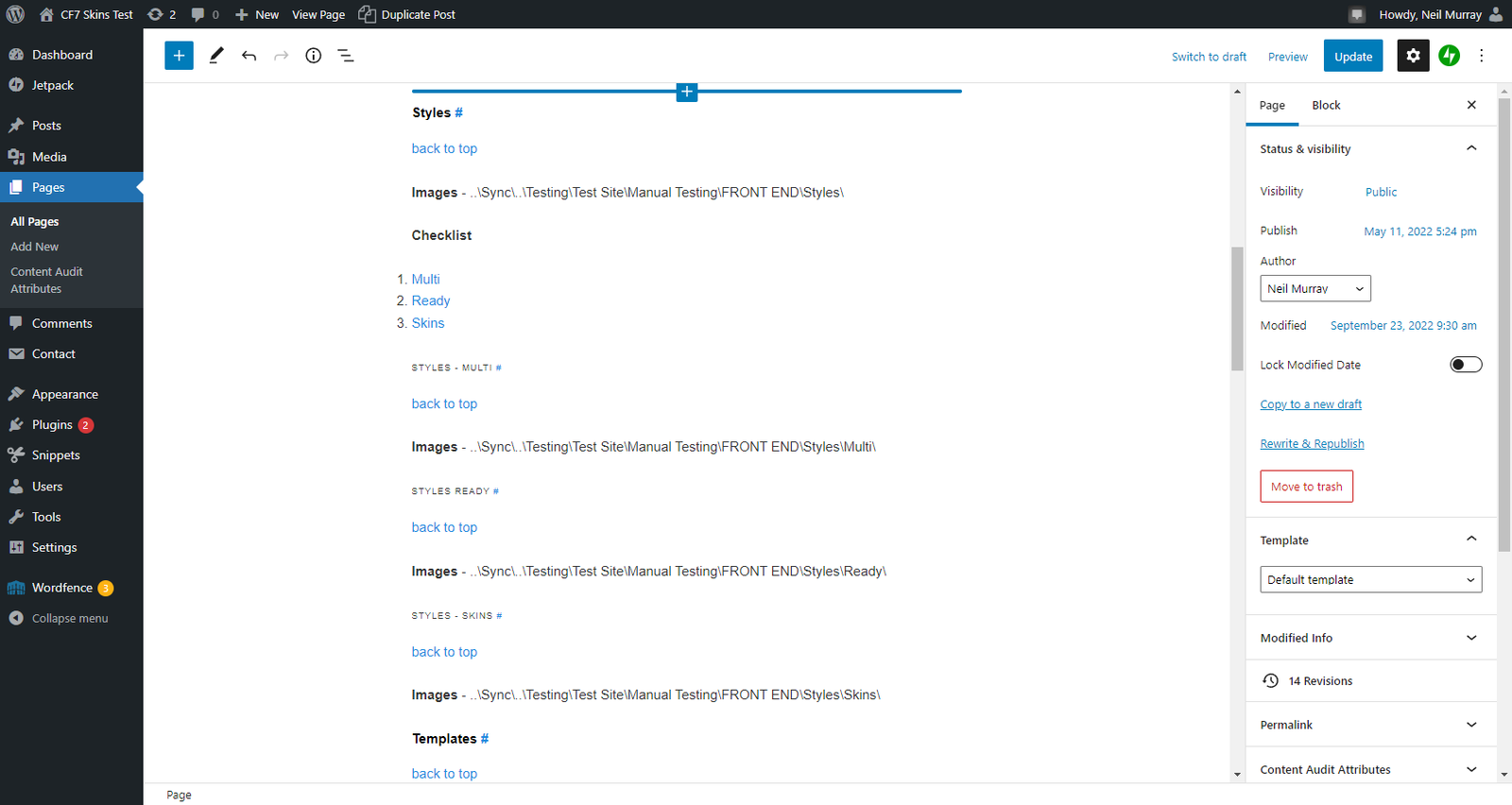
D. Add form name as paragraph heading.
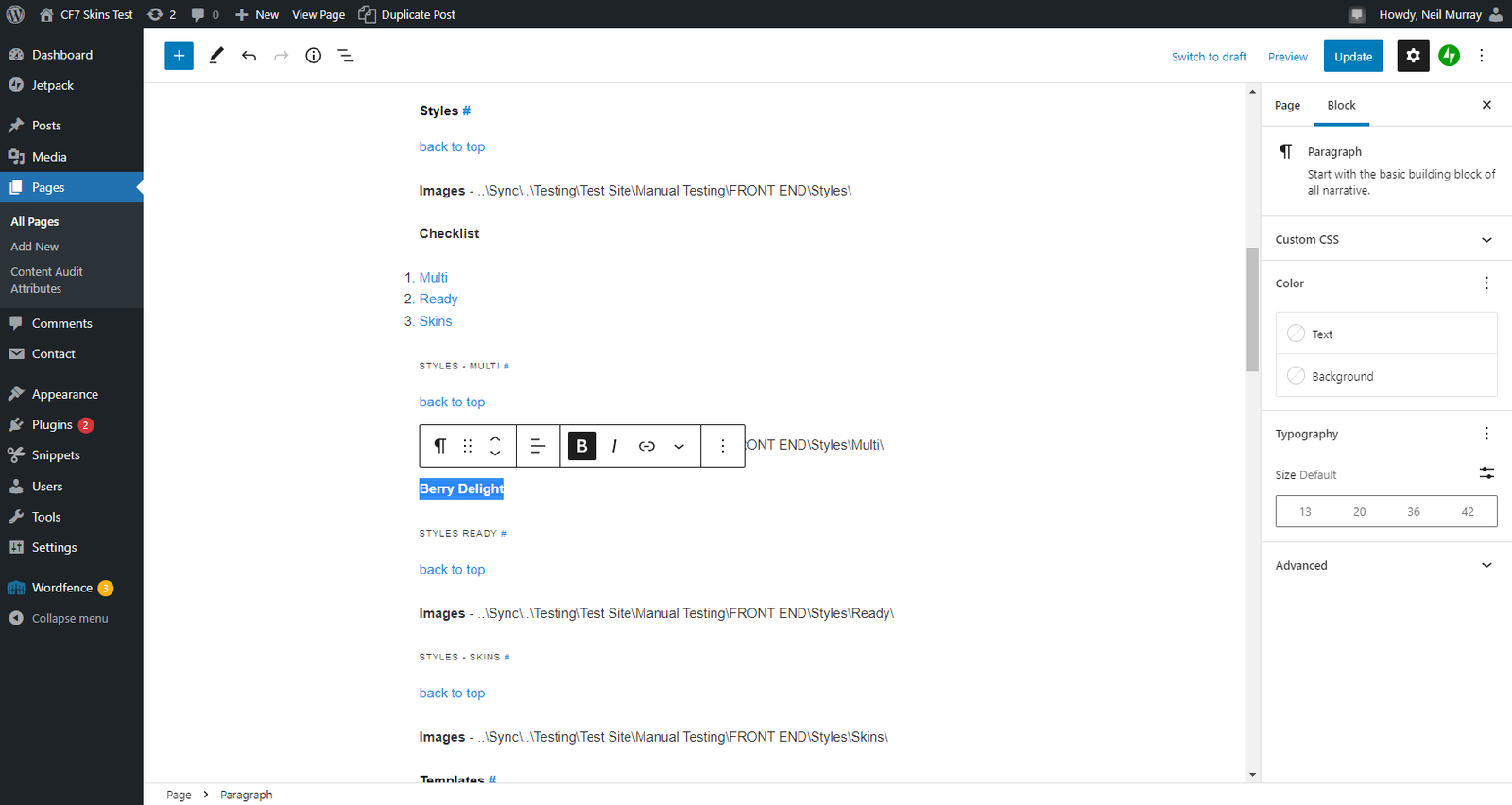
E. Drag an image from the Sync folder onto the area where you want to add the image.
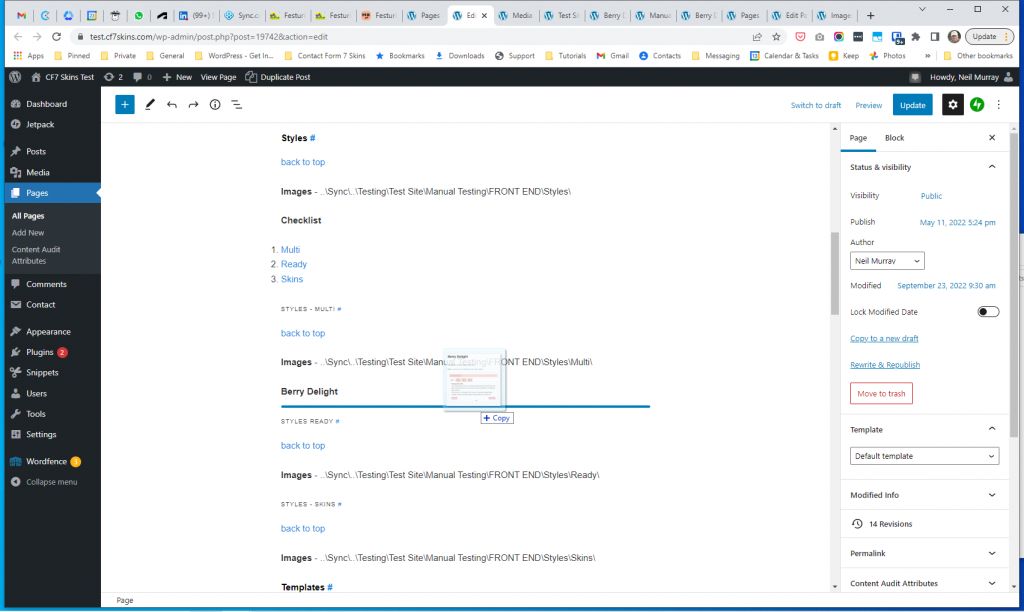
The image is added to the page.
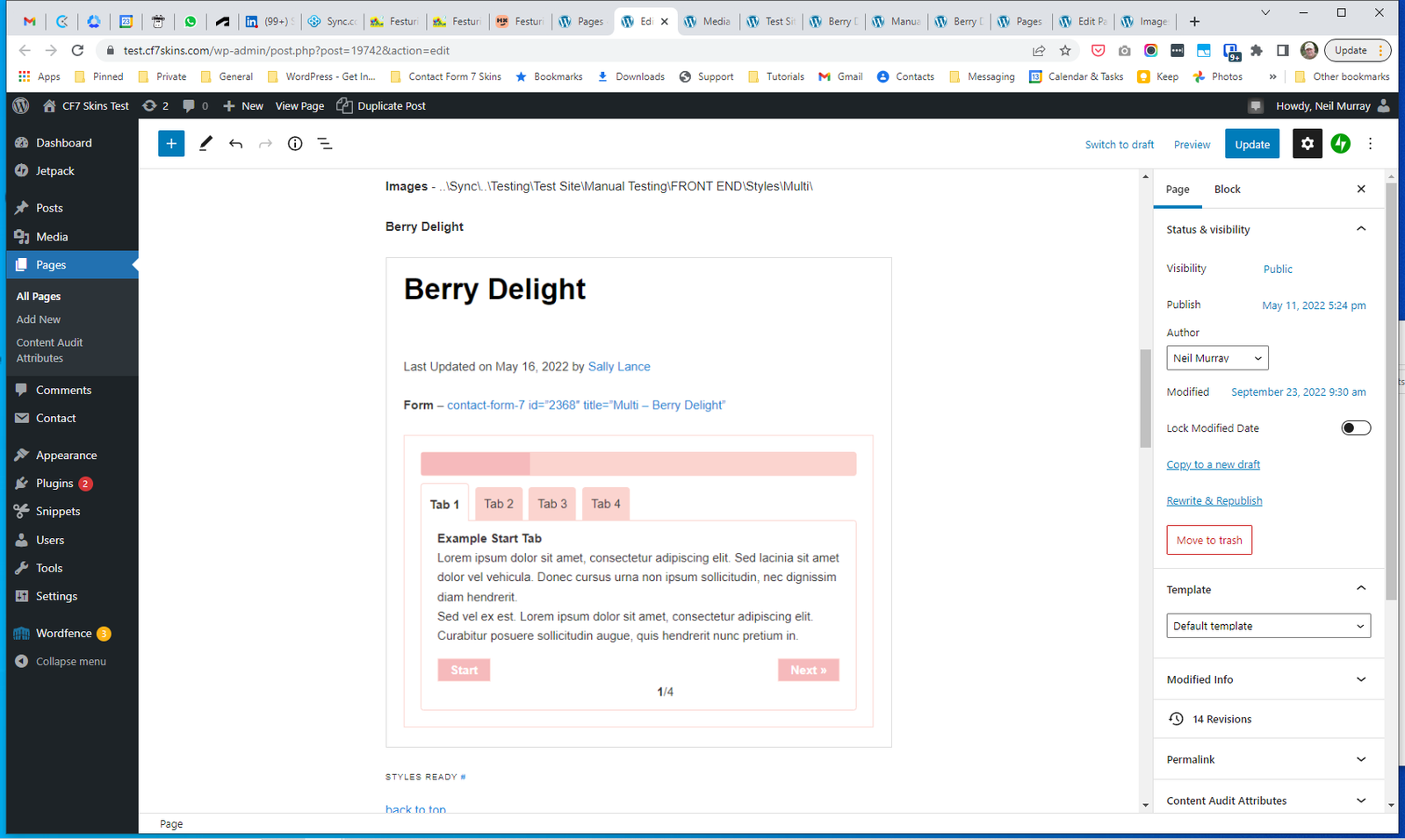
E. Click on the image block to edit it.
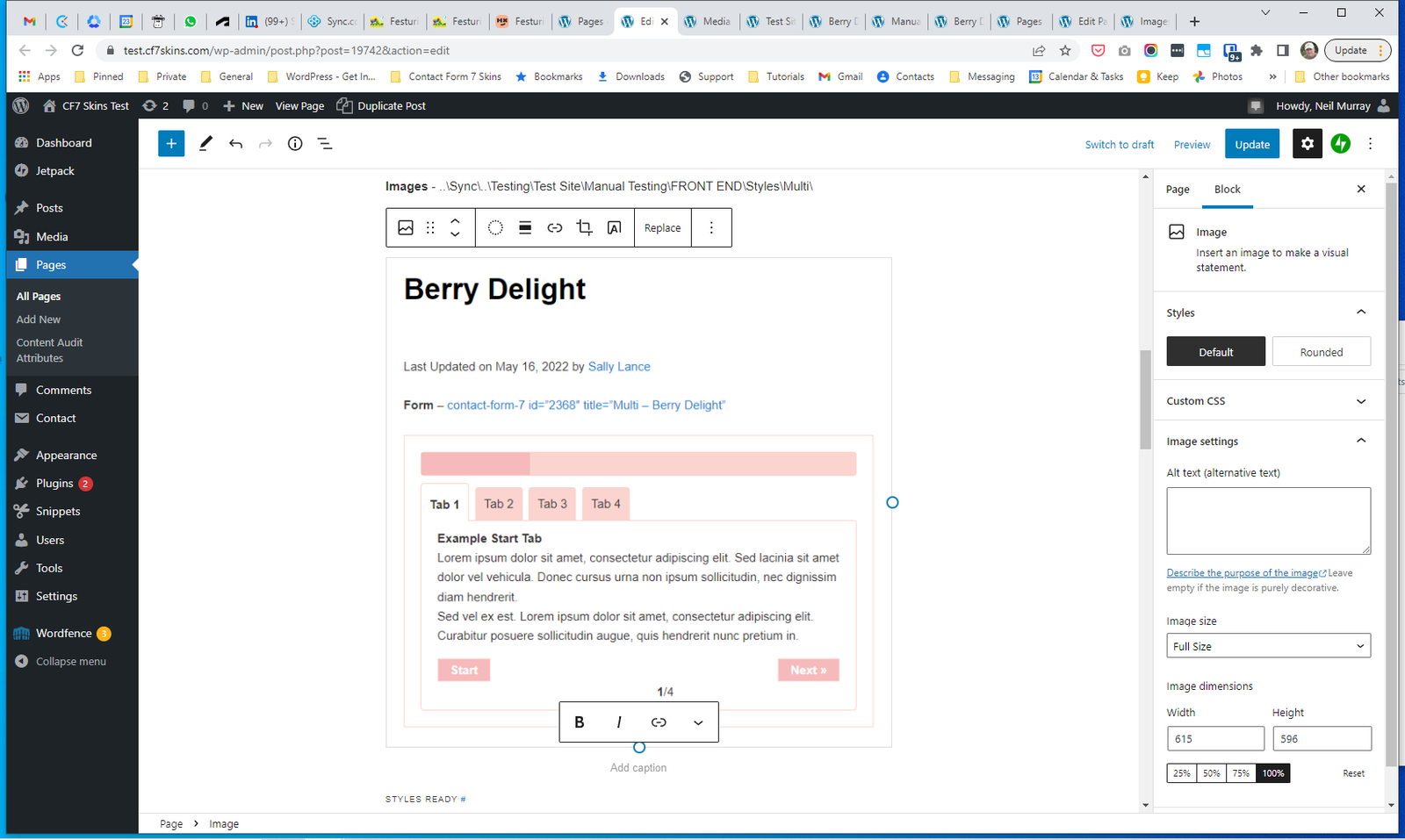
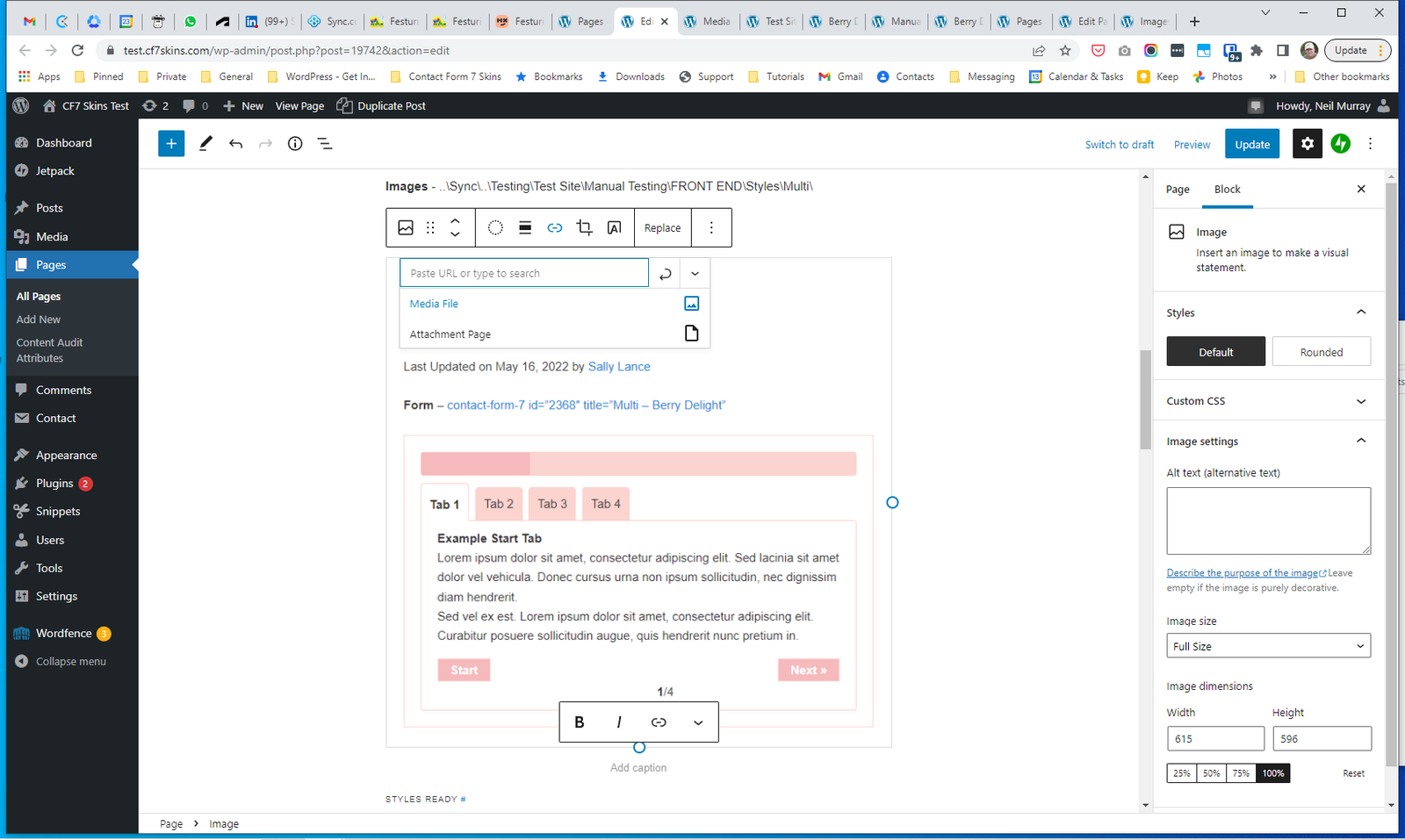
F. Click on the link icon & select Media File from the drop down menu.
G. Now add the image file name as the image caption.
H. Click the Update button to save your progress.
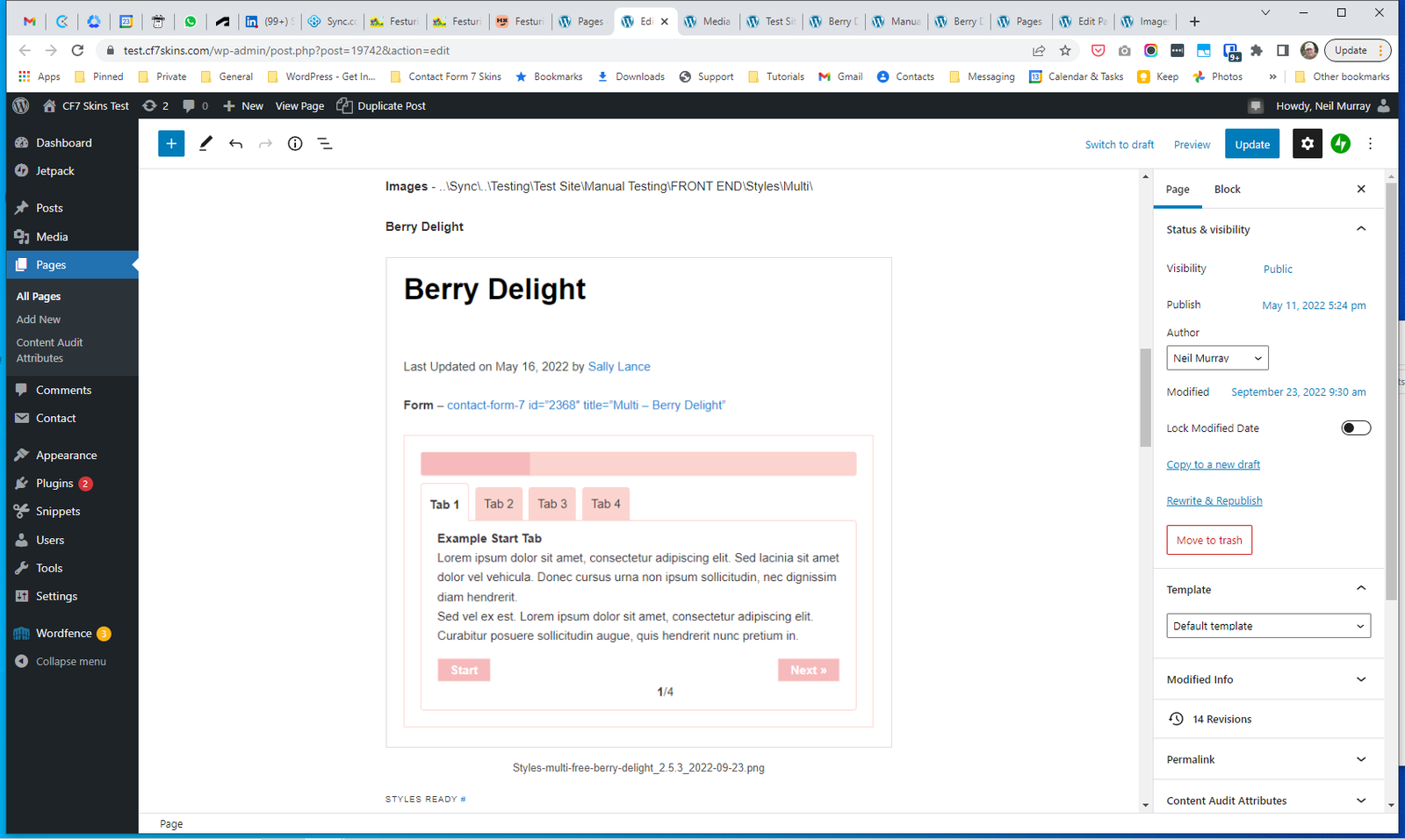
Your image with caption is added to the Manual Testing – Front End page.
Tip: You can check you’ve not missed any forms by using the lists at:
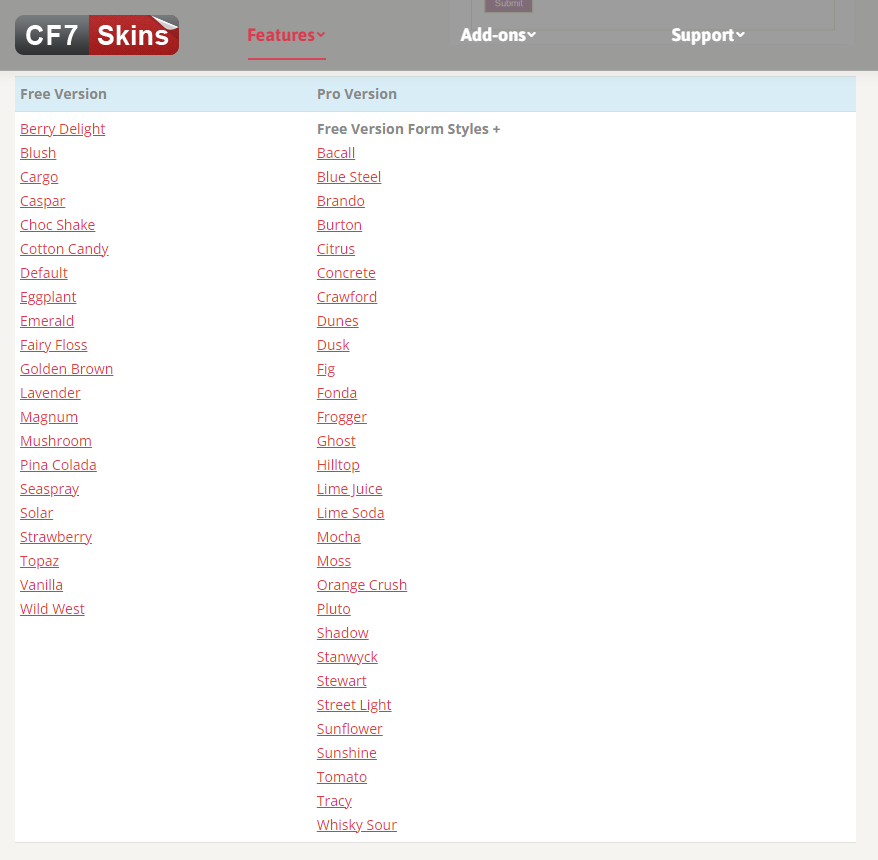
Forms in alphabetical order #
Check your forms list in correct alphabetical order:
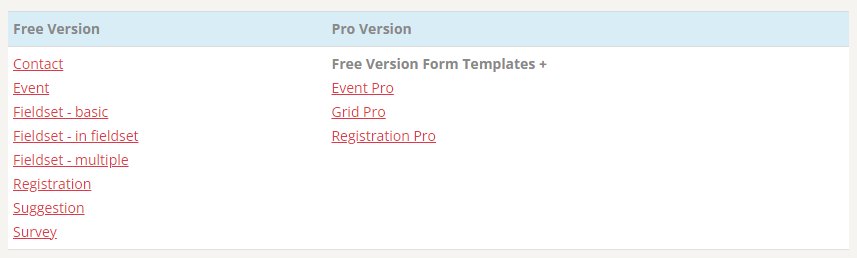
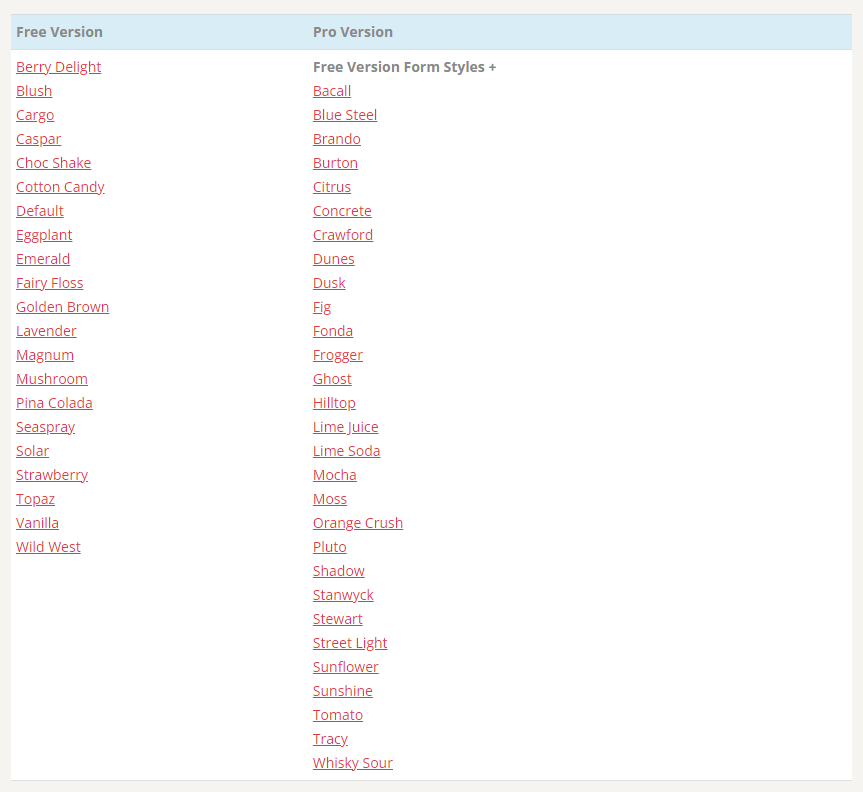
Tip: You can use Search Contact Forms to narrow down the range of CF7 forms visible.
Further reading:
- Manual Testing Pages
- Recording testing via screenshots
- Report results & problems on Bitbucket Issues
Notes
Save all Images to Sync – use ..\Sync\..\Testing\Testing Guidelines\Add front end form images\