
Last Updated on April 3, 2020 by Neil Murray
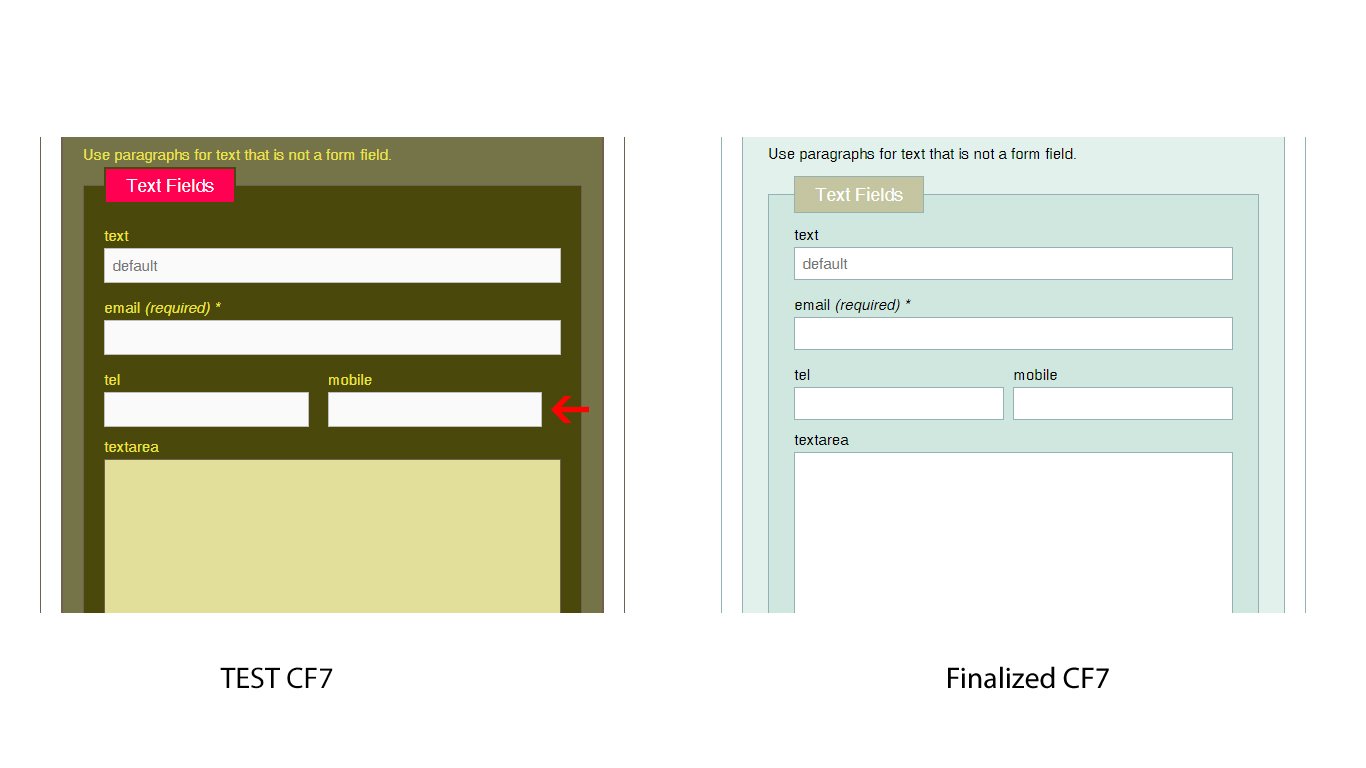
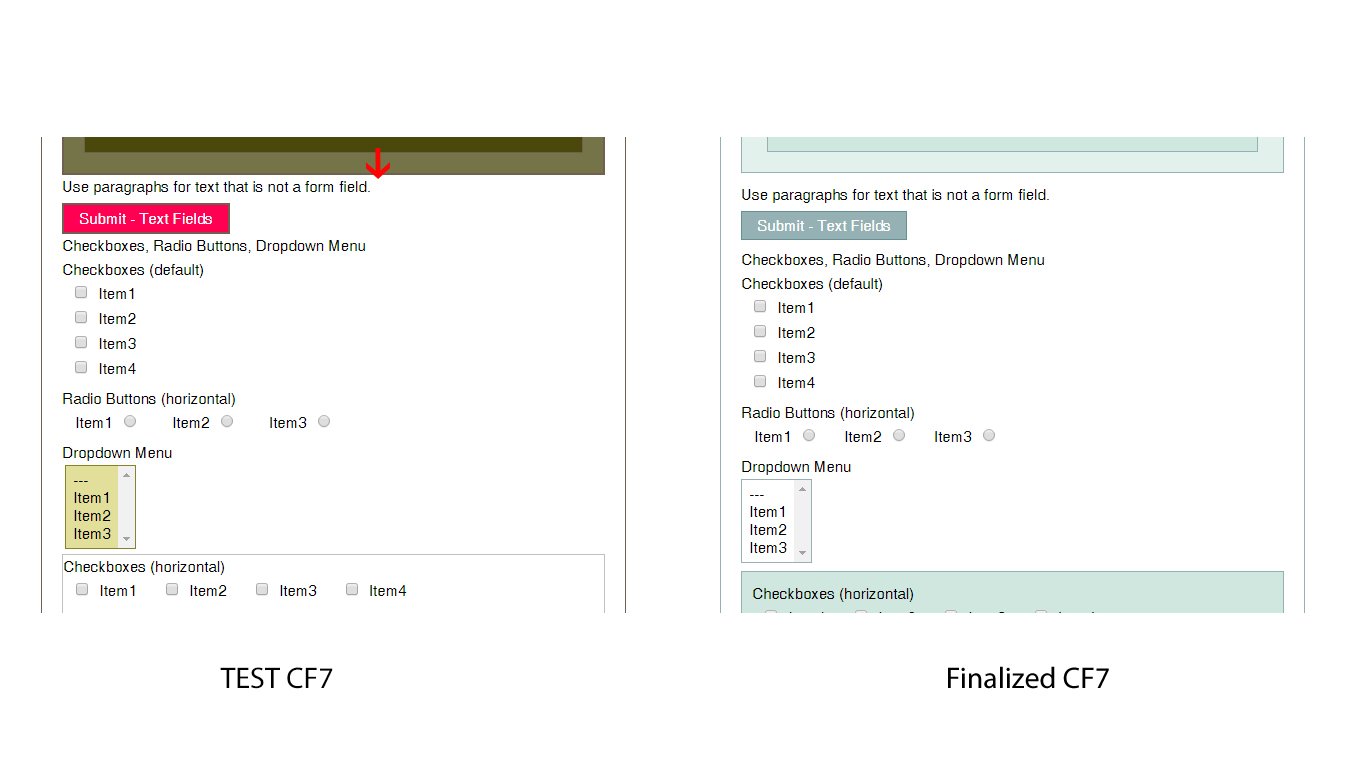
Compare the style in detail with the finalized CF7 Skin Blue Steel and make sure they are equal.
1. Examine using Test Pages
Use following pages:
- Styles > Skins > Premium/Standard > Style Name
- Styles > Ready > Premium/Standard > Style Name
- Styles > Multi > Premium/Standard > Style Name
- Styles + Templates > Premium/Standard > Style Name
- Templates + Styles > Premium/Standard > Template Name
- Templates > Premium/Standard > Template Name
Skins Style
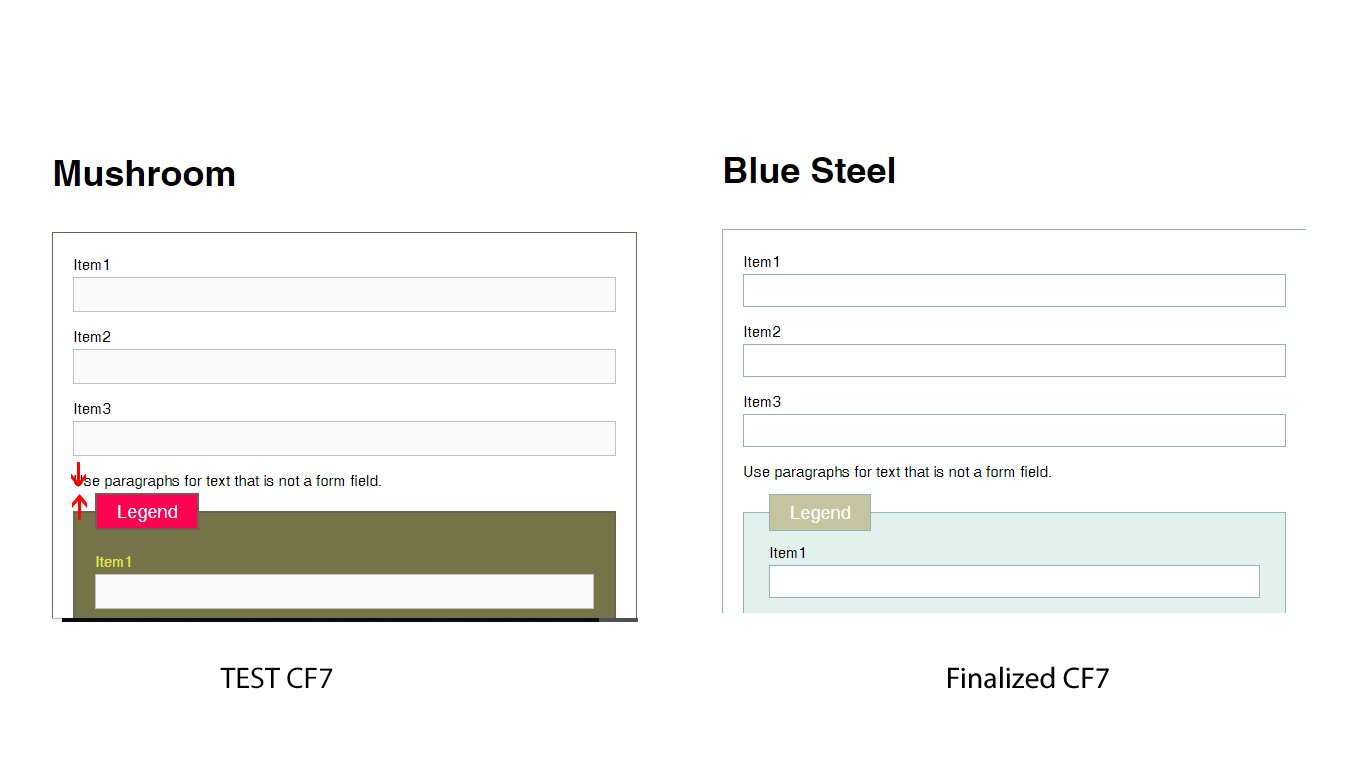
Important items to be checked :
- add some text to each different input type
- placeholder text is legible
- checkbox & radio button spacing
- drop-down item hover
- submit hover
- each Other field
- [ADD important items to be checked]
Ready
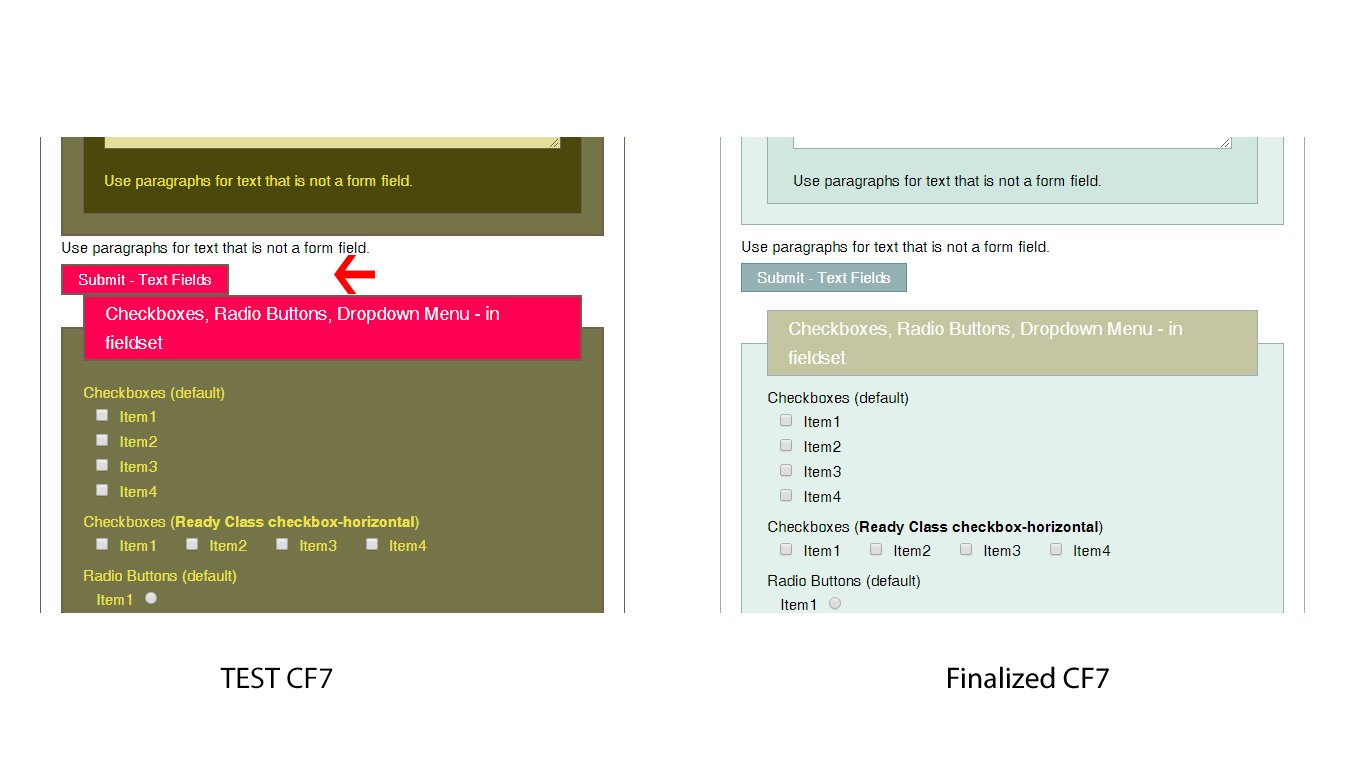
Important items to be checked :
- Ready fields padding & margins
- Ready field alignments – left & right
- select box background colors
- grid class hover
- column class alignments
- [ADD important items to be checked]

Multi
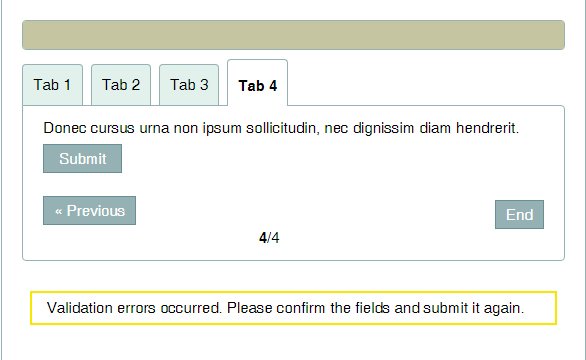
Important items to be checked :
- padding and margins of labels, legends, text-boxes
- tab styling – current & non- current
- buttons on each tab
- all button hover – incl. start & end
- click END button and check the error messages in each tab
- [ADD important items to be checked]
Styles + Templates
Examine the Style for each Template and make sure there are no problems. Compare with the same Template on the finalized CF7 Skin Blue Steel.
Template + Styles
Examine the Template for each Style and make sure there are no problems. Compare with the same Style on the finalized CF7 Skin Blue Steel.
Cross Browser
Check with latest versions of the following browsers:
- Chrome
- Firefox
- IE
- Safari [HOW?]
Responsive
Check the style’s responsiveness in different screens.
Use Google Developer Tools [ADD link].
Right-click > Inspect Element and we can select different devices from the drop box and check the page responsiveness.

Important items to be checked :
- [ADD important items to be checked]
2. Examine Code
Examine Code in detail. Code should match.
[ADD code image]
Use CSScomb
We use CSScomb for consistent statement order.
3. Examine with Developer Tools #
Use Developer Tools to test if each CSS statement:
- is absolutely necessary
- uses the minimum CSS Specificity possible
- does not any control any other items
- etc.
Refer: CSS Do’s & Don’ts
[ADD image]
Further reading:
Notes
TO DO:
- item
Save all Images to Dropbox – use ..\Dropbox\Support\Development\Development Guidelines\CF7 Skins Forms\How to test CF7 Skins Templates & Styles\