
Last Updated on October 26, 2024 by Neil Murray
Table of Contents #
Frontend #
Page: Manual Testing – Logic
Forms: Standard Form – jQuery version | React version
Test Forms #
Standard forms (jQuery version and React version) are used to test logic functionality in each release. Each form has multiple tabs devised to test a different logical conditions. Each section/tab of a form has a test text field that will be visible or hidden depending on the logic statement being True or False.
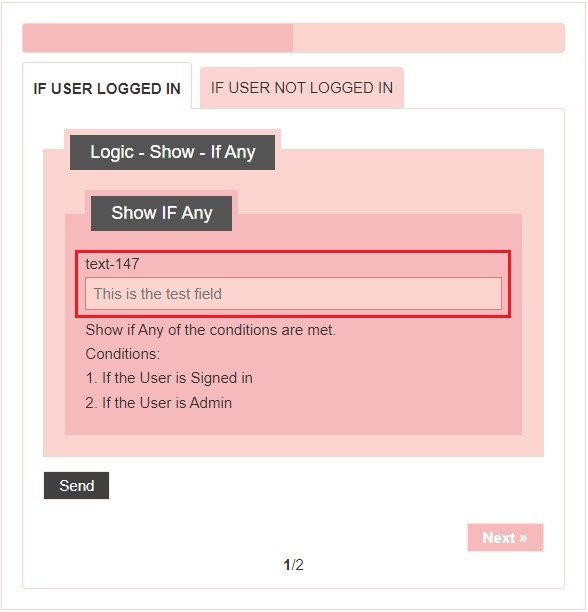
Testing Procedure #
1. Start with selecting the form version (jQuery or React) you want to test first.
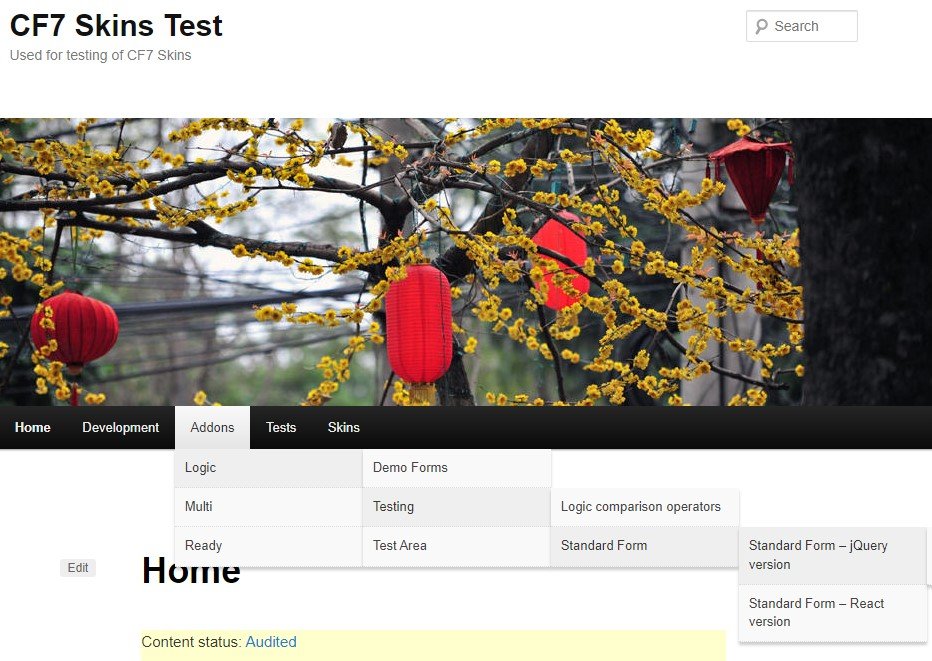
2. Go to the first form. If you want to test a specific functionality or logical statement, choose the relevant one from the forms list.
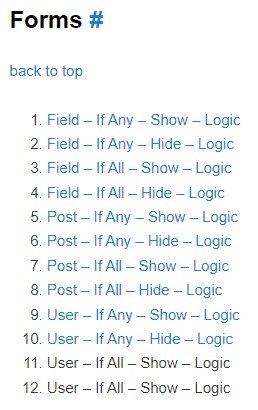
3. To test field-dependent conditions, you need to plug in certain defined values. These values are mentioned under each field. Enter those values or change them to see the change in the test field.
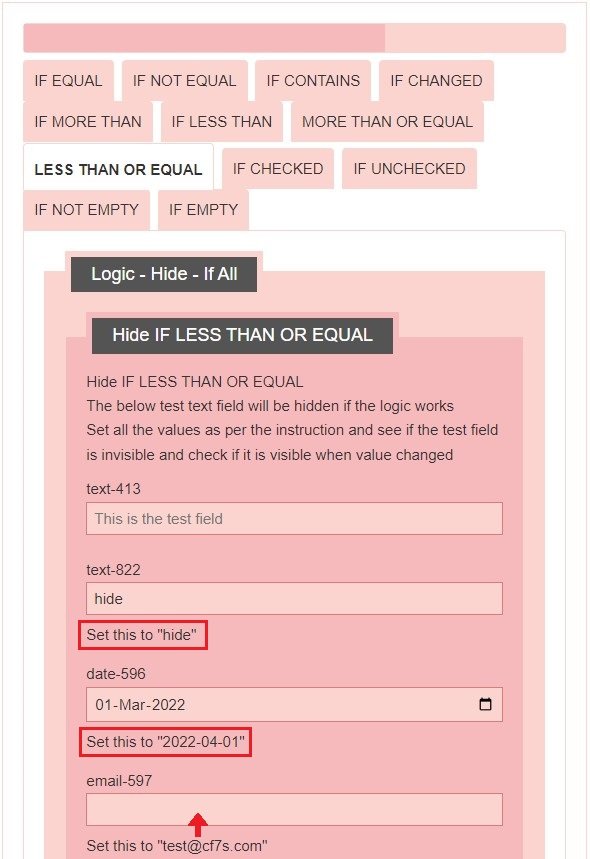
When the fields are filled, the test text field will become visible or hidden via the logic statement.
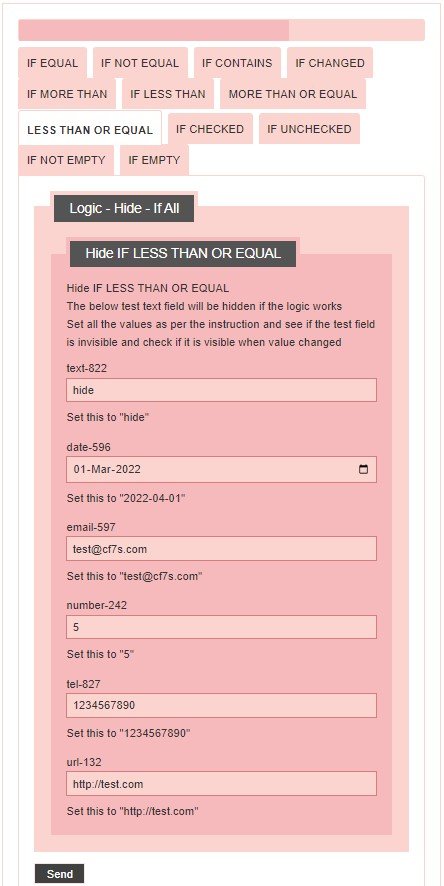
Make sure to go to each tab/section and fill all the fields for proper testing of each condition.
4. Once you have tested one form, move to the next and so on.
Screenshots #
You must take a screenshot/image of the complete form, plus the test header, after testing each logic condition. This keeps a record of all the functionalities for each update/release.
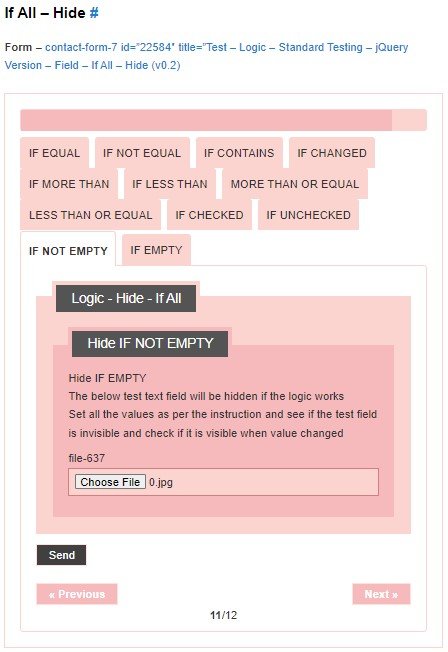
A. Start with a screenshot of the form in its initial (unfilled) state.
B. Set a field to its recommended value, take a screenshot, change it to another random value, take a screenshot.
C. Repeat this process separately for each field. This will allow testing and recording of IF ANY logical conditions.
D. For IF ALL conditions, set all the fields to their recommended values, take a screenshot, change all the values, take a screenshot.
This method allows us to test the effects of all the different fields for each logic item & statement.
Backend #
Use same procedures as for UI Areas, Actions etc – see Manual Testing Pages.
Further reading:
- Manual Testing Pages
- Recording testing via screenshots
- Report results & problems on Bitbucket Issues
NOTES #
Save all Images to Sync – use ..\Sync\Testing\Testing Guidelines\Manual Testing\Logic – Testing\
>>> ADD explanation of Frontend: Test – Field – Logic – TEMPLATE
- See Documentation Images – Naming Images – similar need
- ADD step by step instructions on how to test & record screenshots for any change or new version
Form Test Page #
A draft Page Test Draft Page to Check Frontend of Forms Easily is created where you can replace the shortcode of the form with the one you want to check. This Page is used for quick testing or taking screenshot so that we do not have to search through all the pages to find relevant form and save some time.