
Last Updated on February 6, 2025 by Neil Murray
Table of Contents #
Heading #
Screenshots used for video must be of a higher standard than those used in general documentation or standard articles, and a higher quality is expected.
The screen shots also need to be suitable and not limit the video editor, allowing the editor maximum flexiblility with visual option.
While an article has static images a video’s images will very rarely bit stationary, therefore the option for movement or scrolling must be there.
This means that all website screenshots used must be bigger than required and usually full page screenshots.
Before taking any screenshots it is important to make sure that any content displayed on the screenshot is checked and accurate.
For exmaple, if the screenshot is of a wordpress form make sure it is taken on a test form and no private details are visible or the editor will not be able to use the screenshot
There are multiple ways to take full page screenshots.
Mozilla #
Mozilla has built in full page screenshot functionality and can be used to take full sized screenshots straight away in a few steps.
- Navigate to the page you wish to take a screenshot off.
- Make sure the screen is in the right position, many pages have autoscroll feautures which will affect the result of a full page screenshot even if not automatically apparent. Generally it is best to position right at the top of the page.
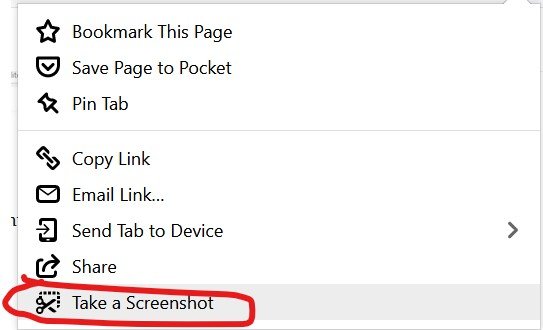
- Click on the three dots at the top right of the navigation bar.

4. Select “Take A Screenshot” from the drop down menu
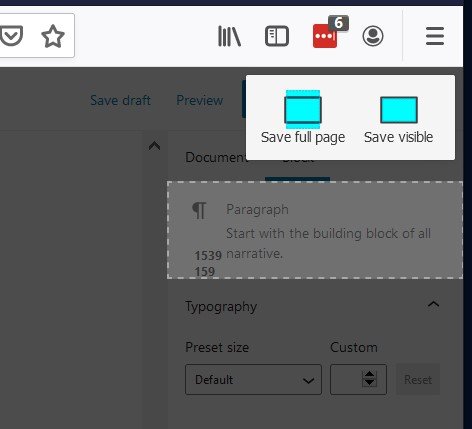
5. Select “Save Full Page” from top right of browser
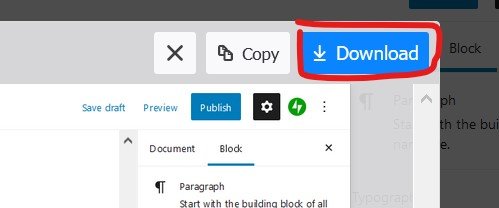
6. Review the image to make sure it looks appropriate and then download the image and place where required.
Chrome #
Chrome does not have inbuilt full page screenshot functionality but it does have extensions that will complete these task, these extensions must be installed to the browser before they are able to be used.
- Proceed to the extension section of the chrome webstore by clicking here
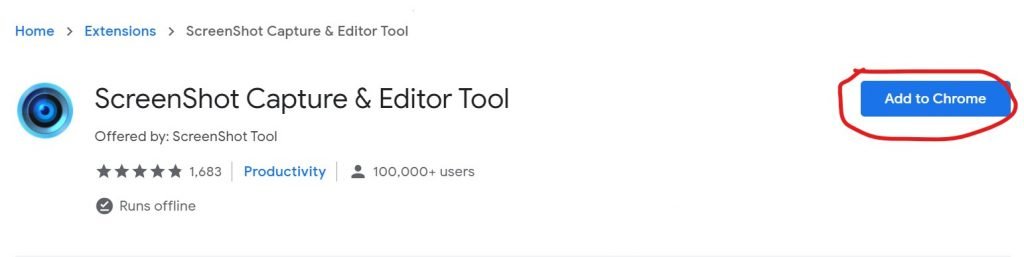
2. Search for the “ScreenShot Capture & Editor Tool”
3. Select “Add to chrome”
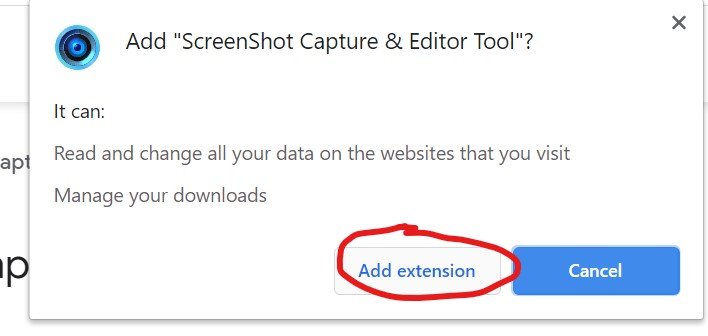
4. Confirm that you would like to add the extension
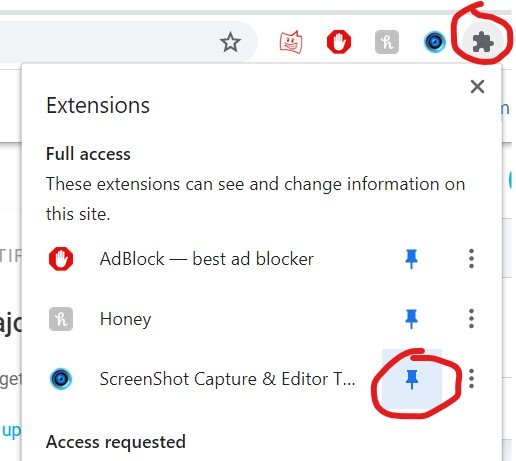
5. For ease of access pin the extension to your navigation bar
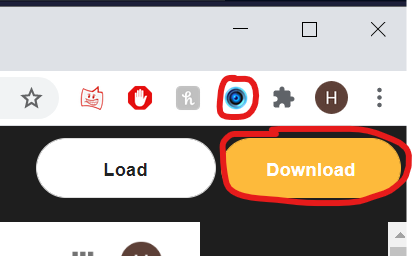
Once the plugin is installed, all that is required to use it is to click on the Icon, wait for it to scroll through the page and then download the screenshot.
Further reading:
Notes
ADD notes here.
Save all Images to Sync – use ..\Sync\..\ADD FOLDER\