
Last Updated on February 15, 2023 by Neil Murray
Table of Contents
- Upwork
- Upwork Time Logging
- Upwork Memo
- How to Update Your Upwork Memo
- Upwork Time Zone
- Upwork Record Screen
- Points to Remember
Upwork #
If you are hired via Upwork, make sure you are signed into Upwork & log your time, whenever you work. This lets us review your screenshots regularly.
Things to remember:-
- Make sure you are signed into Upwork & log your time, whenever you work, (if you are engaged via Upwork). This lets us review your screenshots regularly.
- Select/Choose the correct contract before logging your time.
We use your screenshots to see what you are working on. This often helps us to give you some guidance on how to tackle a current issue & to notice opportunities, problems, errors & misunderstandings in your current work.
Upwork Time Logging #
Things to remember before logging time.
- Open the Upwork desktop app
- Log into your Upwork account
- Select the correct contract
- Toggle the On/Off switch to turn on logging
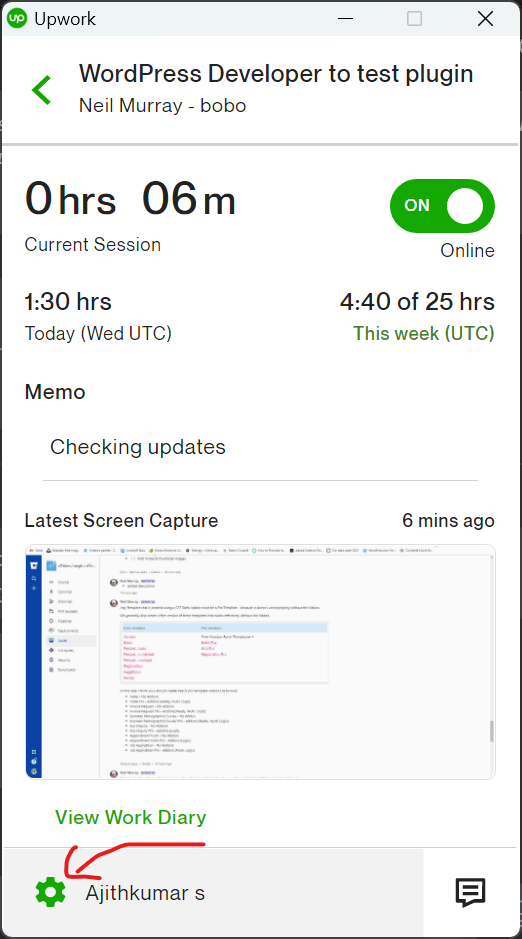
- Enter a note about what you are working on in the memo box.
Upwork Memo #
Describe in detail what you are currently working on as your Memo in Upwork in your screenshots – makes it easier for us to follow your work.
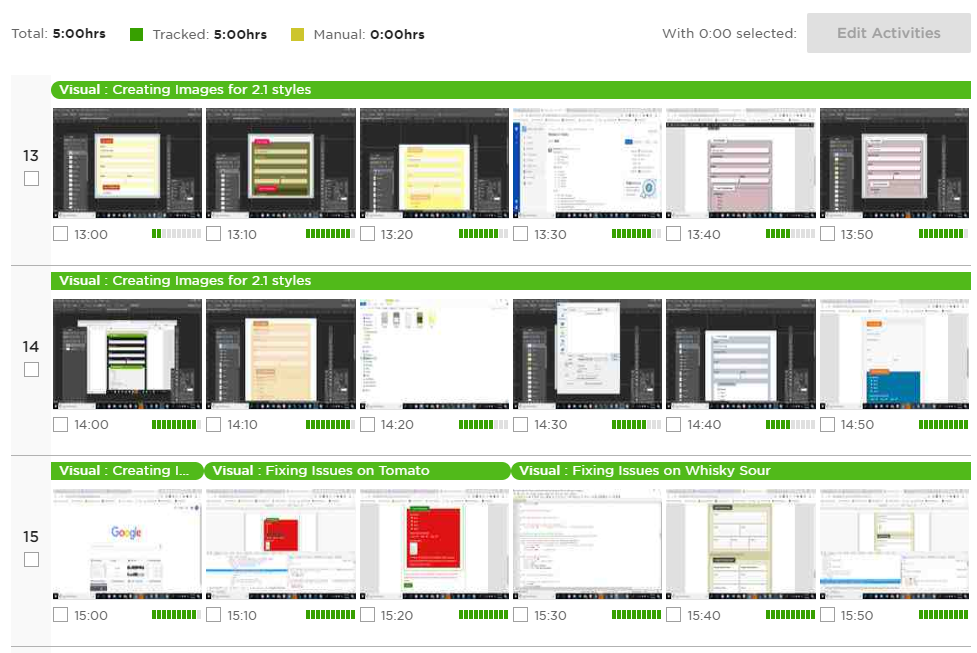
How to Update Your Upwork Memo #
- Open your Upwork Tracker
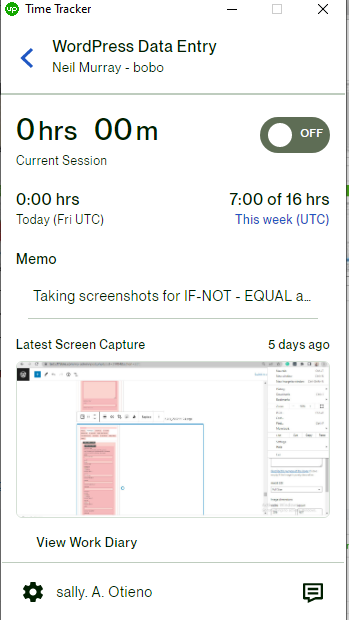
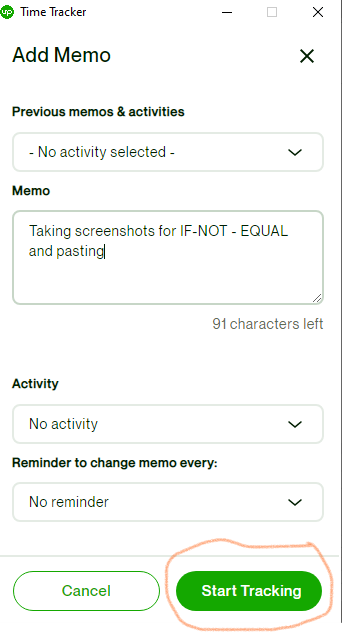
2. Click on the typing area below Memo to add a memo
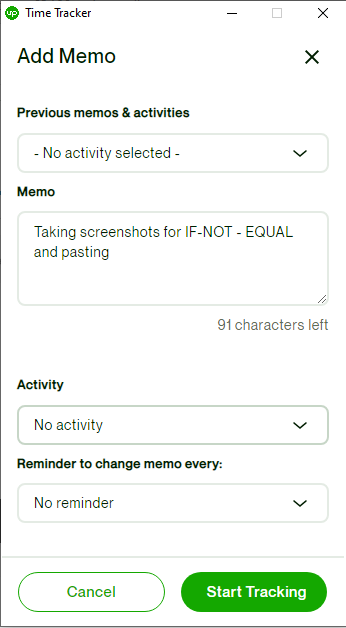
3. Type your task in the marked area
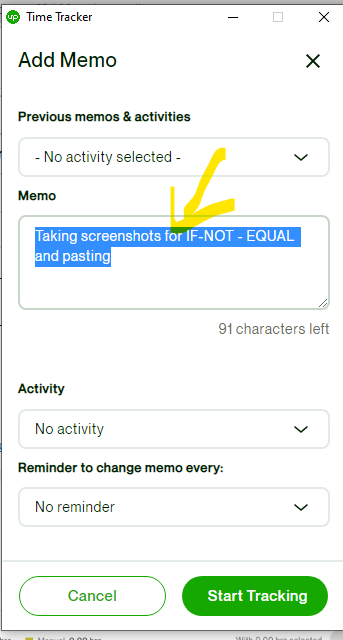
4. Press the start tracking button to start work.
Upwork Time Zone #
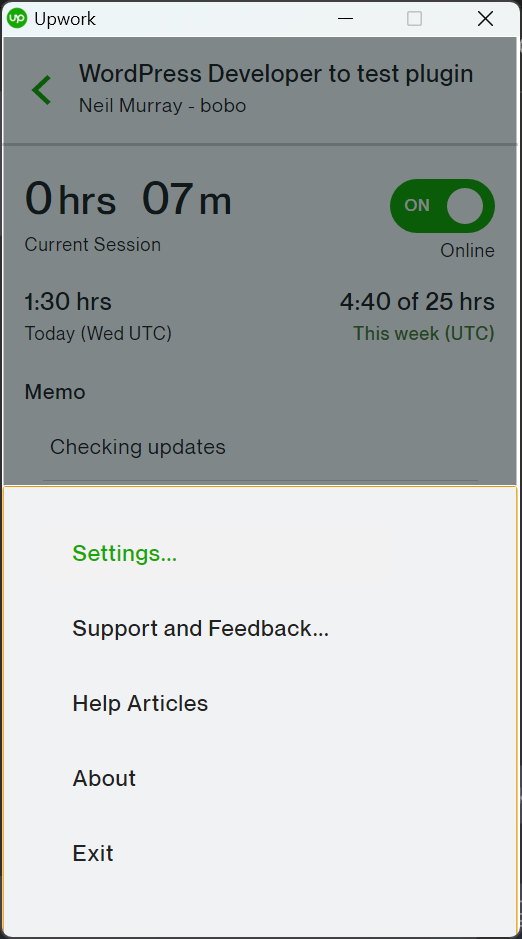
Make sure you add your local time zone in Upwork.

Upwork Record Screen #
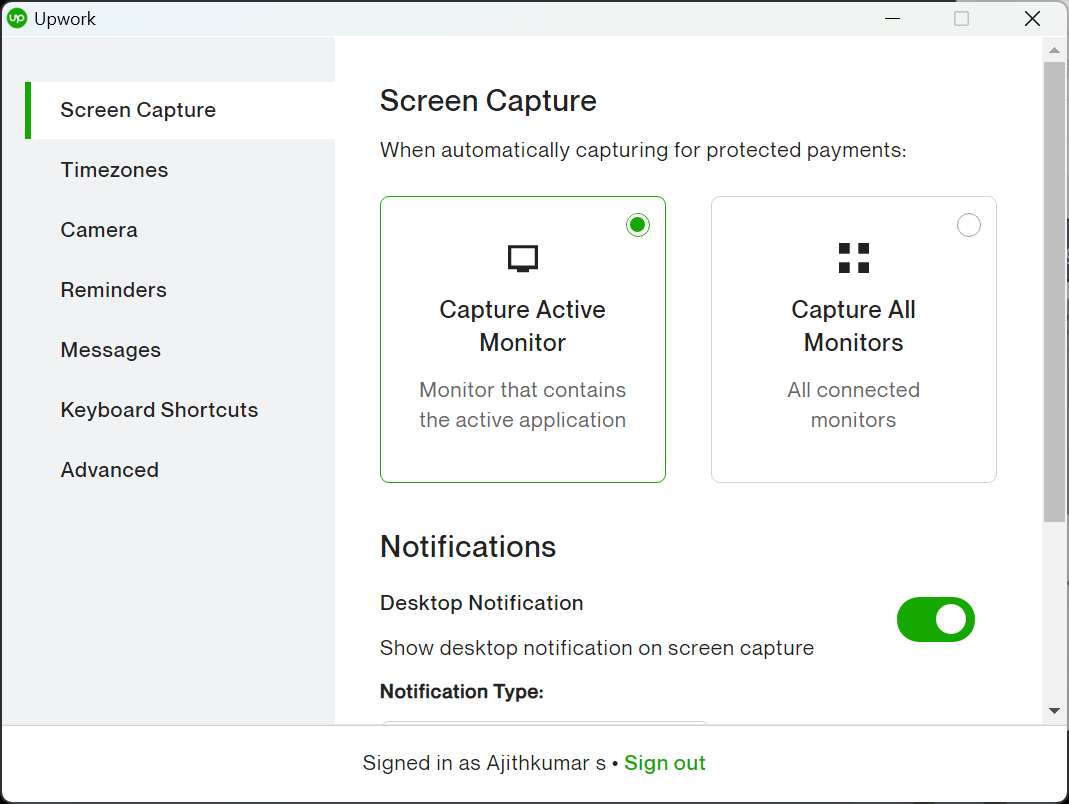
If you have more that 1 screen/monitor, please set to record your active monitor in Upwork – see Working with multiple monitors.
Points to Remember #
- Always choose the correct contract before logging hours.
- Clearly mention/Fill your work memo.
- Add your local timezone
- Select Capture active monitor, if using more than 1 screen.
Notes
Existing pages to be copied:
- Team Tools – Upwork DONE
Save all Images to Sync – use ..\Sync\..\Development\Development Guidelines\Working with CF7 Skins\Working with Upwork\