
Last Updated on November 25, 2018 by Neil Murray
RST VERSION
We need to prepare Visual versions for each Template added to Contact Form 7 Skins.
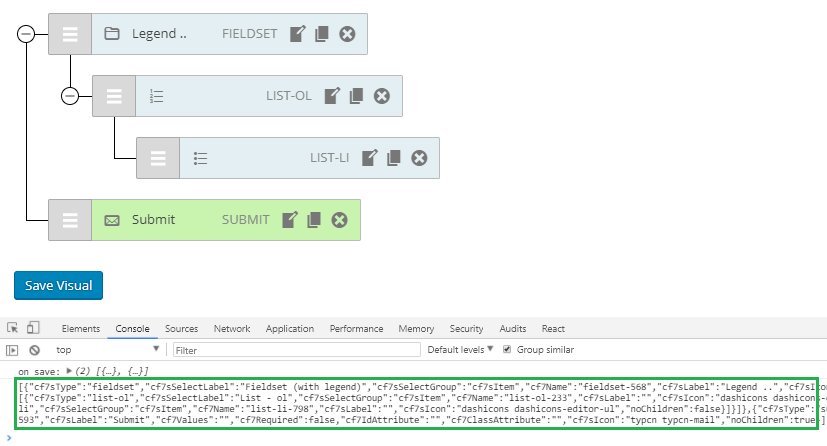
By clicking the Save Visual button, we will have tree data in JSON and JSON stringify available in the console.
For RST version, we don’t need to use PHP files to output tree data as JSON.
1. Select the Template to add it to the Form section of the CF7 interface
In this example, we use the contact-form-7-skins\skins\templates\contact template to create a visual.json file for this template.

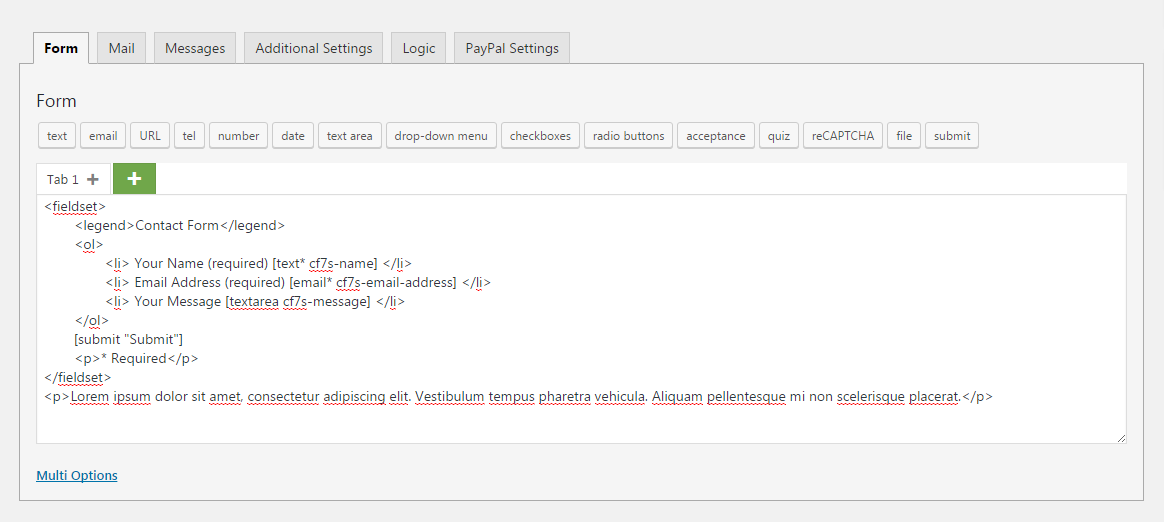
Follow the HTML structure added for the template.
<fieldset>
	<legend>Contact Form</legend>
	<ol>
		<li> Your Name (required) [text* cf7s-name] </li>
		<li> Email Address (required) [email* cf7s-email-address] </li>
		<li> Your Message [textarea cf7s-message] </li>
	</ol>
	[submit "Submit"]
	<p>* Required</p>
</fieldset>
<p>Lorem ipsum dolor sit amet, consectetur adipiscing elit. Vestibulum tempus pharetra vehicula. Aliquam pellentesque mi non scelerisque placerat.</p>
Alternatively – open the template PHP file i.e. contact.php.
<fieldset>
    <legend><?php _e( 'Contact Form', CF7SKINS_TEXTDOMAIN); ?></legend>
    <ol>
        <li> <?php _e( 'Your Name (required)', CF7SKINS_TEXTDOMAIN ); ?> [text* cf7s-name] </li>
        <li> <?php _e( 'Email Address (required)', CF7SKINS_TEXTDOMAIN ); ?> [email* cf7s-email-address] </li>
        <li> <?php _e( 'Your Message', CF7SKINS_TEXTDOMAIN ); ?> [textarea cf7s-message] </li>
    </ol>
    [submit "<?php _e( 'Submit', CF7SKINS_TEXTDOMAIN); ?>"]
    <p>* <?php _e( 'Required', CF7SKINS_TEXTDOMAIN ); ?></p>
</fieldset>
<p>Lorem ipsum dolor sit amet, consectetur adipiscing elit....</p>
2. Re-create the Form items in the Visual editor
- Create fieldset, set the legend label
- Create numbered list and add list child
- Create text item, set required option checked, give the name cf7s-name
- So on…
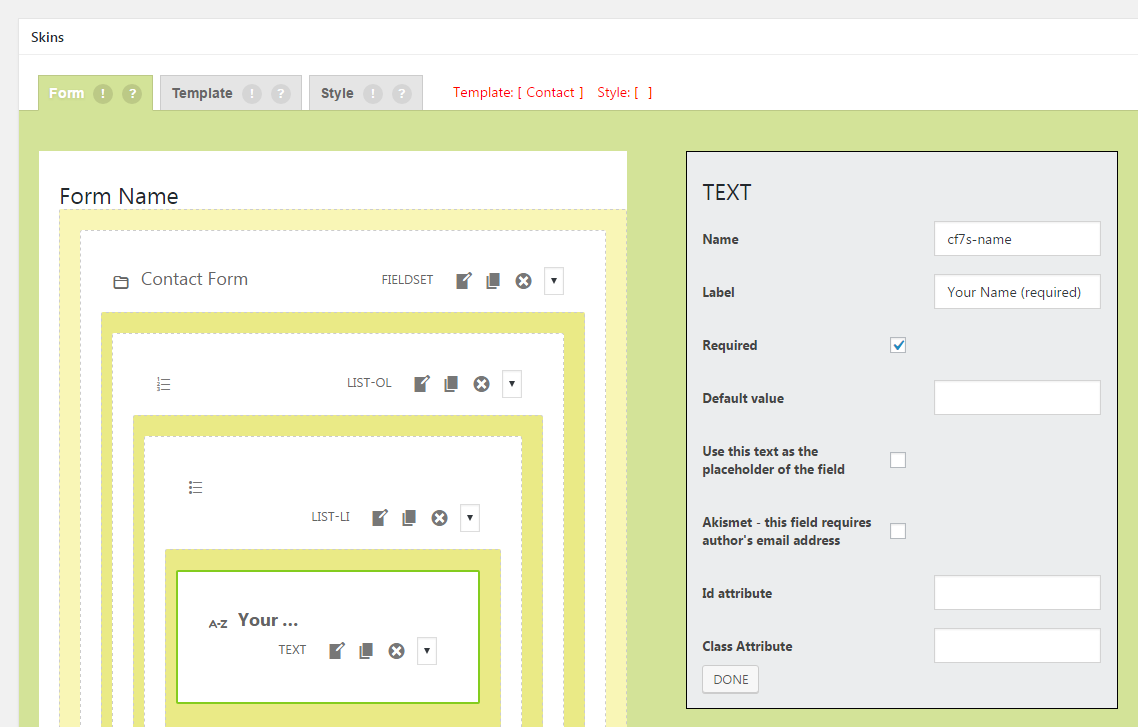
This will create RST tree data to match the template
.phpstructure.
3. Enable browser console, and press Visual Save button
- Open browser console
- Click Save Visual button
- Copy the JSON string output from the console
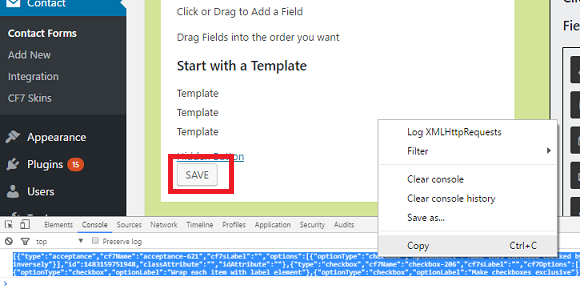
Note: You may need to press ctrl+shift+r to reload the page ignoring the local browser cache – reloading the page ignoring the local browser cache ensures the cf7svisual global variable is updated.

Format the string into JSON
Visit https://jsonformatter.curiousconcept.com/ or https://jsonformatter.org/ website to format the string into JSON.
- Paste the JSON string
- Select 4 spaces for tab
- Click process or format
- Copy the formatted JSON to clipboard
- Open template
visual.jsonfile, paste and save.