
Last Updated on June 22, 2024 by Neil Murray
Table of Contents #
Team Communication #
The team uses several different tools when communicating with each other:
- Skype – see Working with Skype
- Sync – see Working with Sync
- Hubstaff – see Working with Hubstaff
- Bitbucket – see Working with Bitbucket
You will generally work with several of these tools, when communicating with other team members, as each tool has different purposes:
- Skype Chat – short term synchronous & asynchronous chat
- Skype Work Updates – update to other team members of what you did on each task every day you work
- Sync Task folder – daily record of every step you took in your work on each task
- Bitbucket Issues – permanent record of all discussions & decisions on each task
- Pivotal Tracker – agile based project management that suits creating CF7 Skins Documentation
Sometimes you will communicate the same issue on more than one tool.
For example when discussing a task:
- Skype Chat – synchronous & asynchronous chat to decide how to tackle the task.
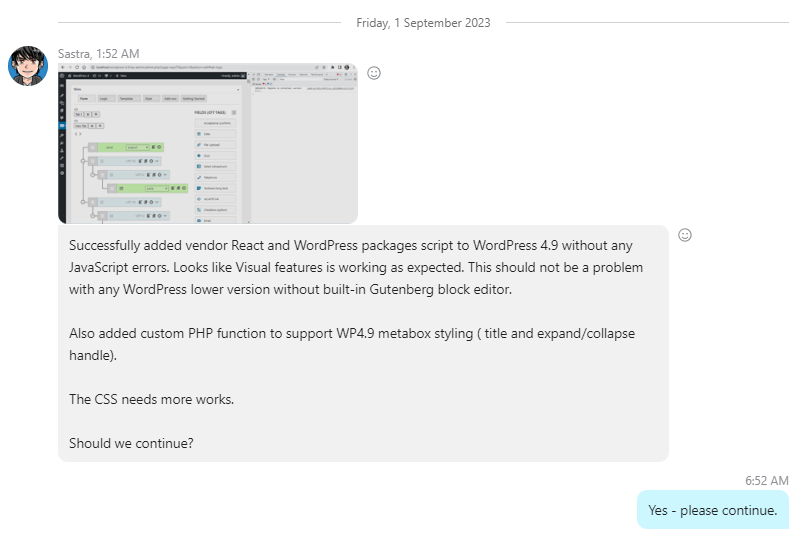
See Skype Chat.
- Sync Task folder – daily record of every step you took in your work on each task
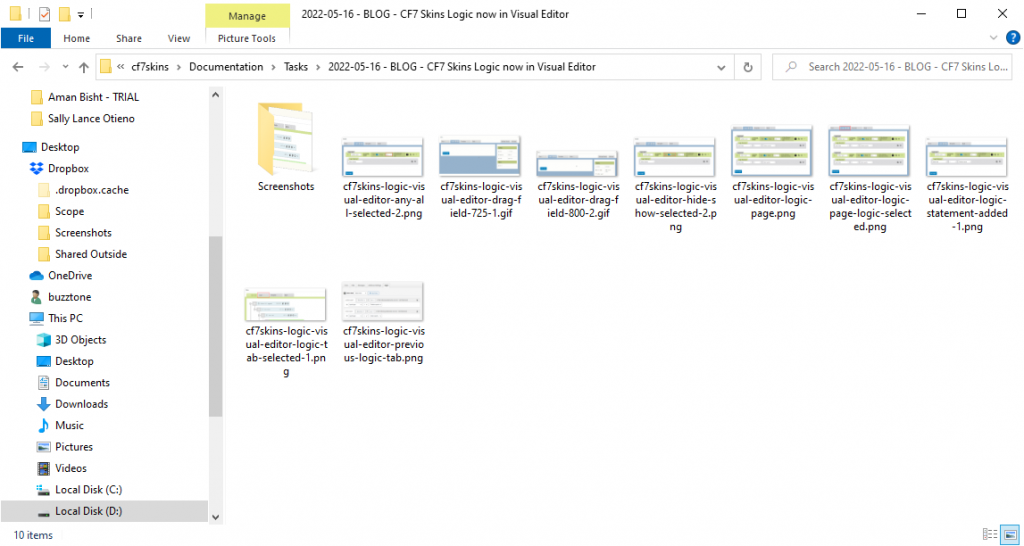
See Sync Task Folders.
- Skype Work Updates – update to others of what you did on each task every day you work
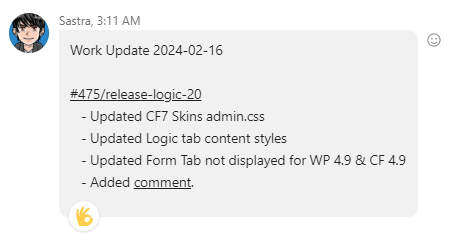
See Work Updates.
- Bitbucket Issues – add record of Skype chat when discussion finished.
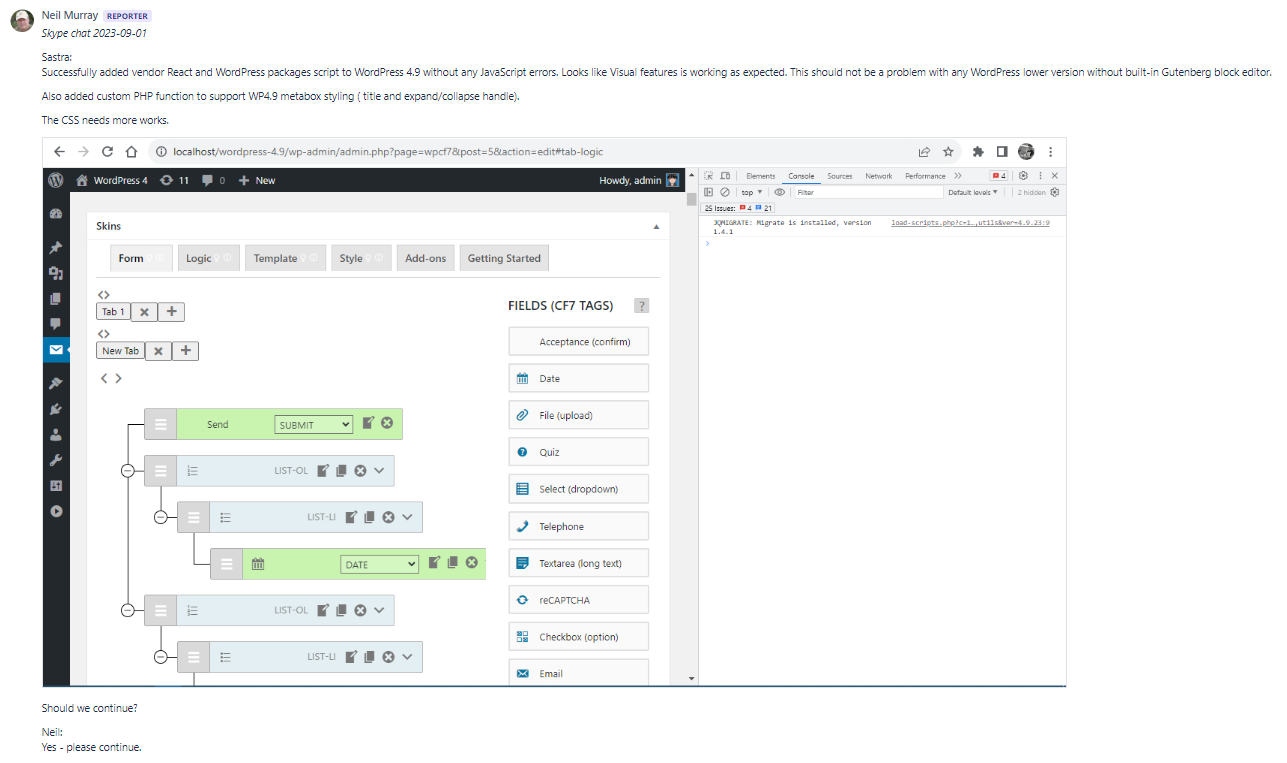
See Bitbucket Issues.
Skype #
We will invite you to some Skype chat groups our team uses to work together. Nearly all of your communication with us should happen here.
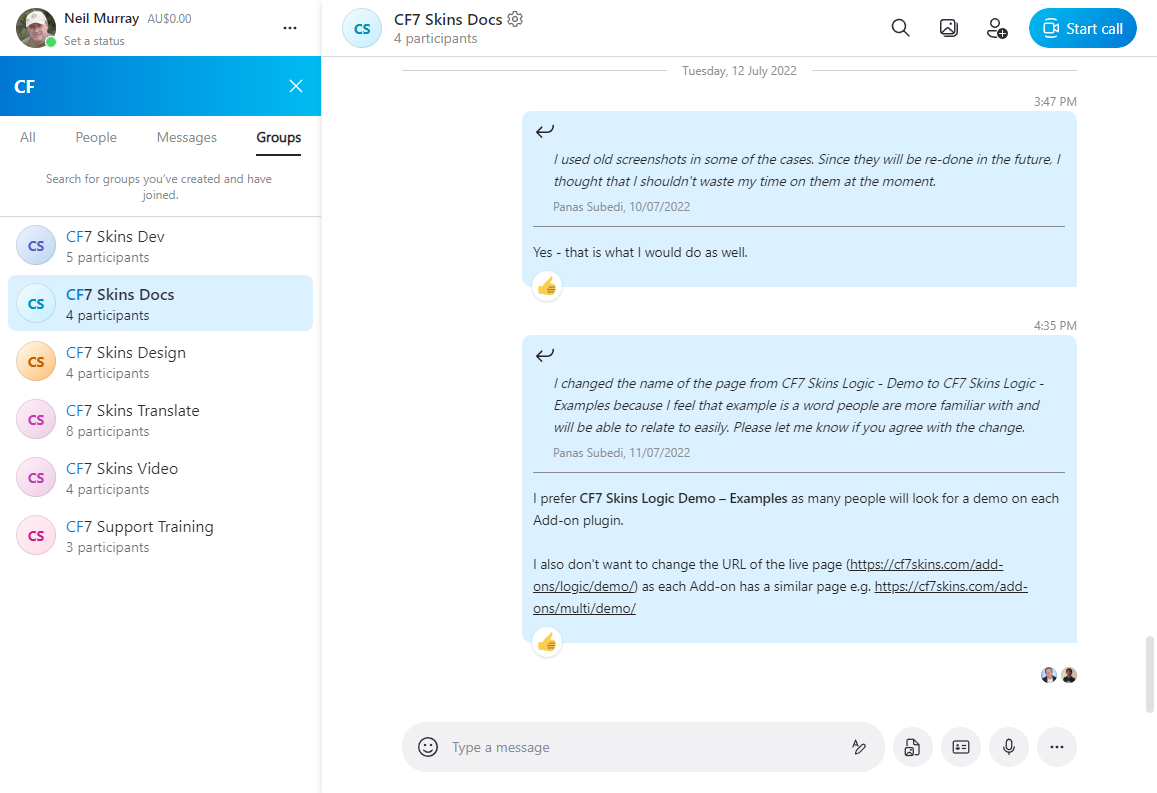
You can contact individual team members for conversations that you feel need to be private, but most questions are best asked in the Skype group, where other team members can help.
We can also talk on Skype voice using screenshare when necessary, but we don’t use this often.
Please sign into Skype whenever you are working. This allows us to contact you quickly & easily when we notice problems, errors & misunderstandings in your current work.
Work Updates #
Work Updates are an important daily ritual for all team members. At the end of every working day, you should update others about all you did. It helps others to supervise your work and make communication clear.
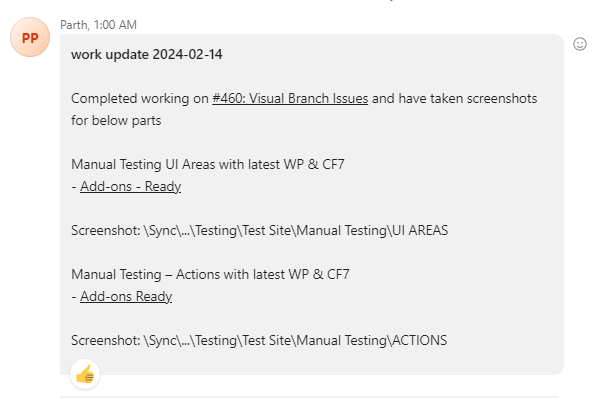
See Working with Skype – Work Updates.
Sync #
We will invite you to Sync & some shared folders to give you access to files we use in our work.
Make sure you install & use the Sync Desktop – we don’t do want team members to use Sync online.
You should always add any screenshots, images & files you use into the relevant Sync folder. Do it as soon as you start working on any new item.
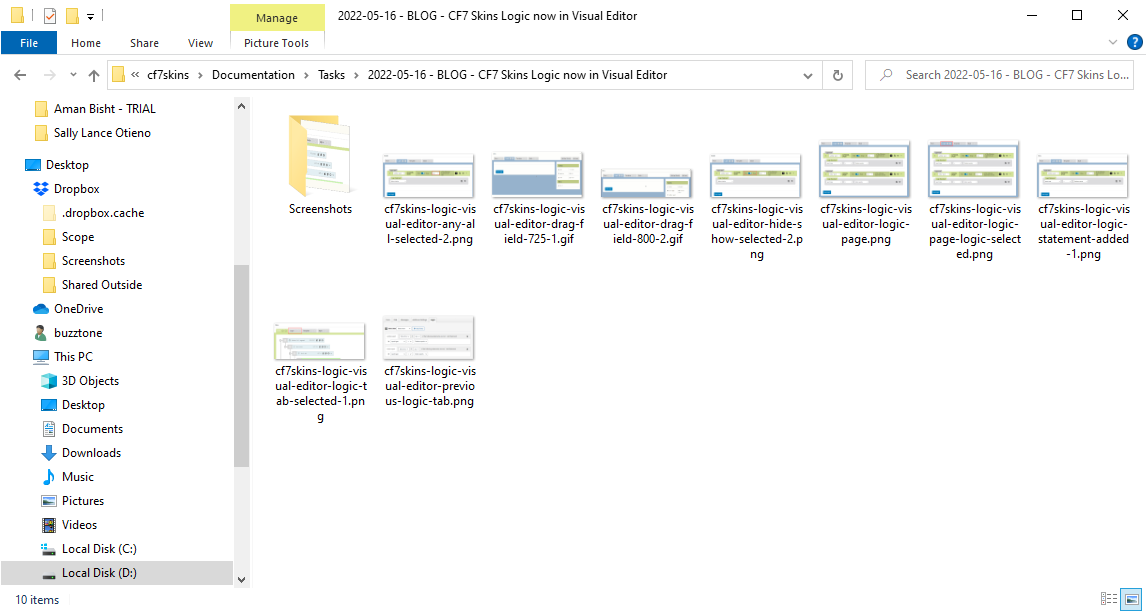
Storing your work on your local computer & not making it immediately available to others on the Team via Sync is a big no-no with us.
Task Folders #
Each task has a folder where all files are stored so they can be quickly & easily accessed by both you & others on the team.
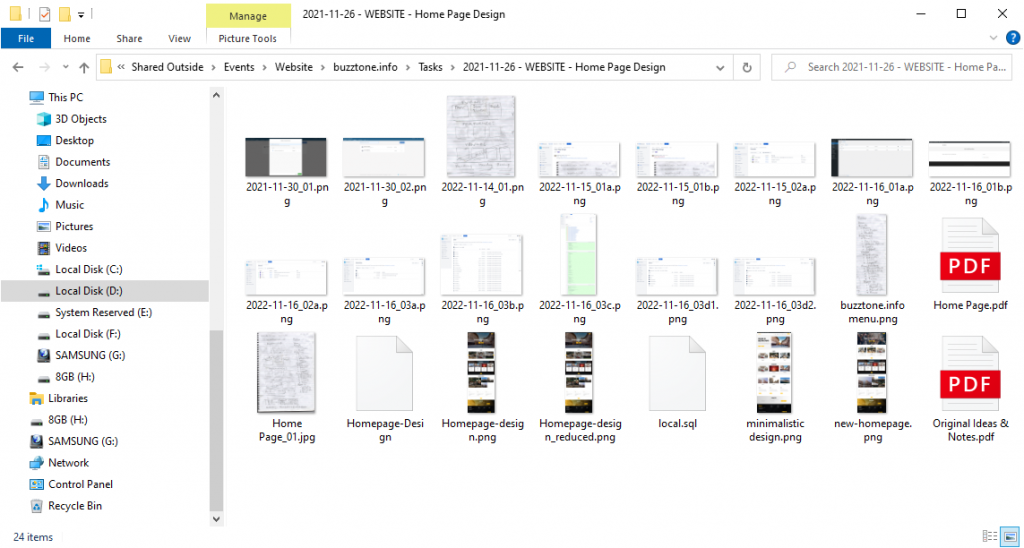
Add any screenshots, files and images you use into the relevant Sync folder while you are working on a task. Don’t wait until you finish the task.
Task Screenshots #
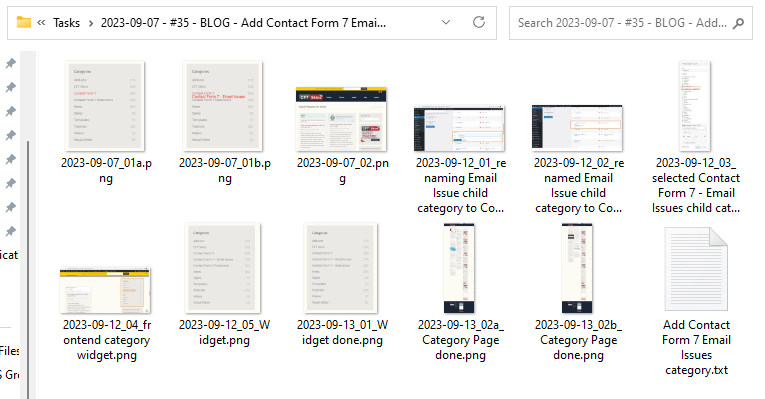
Team members are required to document each & every task with screenshots stored in the task folder. This allows other team members to understand the work you have done.
See Working with Sync – Record Your Work – Screenshots & Text Files
Hubstaff #
You need to install & use the Hubstaff Desktop App so you can record your time with screenshots – you can’t do this from the browser interface.
We use your screenshots to see what you are working on. This often helps us to give you some guidance on how to tackle a current issue & to notice opportunities, problems, errors & misunderstandings in your current work.
Hubstaff Screenshots #
Make sure you are signed into Hubstaff & log your time, whenever you work. This lets us review your screenshots regularly.
See Working with Hubstaff – Daily Screenshots.
Hubstaff Tasks #
Describe in detail what you are currently working on via Hubstaff Tasks. This makes it easier to follow your work.
Images #
Adding images can help other team members understand your communication easier & better. Use the following guidelines when adding images in our various team tools:
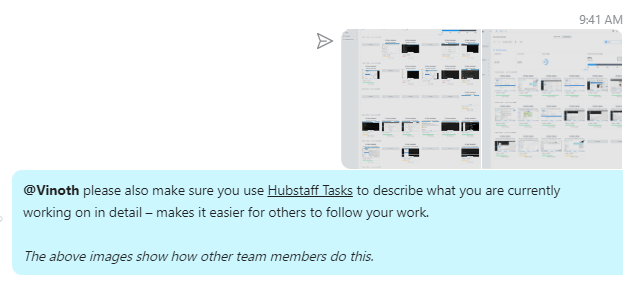
- Skype – 1 or 2 small images (if helpful) which summarizes what is shown on the Bitbucket issue comment
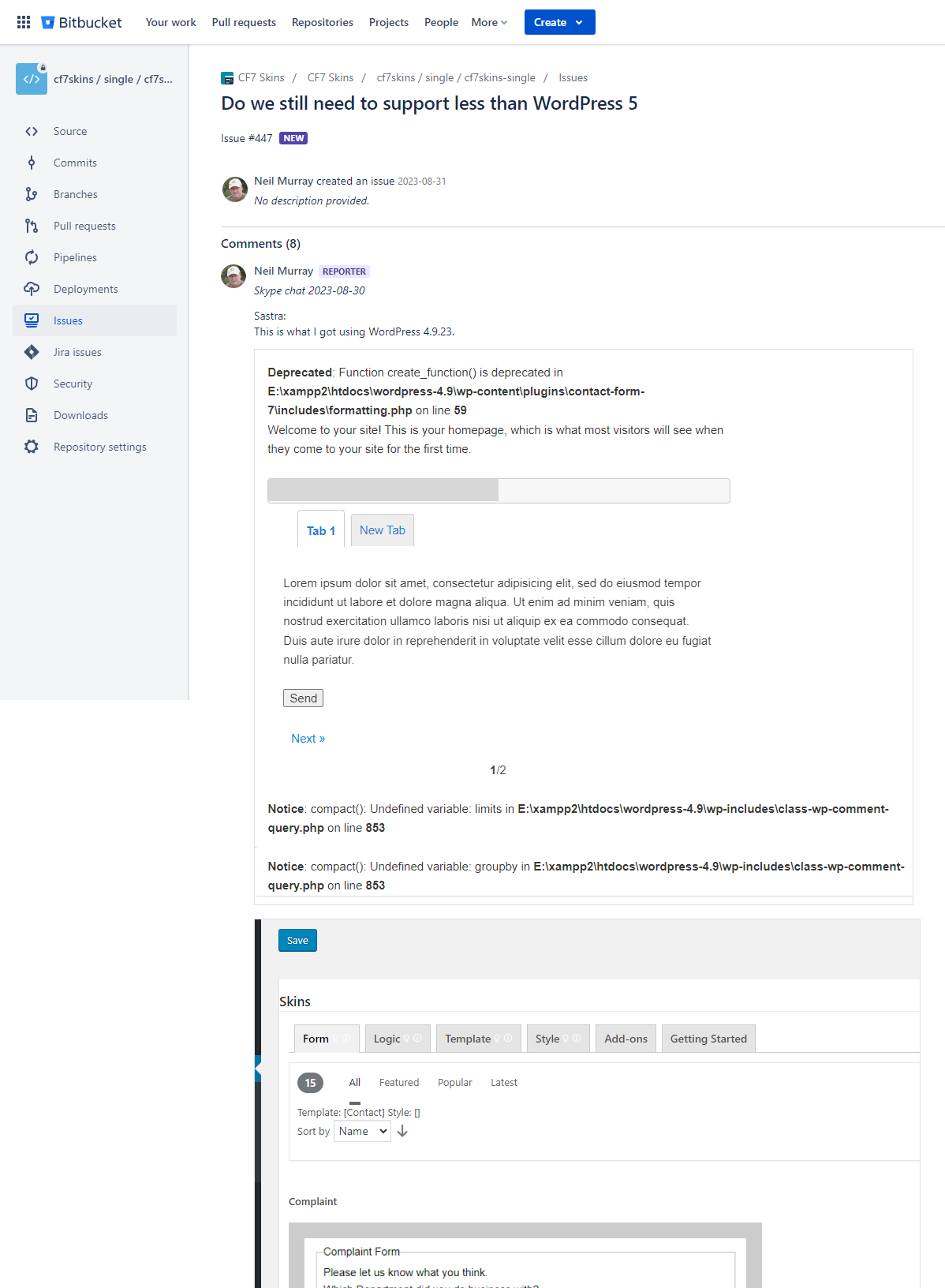
- Bitbucket Issue – add enough images in to explain clearly to others (but generally not all screenshots in Sync Task folder)
- Sync Task folder – screenshots added as you work which record every step you took in your work on each task.
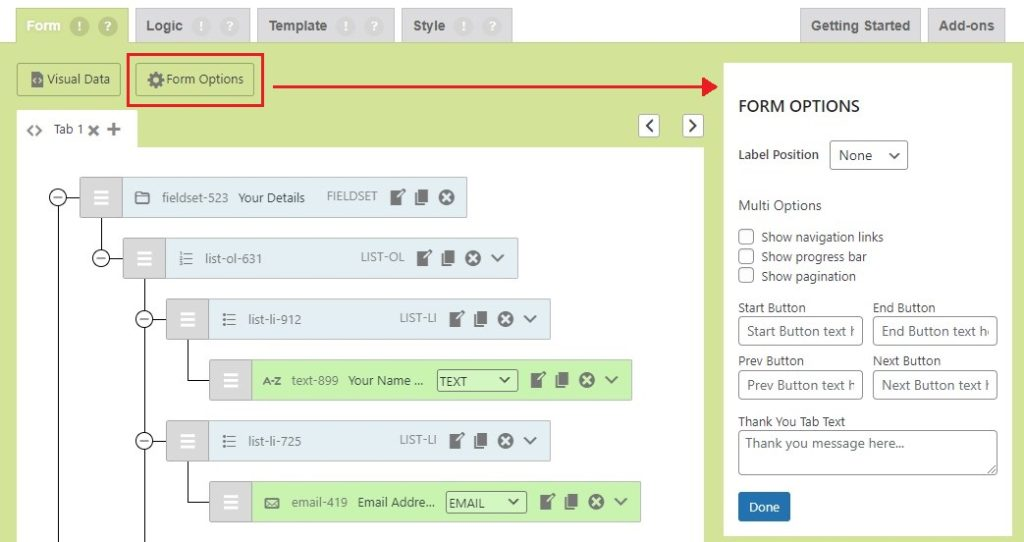
You can often improve your communication by adding 1 or 2 images which help others more easily understand you.
WordPress #
We have several WordPress sites which you may use for your work with us.
- https://team.cf7skins.com – used by all CF7 Skins team members
- https://test.cf7skins.com – used by all CF7 Skins team members
- http://translate.cf7skins.com – used by our Translators
- cf7skins.com – our website
- dev.cf7skins.com – used to test plugin updates before changing on live site
- blog.cf7skins.com – our blog
- blog-dev.cf7skins.com – used to write blog articles for unreleased versions
- kb.cf7skins.com – our documentation knowledge base
- kb-dev.cf7skins.com – used for changes that can’t be added yet to live site
You need to be logged in to WordPress to visit these sites, so we’ll send you an email to give you access. If you have any issues logging in please let us know.
Ask if in doubt #
If you have any questions at any time you should contact us on Skype. If in doubt please ask.
While learning your role, you should work part of your day (1 – 2 hours) during your supervisor’s normal working hours.
- this allows you to get things like login issues solved quickly
- this also allows your supervisor an opportunity to follow your work via screenshots in real time & give you timely feedback.
Don’t expect your questions to be answered immediately. We live & work in different time zones & team members will generally respond asynchronously. If you have any questions on a task, you should ask them early.
You will often get quicker answers if you ask your question during another team member’s normal working hours. You can see other team members normal working hours & when they are generally available at Team Members.
Further reading:
Notes
Add notes here
Save all Images to Sync – use ..\Sync\..\Team\Team Guidelines\Team Communication\