
Last Updated on July 5, 2024 by Neil Murray
Table of Contents
- Wise Account
- Payoneer
- How we make payments
- How contractors can confirm the amount paid
- For other countries
Wise Account #
Many of our staff now have Wise accounts which makes it easier & better with lower transaction costs on both sides.
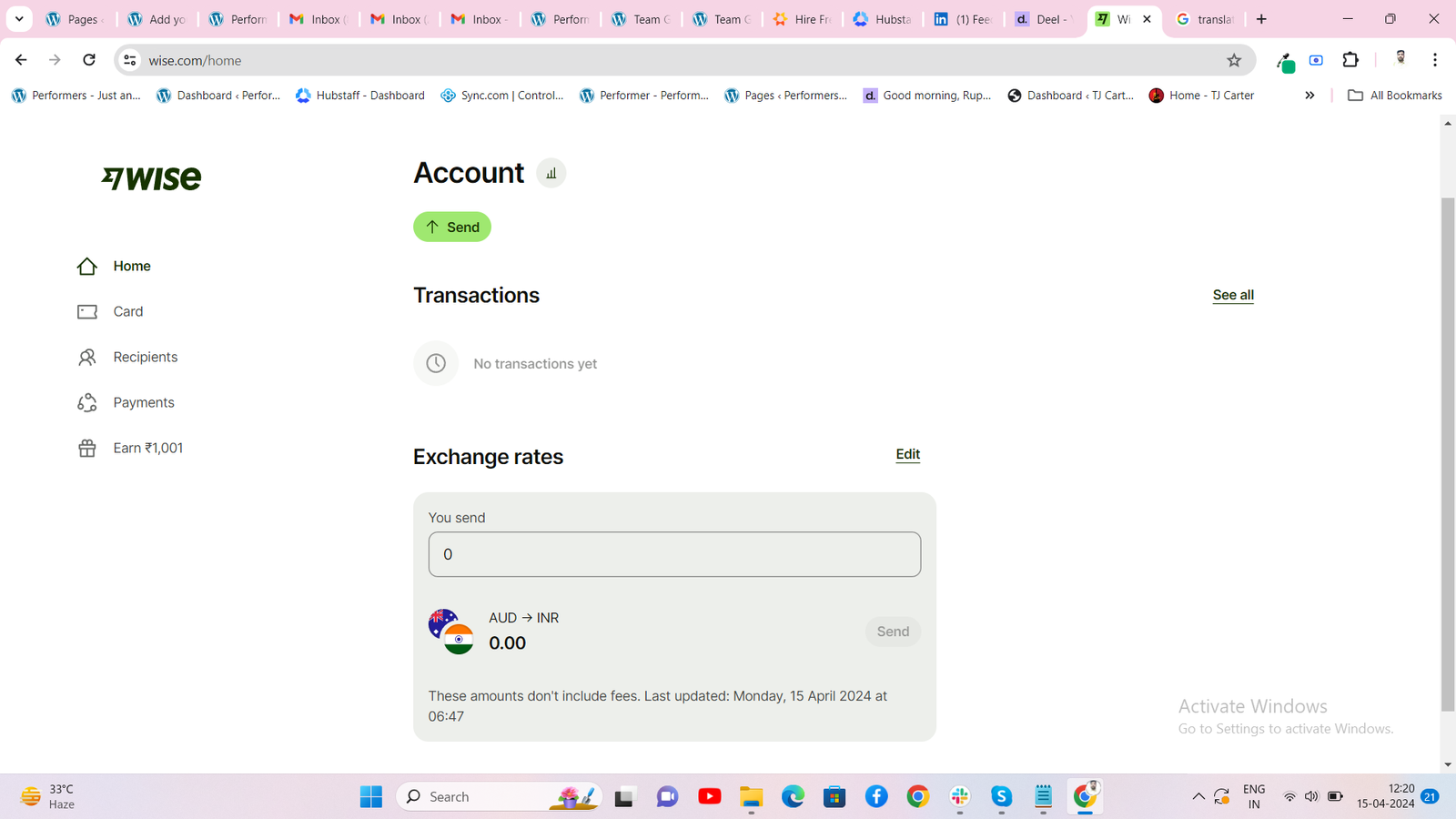
Open Wise Account #
To open a Wise account, remote contractors can follow these step by step instructions:
A. Go to Registration Page
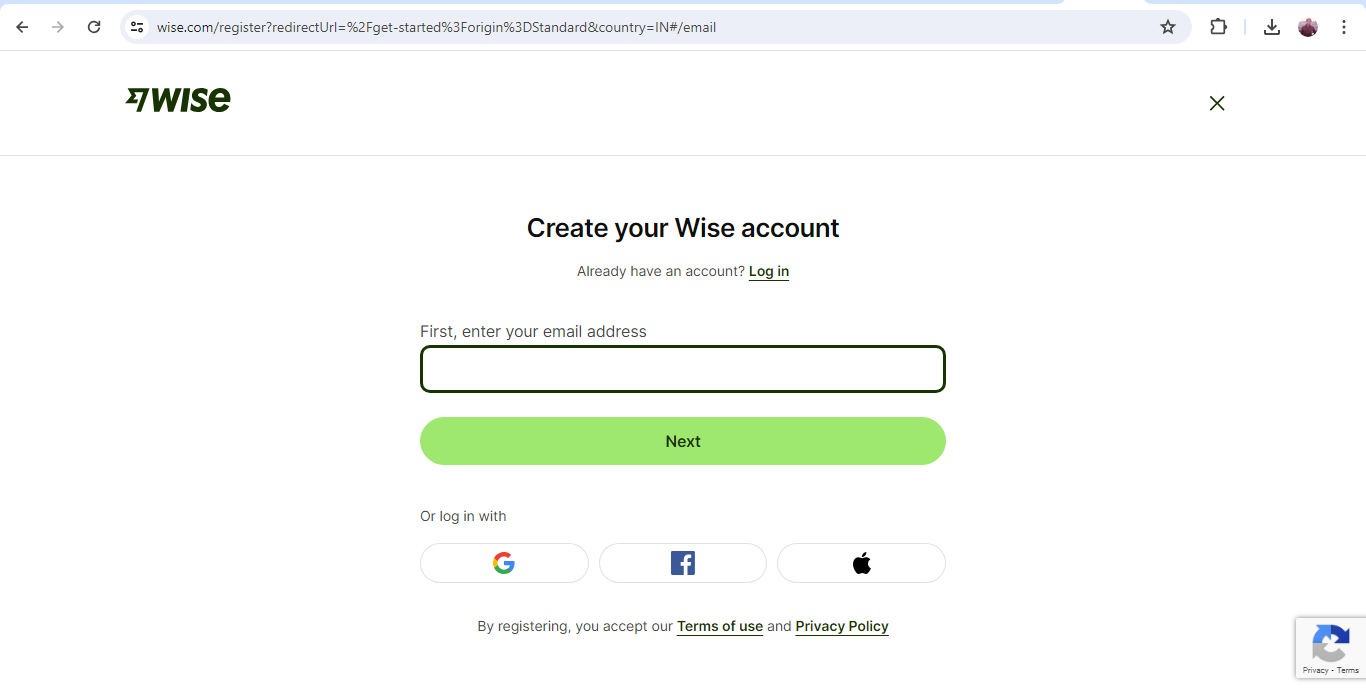
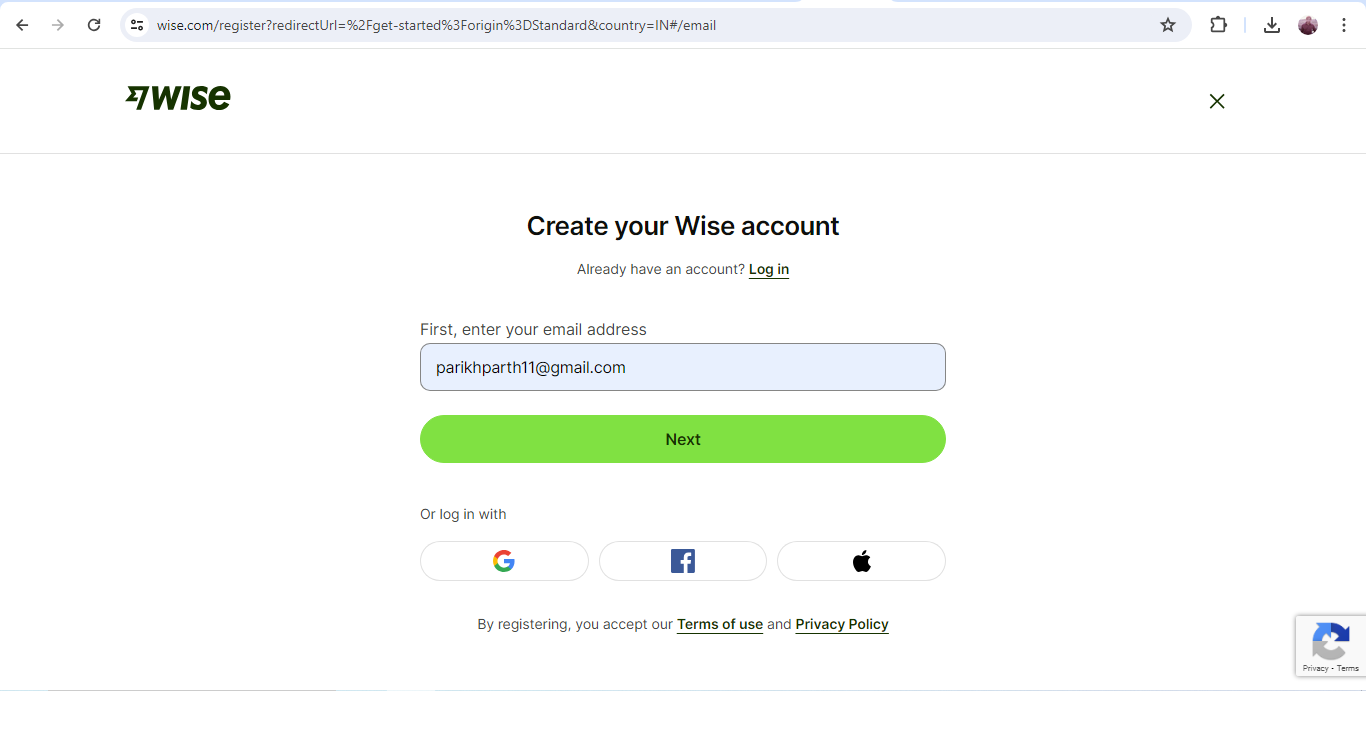
B. Add your email address
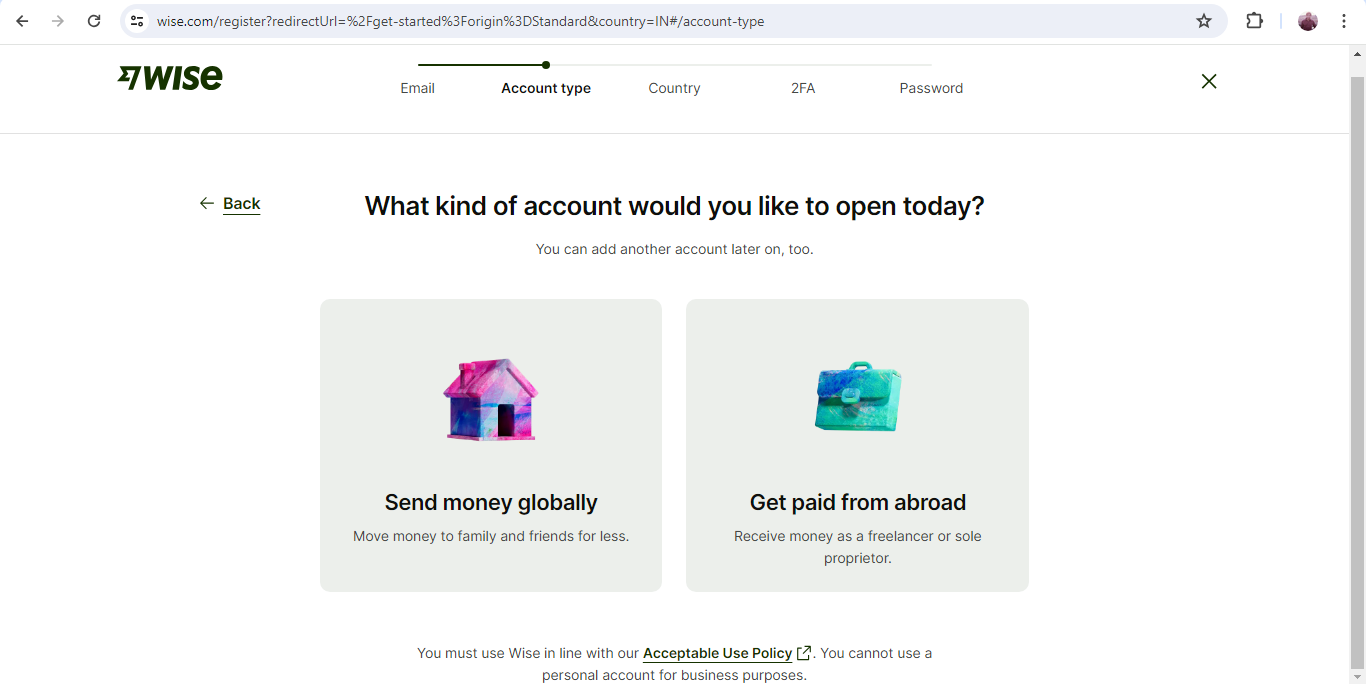
C. Select Account Type
D. Select Country
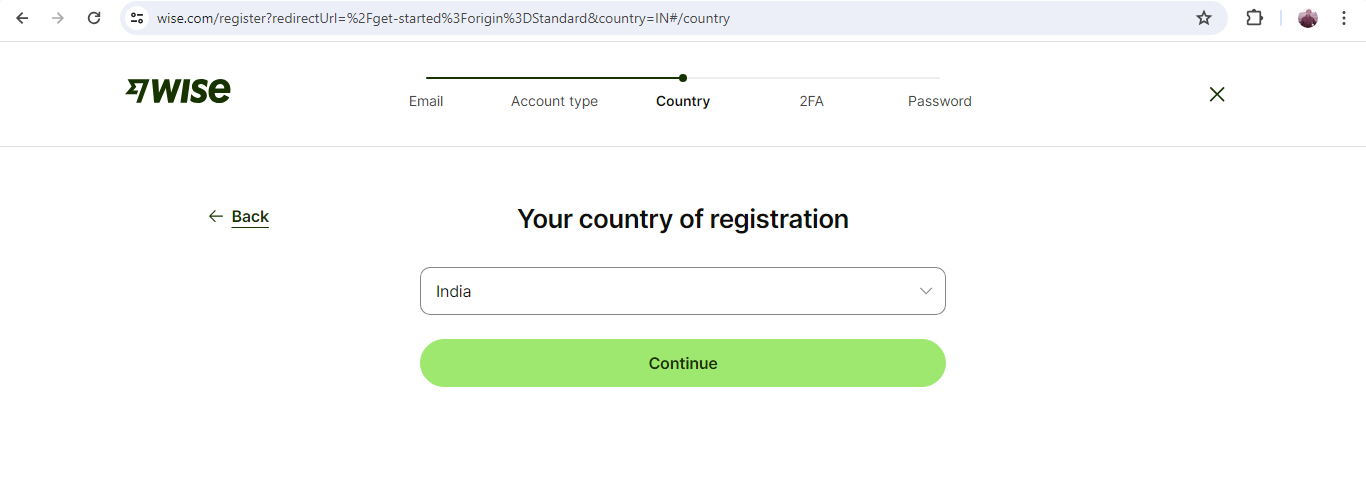
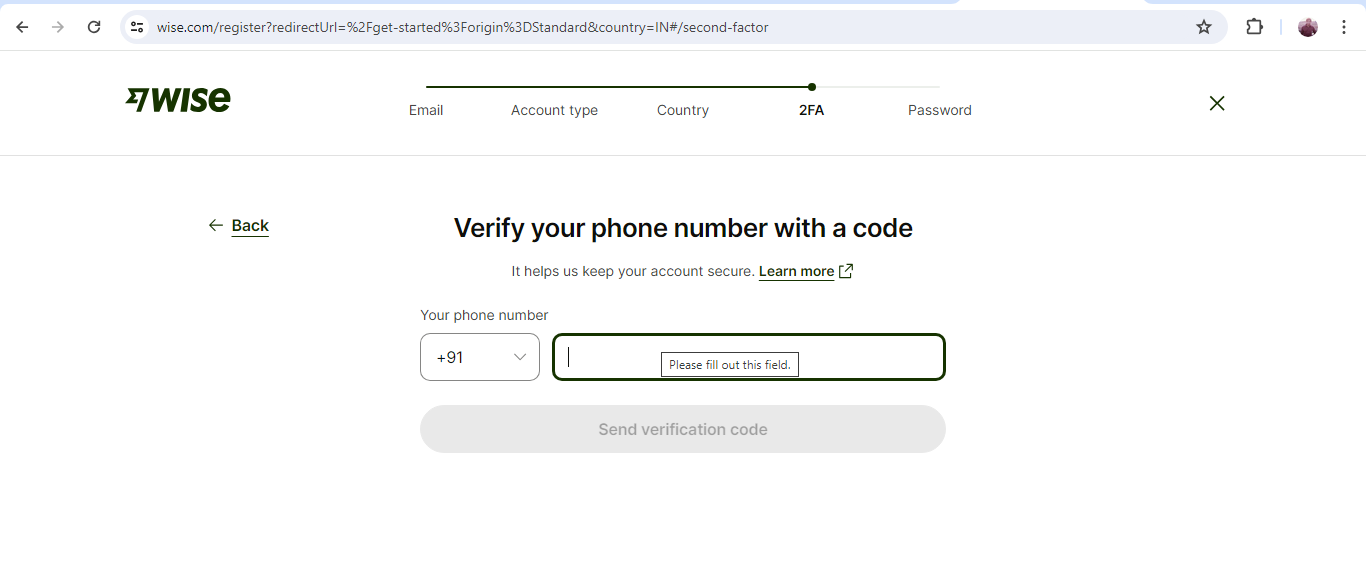
E. Verify Phone Number with code
Verify your identity #
Verify your identity using a document accepted by Wise.
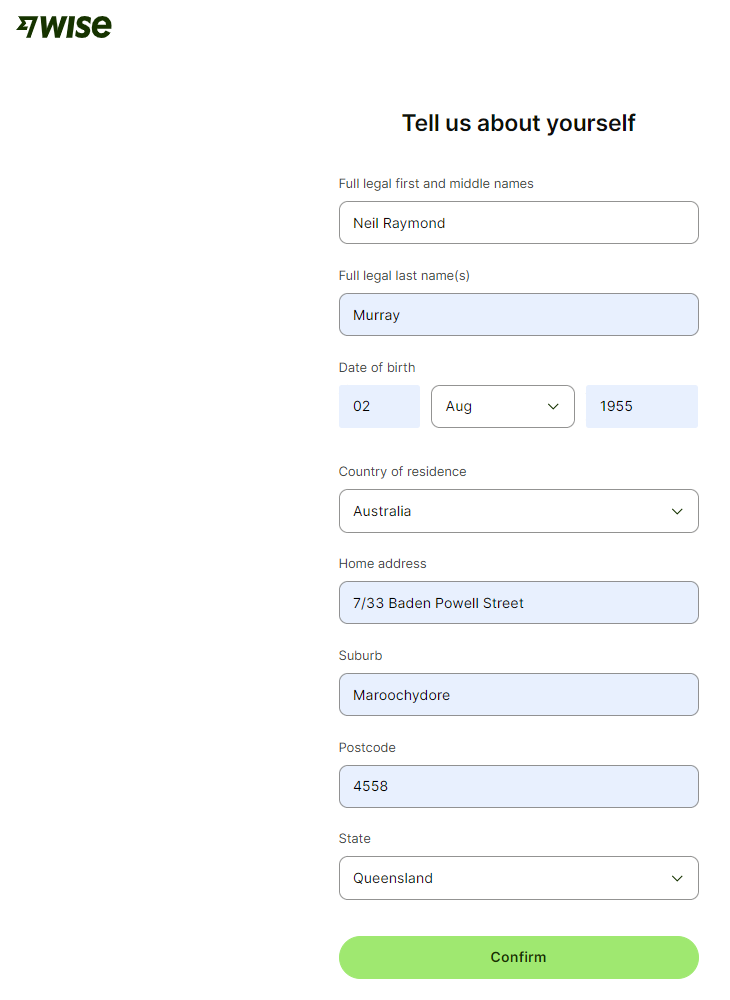
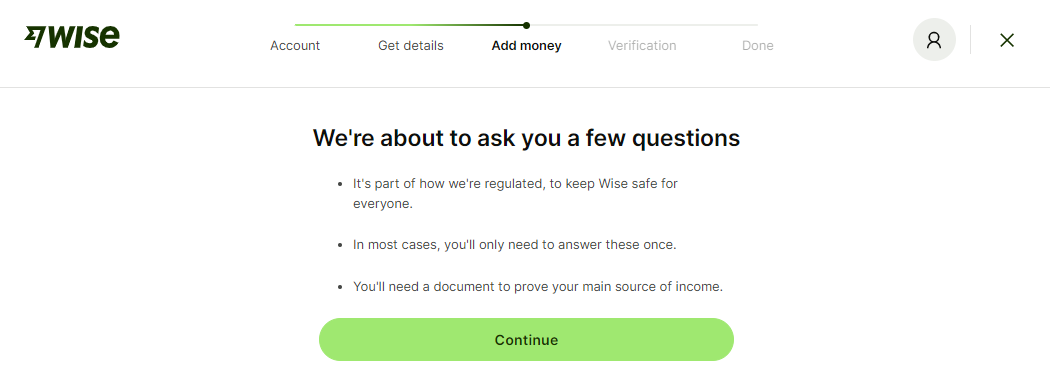

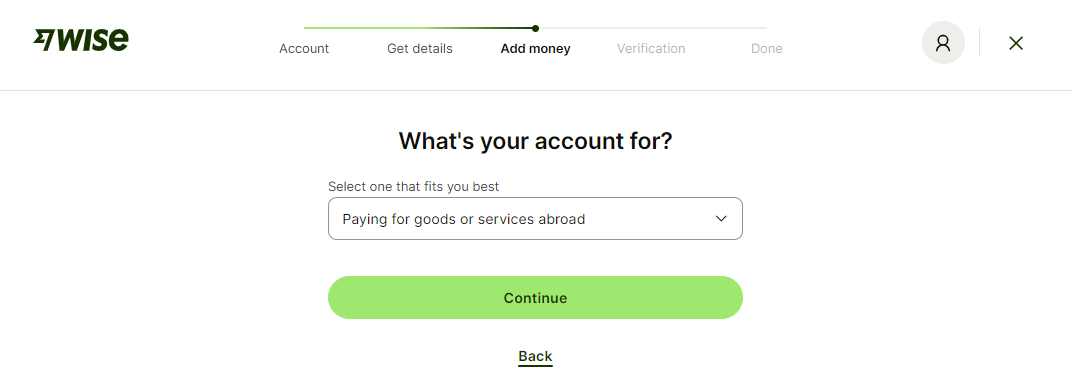
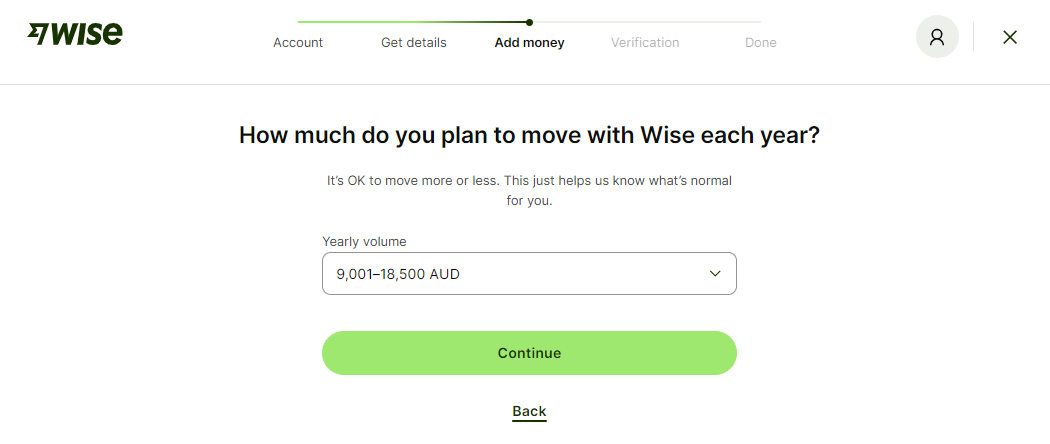
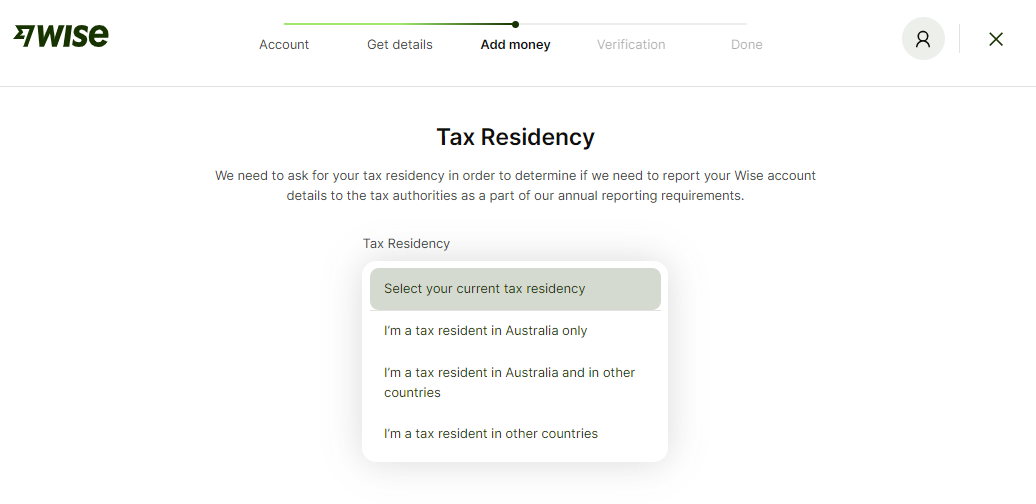
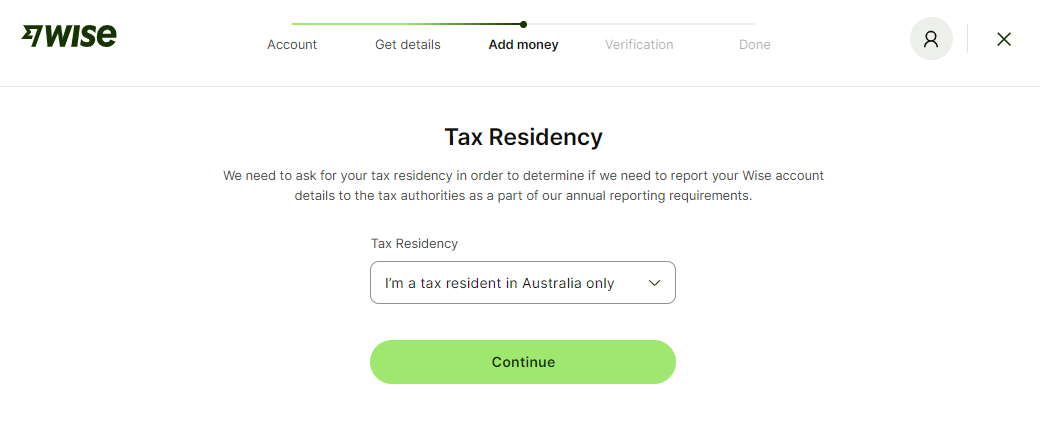
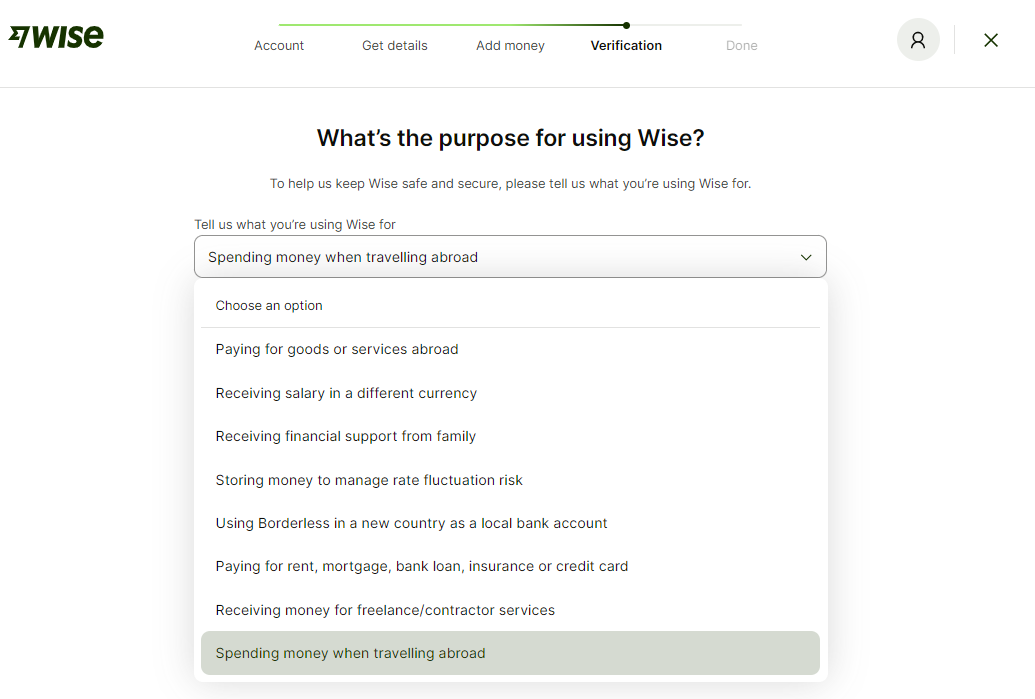
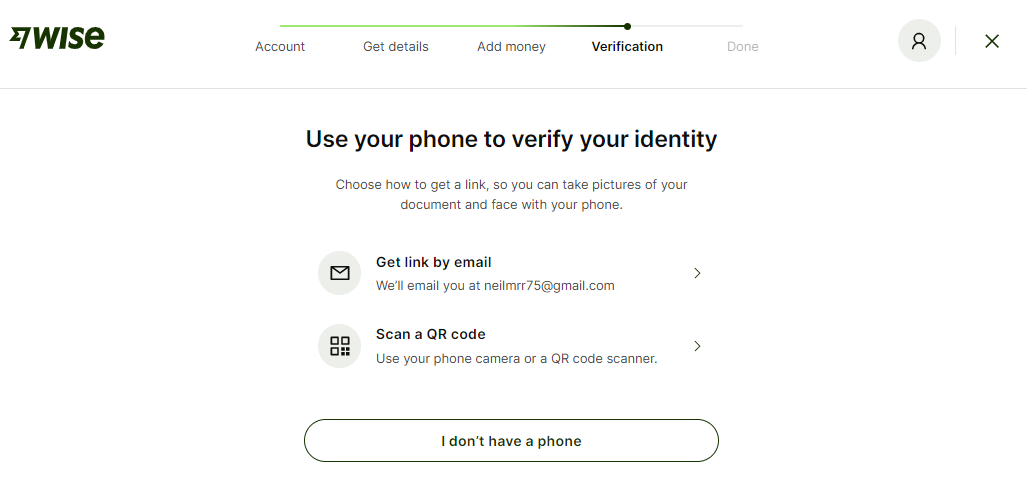
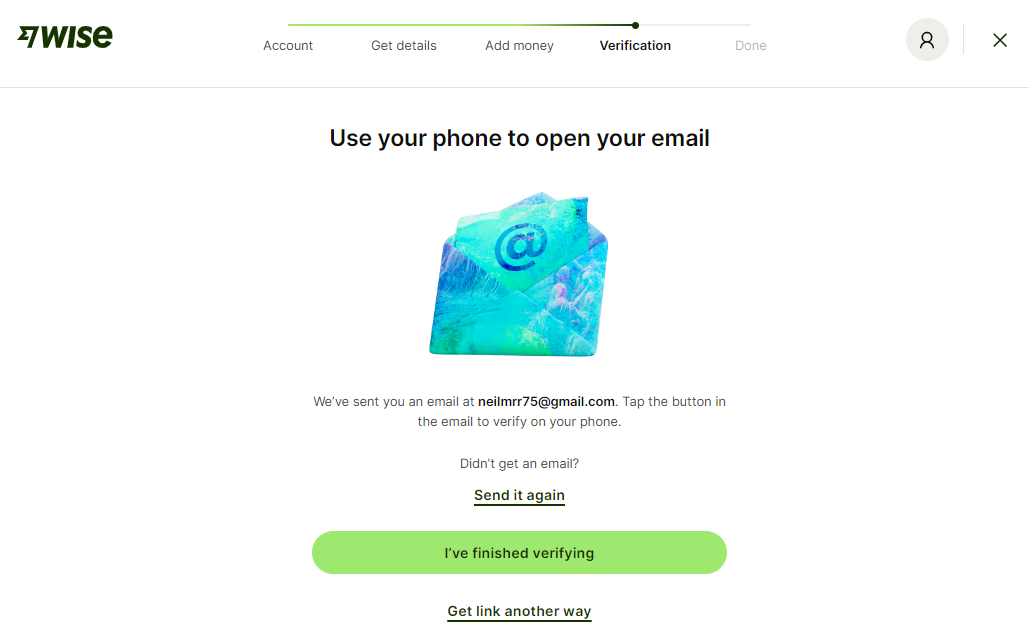
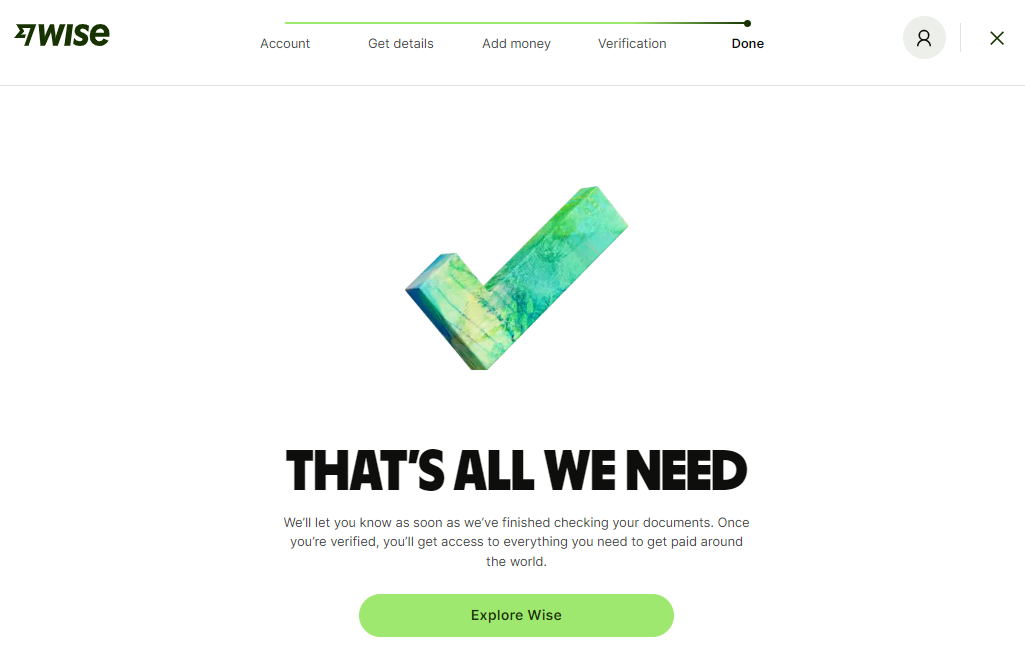

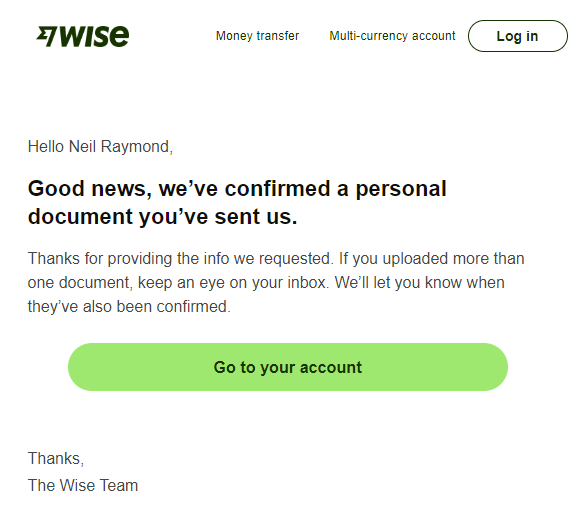
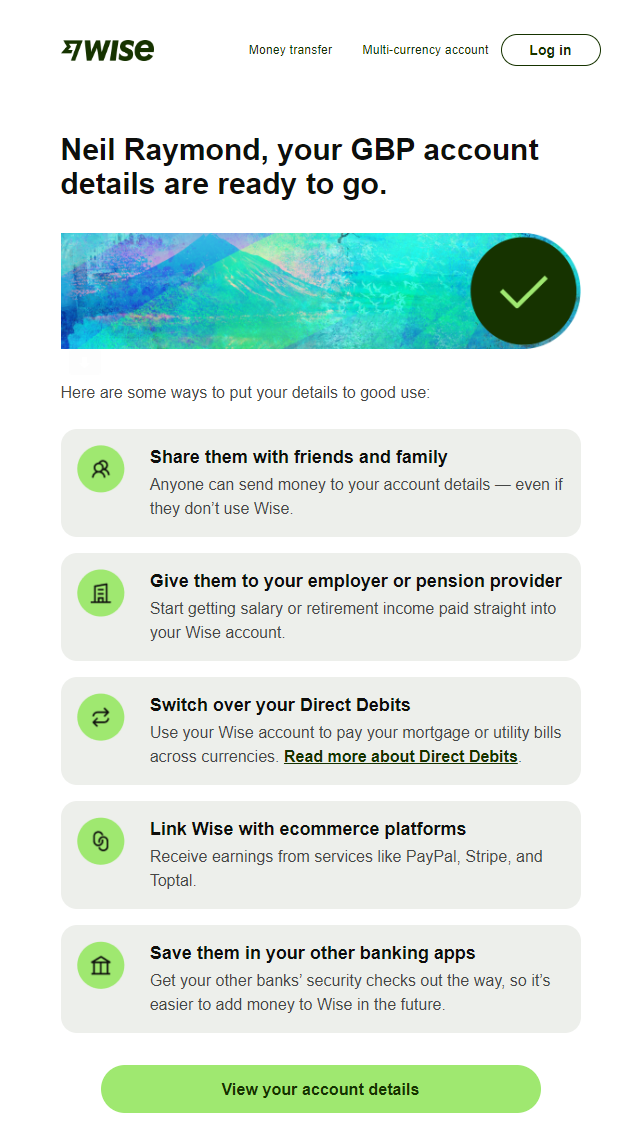
Tip: these steps may vary depending on your home country.
Connect Local Bank Account #
Once your identity is confirmed, you can connect to your local Bank account.
A. From the website click on your initials/profile picture from the top right corner.

B. Select Settings.
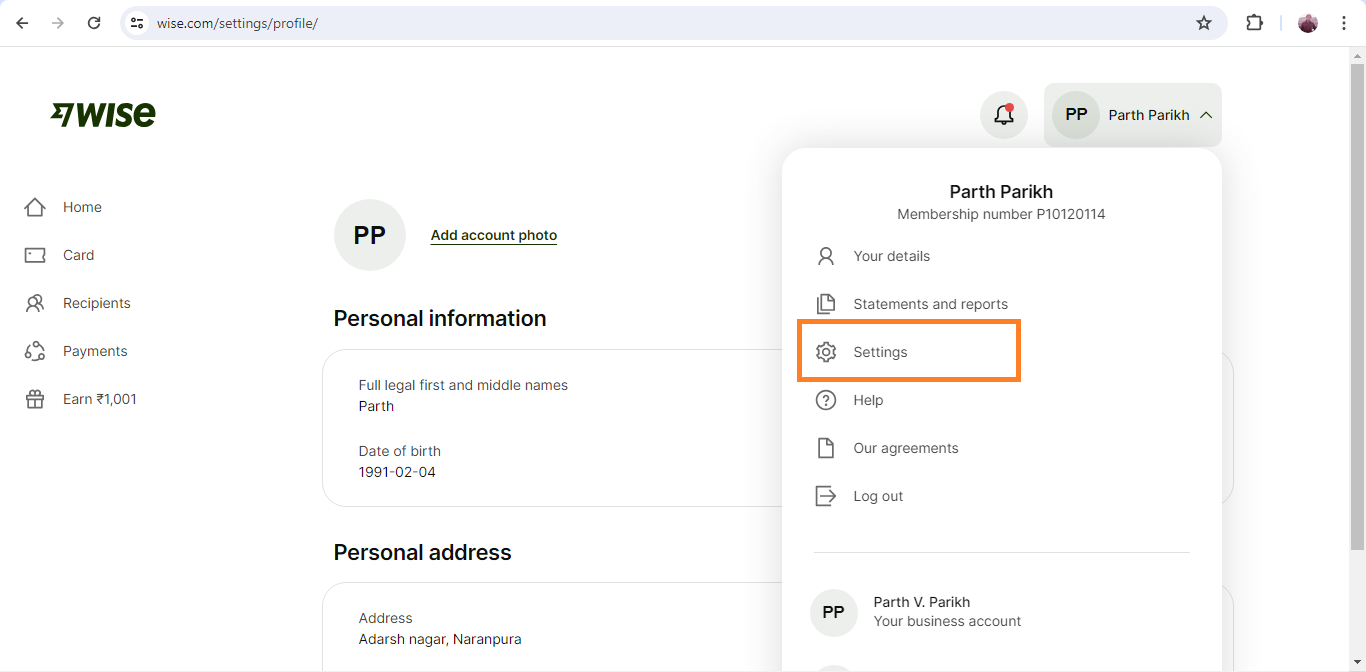
C. Go to Connected accounts.

D. Click Connect your bank account.
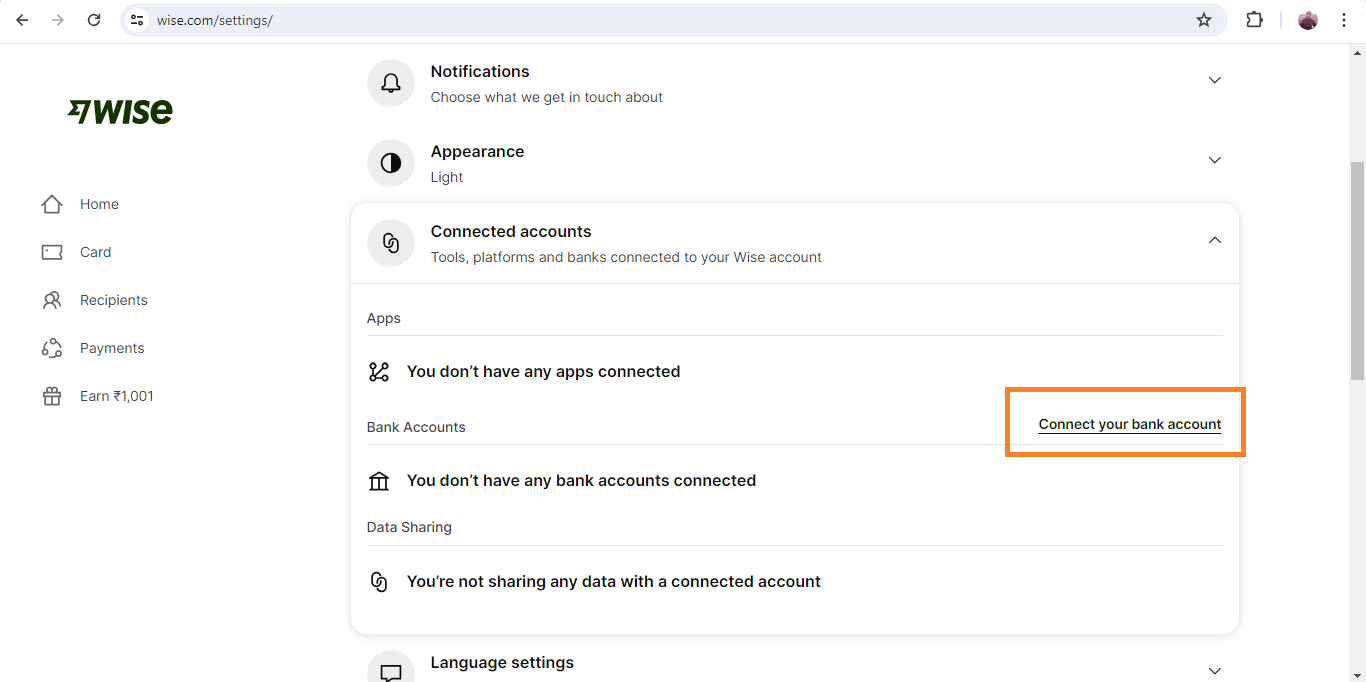
E. Select the country of Bank Account

Next Steps are depended on the Country.
[ ADD detailed steps & images]
Open Wise Balance #
As we are based in Australia, the best option for us is to pay people from overseas who have setup a Wise account at Wise’s Australian bank account.
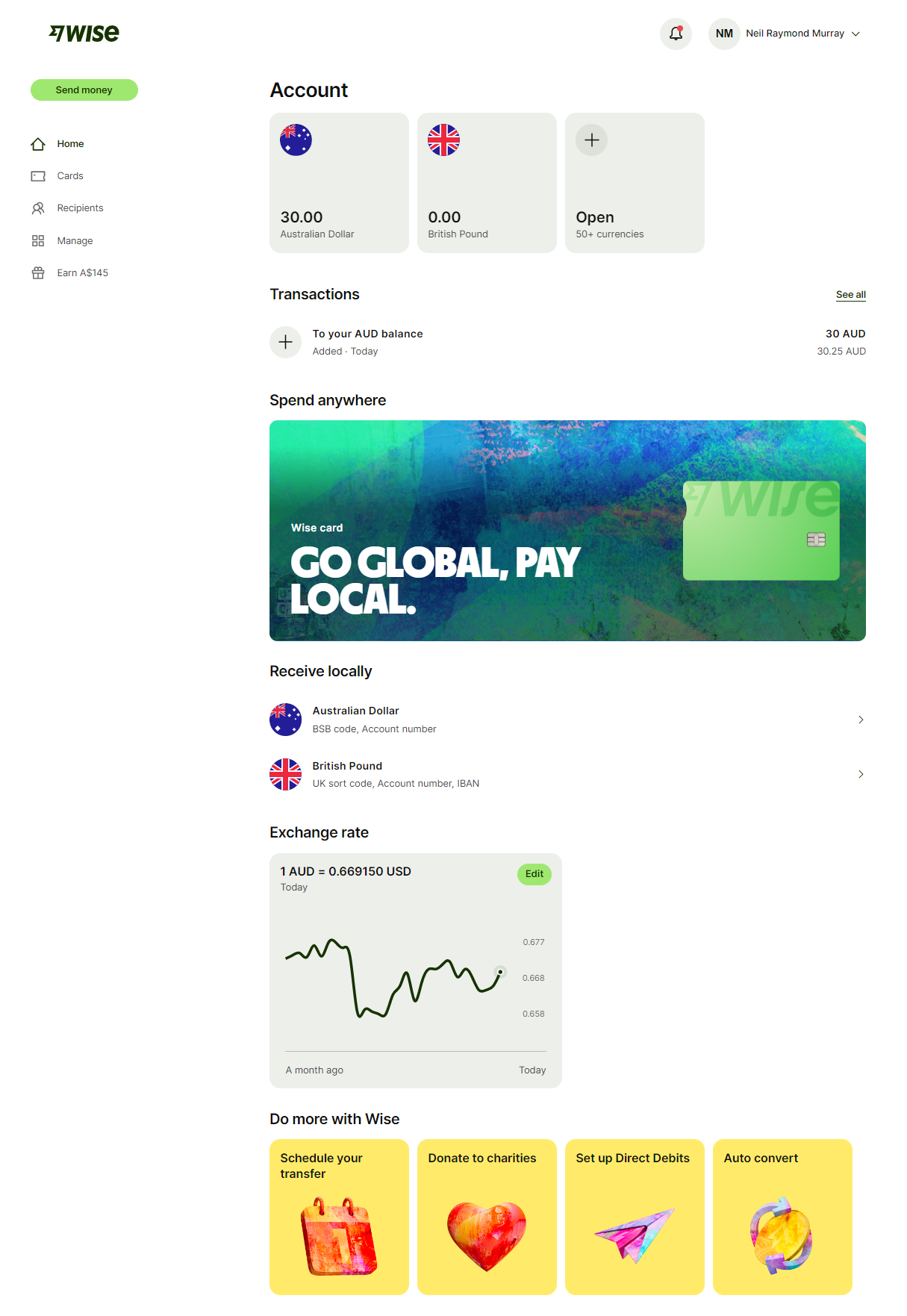
After you have a Wise account you also need to open a Wise Balance in $AUD.
To create a Balance account remote contractors can follow these step by step instructions:.
A. Log into your account and click Open a balance
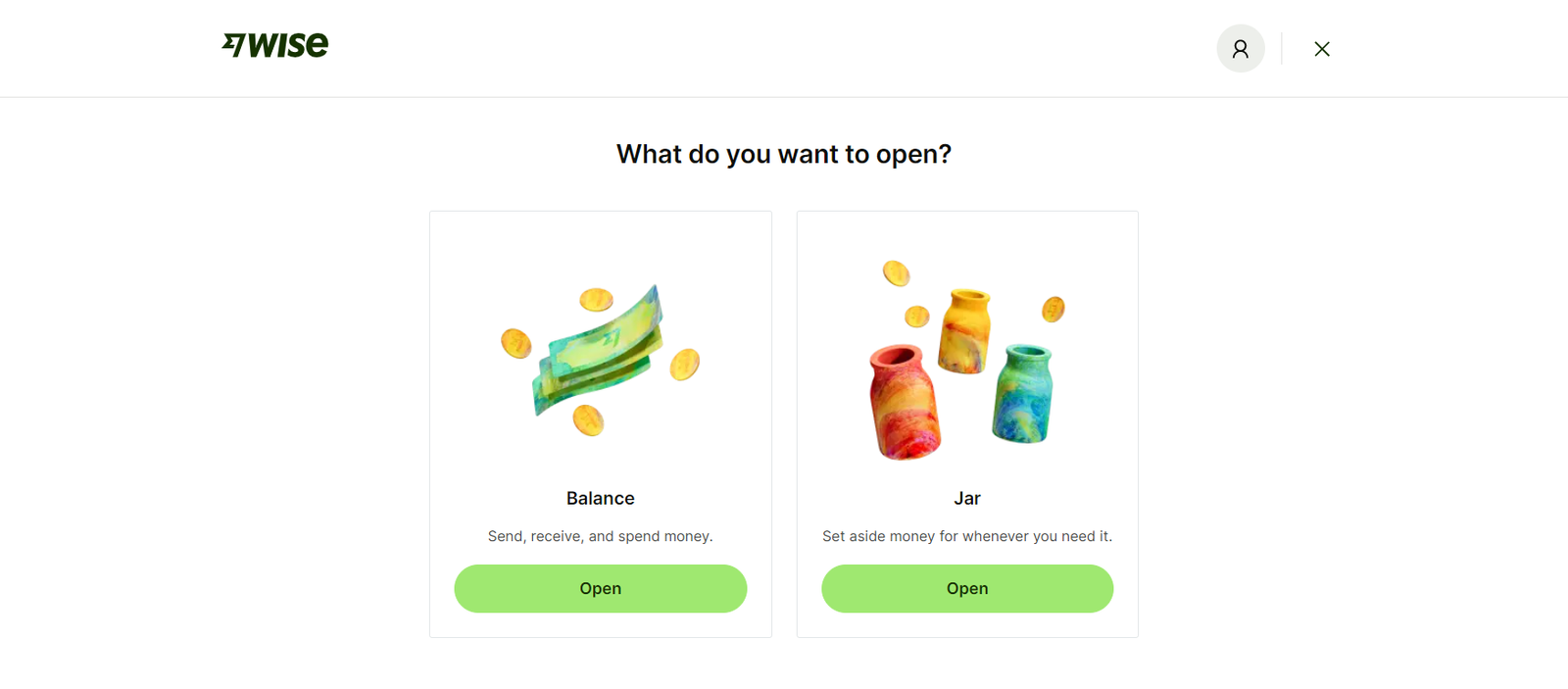
B. Find and select the currency you wish to hold money in.
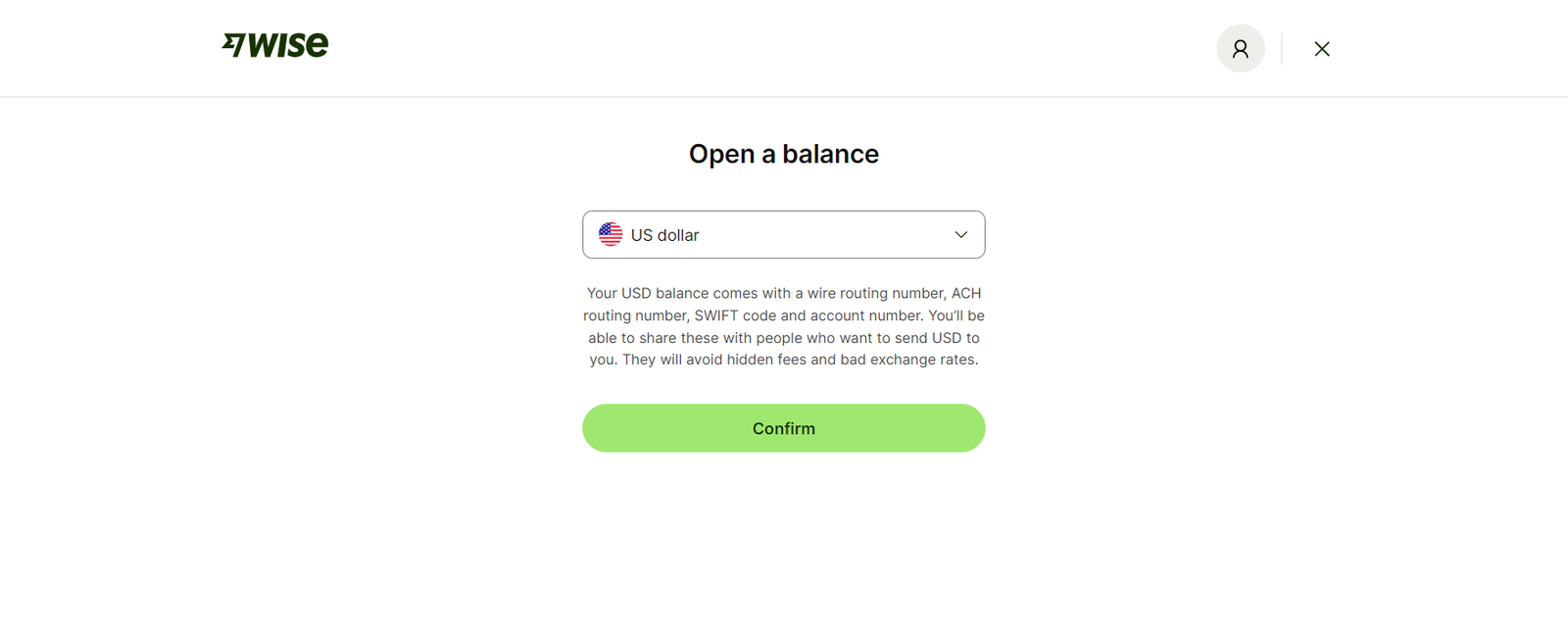
C. Item.
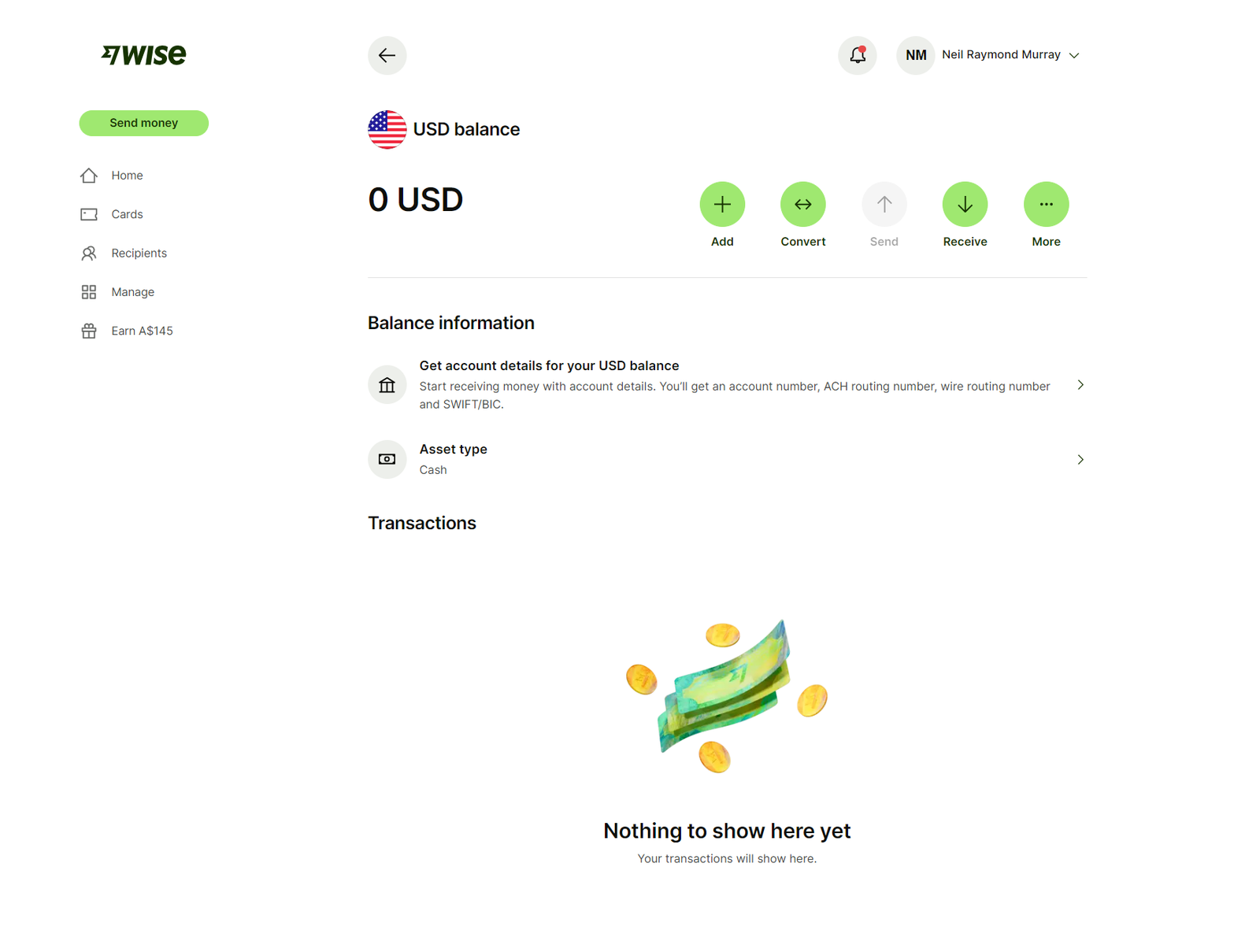
D. Item.
E. Item.
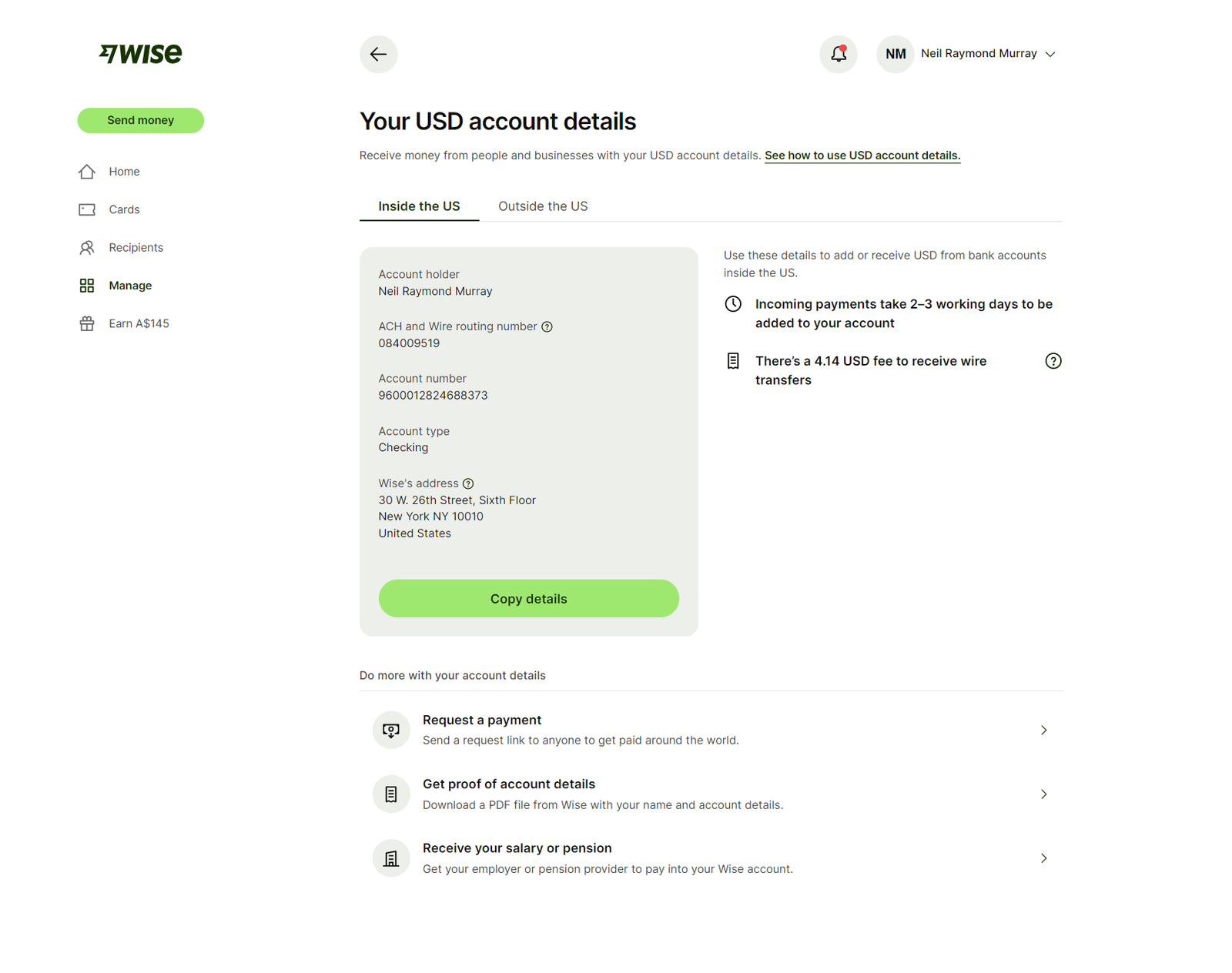
F. Item.
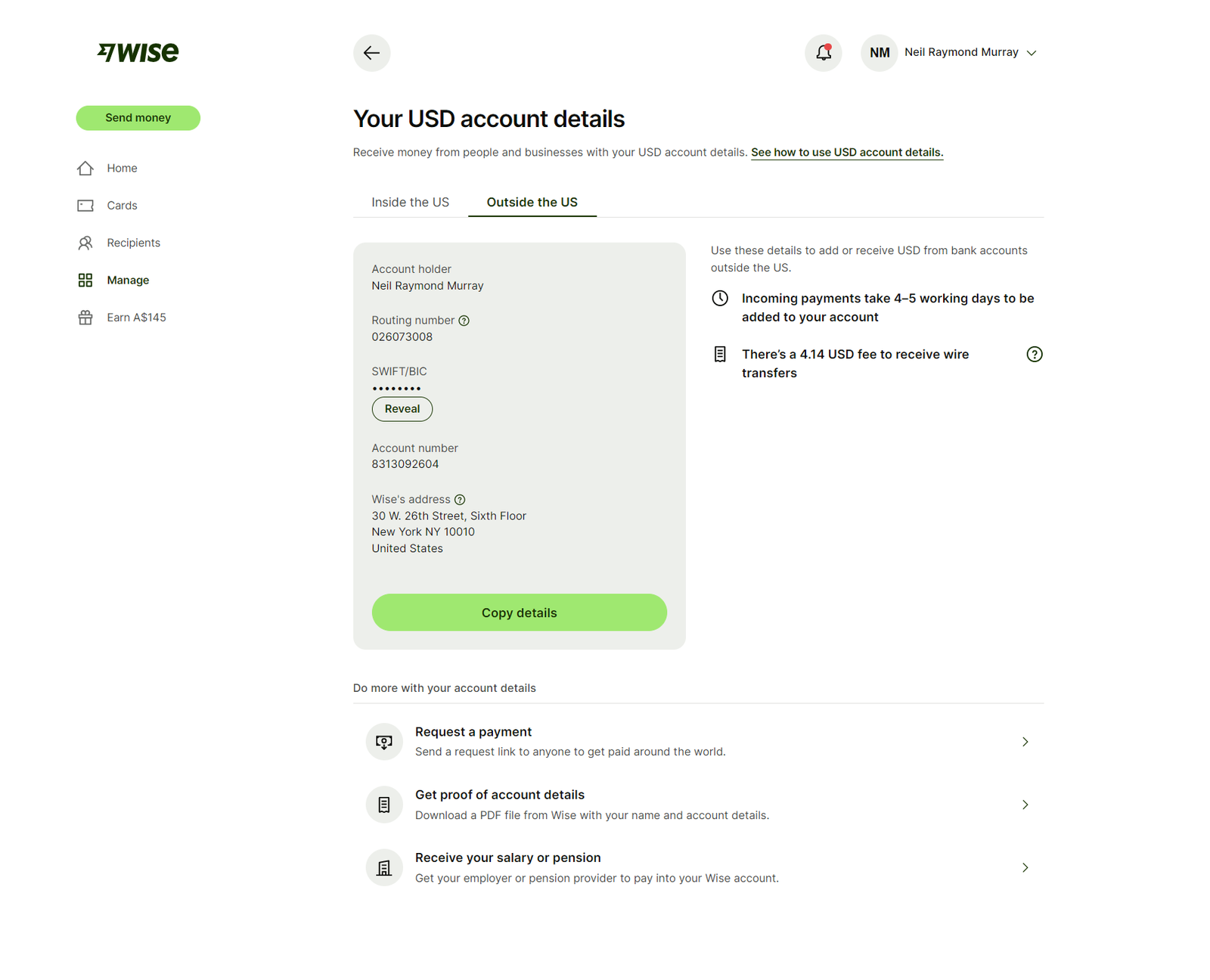
You will need confirm if the Balance option is available in your country.
In some countries where the Balance option is not available, there is an alternate option to create a Business account as a Individual and get payment in that.
Doing this can give each remote contractor a Wise account in $AUD at Wise’s Australian bank account.
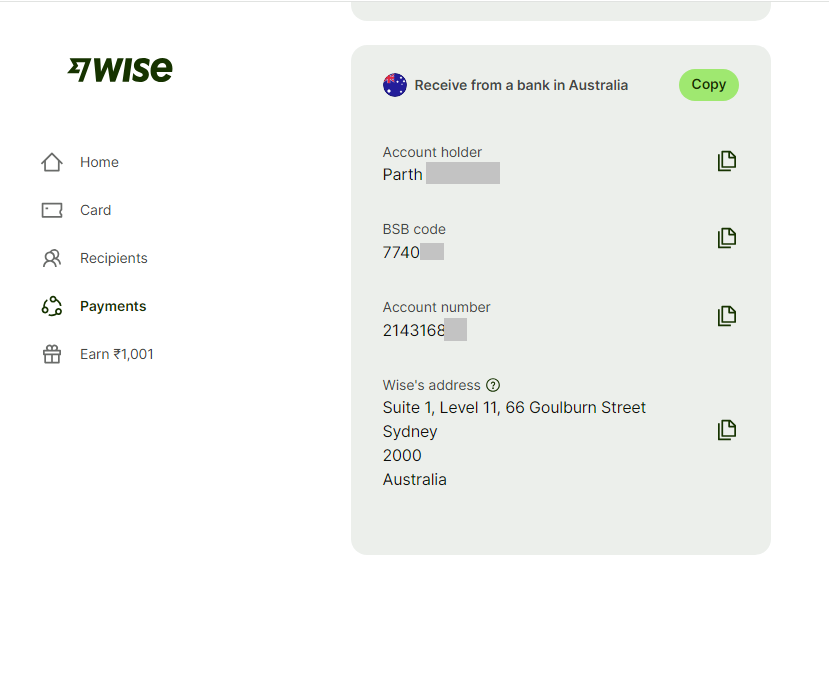
You then need to provide us with your Wise $AUD account details.
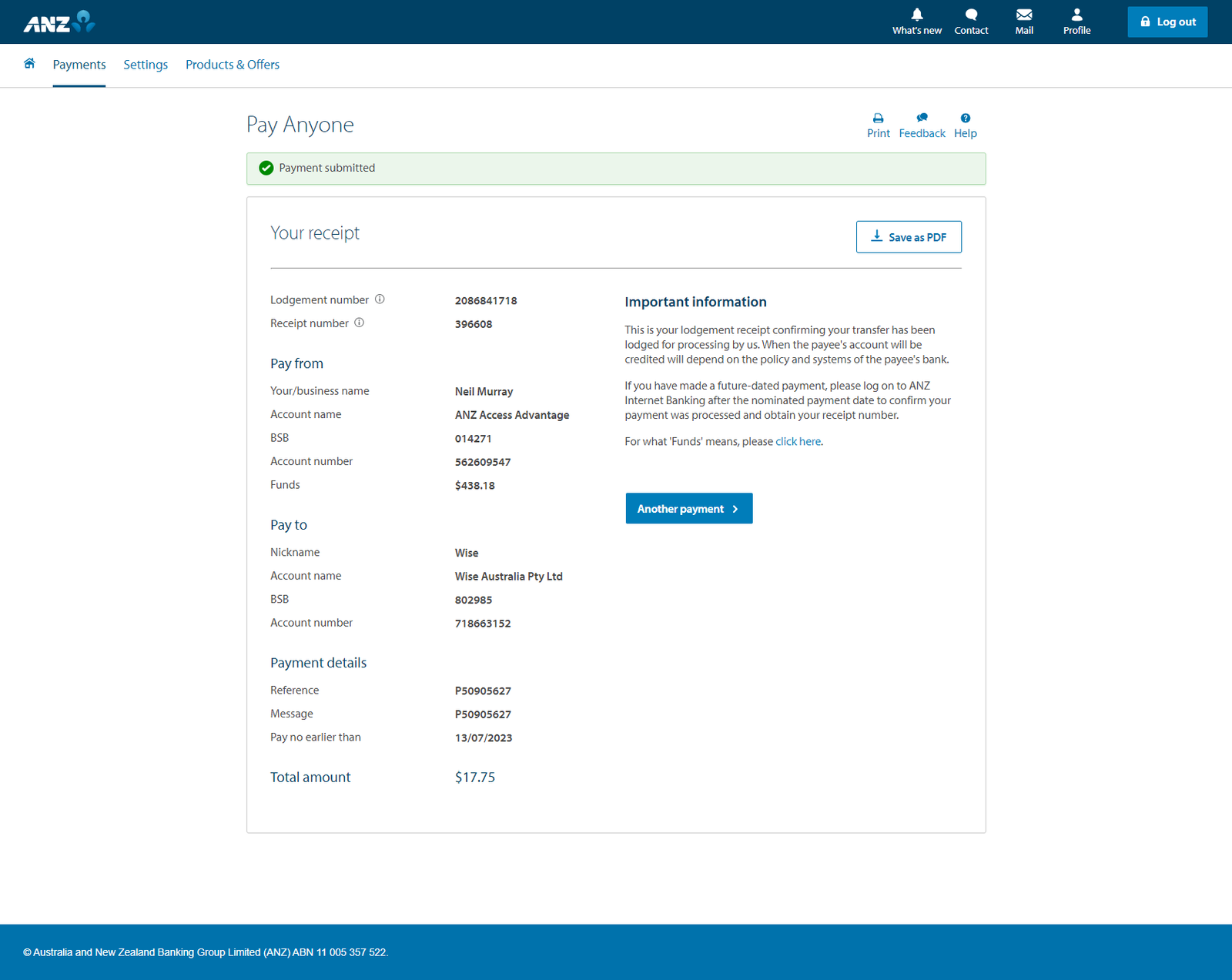
Limitations
We’ve been able to do this with people from most countries but for some countries this is currently not possible.
Here is a list of countries where customers are able to open a Wise account.
In the future we hope to automate this process between Hubstaff & Wise.
Payoneer #
A team member recently found the Wise Open Balance option is not available for Pakistan. However Payoneer is a suitable option for Pakistan:
Payoneer provides the option to have Payoneer Receiving Accounts for USA, UK, Australia and more. With these accounts, you can Receive AUD payments from clients in Australia via local bank transfer.
Payoneer Receiving accounts
A receiving account is essentially a set of bank account details based in a specific country and currency (USA, UK, Australia, …). You provide these bank account details to your clients or marketplaces you work with in those countries, in order to receive payments via bank transfer directly into your Payoneer account.
Account guidelines
• Use for local bank transfers within Australia in AUD via the Direct Entry (BECS) network
• Only payments for business transactions from business accounts are supported
• Payments from personal bank accounts will be declined
• Payments made from a bank account in your name will be declined
• Wire transfers are not supported
To make payments we need your Australian Bank Account Details from Payoneer like this:
Bank name: Citibank
Bank address: 2 Park Street, Sydney NSW 2000
Branch code (BSB): ######
Account number: ########
Beneficiary name: First LastName
Payoneer YouTube: https://www.youtube.com/@payoneer
How we make payments #
To pay remote contractors each month we start with the payment shown in Hubstaff in $USD.
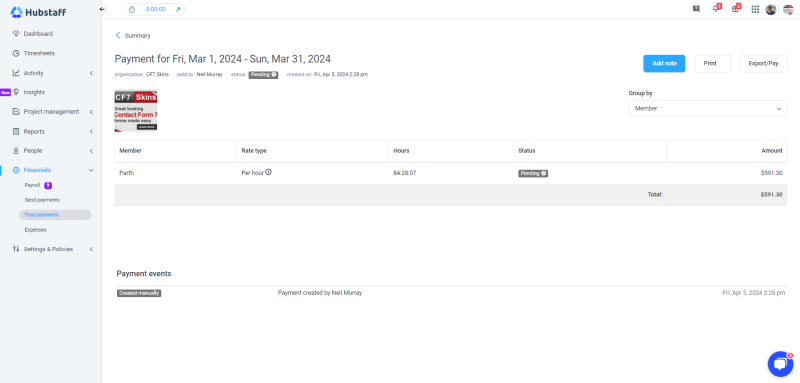
We use the Wise daily currency rate (a much fairer rate than elsewhere) to convert each payment from $USD to $AUD.

We then simply transfer $AUD from our local bank account to the remote contractors Wise Australian bank account.
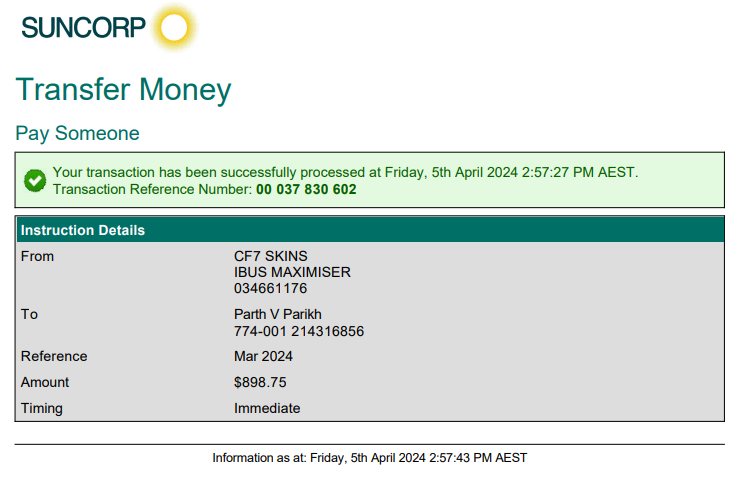
The remote contractor then has 2 options based on account and country:
A. Contractor can hold the money in the currency and transfer when contractor wants it.
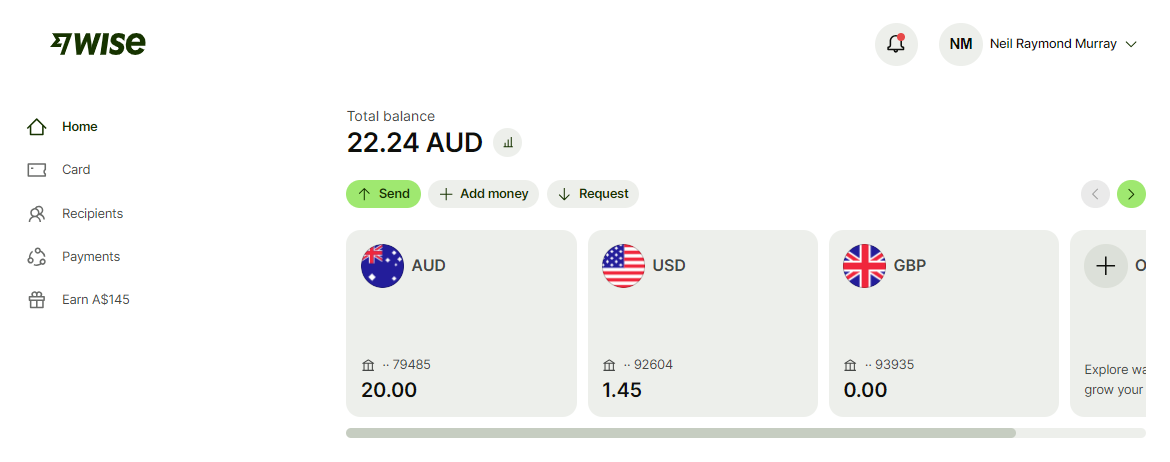
B. For some Countries & Account it does not allow to hold the currency. Then it will be automatically transferred to contractor local currency, and deposit the amount in contractor local bank account.
[ ADD image showing transfer & deposit]
How contractors can confirm the amount paid #
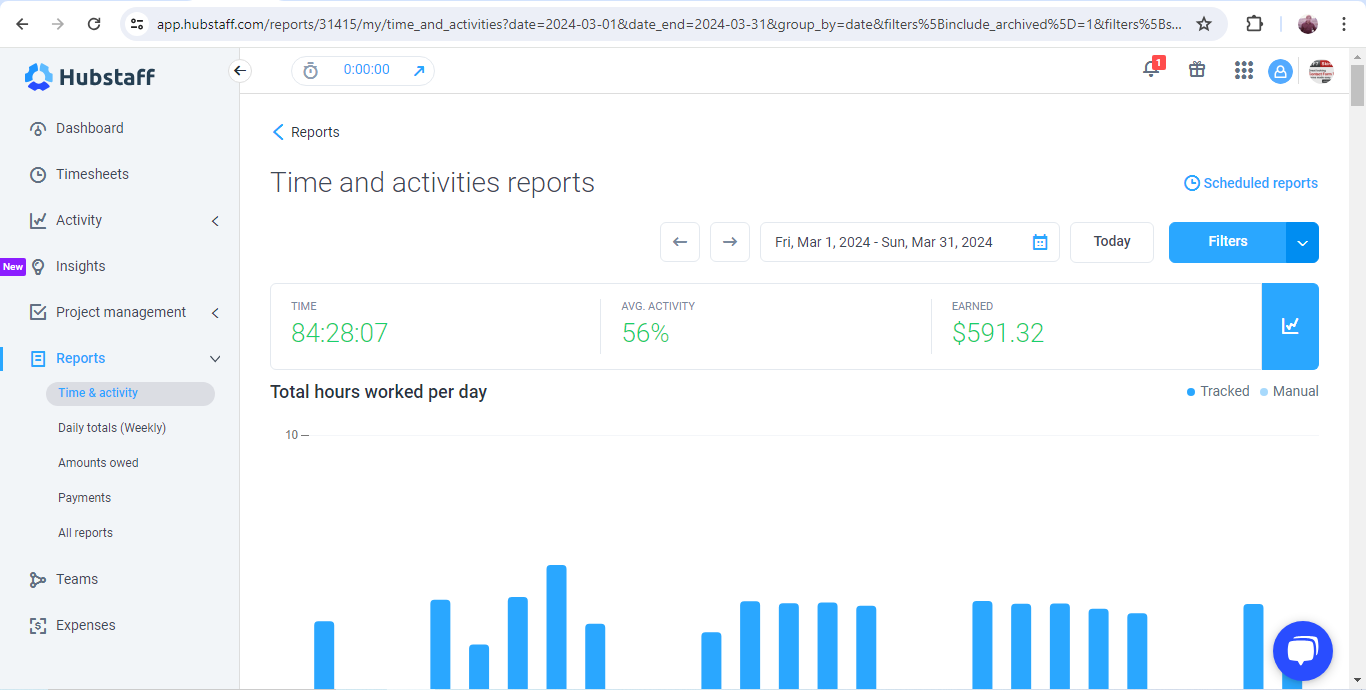
In Hubstaff tracking system, the remote contractor can check the hours they have worked for the month and amount earned for the same. (Amount in Hubstaff is in USD)
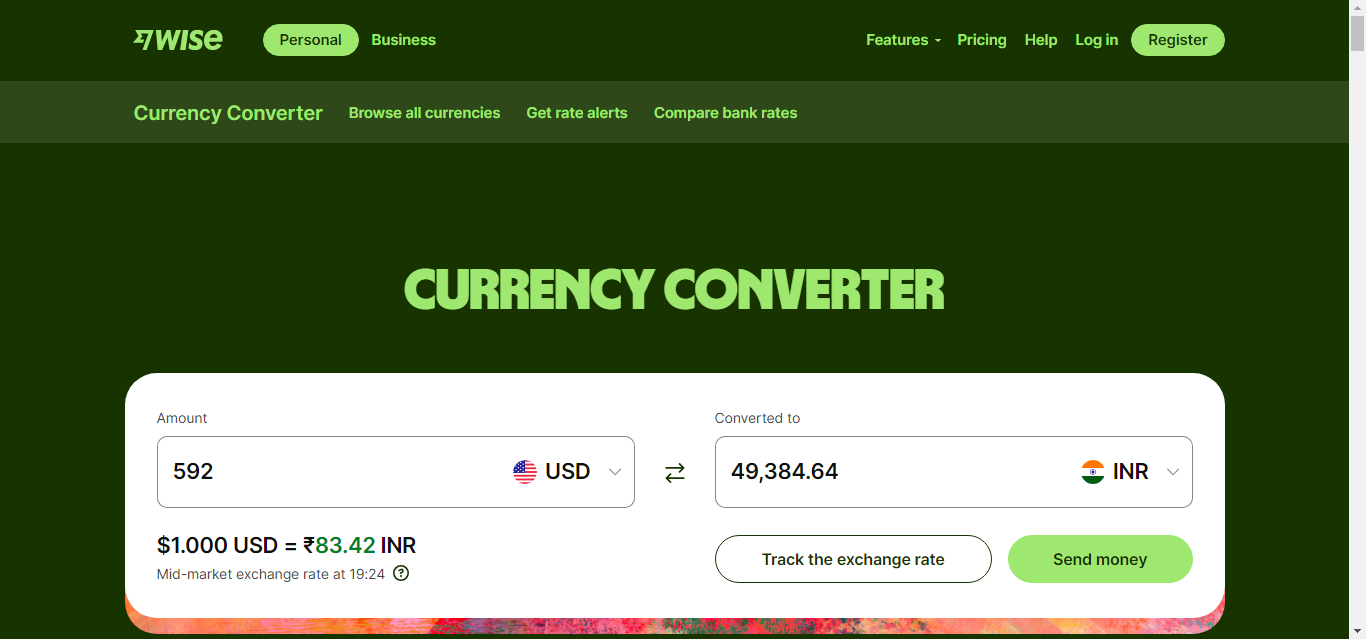
The remote contractor can use Wise daily currency rate to check roughly (rates vary daily) the amount they will be paid.
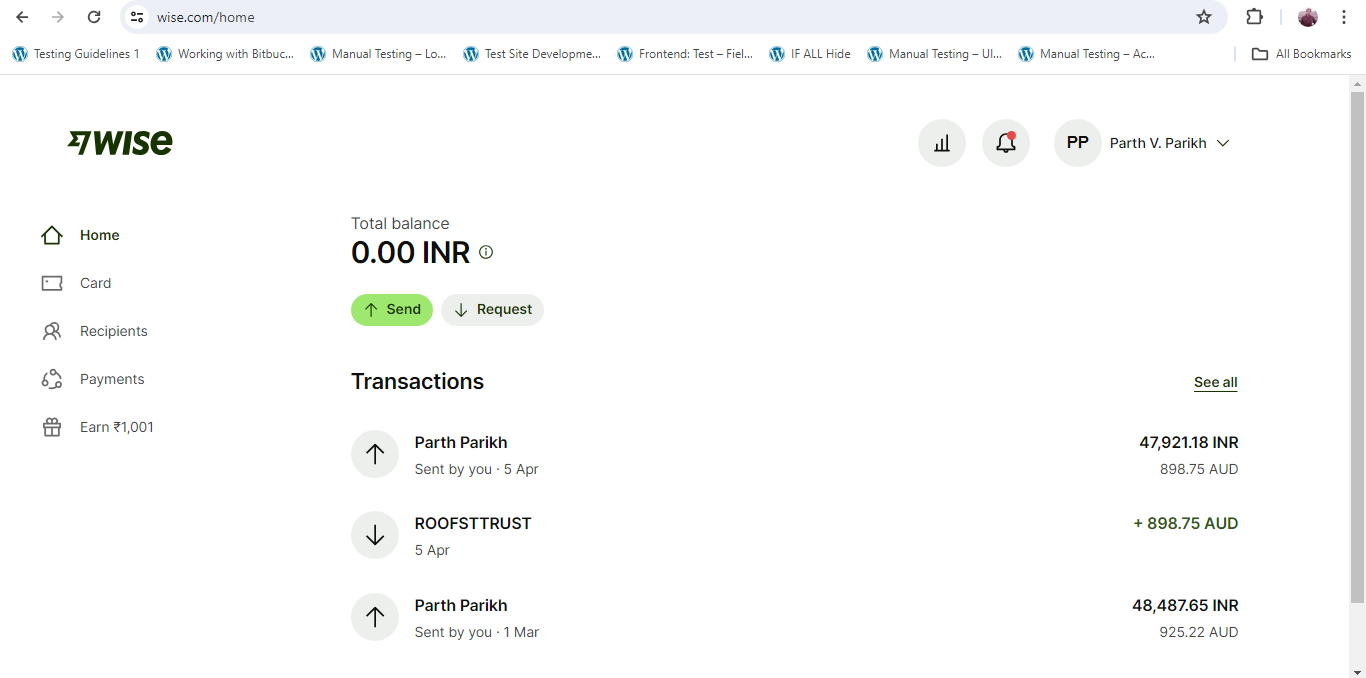
Once the payment is made, the details of the transaction will be shown in the Wise account home page.
For other countries #
Text.
Further reading:
Notes
Next Steps are depended on the Country and currently India is not accepted so unable to show the process for it.
Save all Images to Sync – use ..\Sync\..\Team\Team Guidelines\Team Roles\Payment\