
Last Updated on October 25, 2024 by Neil Murray
CF7 Skins Visual UI #
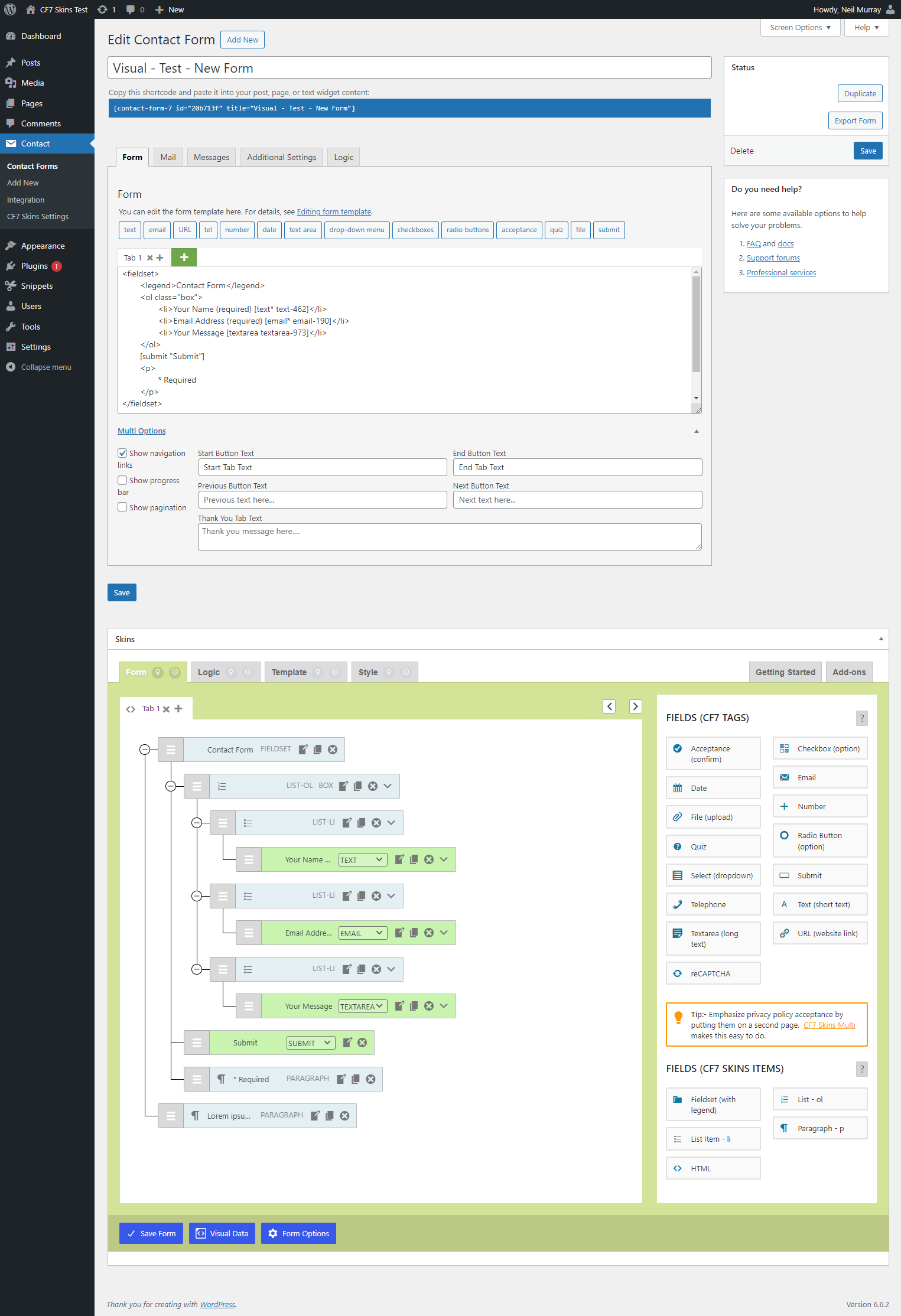
Visual Sections #
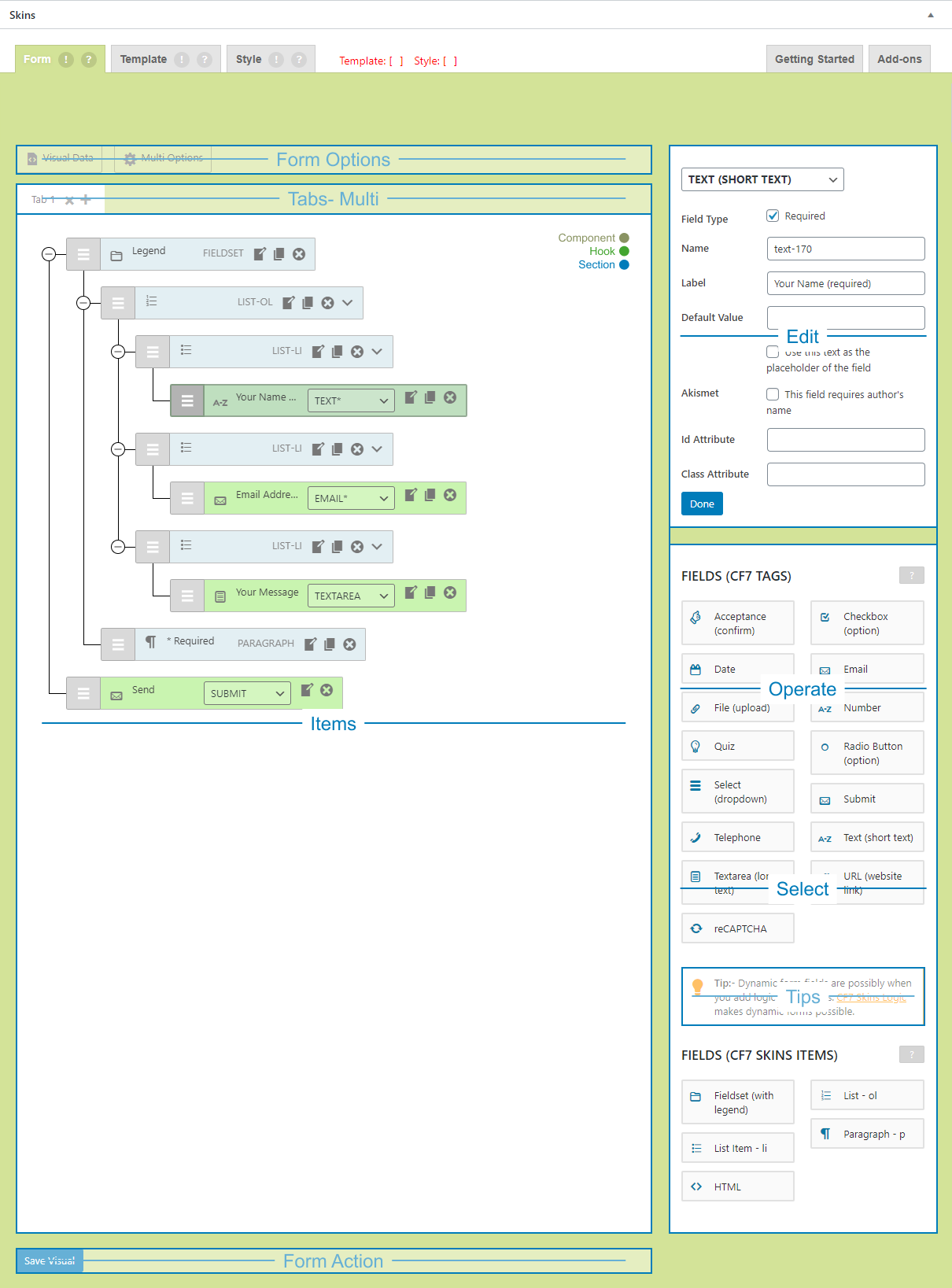
Form Section #
Form Options Section #
- Visual Data
- Form Options

Tabs – Multi Section #
- item
Form Items Section #
[ADD overall image]
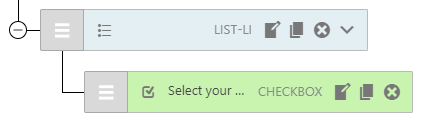
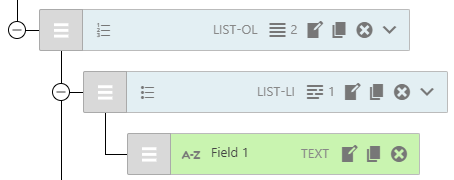
- Form Item
- Expand/Collapse
- Drag/Move Field
- Field Icon
- Field Name (optional)
- Field Label
- Field Type
- Edit
- Duplicate
- Delete
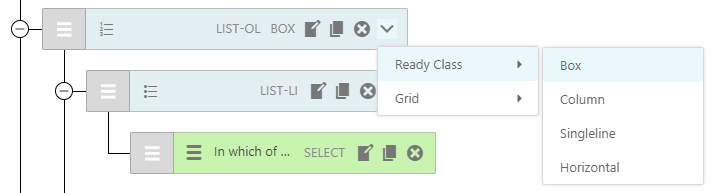
- Add-on options (Drop-down menu)
- Ready Class (CF7 Skins Ready Add-on)
- Grid – Row Span – Field Span (CF7 Skins Ready Add-on)
Operate Section #
- Dialog
- Fields
Dialog Section #
- Edit
- Visual Data
- Forms Option
Edit Section/Area/Dialog #
- CF7 Tag Option
- CF7 Tag Option Value
Visual Data – Dialog Box #
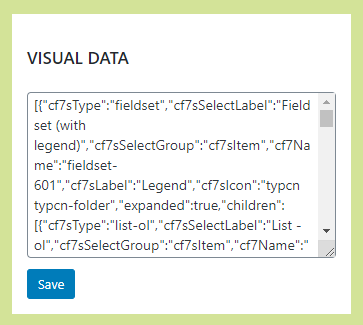
Form Options – Dialog Box #
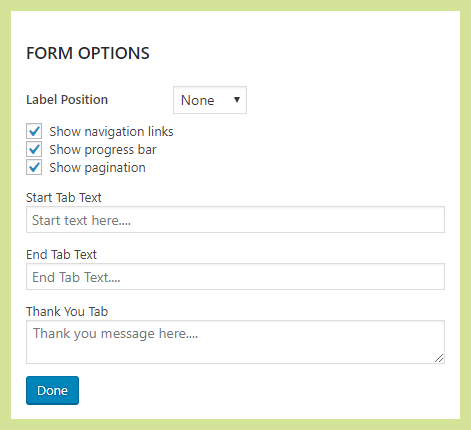
Select – Fields Section #
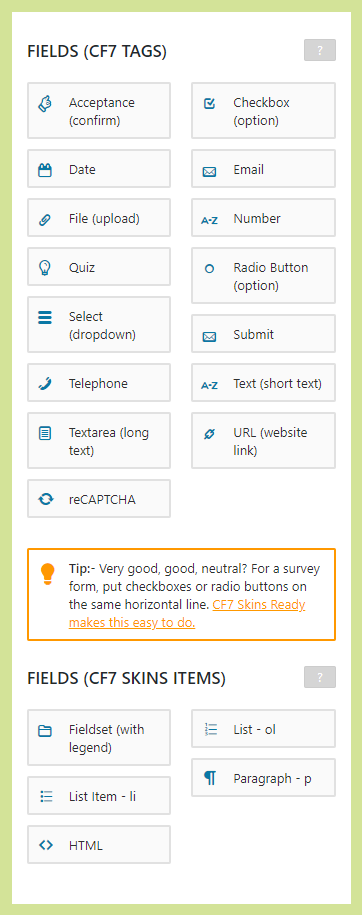
Fields (CF7 Tags) #
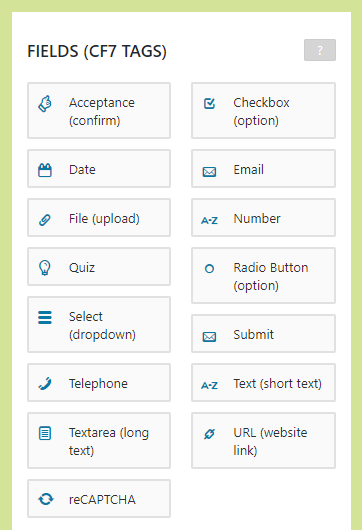
- Field Group
- Field Label
Tips Section #

Fields (CF7 Skins Items) #
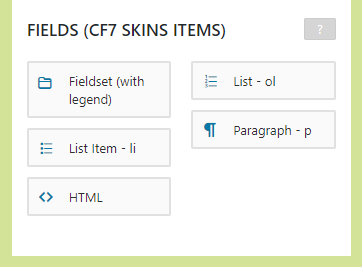
- Field Group
- Field Label
Edit Text Field – Dialog Box #
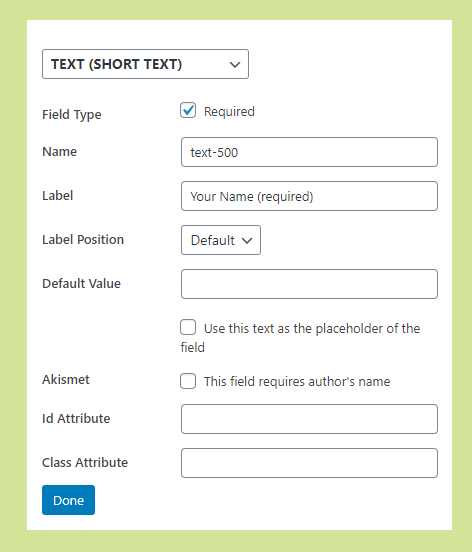
Form Action #
- Save Visual
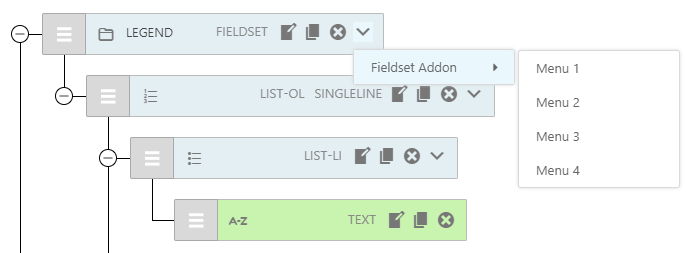
Visual Add-ons Menu #
The drop-down menu is meant to operate like a right-click context sensitive menu in Windows. Each Add-on can add menu items which relate to the currently selected Form Item.
CF7 Skins Terms #
- Template
- Style
Contact Form 7 Terms #
Form tab panel
form-tags
syntax rules
Mail tab panel
mail-tags
message header
Special Mail Tags
Further reading:
- Item
Notes
Add notes here
Save all Images to Sync – use ..\Sync\..\Documentation\Documentation Guidelines\GLOSSARY\Docs Images\