
Last Updated on September 28, 2022 by Neil Murray
Tip: Before editing an existing page & post you need to consider whether the Gutenberg/Block Editor or Classic Editor was used previously on this item.
Using Inline Code #
We use inline code tags to highlight the following items:
- Variables
- [TODO]
Example
Multi treeData is set by reading window.cf7svisual.item if the form is saved previously, or use Visual default treeData passed in props.
Displaying Code in pages #
We currently mainly use SyntaxHighlighter Evolved to display code in pages, posts & FAQ.
Using SyntaxHighlighter Evolved
var content = wp.data.select( 'core/editor' ).getEditedPostAttribute( 'content' );
var currentCount = wp.data.select( 'core/editor' ).getBlockCount();
wp.data.subscribe( function() {
  var newCount = wp.data.select( 'core/editor' ).getBlockCount();
  var hasNewBlocks = newCount > currentCount;
  currentCount = newCount;

if ( hasNewBlocks ) {
    // A new block has been added, do something
    console.log( 'The new block count is :' + newCount );
  }
} );
// Add a new todo item
wp.data.dispatch( 'my-todos-plugin' ).addTodo( 'Finish writing a blog post about the data module', false );

// Retrieve the list of todos
var countTodos = wp.data.select( 'my-todos-plugin' ).countTodos();
We also use other options in some cases where this gives a better result.
Using Code block
var content = wp.data.select( 'core/editor' ).getEditedPostAttribute( 'content' );var currentCount = wp.data.select( 'core/editor' ).getBlockCount();
wp.data.subscribe( function() {
var newCount = wp.data.select( 'core/editor' ).getBlockCount();
var hasNewBlocks = newCount > currentCount;
currentCount = newCount;
if ( hasNewBlocks ) {
// A new block has been added, do something
console.log( 'The new block count is :' + newCount );
}
} );// Add a new todo item
wp.data.dispatch( 'my-todos-plugin' ).addTodo( 'Finish writing a blog post about the data module', false );
// Retrieve the list of todos
var countTodos = wp.data.select( 'my-todos-plugin' ).countTodos();Using Preformatted block
var content = wp.data.select( 'core/editor' ).getEditedPostAttribute( 'content' );
var currentCount = wp.data.select( 'core/editor' ).getBlockCount();
wp.data.subscribe( function() {
  var newCount = wp.data.select( 'core/editor' ).getBlockCount();
  var hasNewBlocks = newCount > currentCount;
  currentCount = newCount;

  if ( hasNewBlocks ) {
    // A new block has been added, do something
    console.log( 'The new block count is :' + newCount );
  }
} );
// Add a new todo item
wp.data.dispatch( 'my-todos-plugin' ).addTodo( 'Finish writing a blog post about the data module', false );

// Retrieve the list of todos
var countTodos = wp.data.select( 'my-todos-plugin' ).countTodos();
Using Custom HTML block
var content = wp.data.select( 'core/editor' ).getEditedPostAttribute( 'content' );
var currentCount = wp.data.select( 'core/editor' ).getBlockCount();
wp.data.subscribe( function() {
  var newCount = wp.data.select( 'core/editor' ).getBlockCount();
  var hasNewBlocks = newCount > currentCount;
  currentCount = newCount;

if ( hasNewBlocks ) {
    // A new block has been added, do something
    console.log( 'The new block count is :' + newCount );
  }
} );
// Add a new todo item
wp.data.dispatch( 'my-todos-plugin' ).addTodo( 'Finish writing a blog post about the data module', false );

// Retrieve the list of todos
var countTodos = wp.data.select( 'my-todos-plugin' ).countTodos();
Displaying Shortcodes #
[TODO]
Example Pages #
Editing Existing Pages & Posts #
Before editing an existing page & post you need to consider whether the Gutenberg/Block Editor or Classic Editor was used previously on this item.
In general you need to specifically choose the editor that was used previously. You can do this by ..
[ADD image showing choosing block & classic editor]
Don’t convert items from the Classic Editor to the
Gutenberg/Block Editor unless you have a clear reason for doing that at this stage.
You can determine if an item was previously edited using the Gutenberg/Block Editor or Classic Editor by..
[ADD images showing whether item uses block or classic editor]
Don’t use the Gutenberg/Block Editor or Classic Visual Editor on any pages, posts or FAQ, created with the Classic Editor, that display code, at this stage.
This may corrupt any code currently included in the item & your changes may need to be reverted using Revisions.
[ADD image showing corrupted code]
Because of this, we disable the use of the Visual Editor on any pages displaying code, by using the Disable Visual Editor WYSIWYG plugin, on any items created with the Classic Editor.

Editing Pages Via Top Menu Bar #
WordPress displays a black admin top menu bar at the very top of each WordPress admin page (if you haven’t disabled this option in your WP user profile). When showing pages it has an Edit Page button.

You need to be aware that clicking this button will lead to using either the Gutenberg/Block Editor or Classic Editor, depending on the Settings of the WP site. Importantly you can’t choose whether to use the Gutenberg/Block Editor or Classic Editor.
Tip: As an alternative, to change from Classic Editor to Block editor, you can add URL slug to the end of the edit link classic-editor__forget.

Code Display Corrupted
We are currently having problems with code content becoming corrupted in pages & posts.
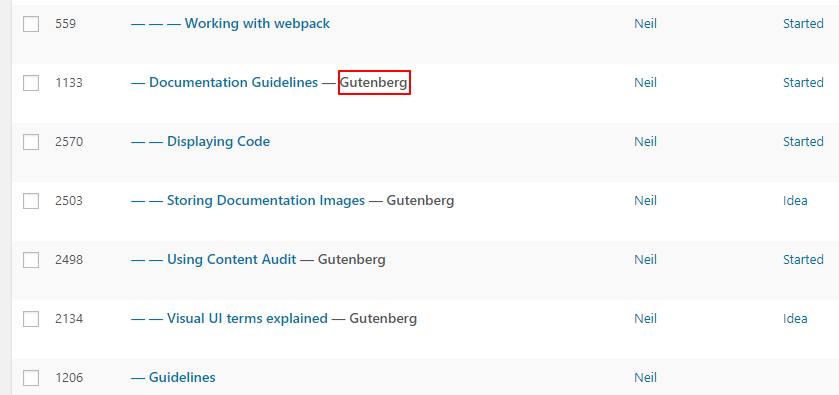
We’ve added a new Content Audit Status Code Display Corrupted to identify articles where this is a problem. Please mark any pages & posts where this problem occurs.

Further Reading
Notes
Add notes here
Save all Images to Sync – use ..\Sync\..\Documentation\Documentation Guidelines\Displaying Code\