
Last Updated on September 21, 2022 by Neil Murray
Table of Contents
We maintain a record of all documentation content at Documentation Guidelines – Content.
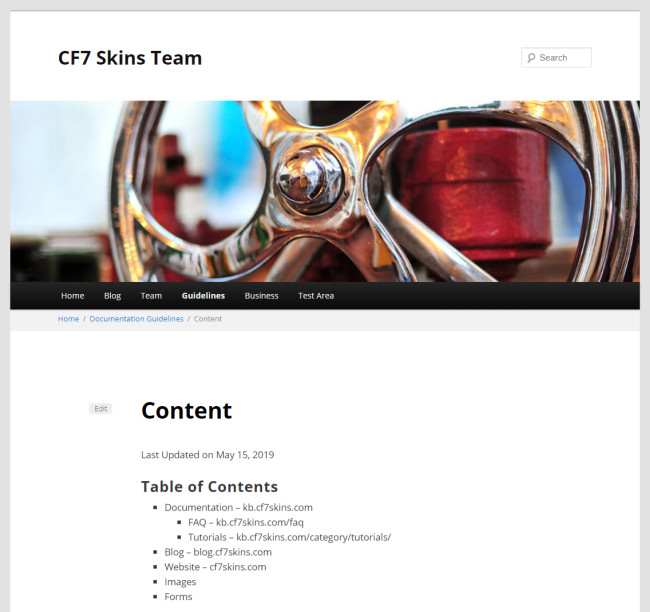
This allows us to:
- monitor the content used on our various websites
- find common images that are used in multiple locations
- find an existing form & modify it to our requirements for documentation
Use the following steps to do this generally once each month.
Pages & Posts #
A. Regularly review content
Regularly review (generally once each month) all content at the following websites:
- cf7skins.com – our main website
- blog.cf7skins.com – blog
- kb.cf7skins.com – knowledge base
Work your way through each menu navigation link looking for changes.
When you find any new content – copy the content title & it’s url.
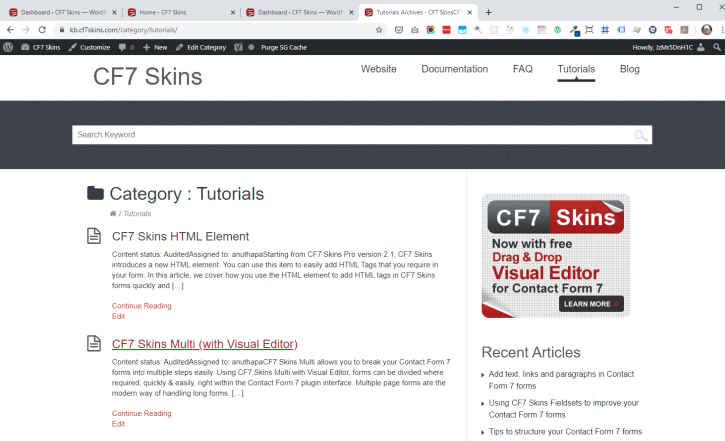
Tip: You will generally find new & changed images used at the same time.
You can follow detailed instructions on how to add new & changed images at Images – Content – Data Entry.
B. Update content on Team site
Add any changed content at Documentation Guidelines – Content.
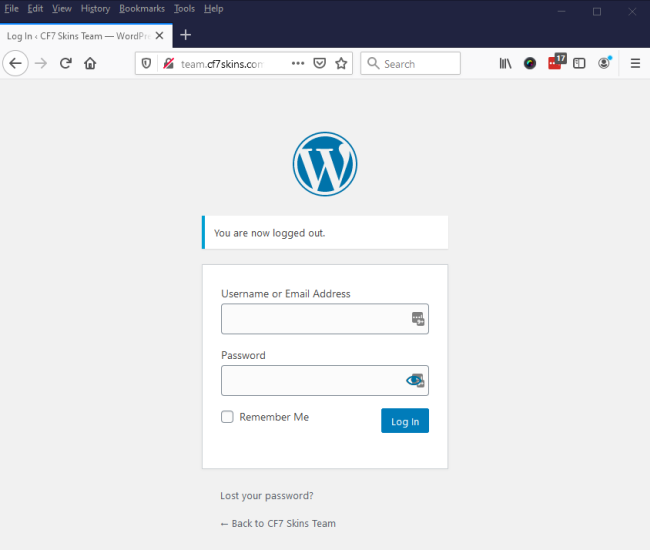
Login into team.cf7skins.com/wpadmin.

Find the Content page & open it in the Gutenberg Block Editor.
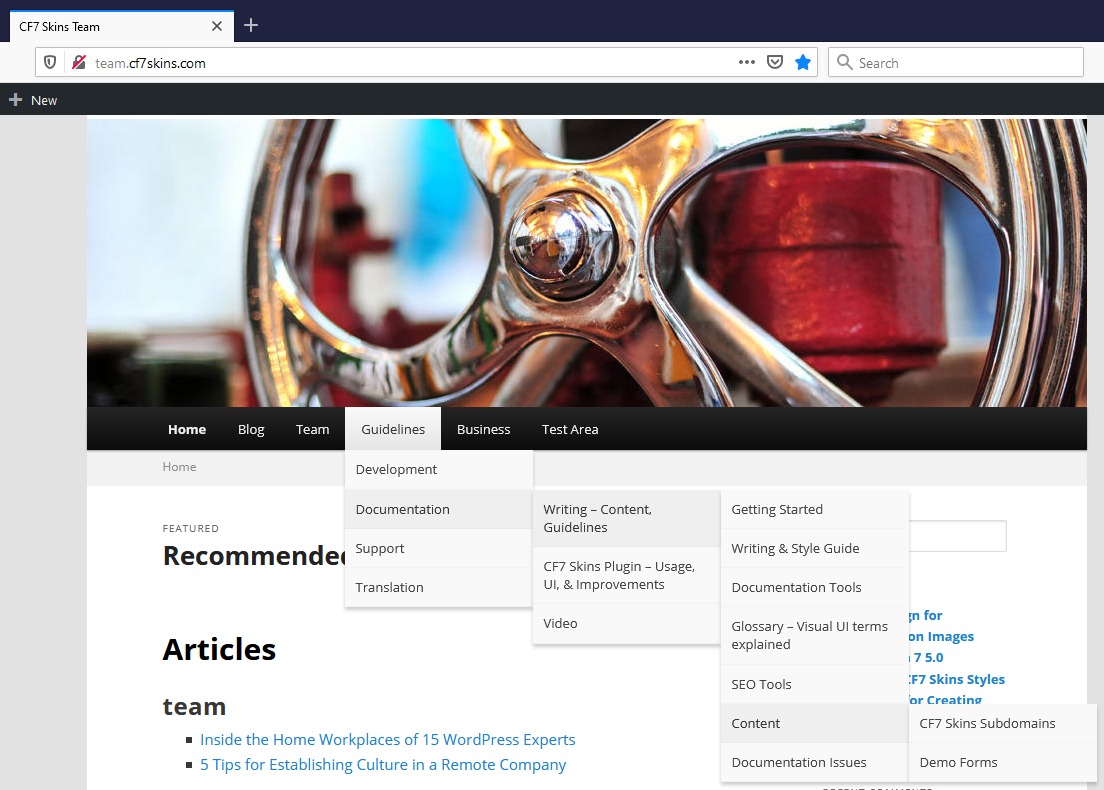
Click Edit (Block Editor) to make sure you use the Gutenberg Block Editor.
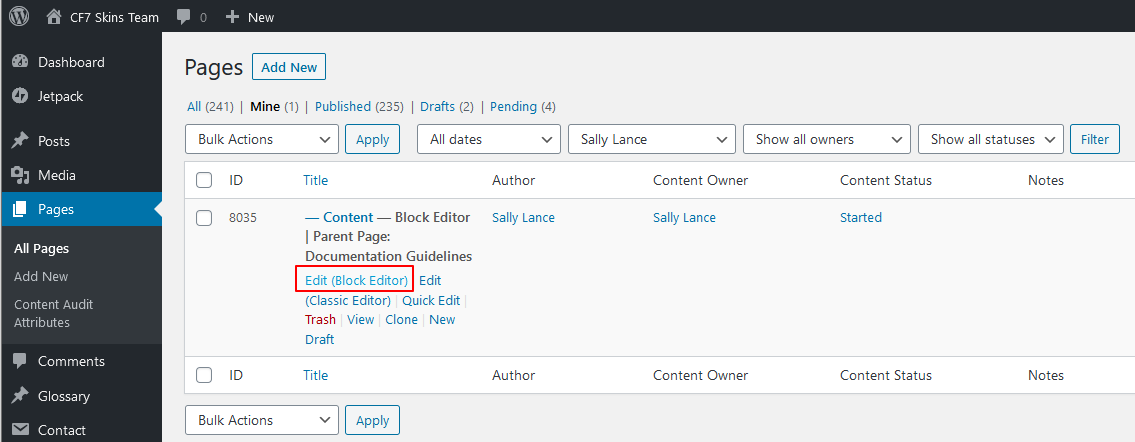
Tip: You can click this link get there in 1 step.
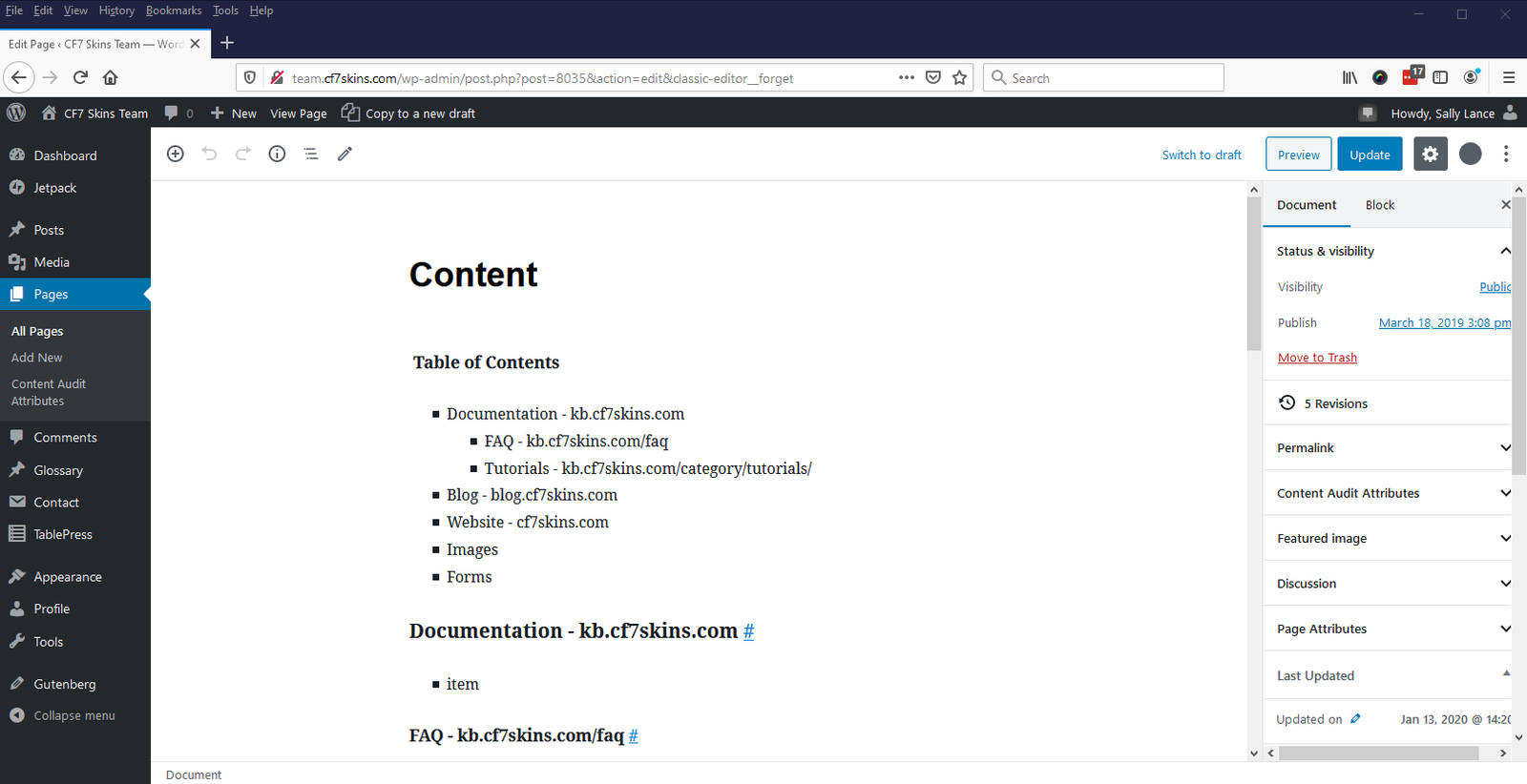
Add the previously copied content title.

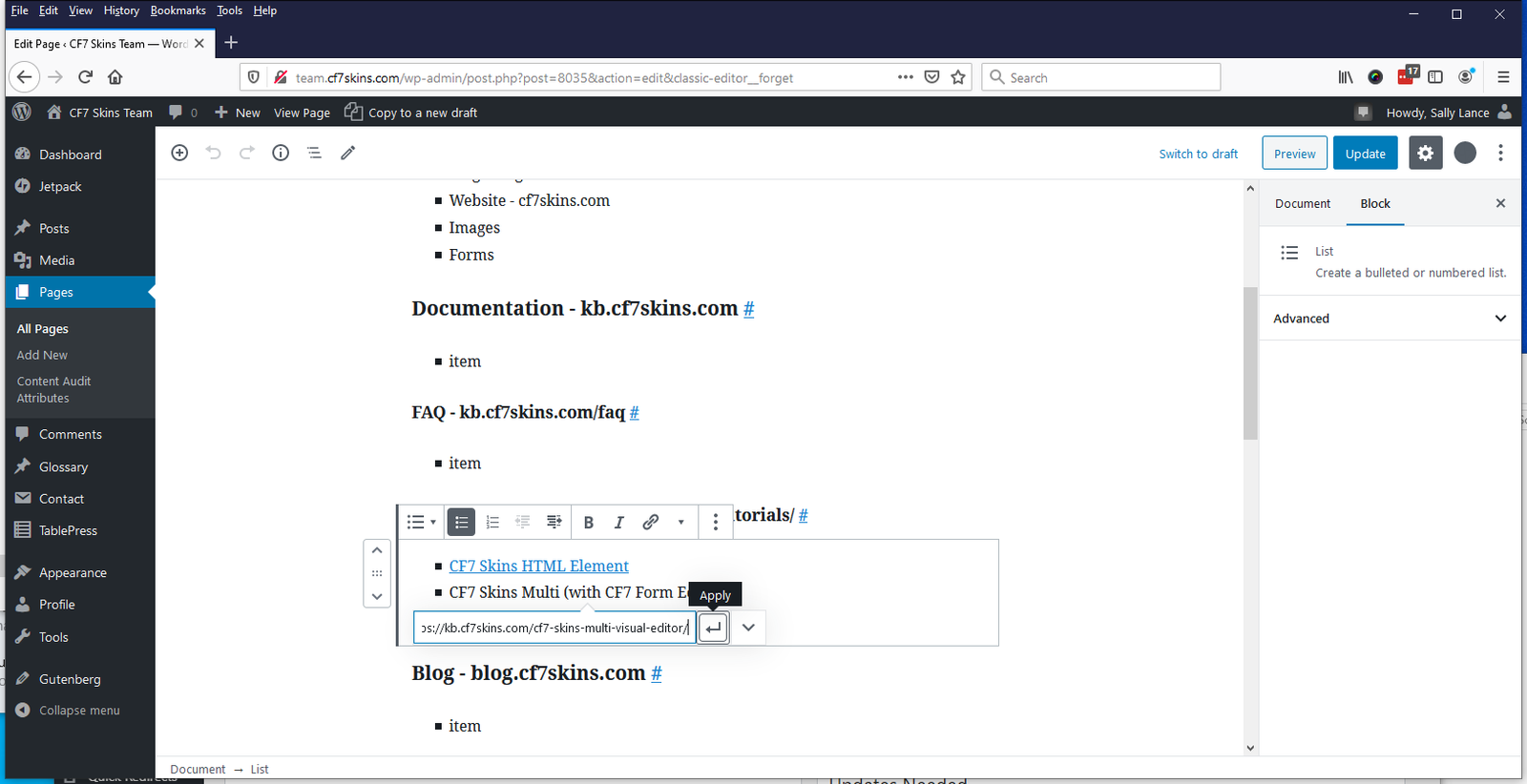
Then add it’s url.
Click the Update button when you finished.
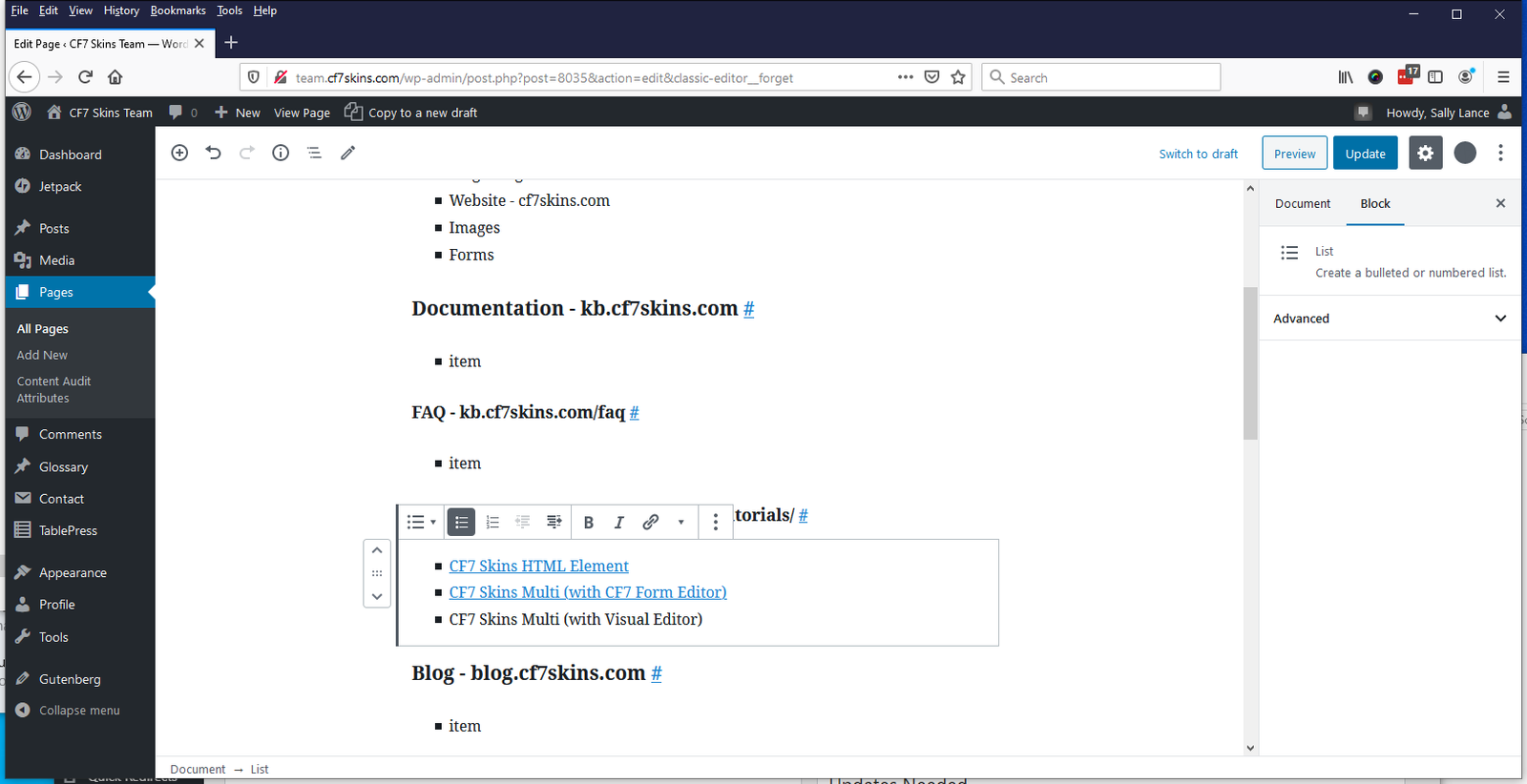
Open another browser tab or window for Documentation Guidelines – Content.
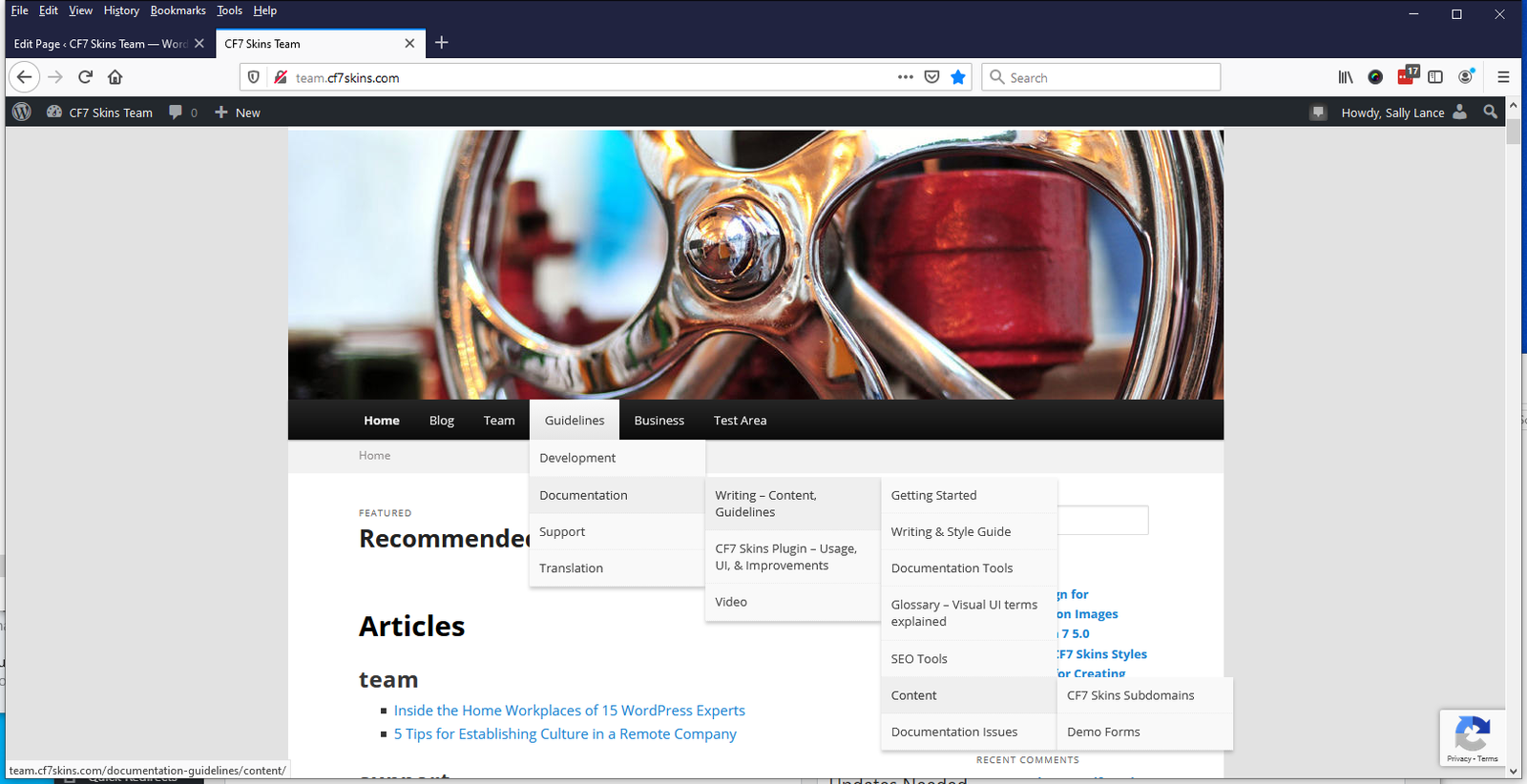
Check the extra content title & link is added correctly.
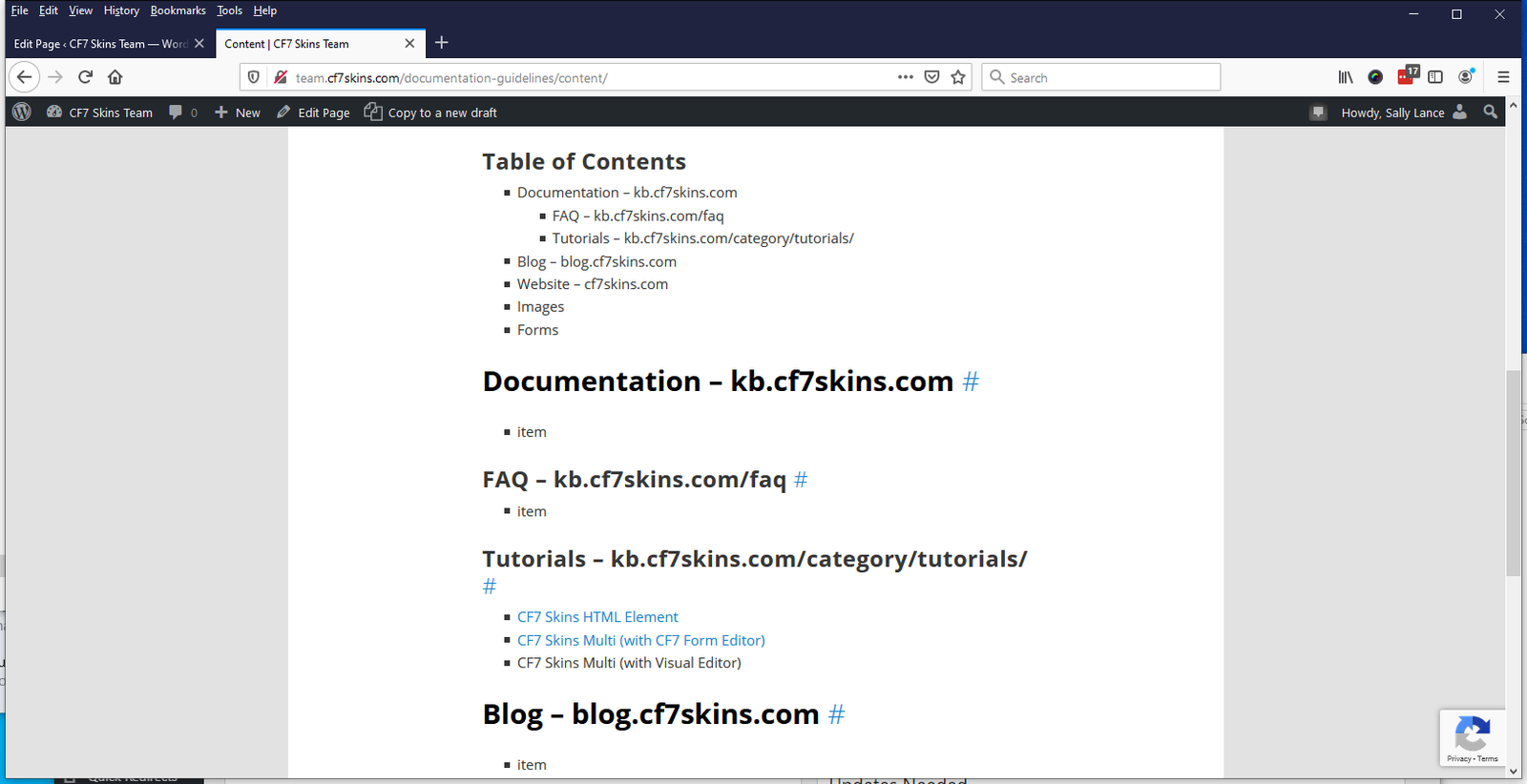
Tip: By also adding an images quick link you can make it easy to see all the images used on each website page.
Find your pages #
Go to Pages > All Pages.

Select your name in Show all authors drop down menu filter & click on Filter button.

This should show your pages.
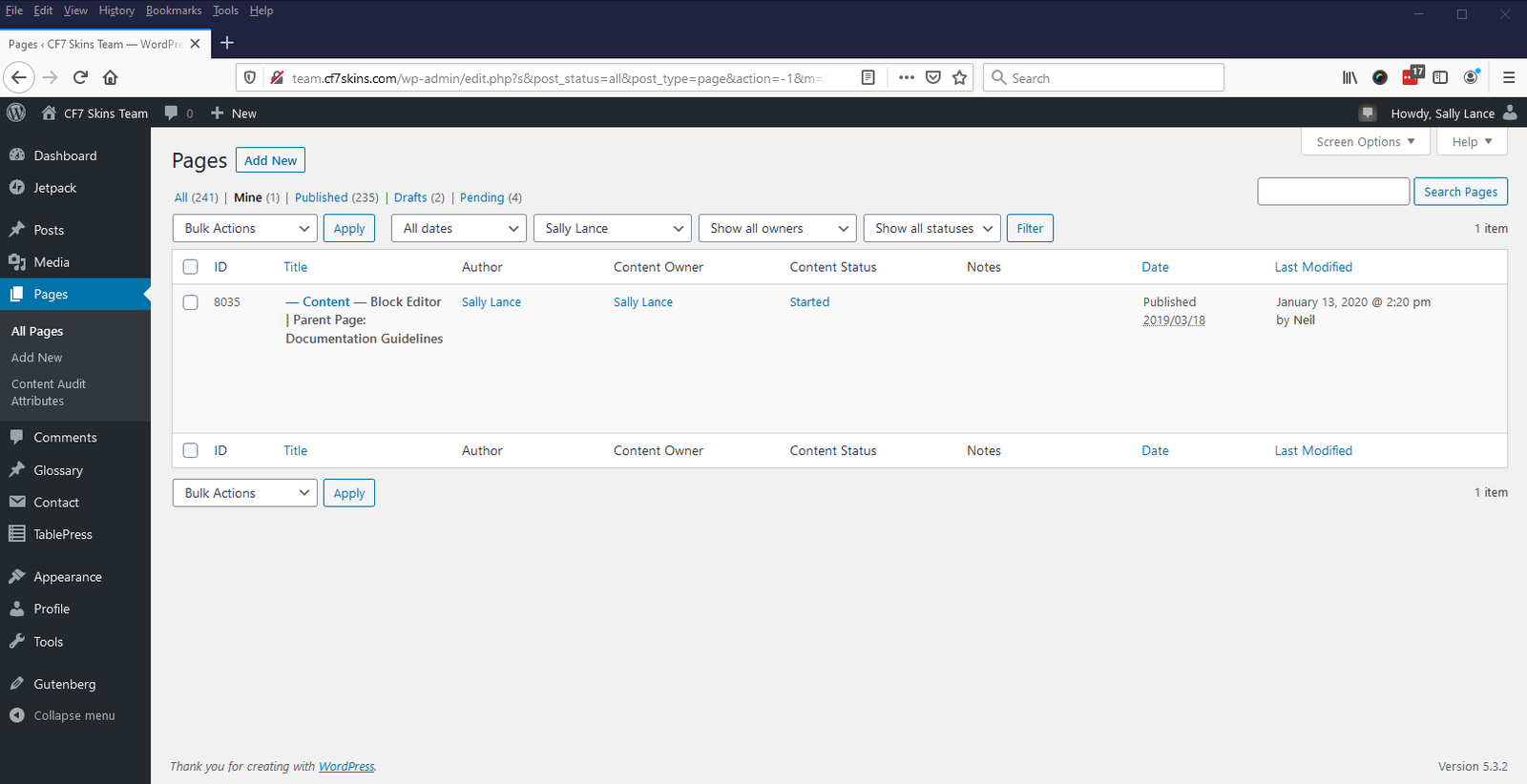
Click Edit (Block Editor) to make sure you use the Gutenberg Block Editor.
Forms #
We need an easy way to see all the many different forms used on our various websites.
This allows us to:
- monitor the many different forms used on our various websites
- find an existing form & modify it to our requirements for documentation
Use the following steps to do this generally once each month.
A. Find Forms #
Login into the following sites:
Go to Contact > Contact Forms.

This shows all the Contact Form 7 forms used on this site. Look carefully through this list to find new forms added.
Tip: You can use the Search Contact Forms to narrow down the range of CF7 forms visible.
When you find a new form, copy the form title (as text only) e.g. Logic – Demo – Show & Hide Form Fields.
B. Find Page where the form is shown
You will generally need to go to Pages > All Pages to find where the form is used.
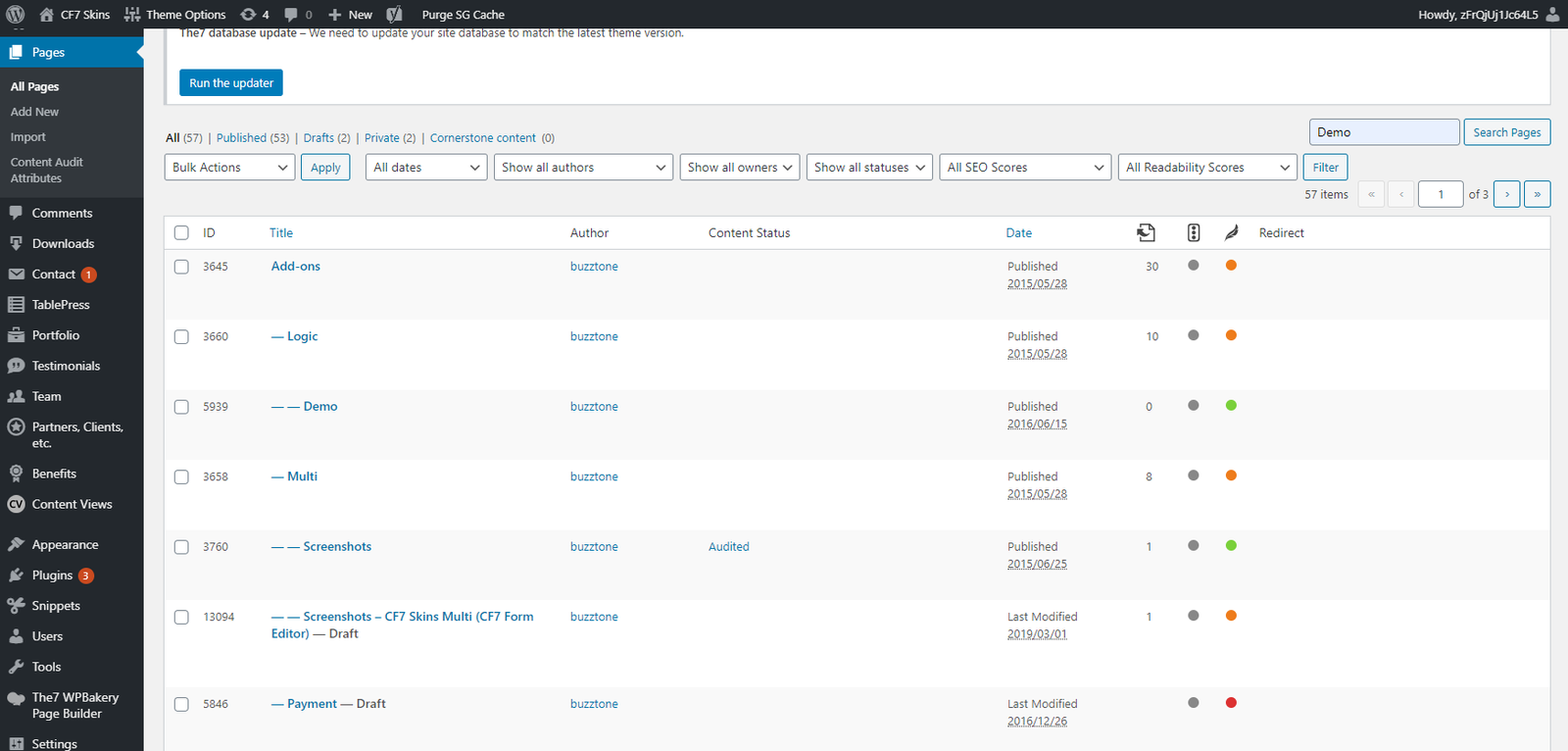
Search through this list to find the page where the new form is added.
Tip: You can use Search Pages to narrow down the range of pages visible.
You can open a page & check any CF7 form shortcodes that are used.
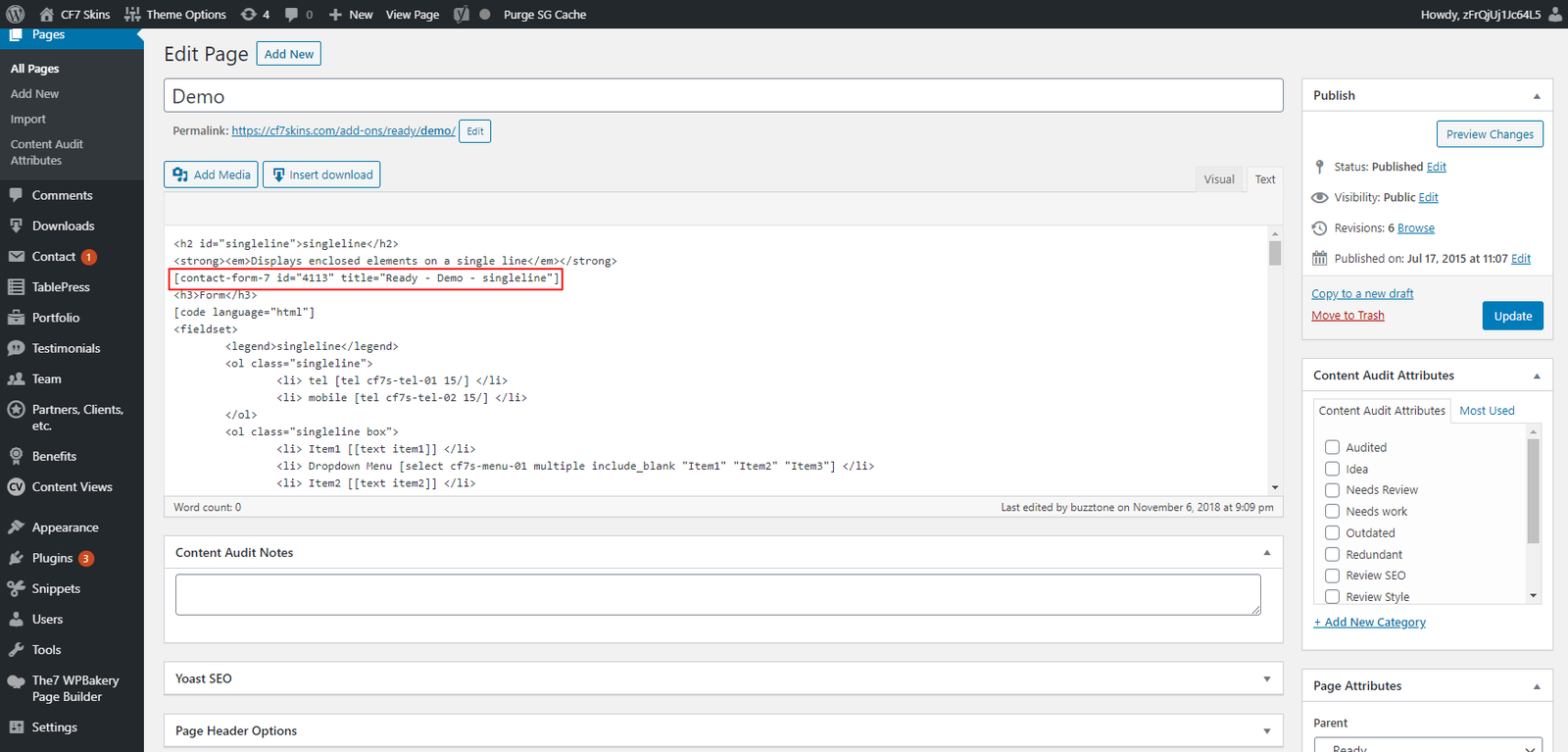
C. Get form info
Visit the page where you are now sure the form is used.
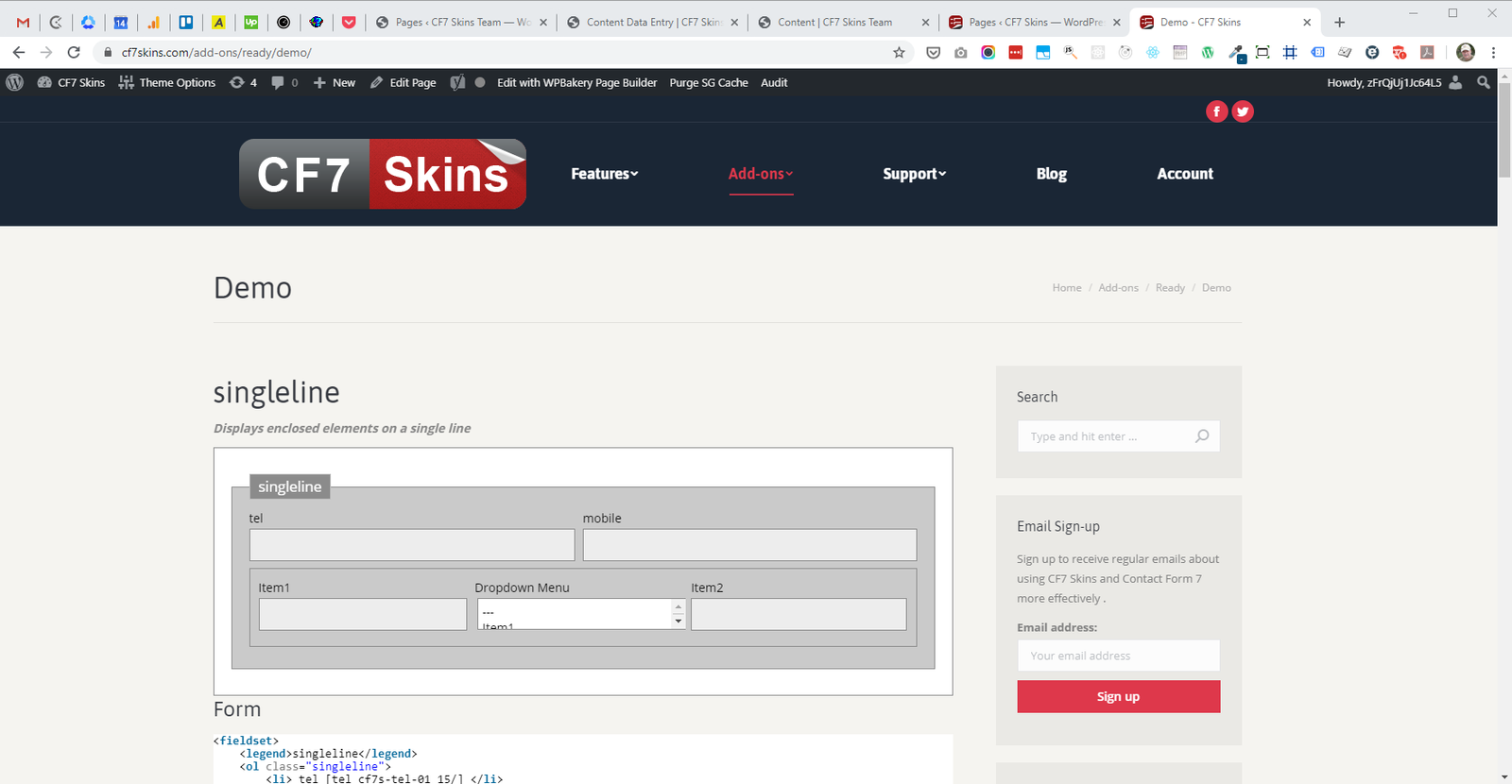
You need to find & copy:
- the form title e.g. Logic – Demo – Show & Hide Form Fields
- the page url where the form shows e.g. https://cf7skins.com/add-ons/logic/demo/
- the HTML tag ID which gives the forms location e.g. wpcf7-f4113-p3901-01.
D. Using Chrome Dev Tools #
Every CF7 form has a unique HTML tag ID which can be found using Chrome Dev Tools.
a. Use Ctrl + Shift + I to open Chrome Dev Tools & inspect the HTML elements.
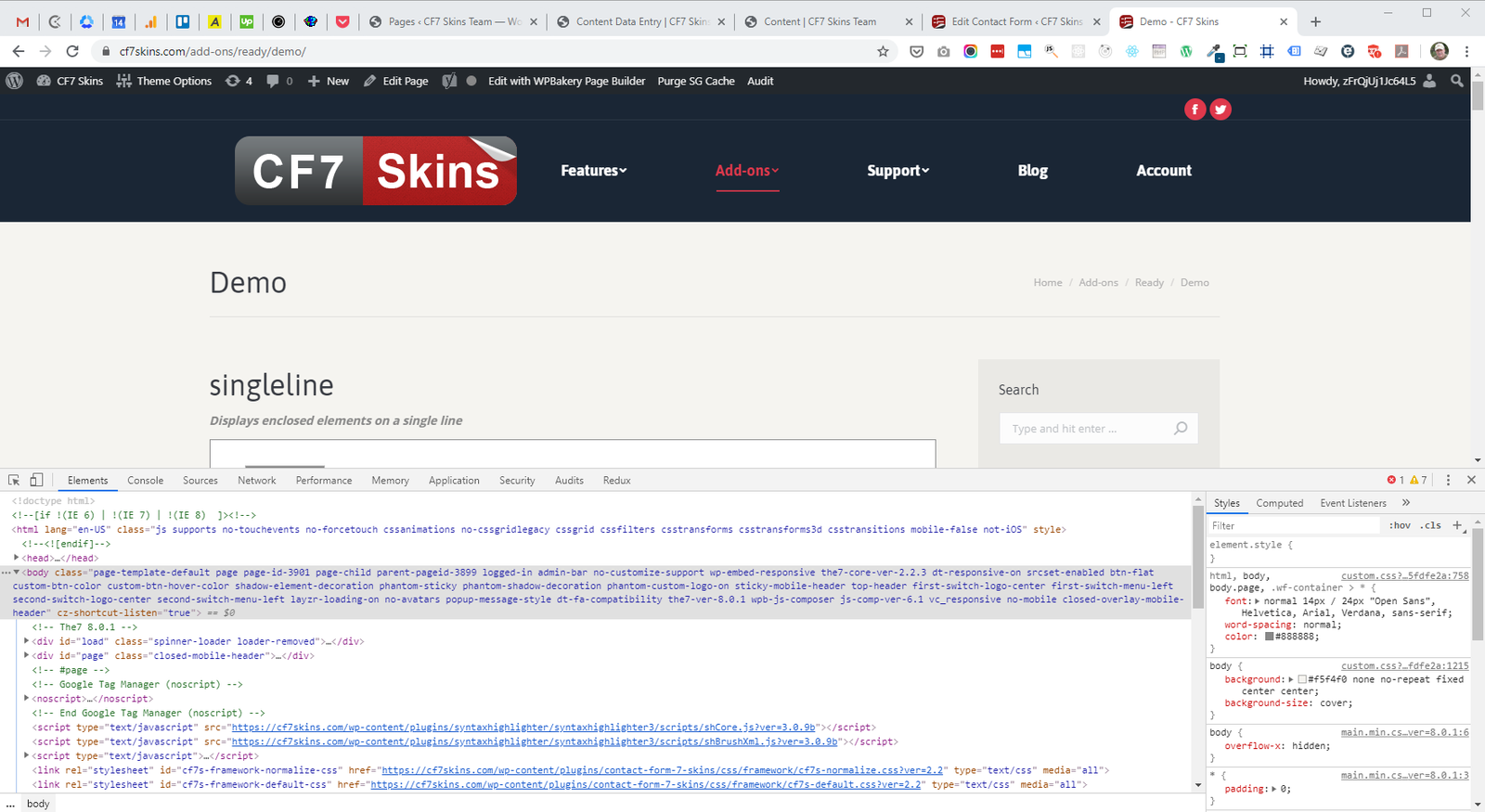
b. Select the CF7 form on the page using the Chrome Dev Tools Select Tool.
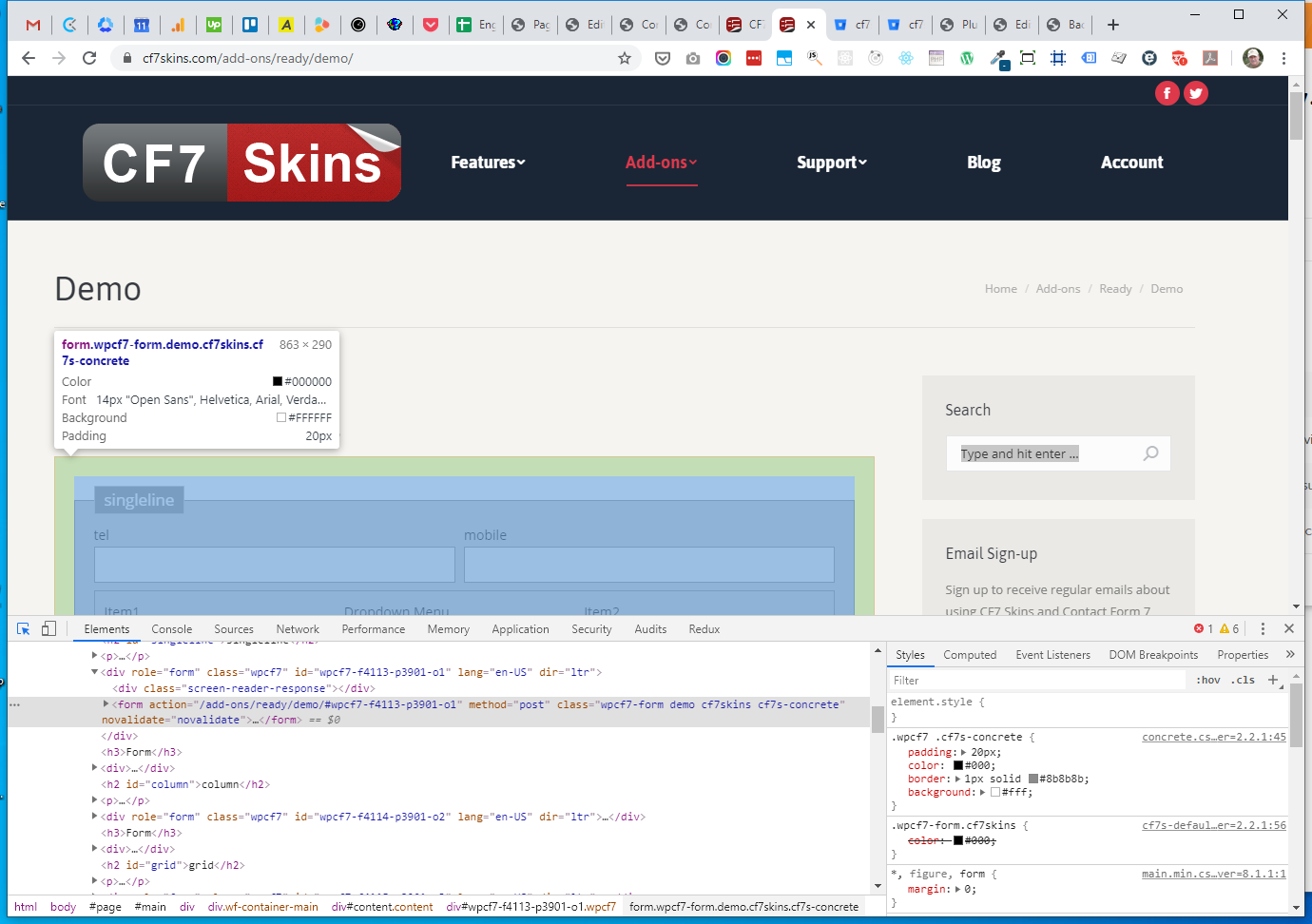
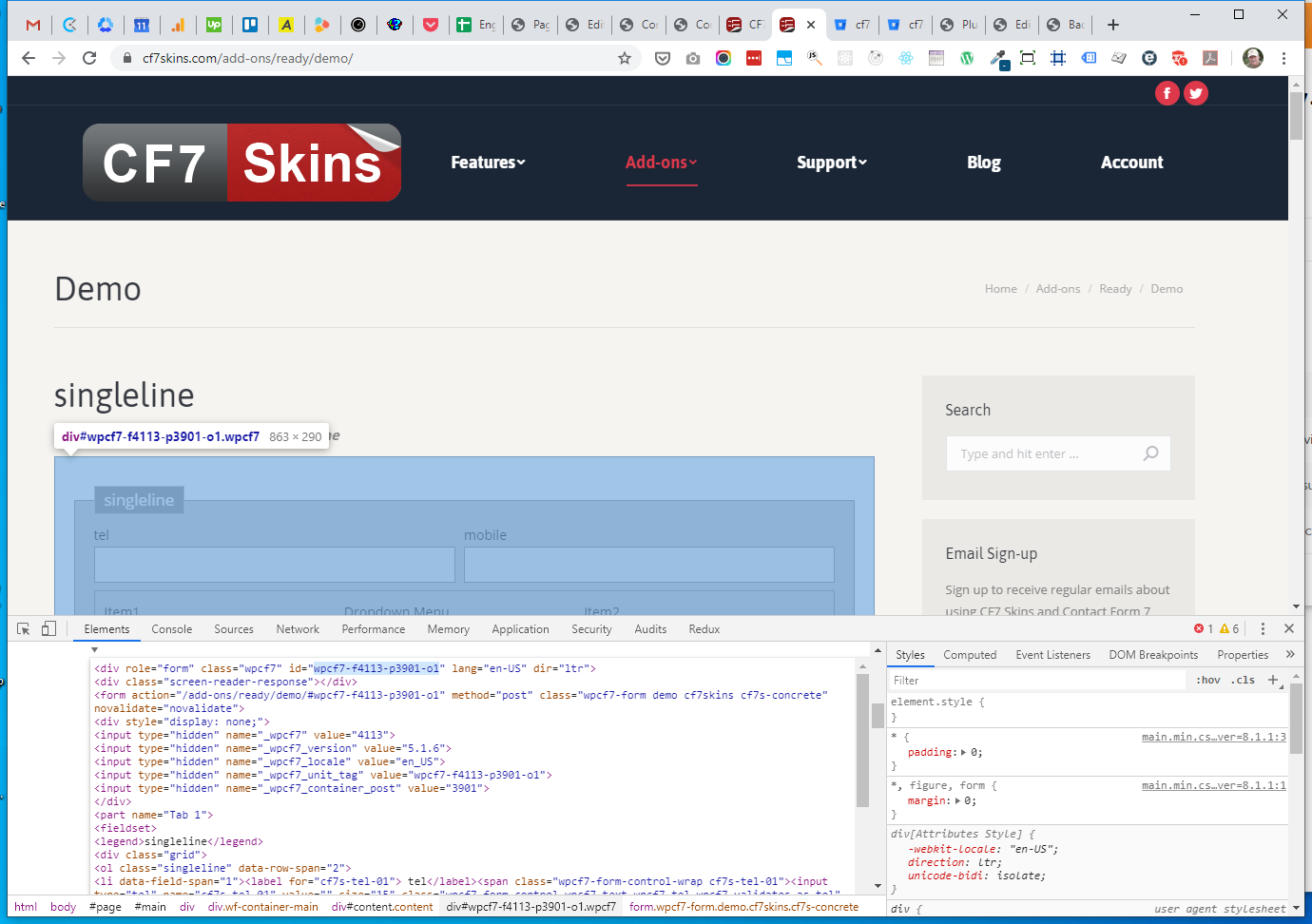
c. Find the line in Chrome Dev Tools which includes the unique HTML tag ID
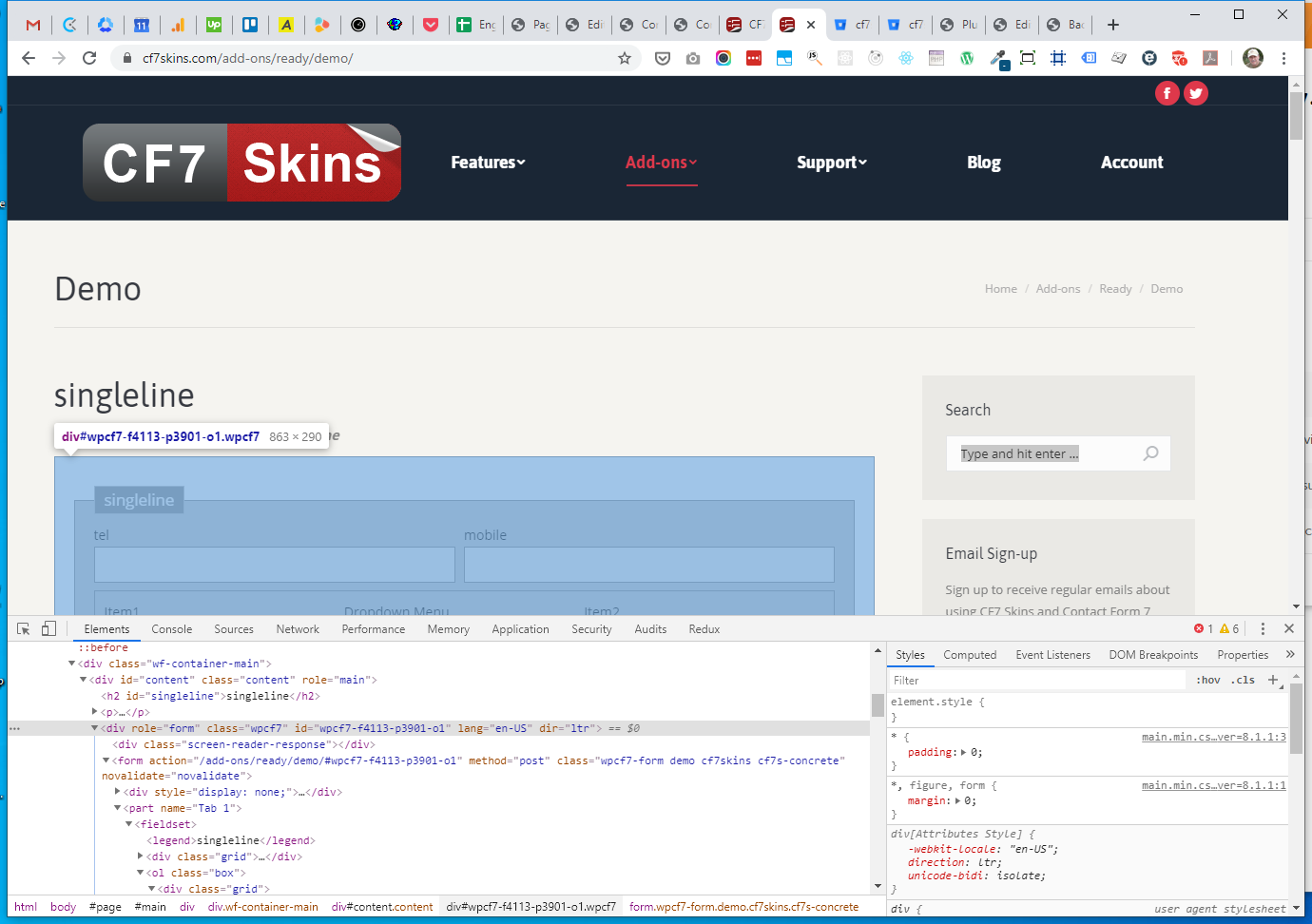
d. Right click on this line a choose Edit as HTML
NOTE: I haven’t found a way screenshot this action
e. Copy the the unique HTML tag ID e.g. wpcf7-f4113-p3901-01
E. Add found form at Team site #
Add the found form at CF7 Forms as follows:
a. List of forms used on our sites
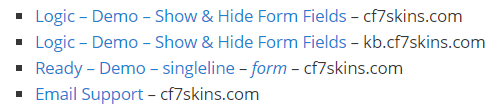
Add the form title as a link to the forms location on the relevant website.
- Logic – Demo – Show & Hide Form Fields – cf7skins.com

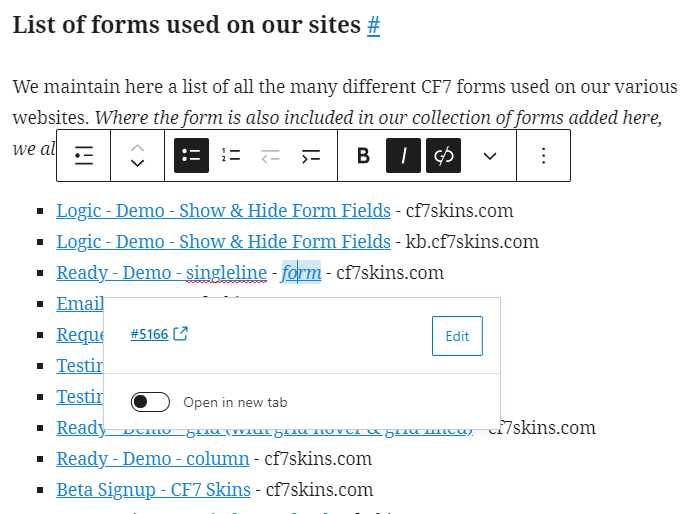
Where the form is also included in our collection of forms, include a link to the form in the collection on this page as shown below.
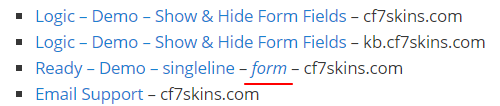
- Ready – Demo – singleline – form – cf7skins.com
NOTE: An older list of our forms is at https://docs.google.com/spreadsheets/d/1lPEimCcXQ9oQygjsI53B1jwteQCWlPD4-IpYHNpfTqY
b. Collection of forms from our various websites
If we think this form could be useful for people on our team, we also create a working copy of the form here.
- [ADD reasons why forms are added to collection]
Team members can use this collection to help quickly find an existing form they can modify to their requirements.
[ADD images & instructions on adding form to collection]
Images #
We are building an easy way to see all the many different images used on our various websites at Images – Content.
We’re adding instructions on how to add this content at Images – Data Entry.
Further reading:
Notes
Save all Images to Sync – use ..\Sync\..\Documentation\Documentation Guidelines\Content Data Entry\