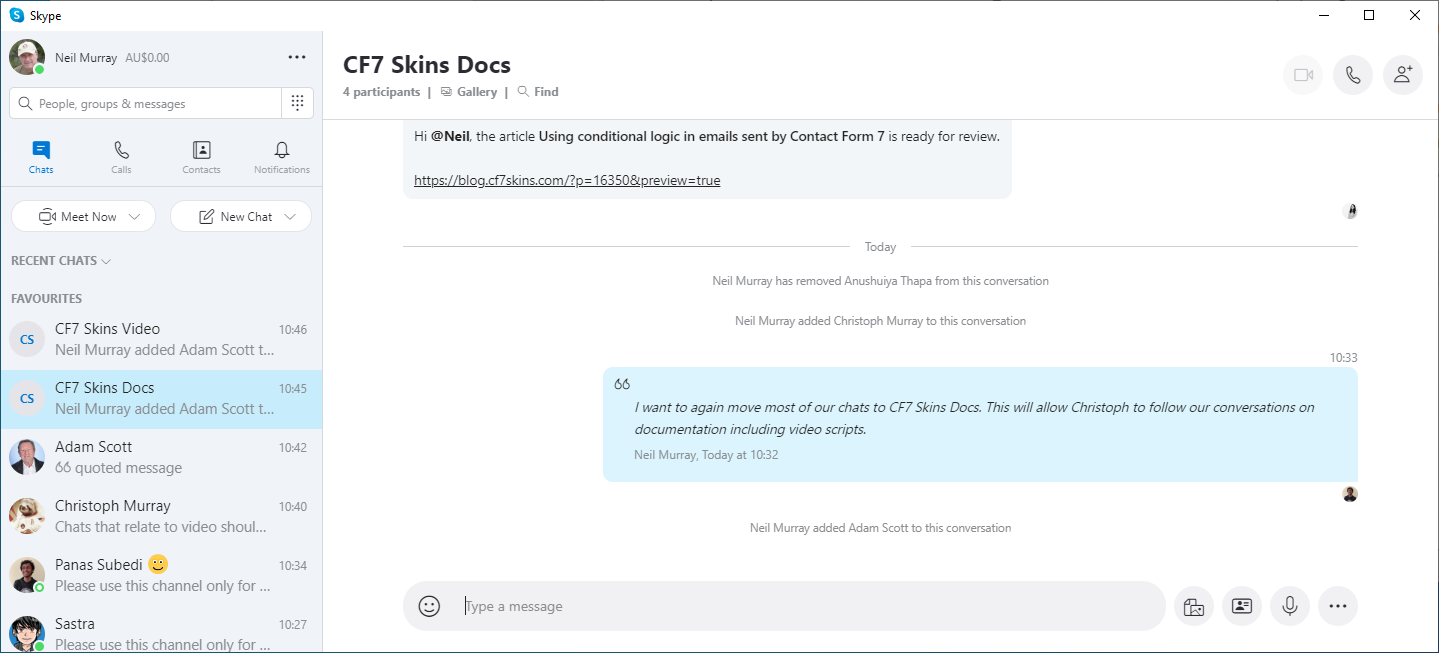
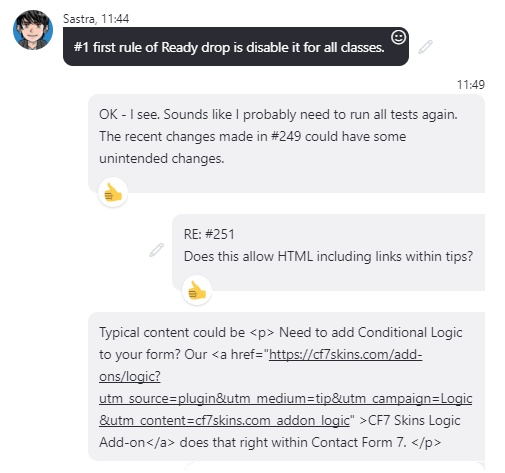
We use Skype chat for most day to day discussions. Skype voice (with screen share) is also possible – but is not used often due to differing time zones & work times.
Please sign into Skype whenever you are working. This allows us to contact you quickly & easily when we notice problems, errors & misunderstandings in your current work.
Using short sentences helps when chatting live with others on Skype. This lets others see more quickly what you are talking about. We’ve found it leads to better discussions when we are online at the same time. Long responses are fine for asynchronous discussions.
We rarely use Skype Private Chats – instead use the relevant Team Skype Group to make your work conversations available to all others working on each team.
You may be reminded by other team members that you should contact them on the Team Skype Group, rather than on their private Skype account.
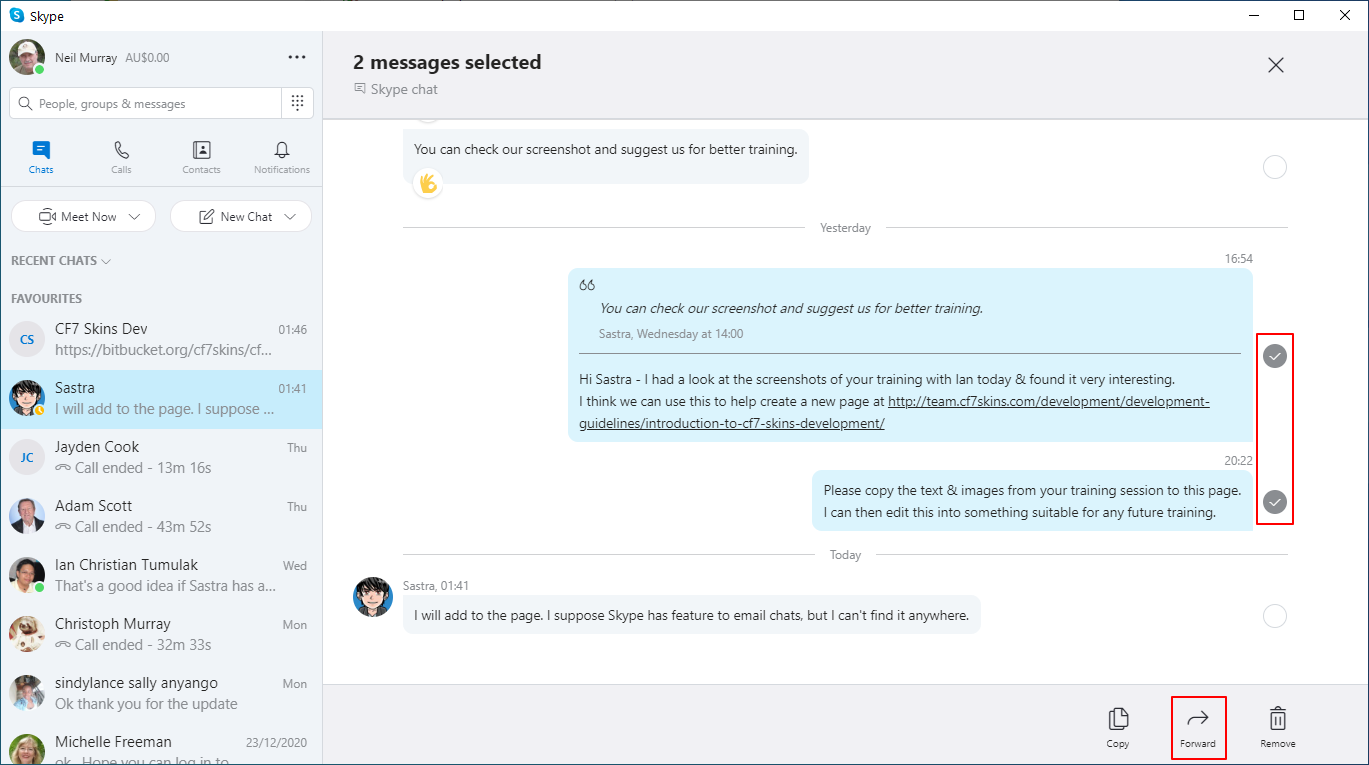
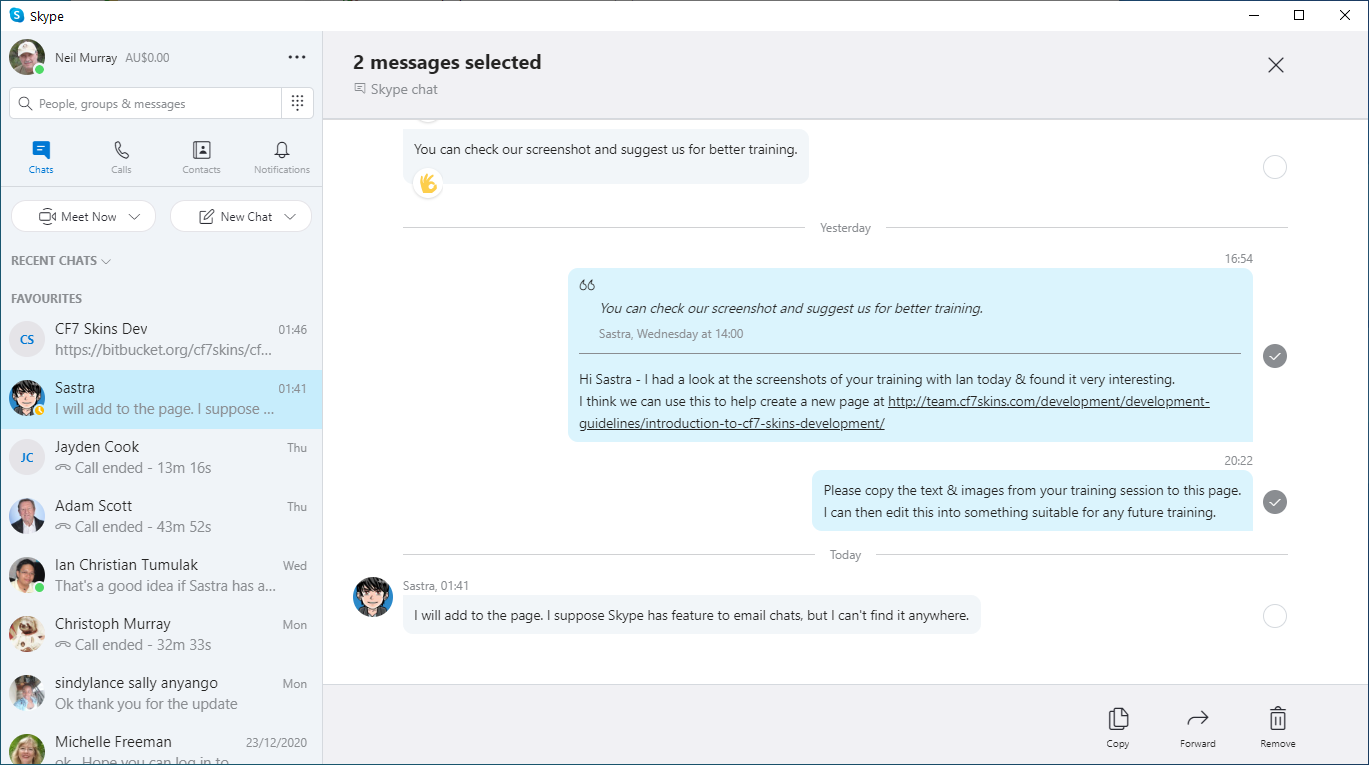
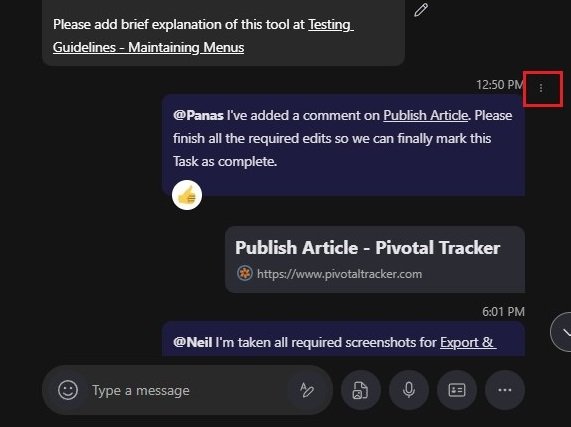
It’s easy to forward a Skype message to a Team Skype Group & respond to a chat there – click on the ellipses (3 vertical dots) to the right of each Skype comment & choose Forward from the More options.
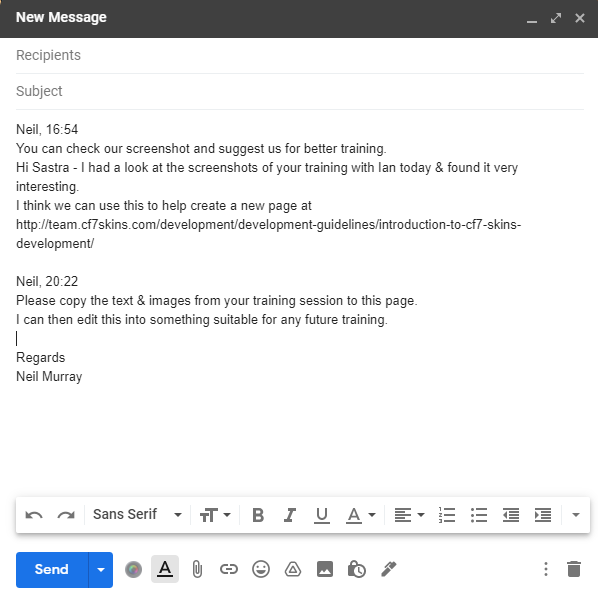
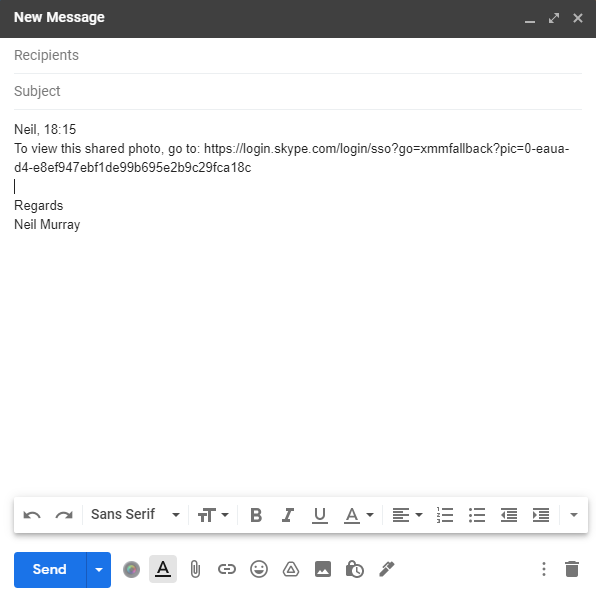
You can easily forward multiple messages
Private chats should only be used for things that each team member agree need to be private between them.
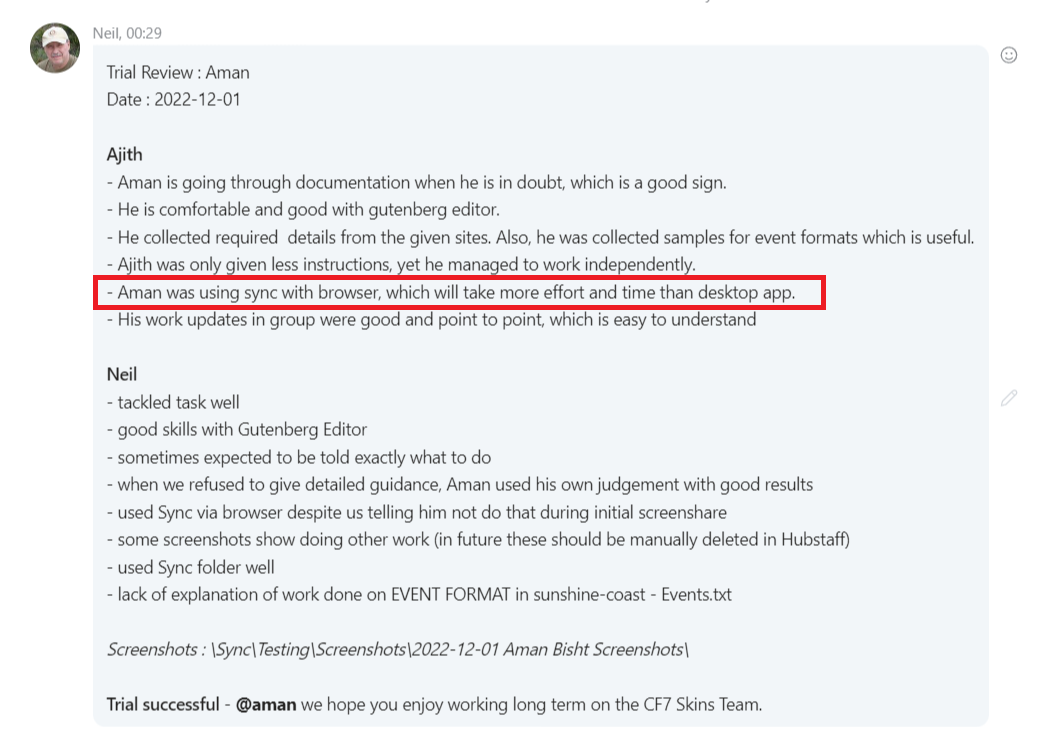
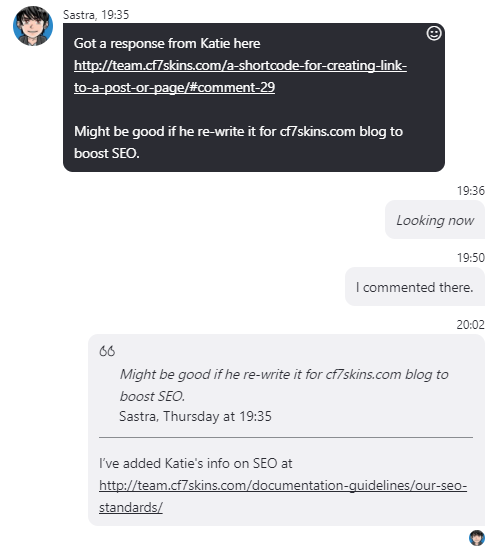
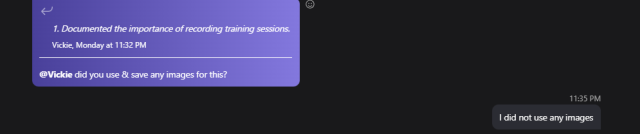
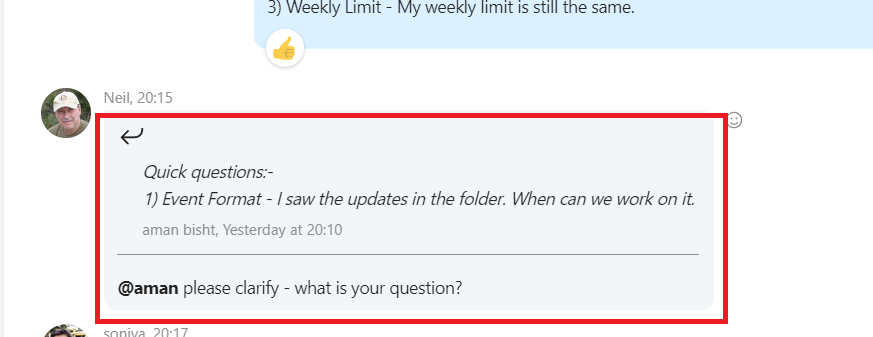
You should whenever possible use Reply to selection rather than Reply when you want to include a quote in our replies.
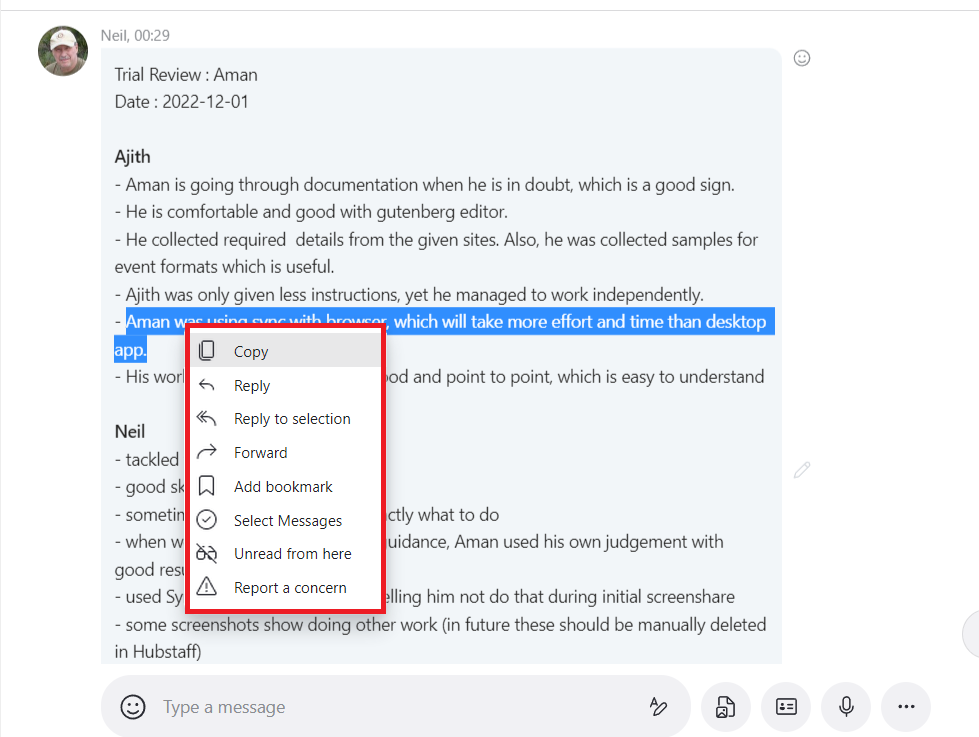
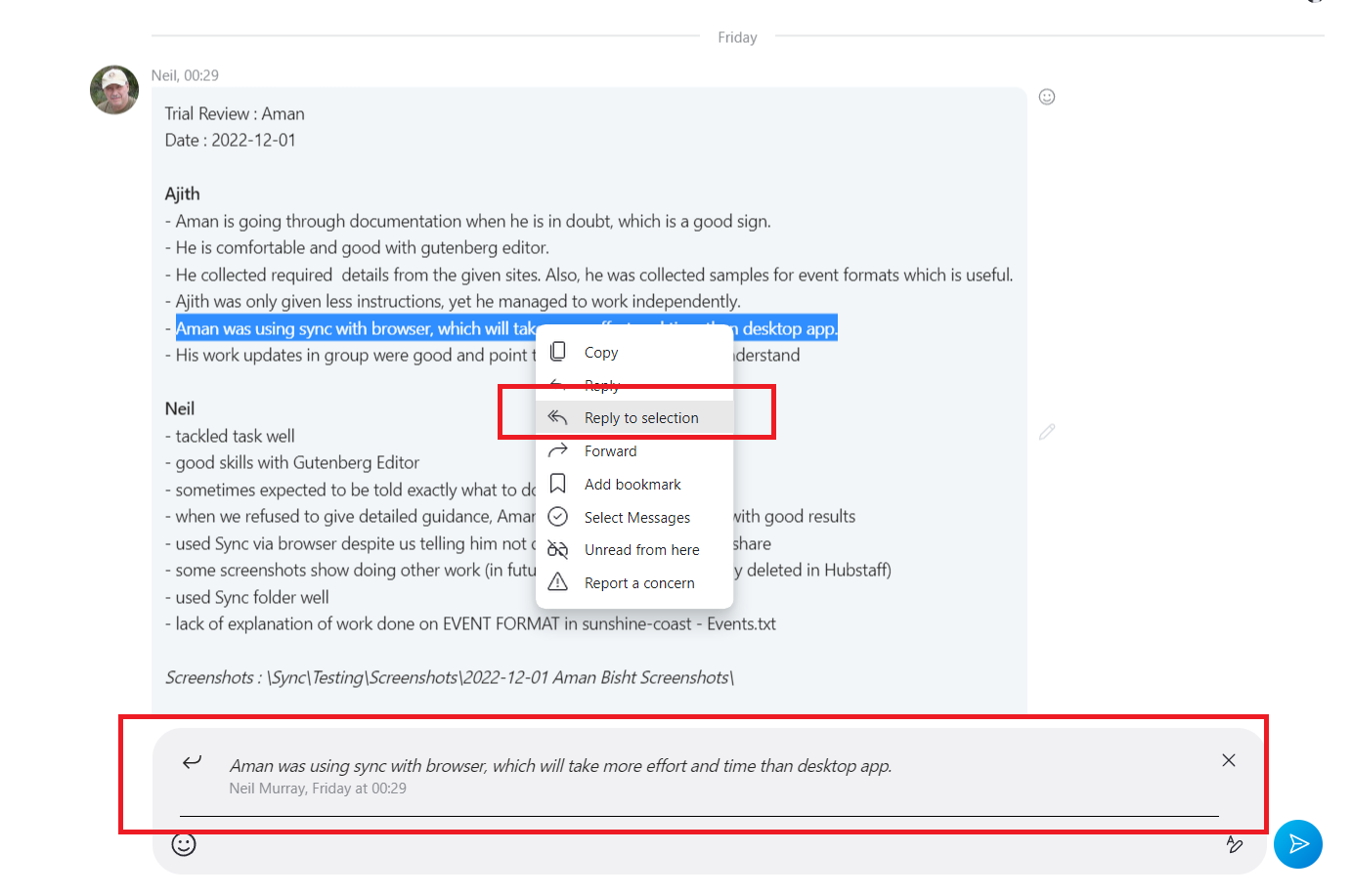
Select the text you are quoting and press right-click. There are several options – choose Reply to selection.
Reply to selection helps others to know precisely what you are replying to. It will only show the exact quote, not the complete message.
If you want to ask a question or reply to a certain section of a long message. Follow these steps:
Select part of a message by highlighting it
Right-click and choose Reply to selection
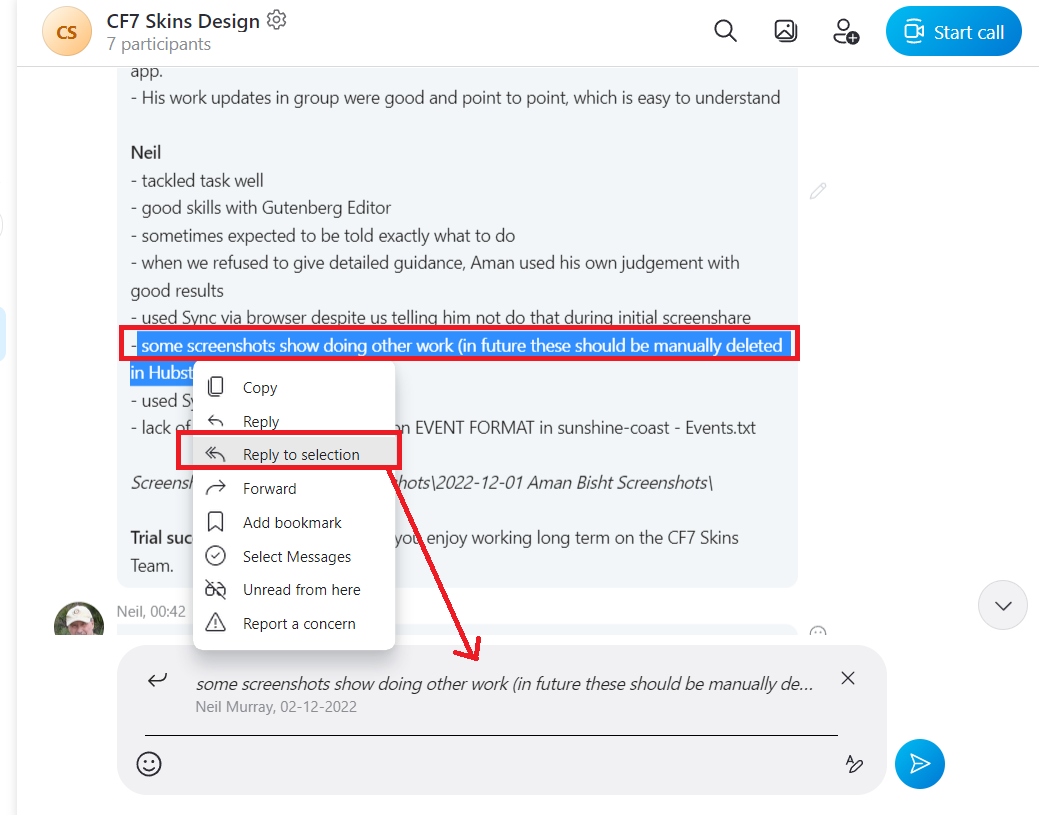
Your selected message will be shown as quote in the message box
Type your reply/answer/question
A good example of using Reply to selection with all the steps
This also helps keep the overall thread short and clean, generally making it much easier to read and track.
Quoting a long message often makes the thread unnecessarily long & harder to read and track.
A good example usingReply to selection
Example of long message. You just want to quote a certain section (highlighted in red).Highlight the text & right-click to use Reply to selection. It will only quote the text you want.
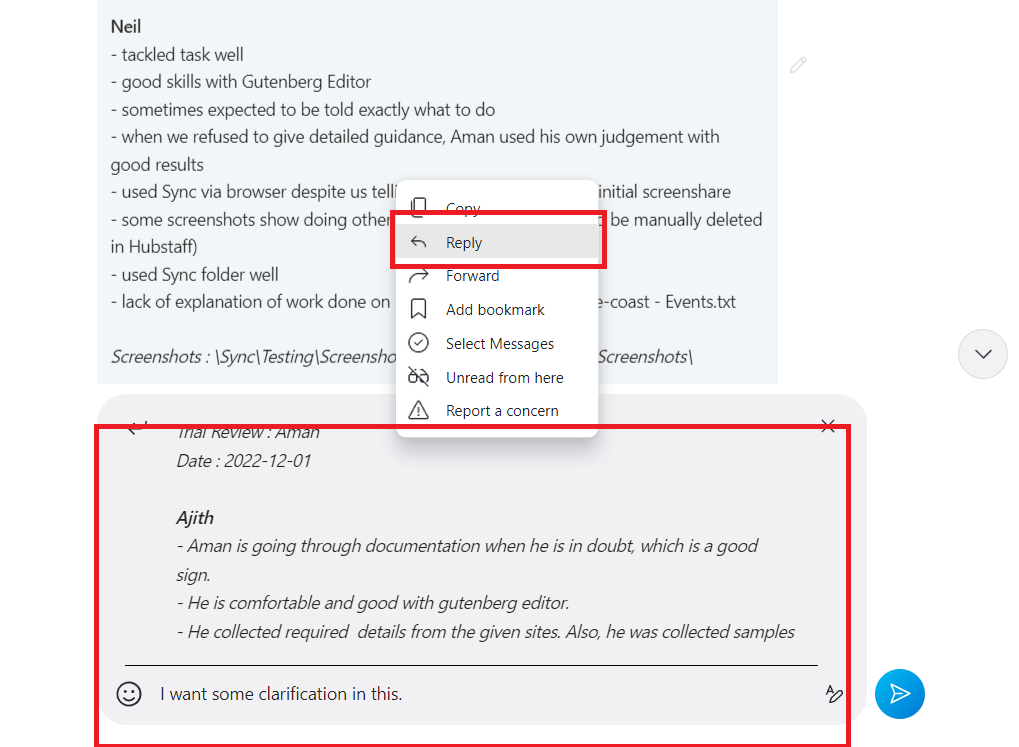
A bad example using Reply on long message
Choosing Reply instead of Reply to selection will quote the whole message (not the specific point)
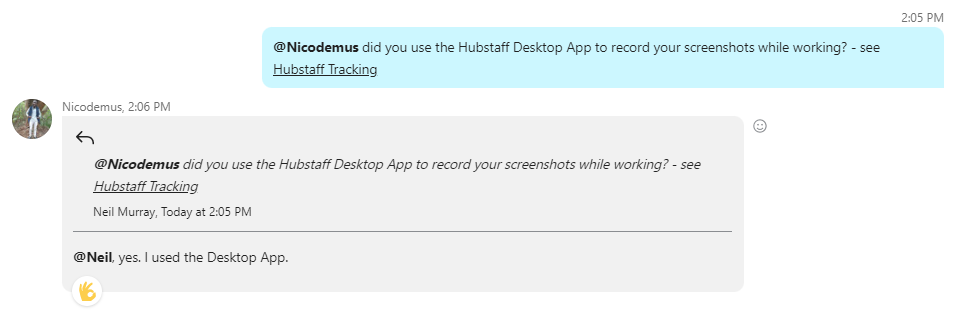
NOTE: There is no need to use Reply & quote a comment when your answer immediately follows the previous comment. It makes the thread longer & harder to read.
Unnecessary quote immediately after previous question
Points to remember:
Always select a specific part/line of a long message
In Skype Chat, it is easier to find old chat messages with team members in the group by doing a simple Skype search. This saves you the time of scrolling up and down when looking for a particular message.
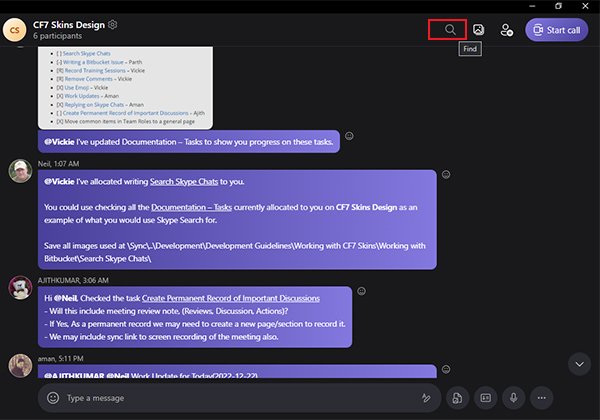
To do this, click on the magnifying glass icon on the chat header.
select the magnifying glass icon
You can also access the find feature to search on skype by using the key combination, CTRL+F on Windows desktop and COMMAND+F on Mac.
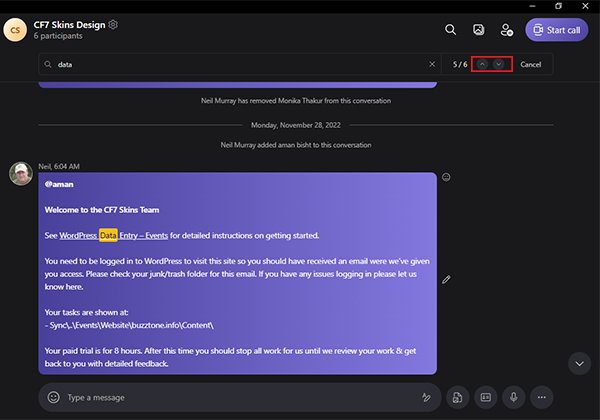
In the search box, type the word or phrase you want to find. The results will appear automatically starting with the most recent message.
use the up and down arrow buttons to move to the previous and next results.
Use the up and down arrow buttons to move to the previous or next result.
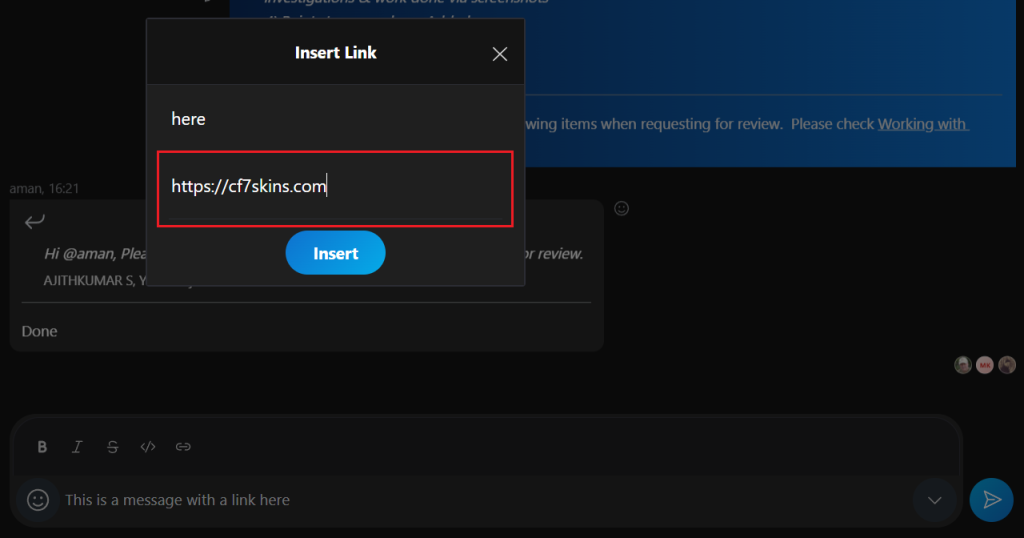
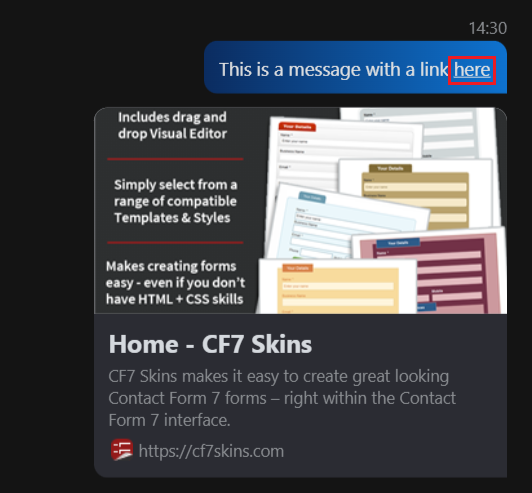
While you can’t (at this time) add images directly in Skype comments, you can easily attach images to a comment.
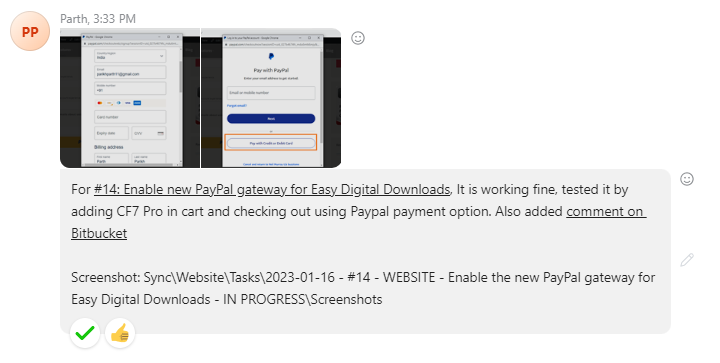
Two images which summarize other screenshots attached to Skype comment
To help others, you should label each image clearly in a way that makes it easier for others to connect the images (which are just in a list) to the content of your Skype comment.
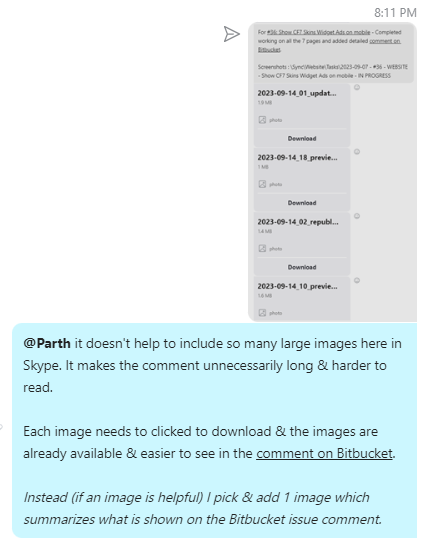
Too many images here makes this comment cumbersome
We use separate messages for separate issues. This makes it easier for other team members to reply to your Skype messages. A Skype message should cover a single issue, task, error.
When you re-read & check your message/comment (which you should do every time) & you find the message covers 2 different items, it’s time for you to create a separate message/comment.
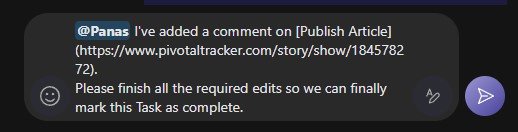
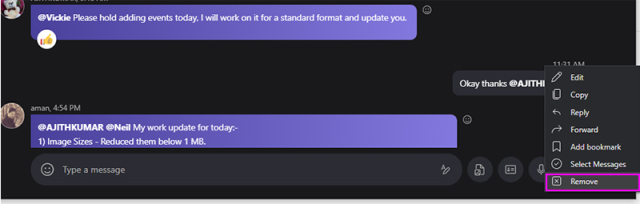
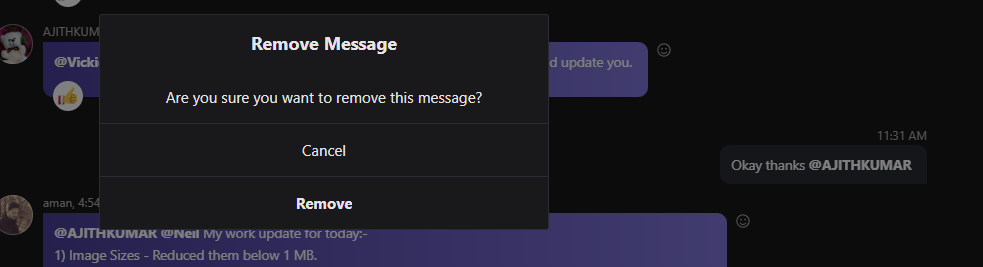
It’s important to avoid clutter and unnecessary messages on Skype. If you made a mistake or wanted to add something to one of your messages, you must edit it instead of sending a new one.
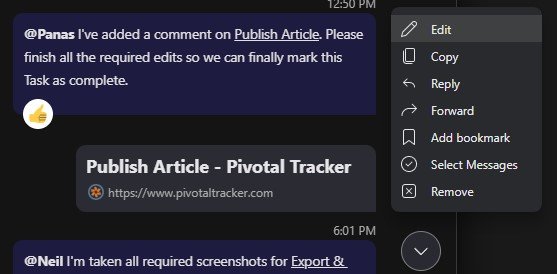
To edit a message, take your cursor to the message box. An options symbol (three vertical dots) will appear beside it. Clicking on it will reveal the options menu.
Go to the options menu
Click Edit and the message will appear in the text box below.
We discourage making unnecessary comments which are not needed when chatting with our team.
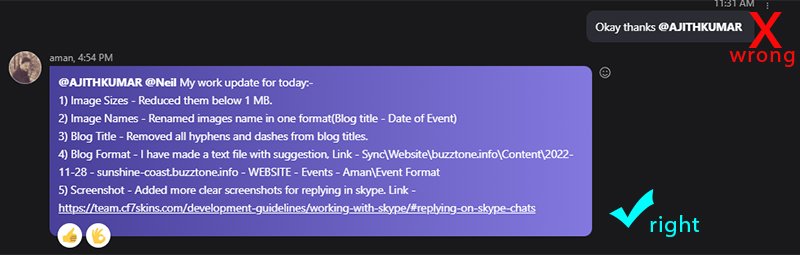
Comments like “Sure thank you” or “Ok noted thanks” are not necessary with us. We just assume you are going to do what we ask unless you tell us otherwise.
We find unnecessary comments:
Make the thread longer than necessary and more difficult to read
Often make it harder to react to a team member’s particular message
Make it easier to miss out on important subjects being discussed.
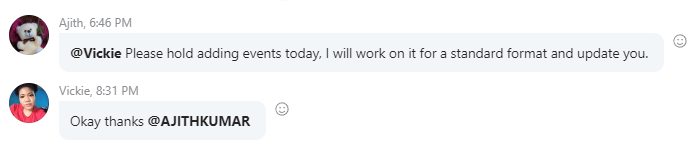
Here’s an example of an unnecessary comment.
This kind of comment is not necessary
We find you can use Emoji to eliminate unnecessary comments in most cases.
When an emoji is insufficient to express your reaction to a message, then you can write a comment. Here’s an example:
This is a necessary comment in this case
When you make unnecessary comments, you may be asked by another team member to remove them and react to that particular message using an emoji.
Comments like “Sure thank you” or “Ok noted thanks” are not necessary with us. We just assume you are going to do what we ask unless you tell us otherwise.
Typical unnecessary comment
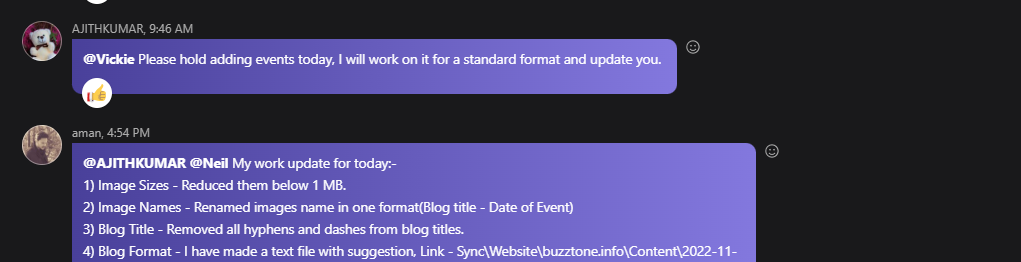
Instead you can use an Emoji to acknowledge that you have seen the message. This allows multiple team members to respond without cluttering the thread which do get very long.
Good example of using emoji instead
To use an emoji, click on the smiley face icon next to the message you want to react to.
Click on the smiley face icon
When you click on the smiley face icon, you can select your preferred emoji like a thumbs up or check mark emoji to react to the message.
Select your preferred emojiEmoji used to react to a messageExample of wrong & right way
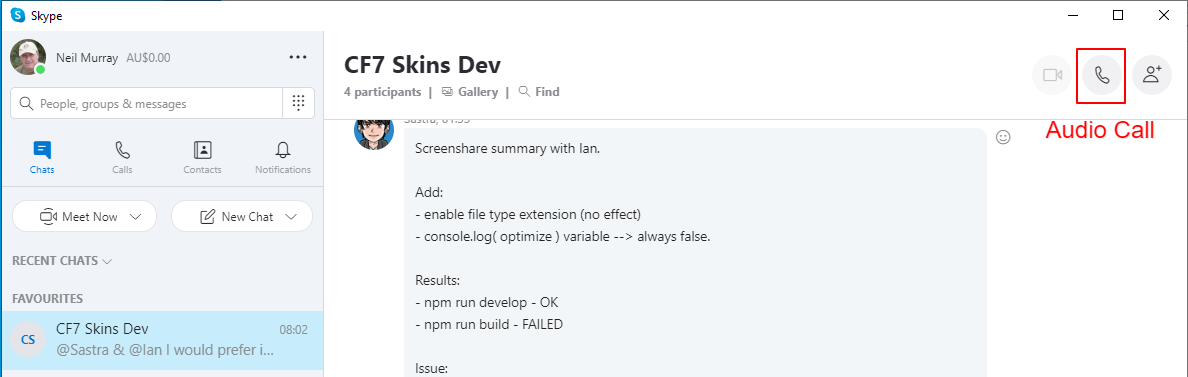
Voice calls (with screen share) can be done in Team Skype Groups, so that others are made of aware of these discussions. These are generally done with Skype screen share to improve discussions.
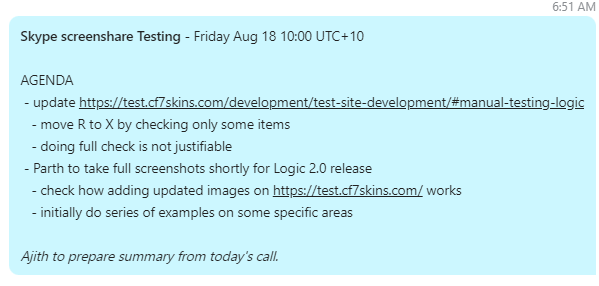
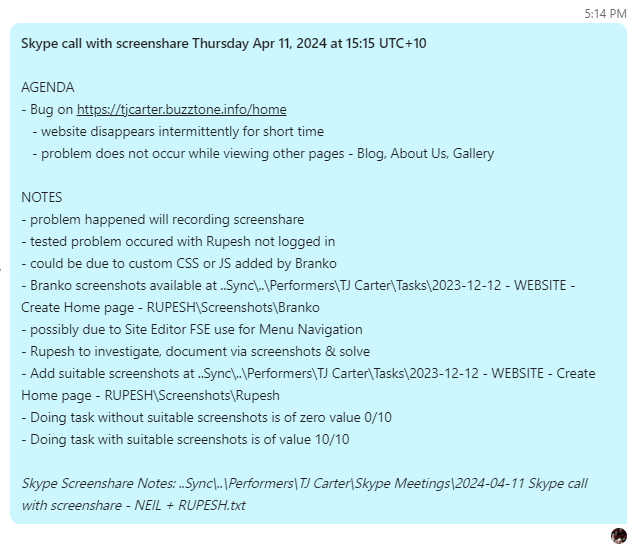
We usually publish an Agenda for each Skype screen share as a Skype comment.
Skype Voice Call Agenda
Voice calls are mostly done in a Team Skype Group by starting an Audio Call on the relevant Team Skype Group.
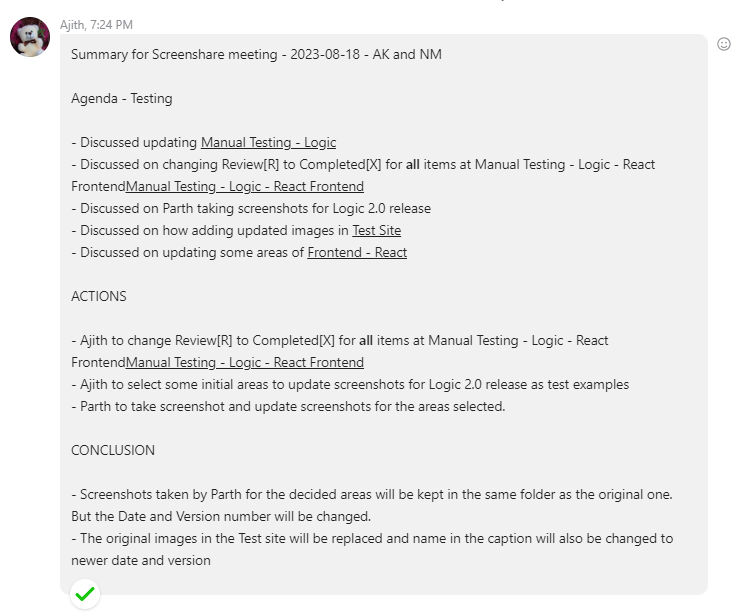
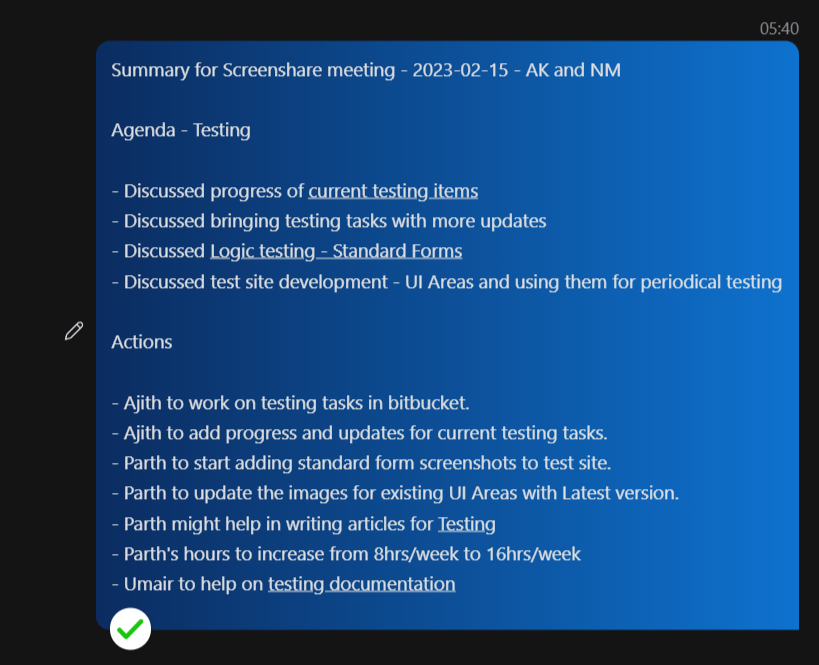
We generally ask one attendee to create a summary of the discussions & actions decided, which is then added as a Skype comment after the Skype screen share – see Skype Call Notes.
Recording meeting minutes of Skype calls allows us to keep track of the points discussed. The notes also help with monitoring targets and results of the relevant tasks/projects.
Skype Call Note Example
Before the meeting starts, participants should decide who will prepare the notes.
Standard Format
Skype call with screenshare Monday Oct 02 at 17:00 UTC+10

AGENDA
- Feedback on:
   - Tasks
   - Screenshots
   - Work Updates
- Open Floor
   -

NOTES
- Feedback on:
   - Tasks completed
      -
      -
      -
   -  Screenshots
      -
      -
      -
   -  Work Updates
      -
      -
      -

- Open Floor
   -
      -

@all If you have any comments or corrections please add them below & I will edit this comment
Detailed instructions
a. Start by creating a Skype message / new text document that you will use to write the call note.
b. Add the date and time of the call to the top. This will help you keep track of when it took place.
c. Include the names of the participants and the purpose of the call
d. List the agenda items that were discussed. Be sure to include any important details or decisions made.
e. Under each agenda item, summarize the main points.
f. Create a separate section for the action items (if assigned). List each action item and the person responsible for completing it. Include a deadline for each if applicable.
g. If there are any follow-up calls scheduled, be sure to include the date and time of the next call.
h. Proofread your notes for accuracy and completeness. Check that all names and details are spelled correctly.
i. Save the document with a clear and descriptive filename [date – participant initials – agenda]. This will make it easy to find and reference later.
j. Share the notes with the other participants of the call. This will help ensure that everyone is on the same page and knows what actions they need to take.
Following this format will help you and the team stay organized and on track.
Start by creating a Skype message / new text document that you will use to write the call note.
Add the date and time of the call to the top. This will help you keep track of when it took place.
Include the names of the participants and the purpose of the call.
List the agenda items that were discussed. Be sure to include any important details or decisions made.
Under each agenda item, summarize the main points.
Create a separate section for the action items (if assigned). List each action item and the person responsible for completing it. Include a deadline for each if applicable.
If there are any follow-up calls scheduled, be sure to include the date and time of the next call.
Proofread your notes for accuracy and completeness. Check that all names and details are spelled correctly.
Save the document with a clear and descriptive filename [date – participant initials – agenda]. This will make it easy to find and reference later.
Share the notes with the other participants of the call. This will help ensure that everyone is on the same page and knows what actions they need to take.
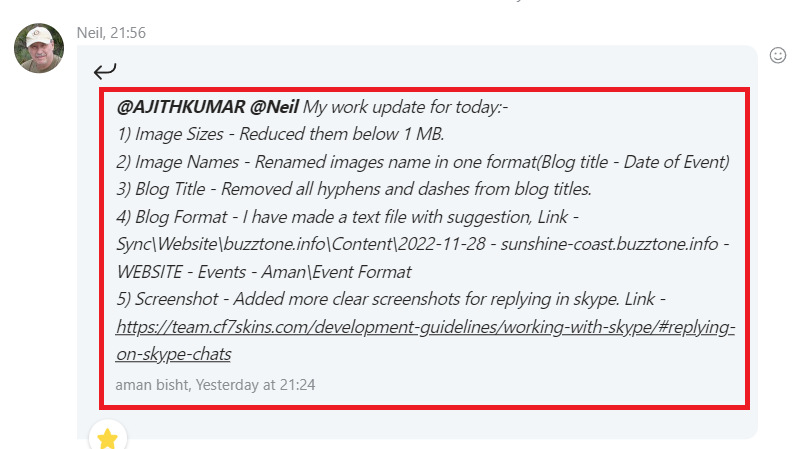
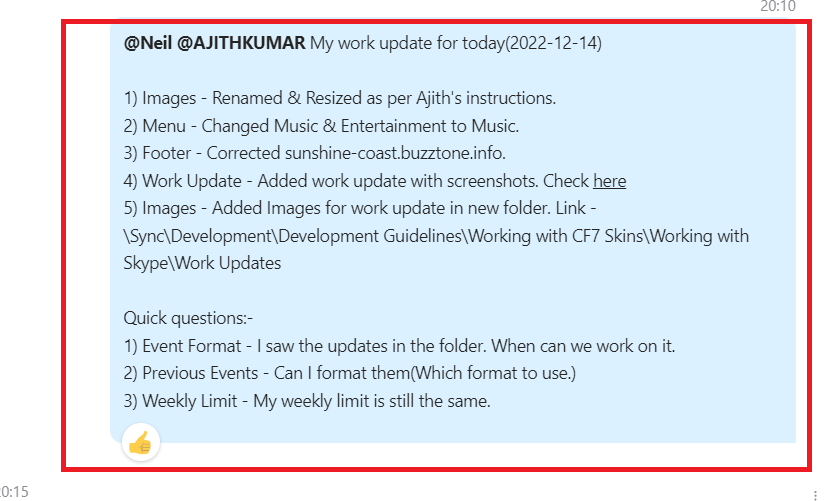
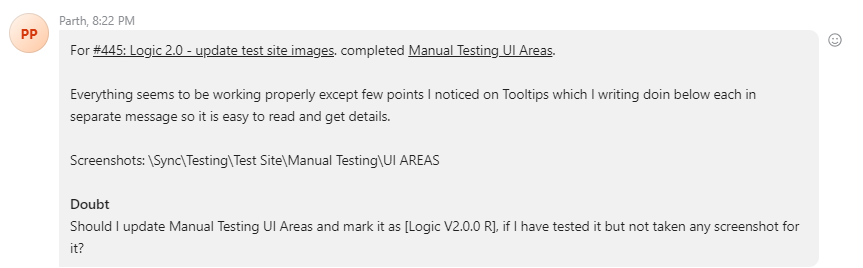
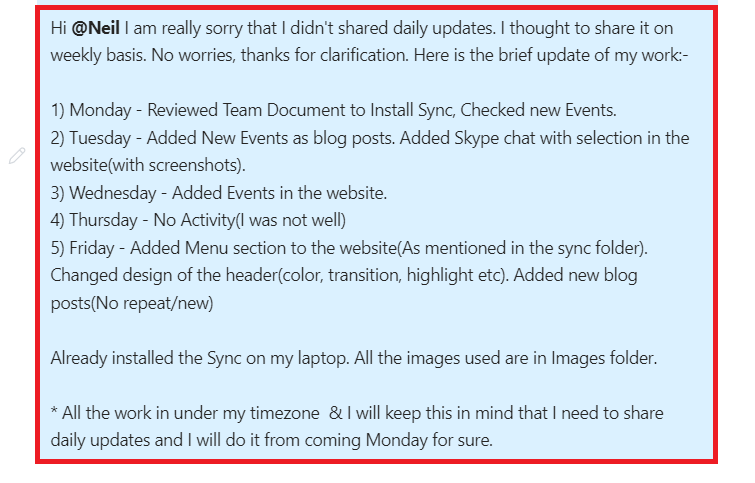
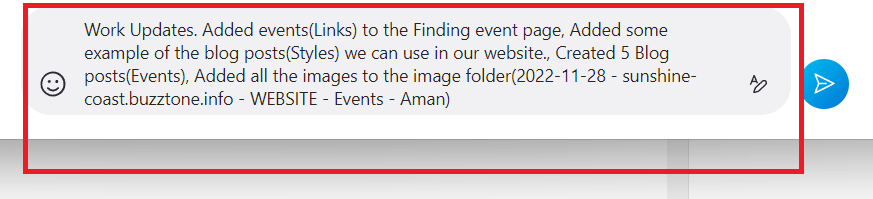
Work Updates are an important daily ritual for all team members. At the end of every working day, you should update others about all you did. It helps others to review & supervise your work.
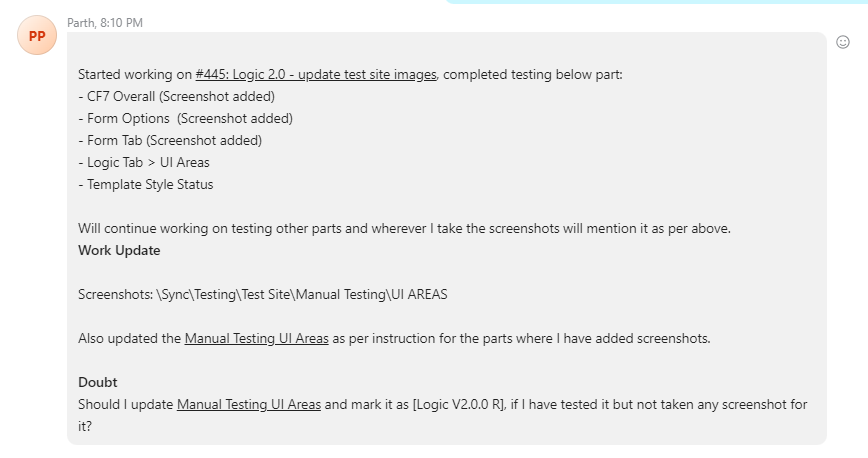
Use bullet points/numbers in your work update
Work Updates should be daily (if work that day) or when you complete a significant task
Be informative but with limited words
Tag the responsible team member
Use Sync folders to store images or files (if required)
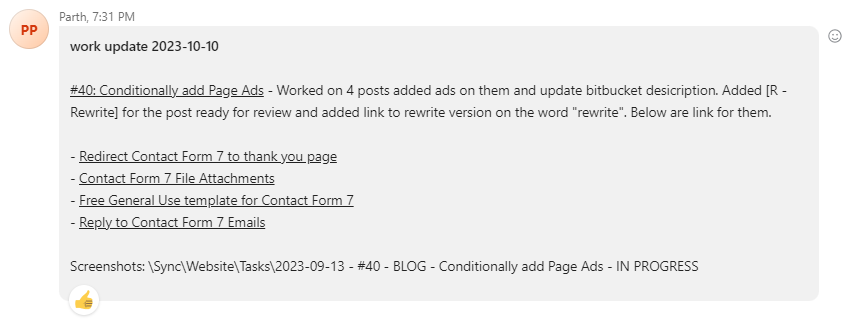
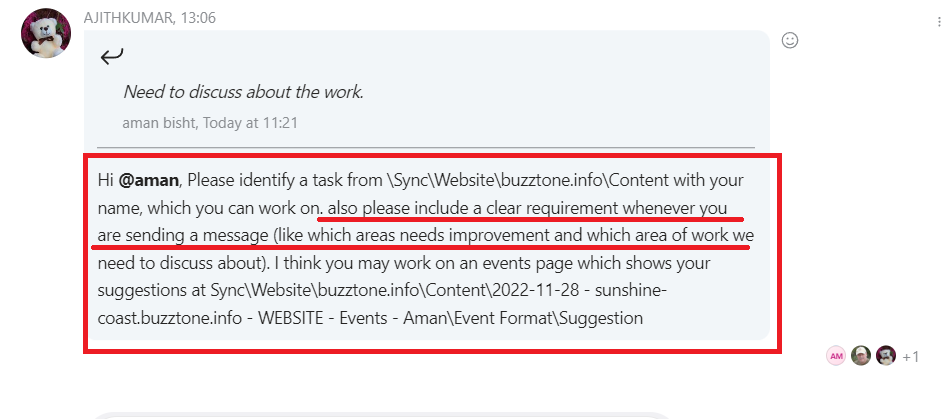
Use links & paths to make it easy for others to find the relevant info
Show your stored files Sync location
Add link to any Bitbucket Issue Comments you have added
You can also list your further plans for work.
Note: You only need to do a Work Update each day you work. If you work on a day – you need to do a Work Update.
You can add questions too but they should also be to the point.
Example 3
Daily Work Update is clear & easy to understand – the separation on issues is very helpful
Example 4
Good use of links – makes it easy for others to go quickly to correct place
A daily work update should include everything you did for the day. It should be informative enough to show how you utilized your hours. It should be to the point & understandable.
To show you what you need to know before you start a trial or to assist you to understand a task assigned to you, a team member may volunteer to do a Skype video call with you.
We refer to this as a training session, which is always recorded & saved where other team members can access it.
Recording every Skype training session allows team members to look again these training sessions so that they don’t miss any important details.
Training sessions must be recorded so that valuable insights are not lost and content can be referenced in the future.
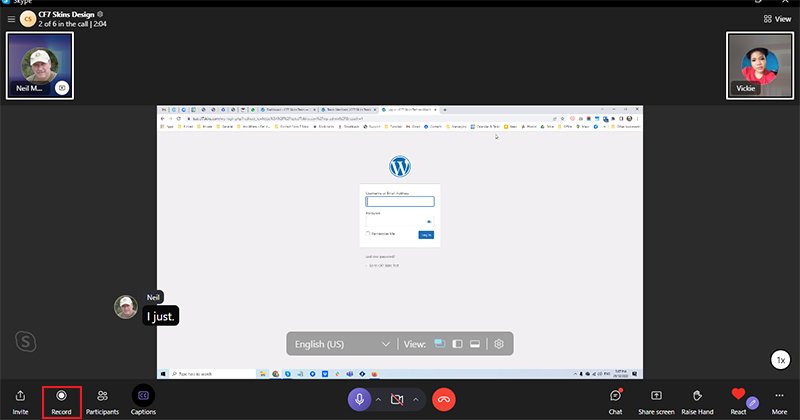
To record a skype call, click on the “Record” button at the bottom left corner to start recording.
Click on record button to start recording
As soon as you start recording, everyone on the call will know they are being recorded so there are no surprises. If someone shares their desktop screen during the call, it will also be included in the recording.
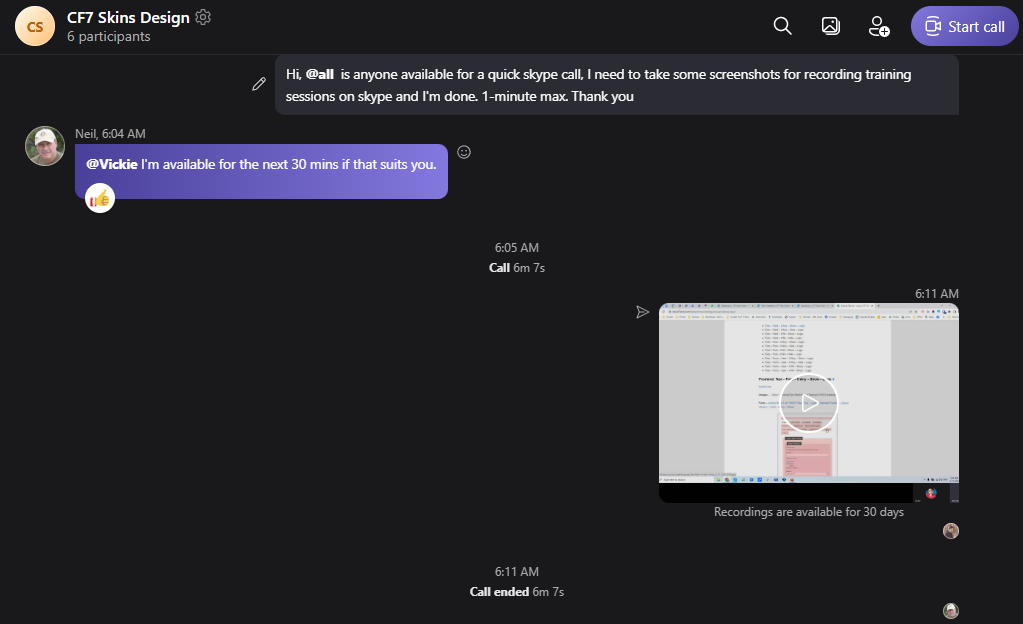
When you end the call, or leave the group call, the recording will stop and you will be notified. The recording should then be posted in the Skype chat where the call took place.
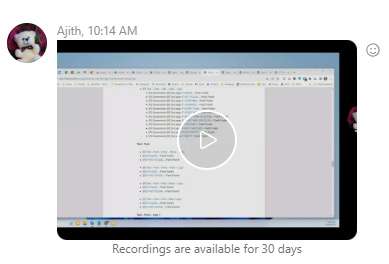
Call recording posted on the team group chat where it took place
The recording should also be saved at a suitable Sync location, as recordings are only available on Skype for 30 days.
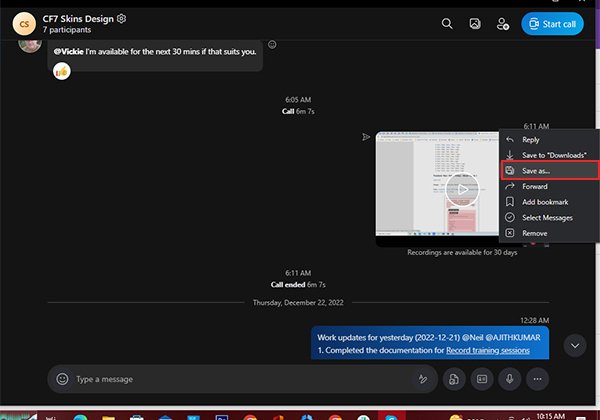
To do that, click on the three dot menu at the right hand side of your recording and select ‘Save as’.
Click on the three dot menu at the right hand side of your recording and select ‘Save as’
Recordings can be referred to in the future to promote learning and progress.
Create Permanent Record of Important Discussions #
We need to keep all the important discussions permanently and they should be easily accessible when required.
How to identify an important discussion.
The chat/screen share can be forwarded into a new skype group and records can be made from there.
Mark a discussion with a specific hashtag (#tag). So can be easily found by searching that.
Review Notes/ Chats
Typically we will have Meetings/ Screen shares/ Chats over Skype and this will include important discussions. So it is important to note down the important points and make a review note of each meeting, also we need to record the important points from the chat.
Type of Discussions
1-1 Meetings
Group Meetings
1-1 Meeting
This will be a meeting/screen share that involves 2 people, this can be a training or helping session.
Group Meeting
Group meetings typically involve more than 2 people. So someone in the discussion needs to note down the important points to create a review note after the meeting. Before each meeting/screen share, confirm who is recording and taking notes. The review note can be made in sections and this should include the following details.