Last Updated on October 29, 2024 by Neil Murray
Table of Contents #
- When to Test
- Record Testing via Screenshots
- Environment Details
- Testing Lists
- Consistent Form Naming
- Maintaining Page Menus
- Individual Pages with Multiple Forms
- Maintain Visual Versions of all Templates
When to Test #
“We need to test & confirm that changes made in each release do not inadvertently affect the operation of our CF7 Skins Plugins.”
Plugin releases are tested thoroughly when the release is ready using Testing for new Release procedure.
Feature additions are to be tested only after they are moved to the Bitbucket – Testing Issues List. We don’t want testers to start work before the developer indicates the feature is ready for testing.
Bug fixes are a high priority, and we need to test them as soon as possible. The test results should be provided to the developer with urgency to make the solution process quicker.
Record testing via screenshots #
All our testing is recorded via screenshots. This:
- allows other team members to understand the work you have done
- provides a permament record of all testing done.
Refer:
Environment Details #
Whenever we test, we need to record the details of the environment in which the testing was done. This:
- allows others to confirm testing is valid
- [ADD reasons we need this]
The following details need to be saved in an Environment subfolder.
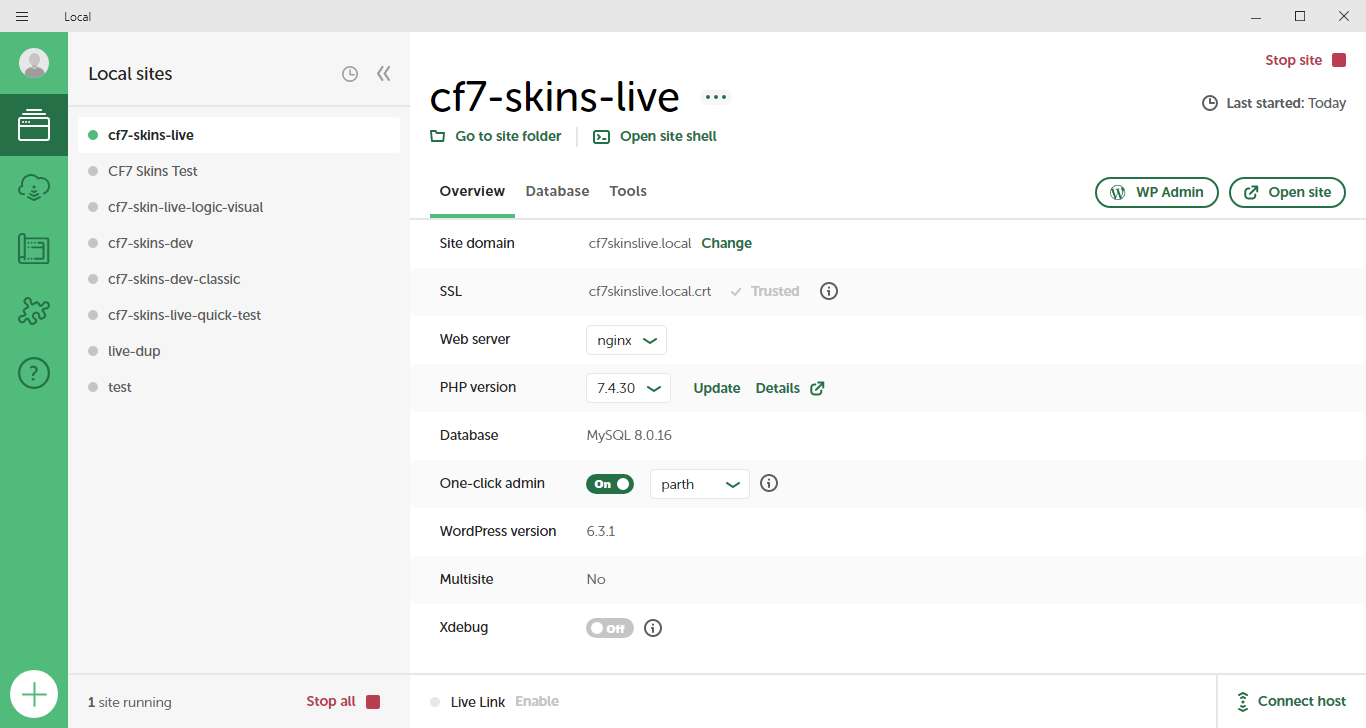
- Local Setup
- SourceTree Commit or Git Commit (alternative method)
- Plugins Active
- Form Used (optional)
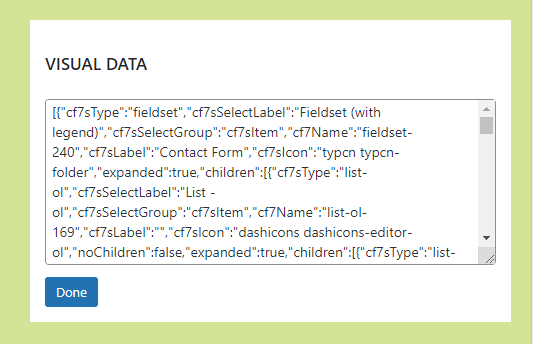
- Exported Form (optional)
[ADD example of Environment subfolder]
Local Setup
SourceTree Commit
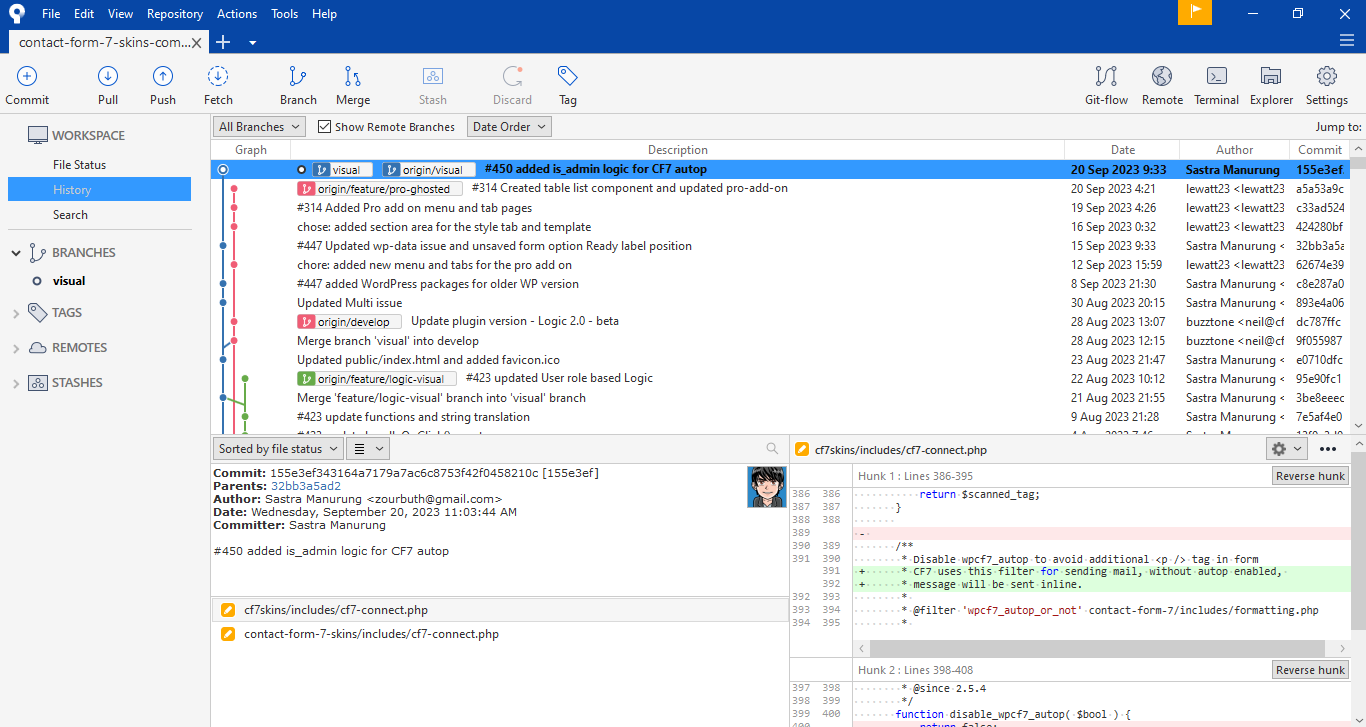
Git Commit (alternative method)
To confirm the commit being tested is correct, click on the Terminal option and take a screenshot.
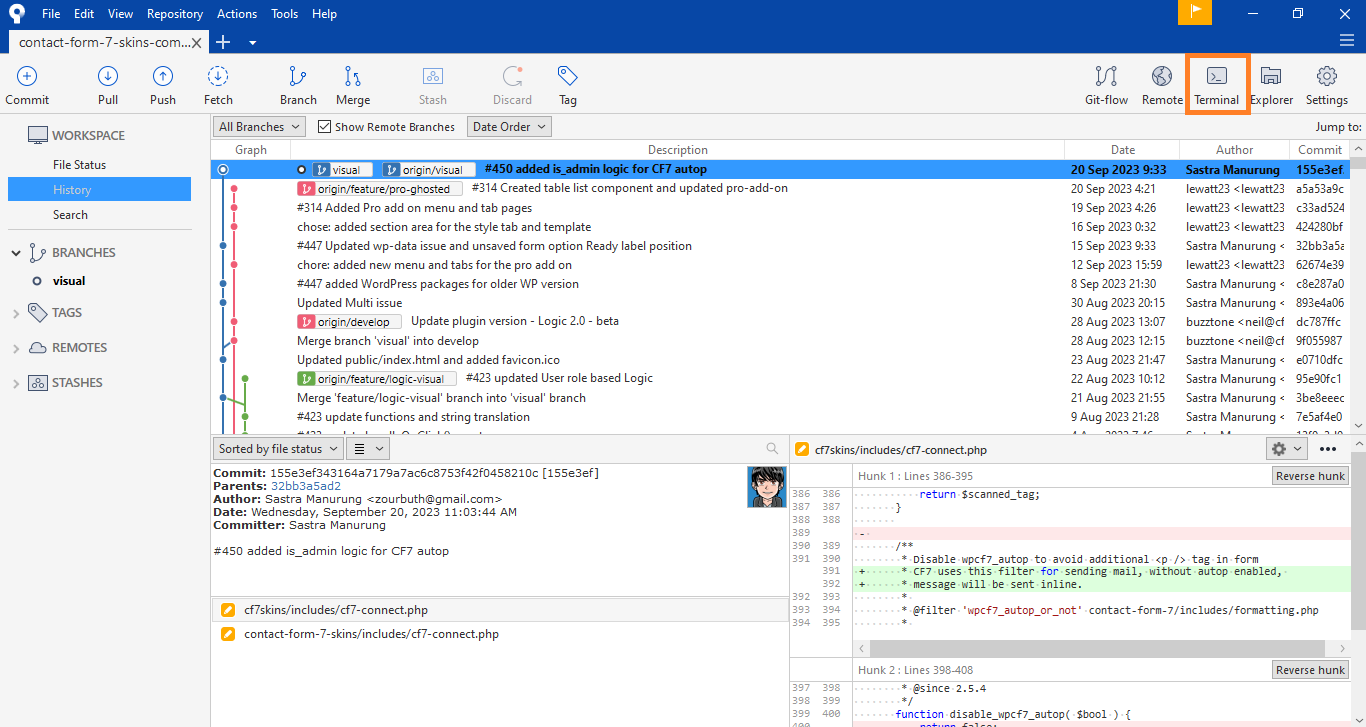
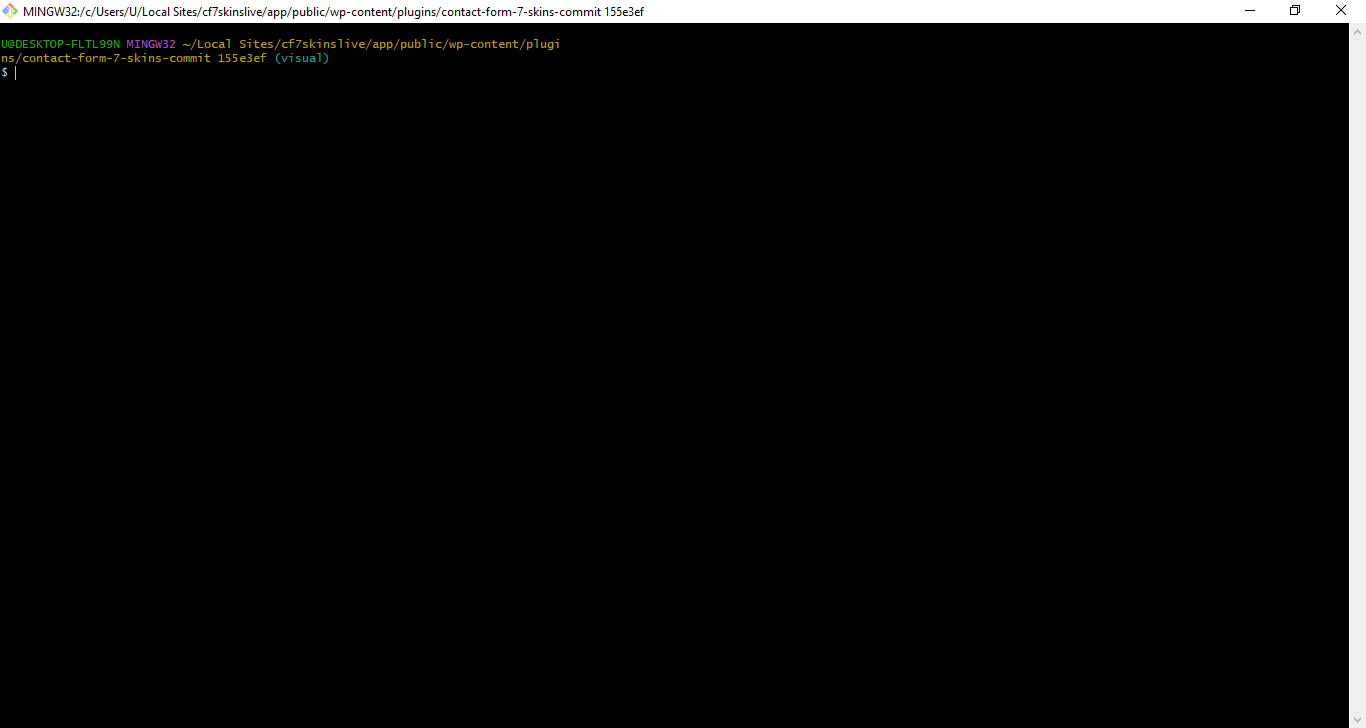
[ CHANGE image – text is not legible]
Plugins Active
Take a screenshot of all the relevant plugins active on the WP Admin.
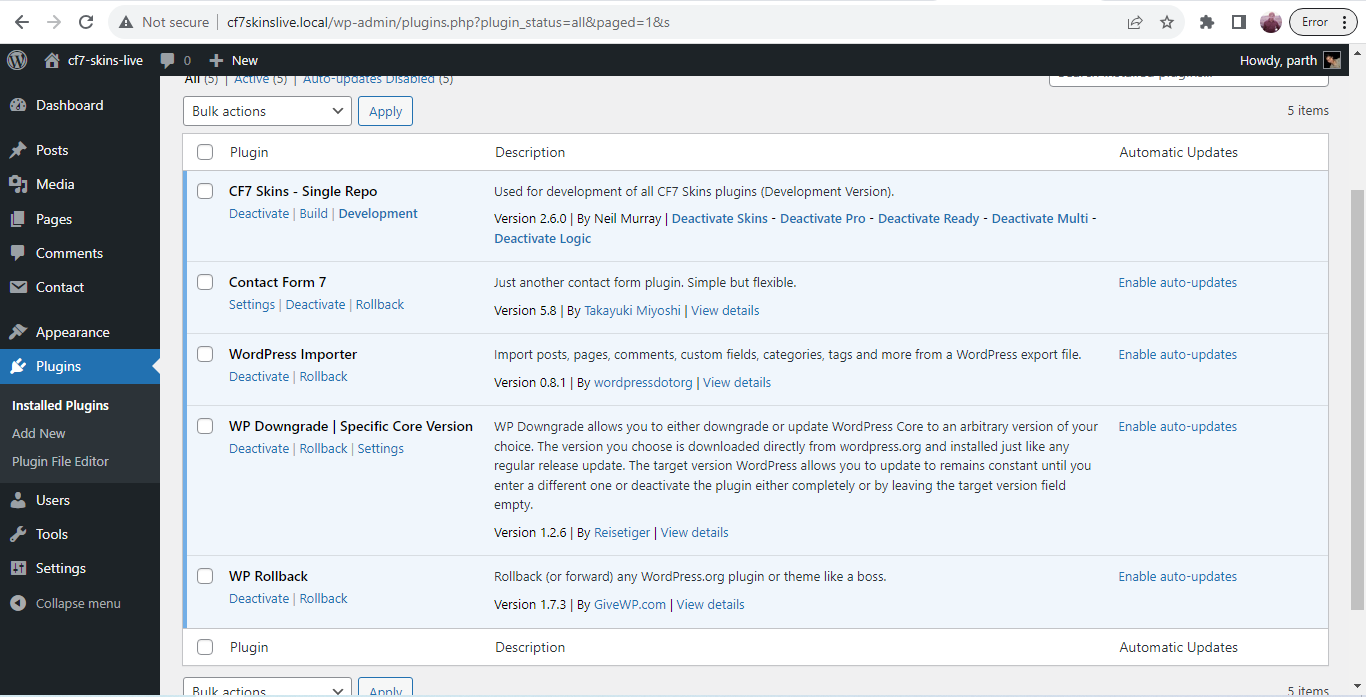
Form Used
Take a screenshot of all the form used to do the test on the Local setup from WP Admin as shown in the below example.
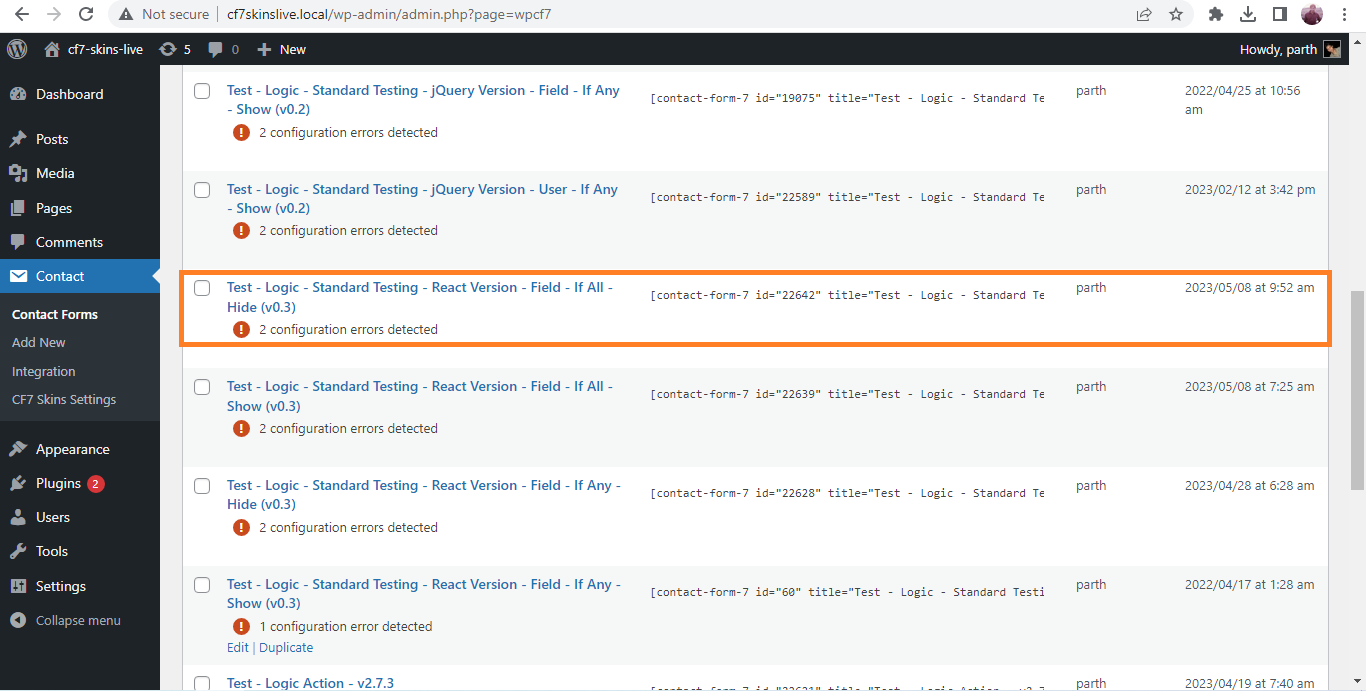
Exported Form (XML File)
Export the form used for testing in the environment folder.
[ ADD step by step explanation]
Environment Examples #
[ADD examples]
Testing Lists #
Text.
Testing Issues List #
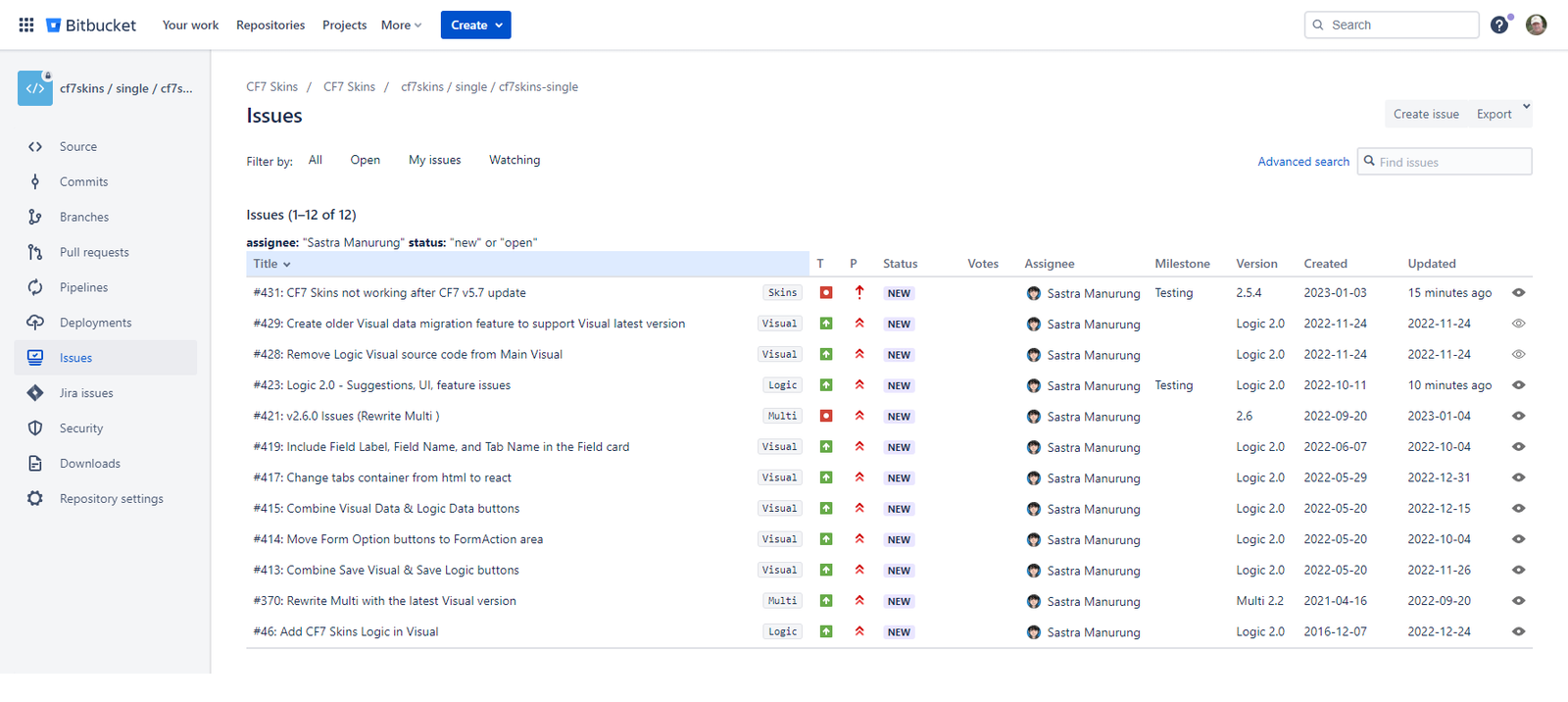
We maintain a list of Bitbucket issues that are currently being tested at Bitbucket – milestone=Testing. Alternatively, you can add a Milestone – Testing filter in the Advanced search.
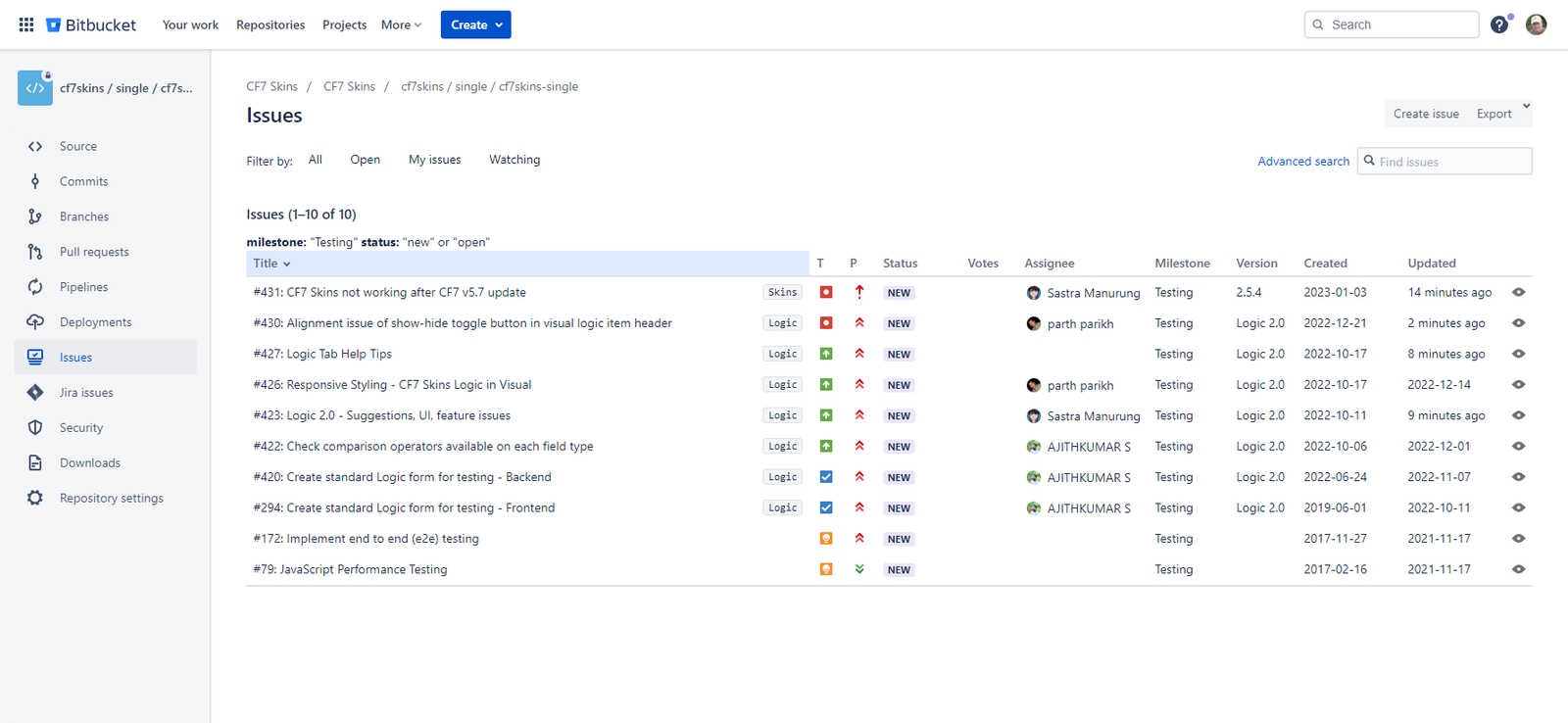
It’s important that we consistently use the Testing Milestone (Bitbucket – milestone=Testing) to see the list of all Bitbucket issues that are currently being tested.
Developers should ensure that any issues they are currently working on that require testing are marked with the Testing milestone.
Testing Tasks List #
We maintain a Testing Tasks List on Bitbucket issues that require significant detailed testing.
This allows us to:
- item
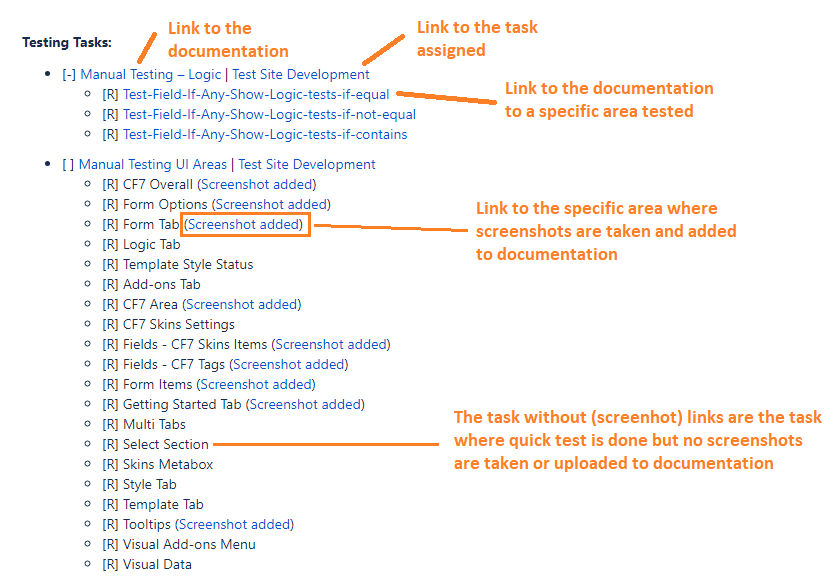
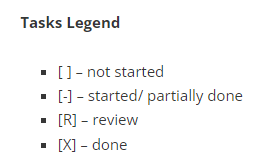
Use Tasks Legend to ….
Testing without taking Screenshots #
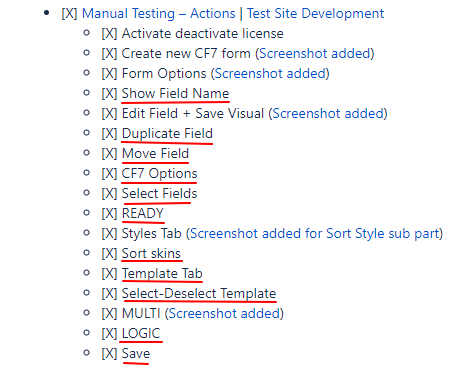
While working your way through the relevant Manual Testing Page, you may decide you don’t need to take screenshots for all items. Instead you can simple report that you have looked at these these areas & found no issues.
You can do this be adding the status of this item on the Testing Tasks List maintained on Bitbucket issue.
Issues List #
We maintain a Issues List on Bitbucket issues where we find issues during our testing.
This allows us to:
- item
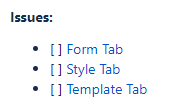
Use Tasks Legend to ….
Each item in the Issues List should link to the comment in the Bitbucket Issue that explains the particular issue.
Consistent Form Naming #
We use a consistent naming pattern to make forms easy to find & identify.

Suggested formats:
- Test – <CF7 Skins Component> – <item or problem>
- T + S – <Template> + <Style>
Examples:
- Test – Multi – Long Form (test if scrolls to top)
- Test – Visual – duplicating OL & LI
- Test – loading HTML with language
- Template – Grid Pro – with grid-hover & grid-lined
- T + S – Grid Pro + Pluto
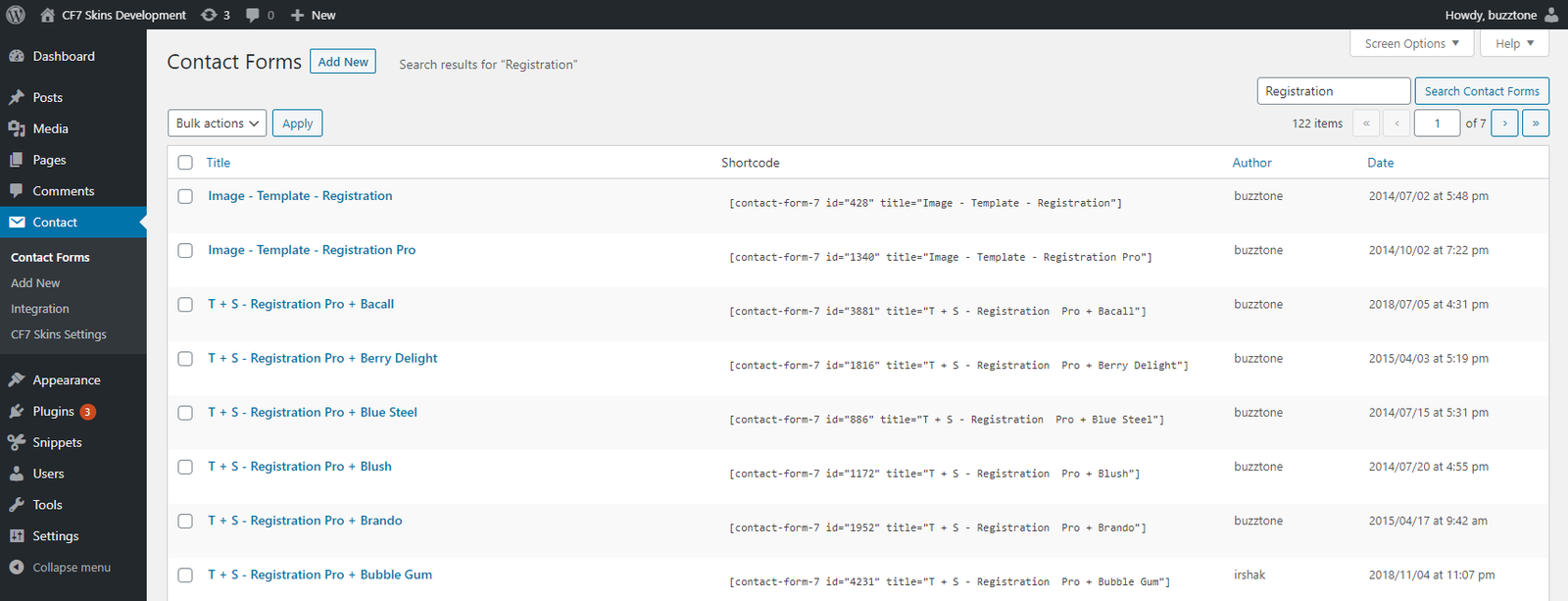
All similar forms should follow exactly the same naming pattern so it is easier to find all related forms via CF7 Form Search
Refer to Form Naming System.
Maintaining Page Menus #
We do not use Appearance > Menus to build & maintain the Menus on this site. With the very large number of pages on this site, that would be unmanageable.
Instead, we use page hierarchy & alphabetical order to define all Menu items.
The page name typically matches the form name.
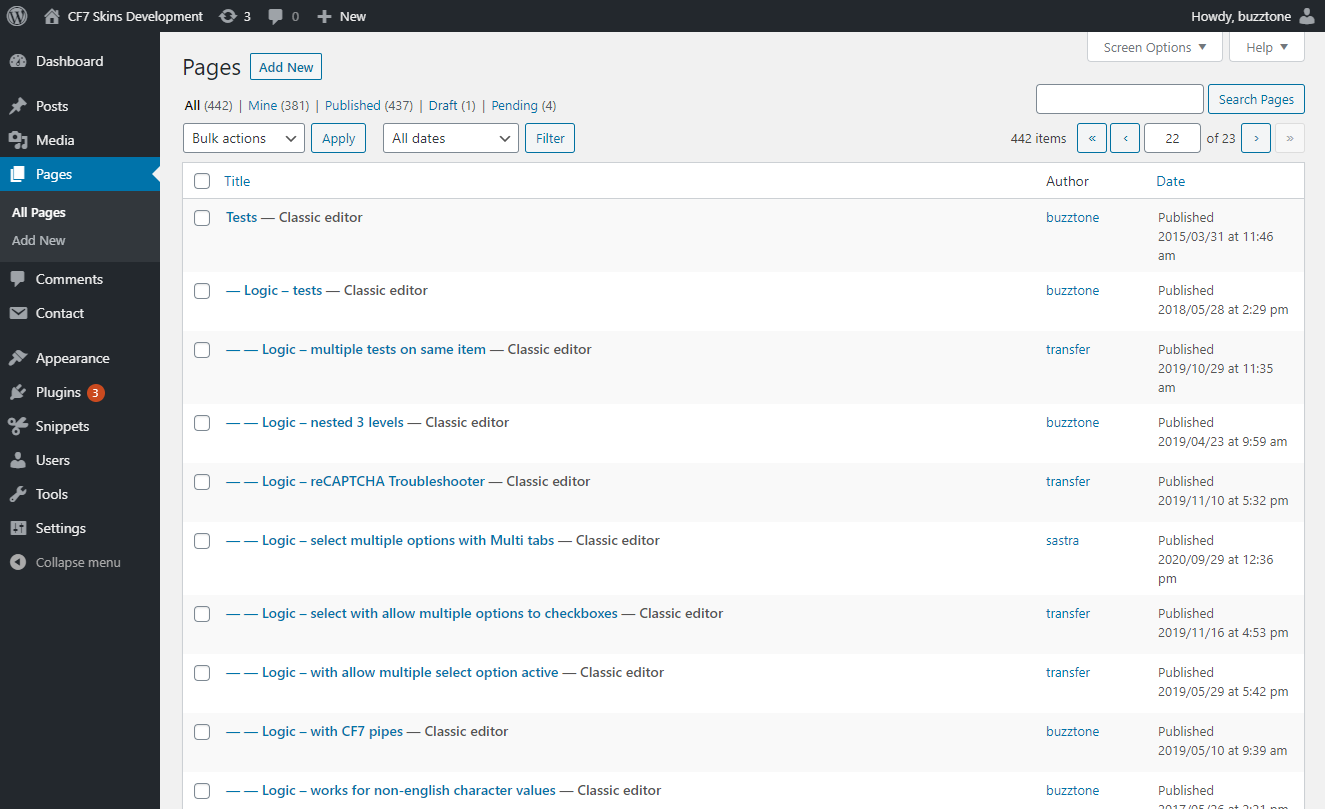
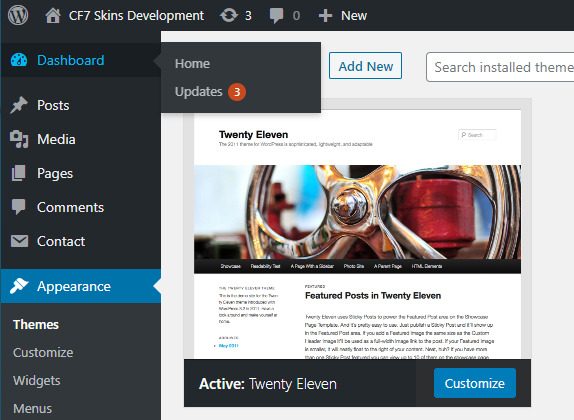
Twenty Eleven theme
NOTE: We use the Twenty Eleven theme because it maintains Menu display based entirely on page hierarchy & alphabetical order.
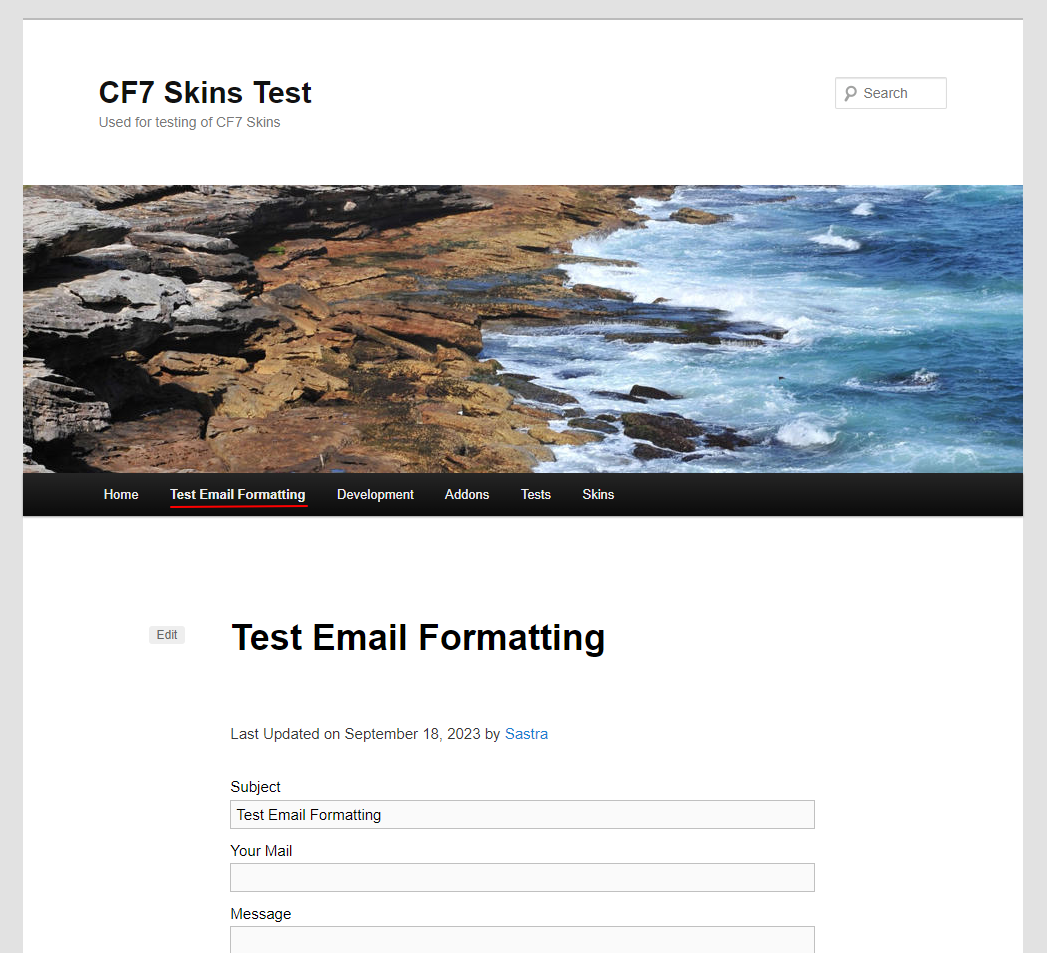
Don’t add pages to top menu
A common mistake among new team members is adding pages to the top level menu.
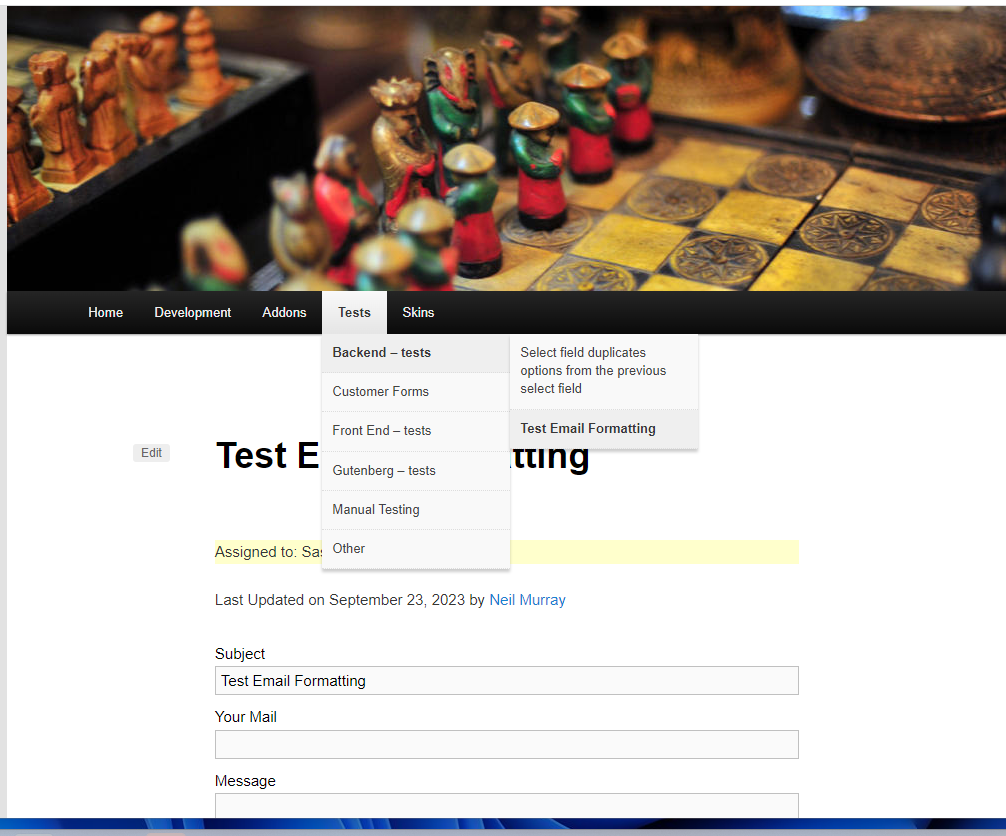
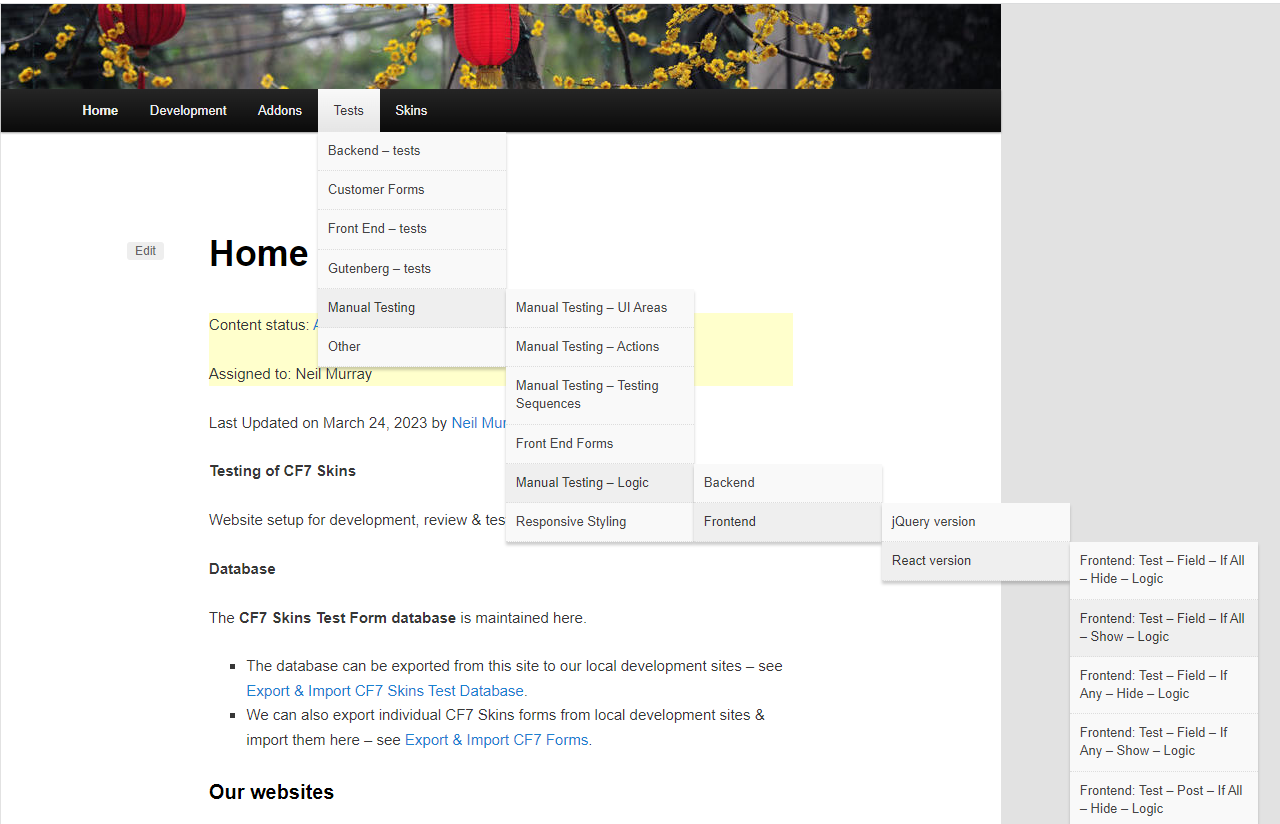
Use page order if necesary on sub-menu pages
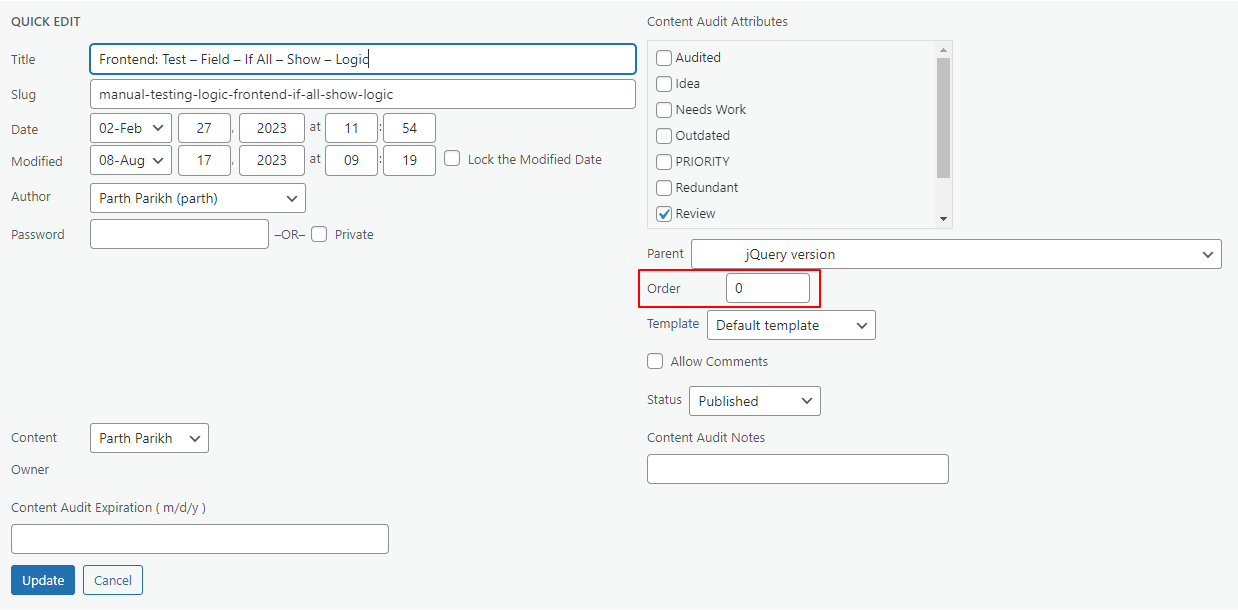
If necessary you can control page order on sub-menu pages using Quick Edit > Order.
Individual Pages with Multiple Forms #
We sometimes add multiple forms on individual pages.
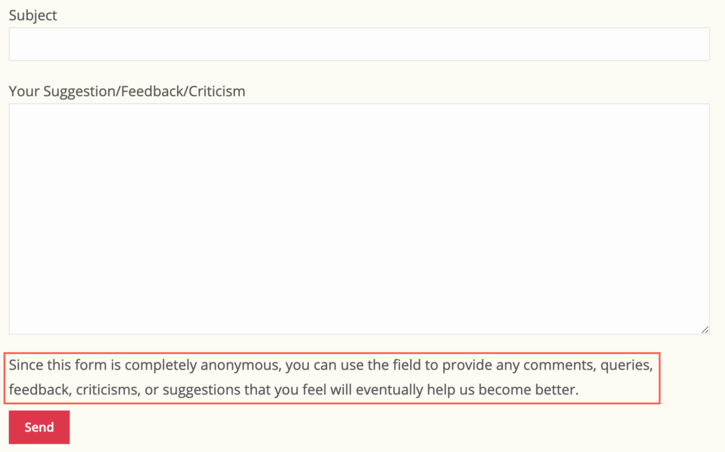
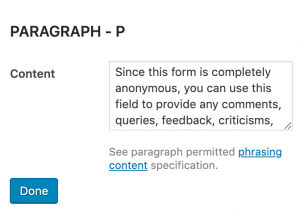
Each form needs to be clearly labeled.
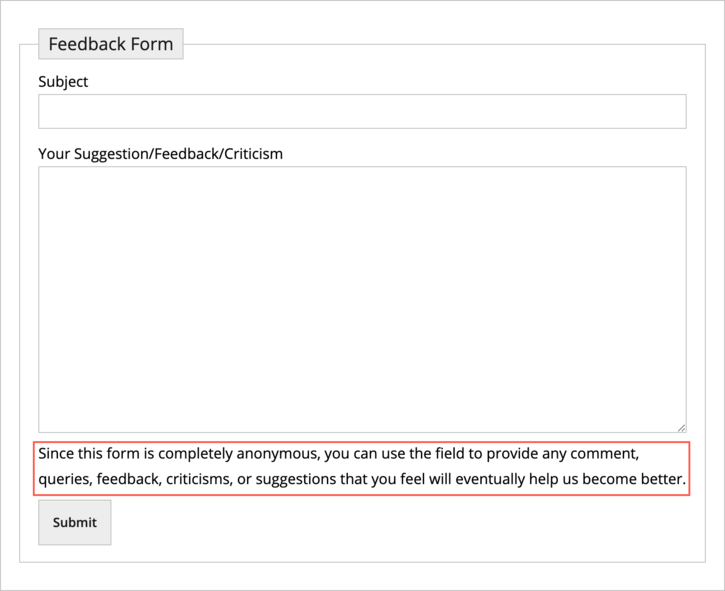
Add Instructions to the form to help users.
Maintain Visual Versions of all Templates #
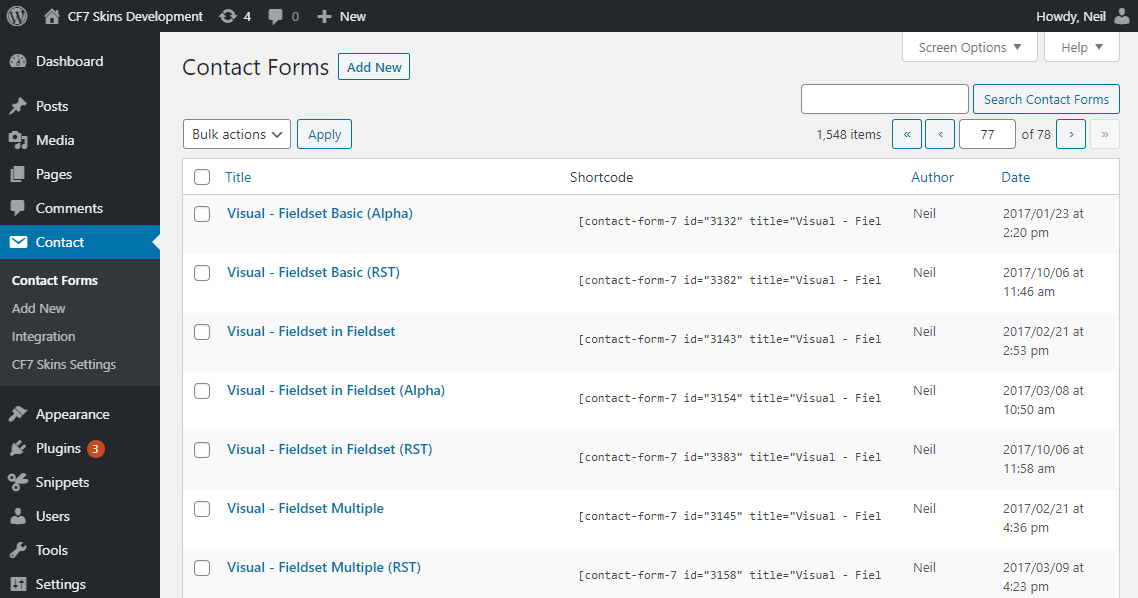
These can be copied & used at Tests > Visual – tests.
Further reading:
Notes
Save all Images to Sync – use ..\Sync\..\Testing\Testing Guidelines\Test Guidelines -page\
TODO
- add a heading or section on how to set parent page on Test site.
- Bugs – Suggestions
Testing CF7 Skins Block #
How to Record Your Testing #
Understand the issue well to be able to test the functionality properly.
The task/issue to be tested may be of several types including UI area and Actions etc. (See Manual Testing for details). In any case, the screenshots or images must encompass all the steps and important details of the task.
For example, if you are testing a certain Logic functionality, you must capture an image of the complete default form, an image for when the Logic is true, and one for when the Logic is false. (See Logic Testing for reference!)
A small change in the UI, like renaming a Button or a Label, may require fewer screenshots.