
Last Updated on June 23, 2024 by Neil Murray
Table of Contents #
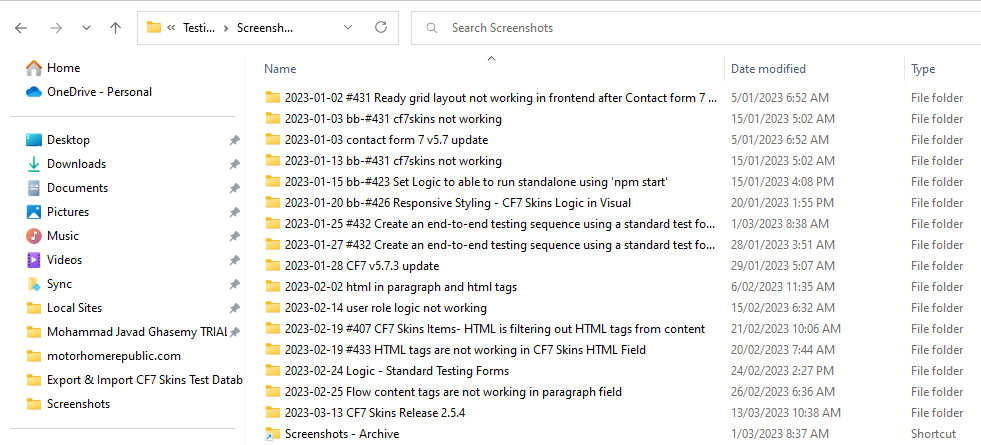
- Testing Screenshots
- Testing Screenshot Naming
- Testing Screenshot Indexing
- Testing Screenshot Sync Folders
Testing Screenshots #
All our testing is recorded via screenshots. This:
- allows other team members to understand the work you have done
- provides a permament record of all testing done.
Testing Screenshot Naming #
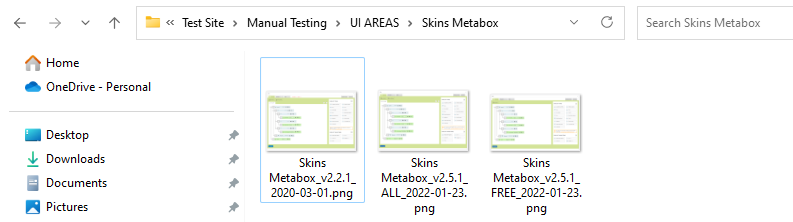
Using a consistent naming format for all screenshots makes it easier for others to understand your work
As testing screenshots are generally taken again & again at different plugin versions, this requires some specific naming requirements.
Each testing screenshot name must clearly identify:
- Date the screenshot is taken
- Tested plugin version
- Backend or Frontend (if applicable)
- Name of the main test
- Short description of the screenshot
We use a consistent naming format for all screenshots:
Description – section-subsection_plugin_version_date.format
These descriptions should depict the section & subsection where the screenshot is located on Manual Testing.
Some examples:
- Add Logic Item – Drag and Drop_CF7 Skins Logic_v2.0_2022-04-13.png
- Form Options Section_v2.4.1_2020-10-07.png
[ADD examples of good & bad testing screenshot naming]
Similar images:
For similar images, do NOT use name numbering e.g. Tooltips_Contact-Form-7-Form-Area_v2.5.2_2022-04-14_01.jpg
Instead, differentiate through description e.g. Tooltips – CF7 Form Area – Add Multi Tab_v2.5.2_2022-04-14.jpg
Testing Screenshot Indexing (Serial Numbers) #
Screenshot Indexing allows screenshots to be sorted in a logical order. This helps:
- others to understand the flow & sequence of testing done
- keep screenshots organized in an logical order
- avoid confusion when screenshots of added or modified
- simplify re-testing by following same sequence order
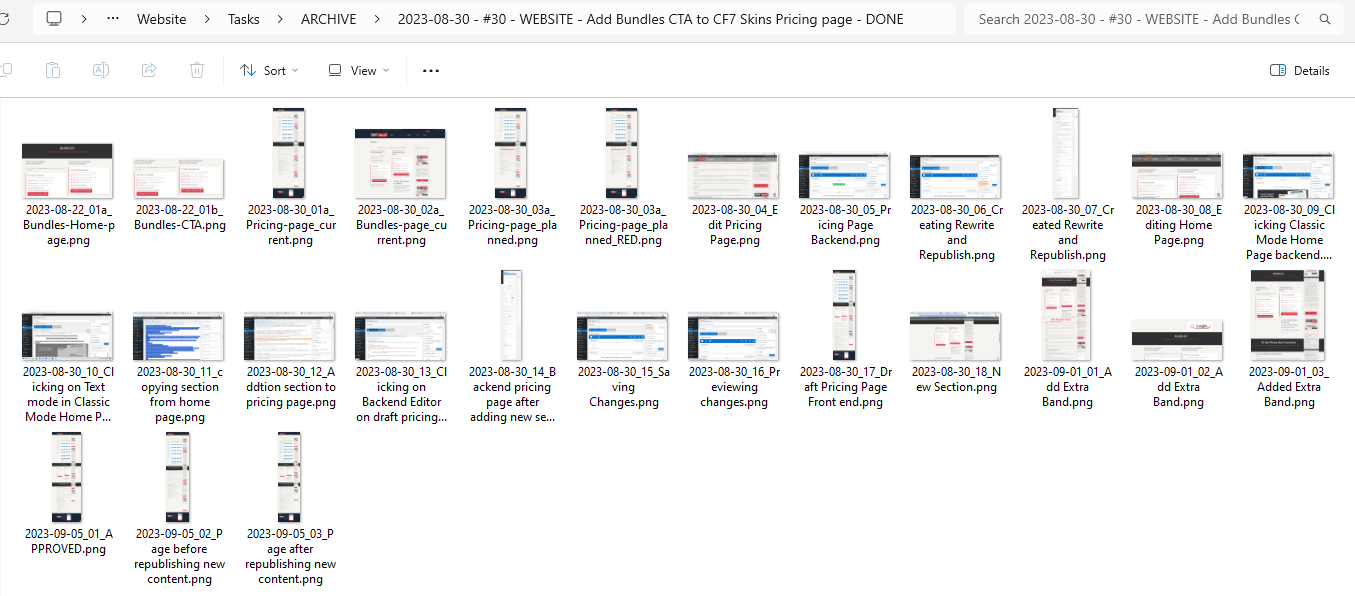
Screenshots viewed as Large Icons

Some examples:
- 01_set file size limit for file(upload) field_commit-1e991ad_2024-05-03.png
- 2024-06-17_16_changing style for the test form.png
- 2024-06-20_02a_no-warning_develop.png
- Hidden Lists_03_Form Items – Expand_v3.0_commit-c60cc69_2024-06-17.png
- CF7 Skins Settings color scheme_v2.5.0_2022-01-19_01c.png
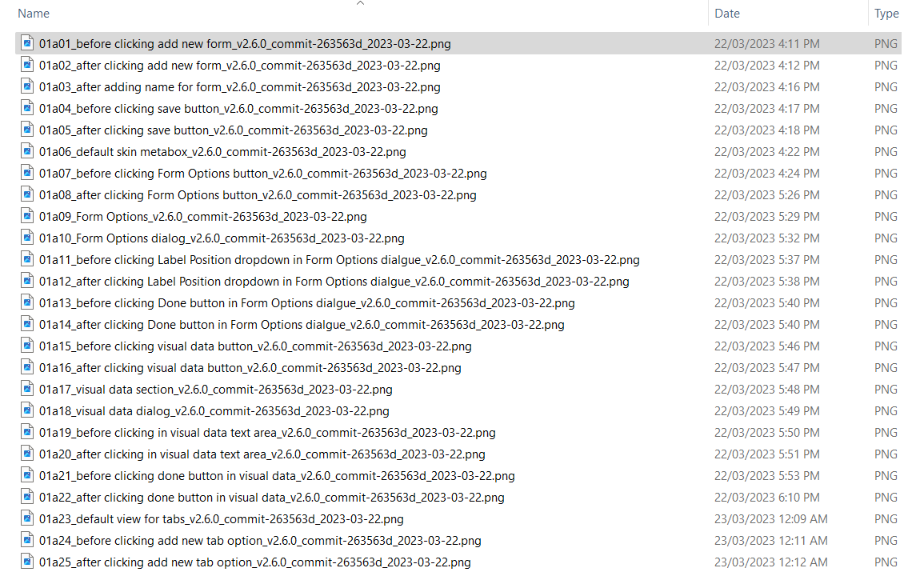
If helpful, screenshot indexing can be done with using combination of alpha-numeric scheme like 01a01, 01a02:
- 2022-04-12_01a03_Added New Tab_Multi Tab_v2.5.1.png
- 2022-04-12_01a012_Dragged and moved tab_Frontend_Multi Tab_v2.5.1.png

Testing Screenshot Sync Folders #
Add screenshots to:
- Sync/Testing/Screenshots folder – Feature additions & Bug fixes
- Sync/Testing/Test Site folder – Manual Testing

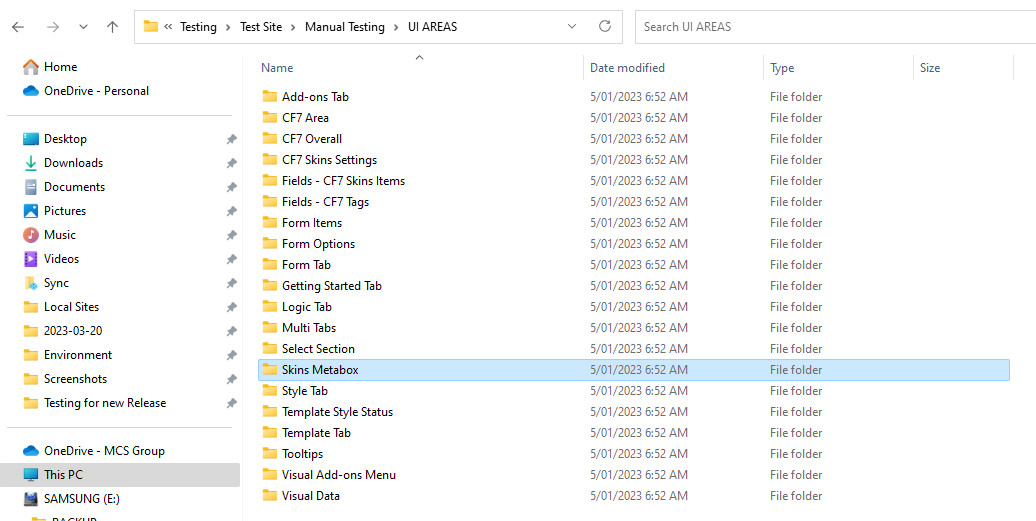
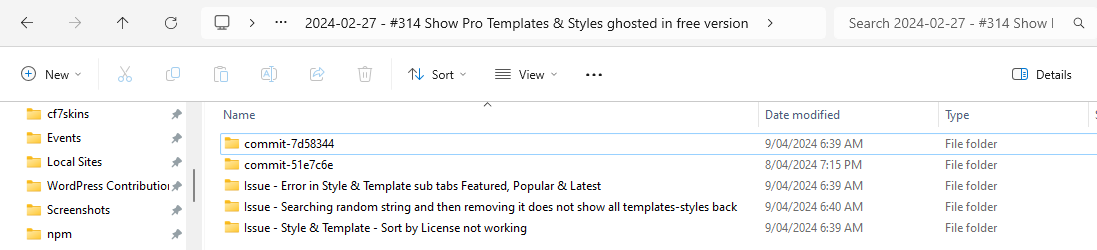
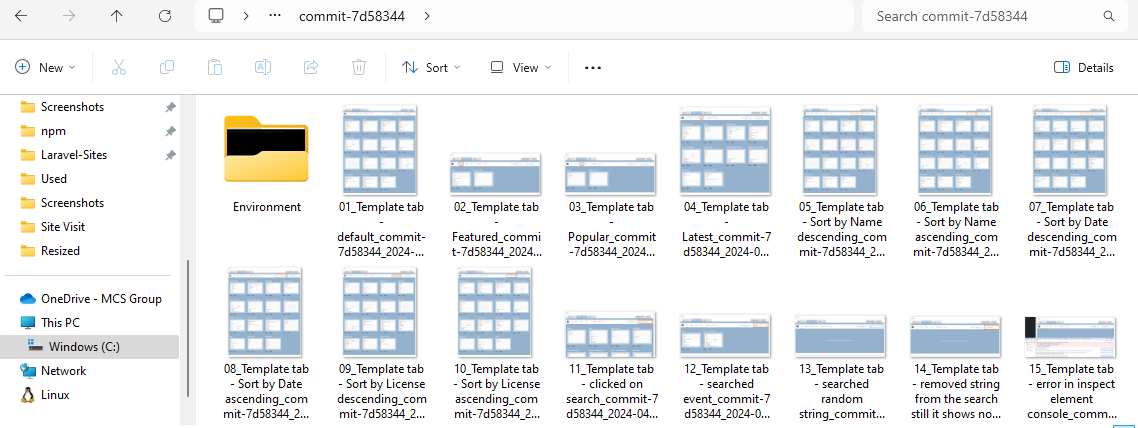
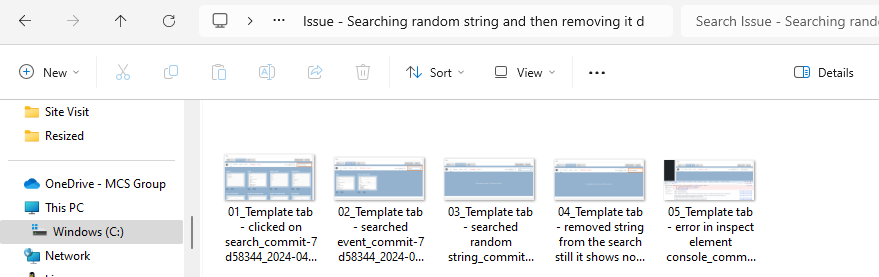
Refer to Working with Sync for detailed guidance on using Sync.
If there is no folder for the item, create one.
Further reading:
Notes
ADD notes here.
Save all Images to Sync – use ..\Sync\..\Testing\Testing Guidelines\Testing Screenshots\