
Last Updated on April 6, 2025 by Neil Murray
SiteGround #
Documentation #
- WP-CLI Tutorial – SiteGround [VIDEO]
- What is SSH, and how do I use it?
- How to Enable SSH/Shell Access in Site Tools
- SSH Tutorials
- How do I access my site through SSH connection?
- How to fix the SSH “Connection refused” error?
Generate SSH Keys at SiteGround #

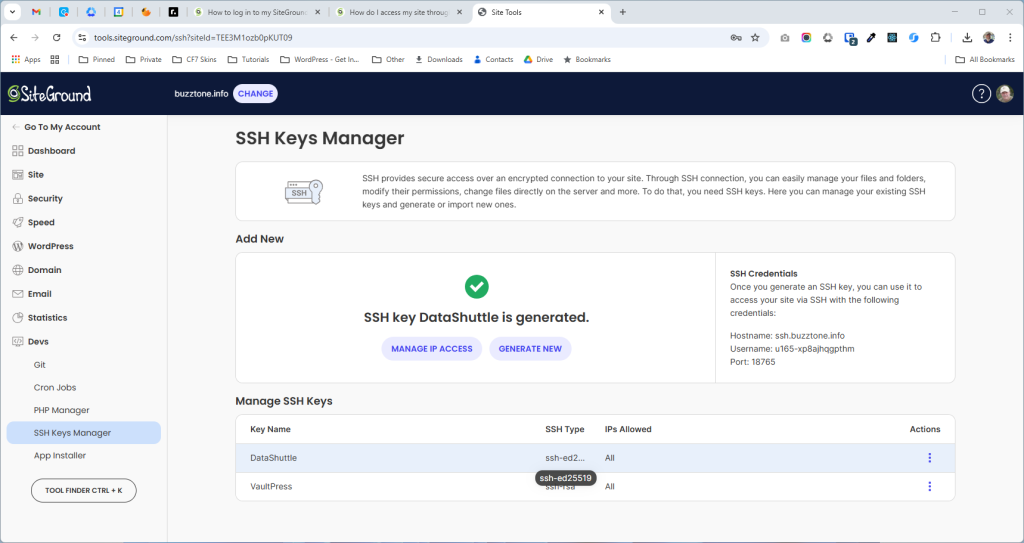
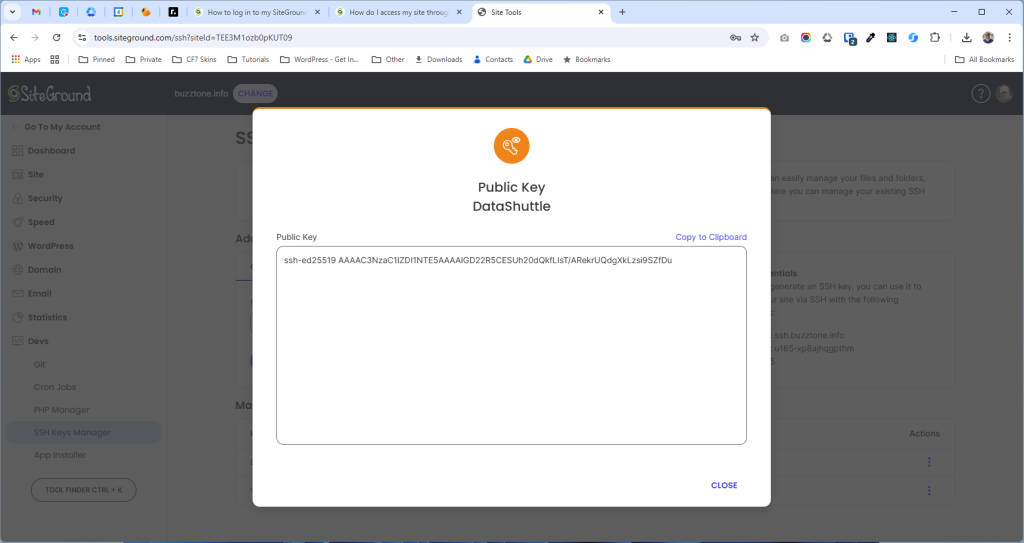
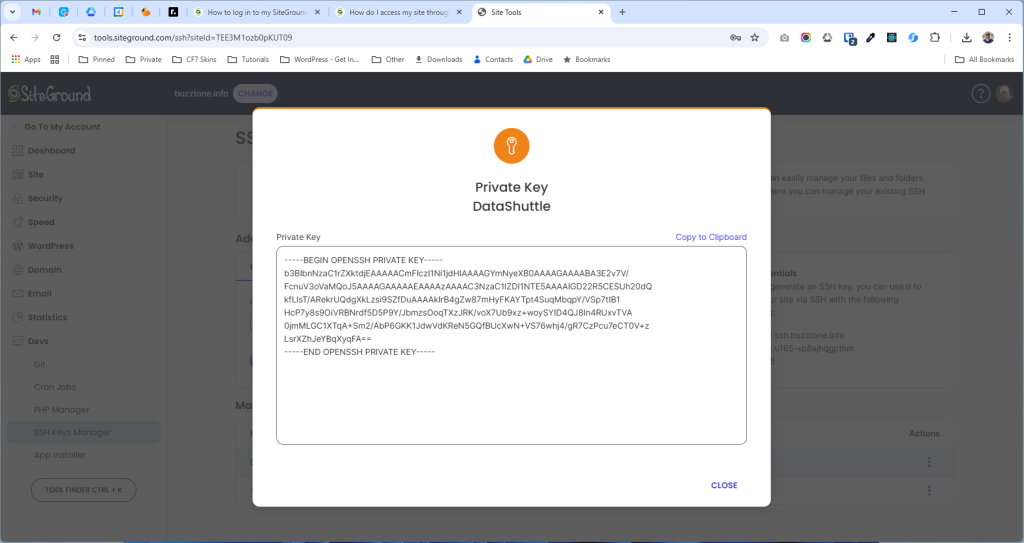
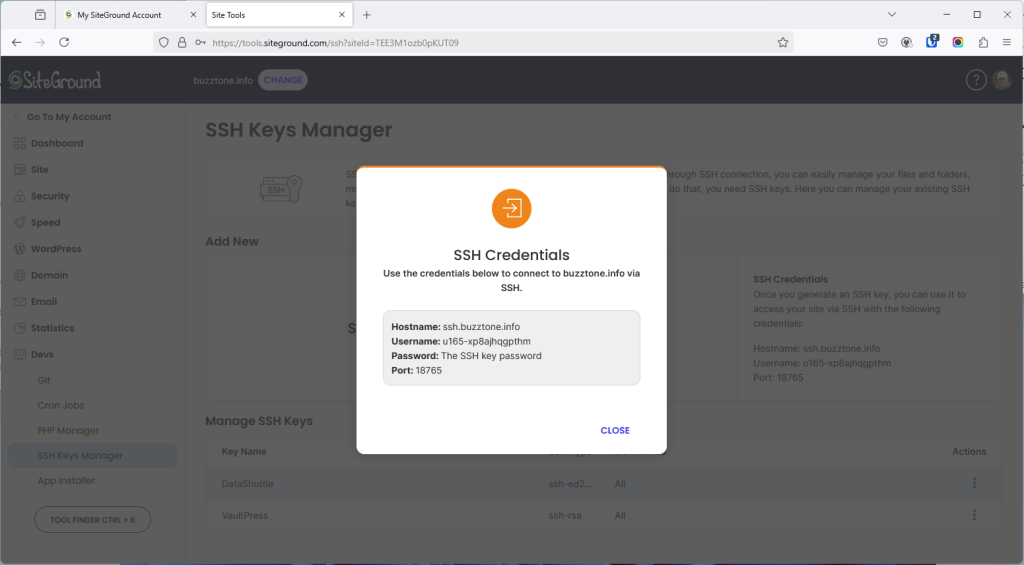
Putty
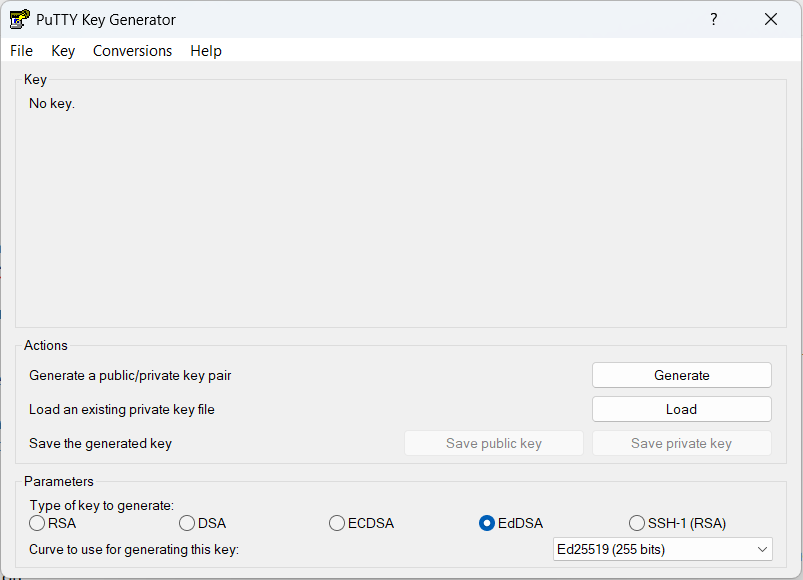


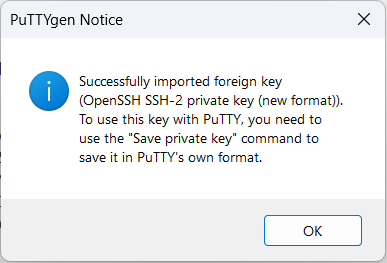
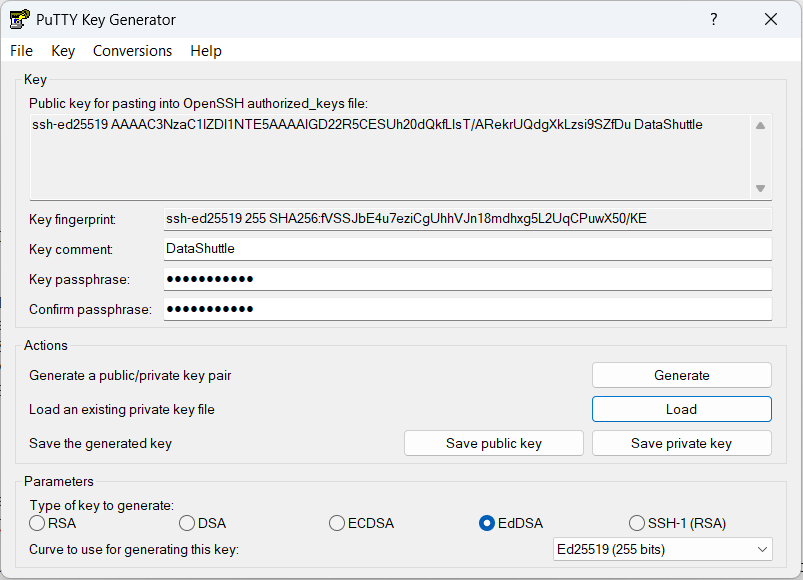
Pageant Key List
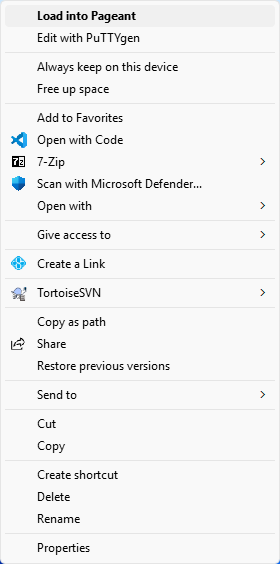
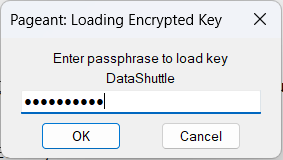

Generate SSH Keys Locally #
Putty


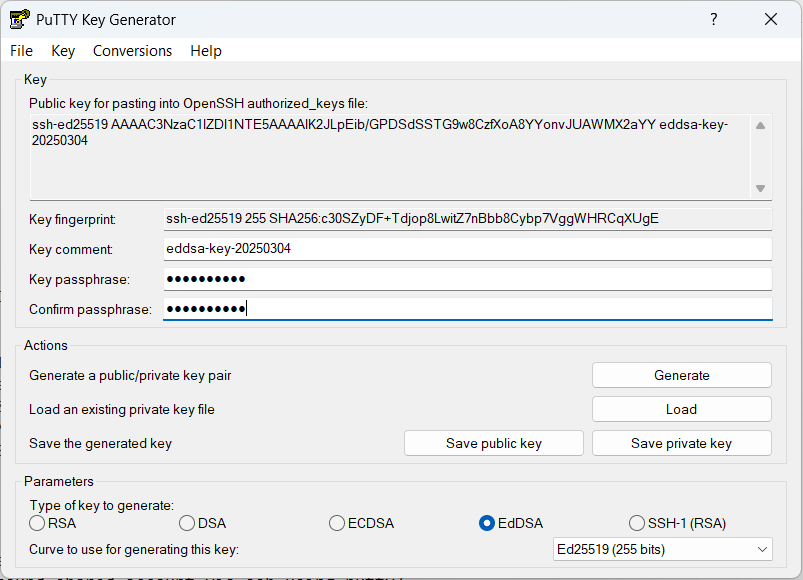
Pageant Key List


Import Public Key to SiteGround

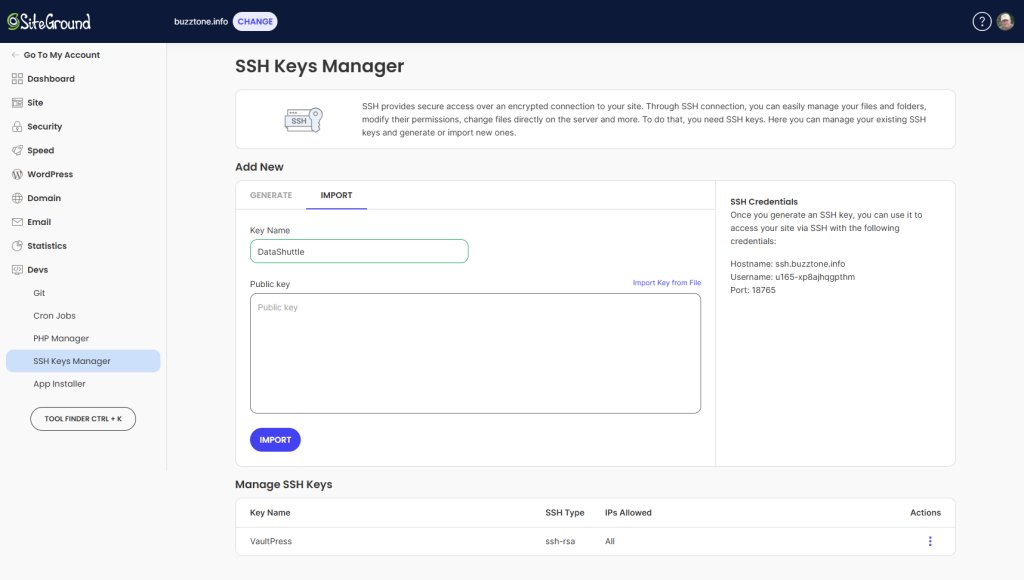
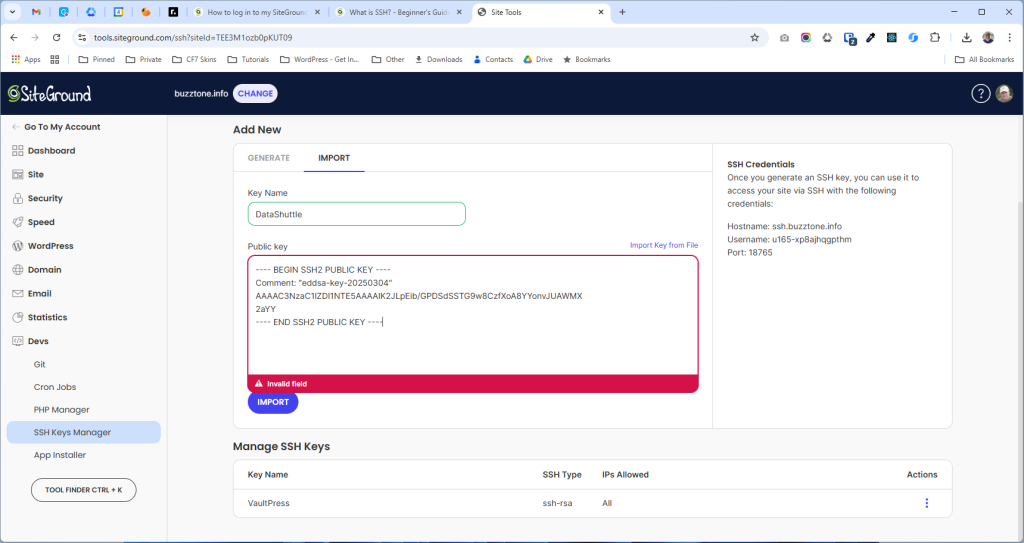
SSH access to hosting #
ssh u165-xp8ajhqg@ssh.buzztone.info -p18765OpenSSH – Windows


WSL – Ubuntu install


Termius #
Termius is a client terminal with built-in Telnet and SSH support.
It’s is a popular terminal emulator that allows users to access and manage remote servers and devices from their local machines. It’s available on multiple platforms, including desktop and mobile, making it a versatile tool for developers, system administrators, and other tech professionals.
Termius helpful features include autocompleting saved sessions and quick connection to previously connected hosts’ snippets history. Hosts, Port Forwarding rules, Snippets, and Keys are all client-side encrypted.
Here’s a beginner’s guide to Termius:
Download and install: To use Termius, you’ll need to download and install the software on your device. You can find the download links on the official Termius website. Once downloaded, follow the installation instructions to set up the software.
Create an account: After installing Termius, you’ll need to create an account to use the app. You can create an account using your email address or sign up with your Google or GitHub account.
Add a host: Once you’ve created an account, you can add a new host by clicking on the “Add Host” button. You’ll need to enter the host name, IP address, or domain name, as well as your login credentials.
Connect to a host: To connect to a host, click on the host name in your host list and enter your login credentials if prompted. Once connected, you can use the terminal to manage your remote device.
Customize your settings: Termius allows you to customize your settings to suit your needs. You can change the font size, color scheme, and other settings by clicking on the gear icon in the top right corner of the app.
Use shortcuts: Termius includes a number of shortcuts that can help you navigate the app more quickly. For example, you can use the Ctrl+T shortcut to open a new tab or the Ctrl+W shortcut to close the current tab.
Learn basic commands: To use the terminal effectively, you’ll need to learn some basic commands. Common commands include ls (list files), cd (change directory), mkdir (make directory), and rm (remove files or directories).
Install plugins: Termius supports a range of plugins that can enhance its functionality. For example, you can install the SSH plugin to enable secure shell connections or the SFTP plugin to transfer files between your local machine and remote servers.
Use the mobile app: Termius is available as a mobile app for iOS and Android devices. The mobile app allows you to access and manage remote devices on the go, making it a convenient tool for tech professionals who need to stay connected while away from their desks.
Join the community: Termius has a vibrant community of users who share tips, tricks, and solutions to common problems. You can join the Termius community on forums such as Reddit or Discord to connect with other users and learn from their experiences.
Documentation #
- termius – modern SSH Client
- Using Termius
- A beginner’s guide to Termius: the ultimate terminal
- Termius | Cross-platform SSH Client and SFTP GUI with Android App – VIDEO
Add a Host #
Once you’ve created an account, you can add a new host by clicking on the “Add Host” button. You’ll need to enter the host name, IP address, or domain name, as well as your login credentials.
Connect to a host #
To connect to a host, click on the host name in your host list and enter your login credentials if prompted. Once connected, you can use the terminal to manage your remote device.
Heading #
Further reading:
Notes
ADD notes here.
Save all Images to Sync – use ..\Sync\..\Development\Development Guidelines\Development Team Tools\Local Development Environment\Using SSH\