
Last Updated on October 4, 2024 by Neil Murray
Table of Contents
Forms #
Form Names #
We use a consistent naming pattern to make forms easy to find & identify.

All similar forms should follow exactly the same naming pattern so it is easier to find all related forms via CF7 Form Search
Suggested formats:
- Test – <CF7 Skins Component> – <item or problem>
- T + S – <Template> + <Style>
Examples:
- Test – Multi – Long Form (test if scrolls to top)
- Visual -Test – duplicating OL & LI
- Visual – Template – Grid Pro – with grid-hover & grid-lined
- T + S – Grid Pro + Pluto
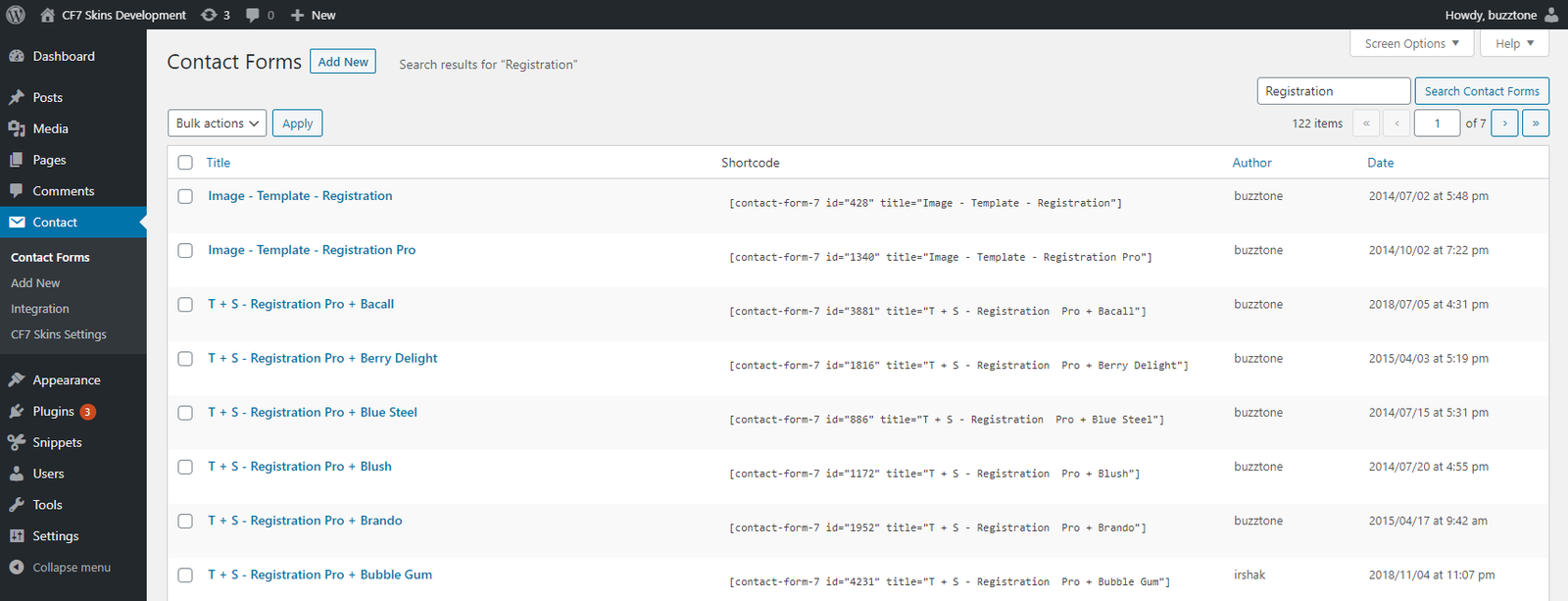
Be careful to use the same dash character as we use elsewhere – using a different dash character effects alphabetically sorting.
Form Names Structure #
All forms are named within the follow structure:
- Archive – * (for deleted forms)
- Backend – * ( for .. forms) ?
- Customer – * ( example forms from customers)
- Image – Style – *
- Image – Template – *
- Multi – Style – *
- Ready – Style – *
- Style – *
- Problem – * (for problem forms – misnamed, duplicates etc.)
- T + S – template + style
- Test – *
- Test – Logic – *
- Test – Logic – Demo – *
- Test – Multi – *
- Test – Payment – *
- Test – Ready – *
- Visual – Template – *
- Visual – Test – *
If you find any probem forms (misnamed, duplicates etc.) you can add “Problem – ” to the beginning of their name so they can dealt with at some stage.
Refer:
– Form Naming Tasks – list of tasks required to maintain the system
– Form Pages Structure – consistent page structure used for all test forms
Form Labels #
We add labels with a link to the CF7 form, on every form on each page, to make forms easy to find & identify.

If there are multiple forms on a page, add the label with form link just above each form.
You can start with a particular form or a particular page. Use Search to find the relevant forms or page.
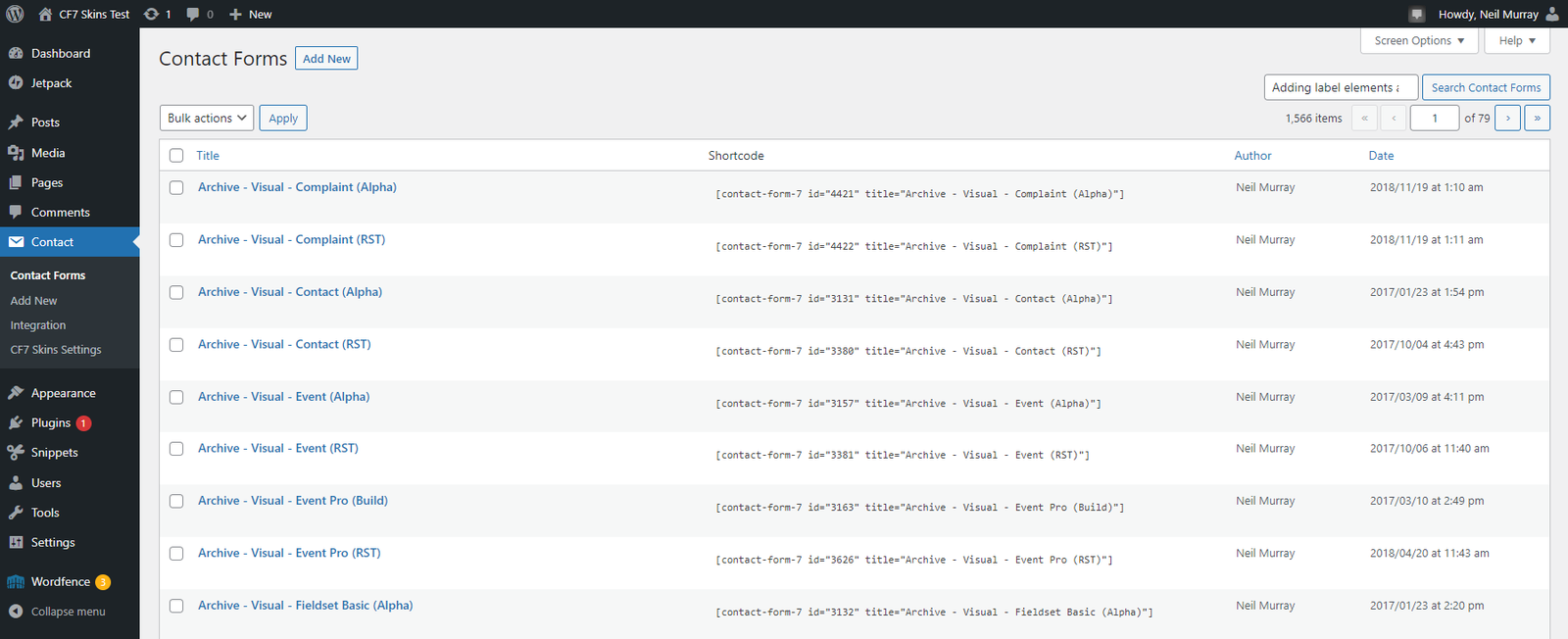

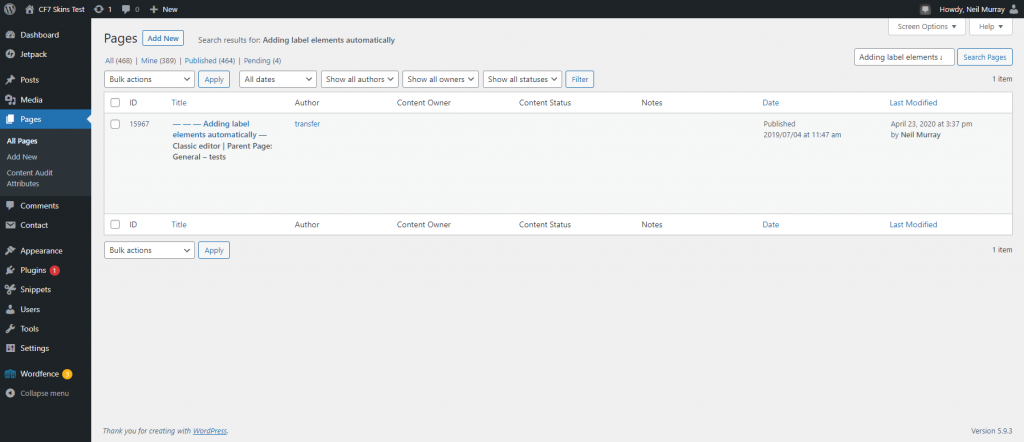


You should click on each form link after you do a page to check for form name changes & other probelms.
Refer Form Label Tasks for list of tasks.
Pages #
Form Pages Structure #
Create all test pages within the follow structure:
- Addons
- Logic
- Demo Forms
- Multi
- Ready
- Logic
- Tests
- Backend
- Customer Forms
- Frontend
- General
- Logic
- Multi
- Ready
- Gutenberg
- Manual Testing
- Other
- Skins
- Styles + Templates
- Templates + Styles
- Templates
- Styles
- Multi
- Ready
- Skins
- Images
- Styles
- Templates
Add Forms to Pages #
Refer Add Forms to Pages.
Further reading:
Notes
Based on Creating Test Forms, Templates & Styles.
Save all Images to Sync – use ..\Sync\..\Testing\Testing Guidelines\Creating Test Forms\