
Last Updated on September 30, 2022 by Neil Murray
This post highlights the approach you should take when creating custom CSS styling advice for CF7 forms in our articles.
Google Chrome Dev Tools #
Google Chrome Dev Tools will show you what is happening on our site in great detail.

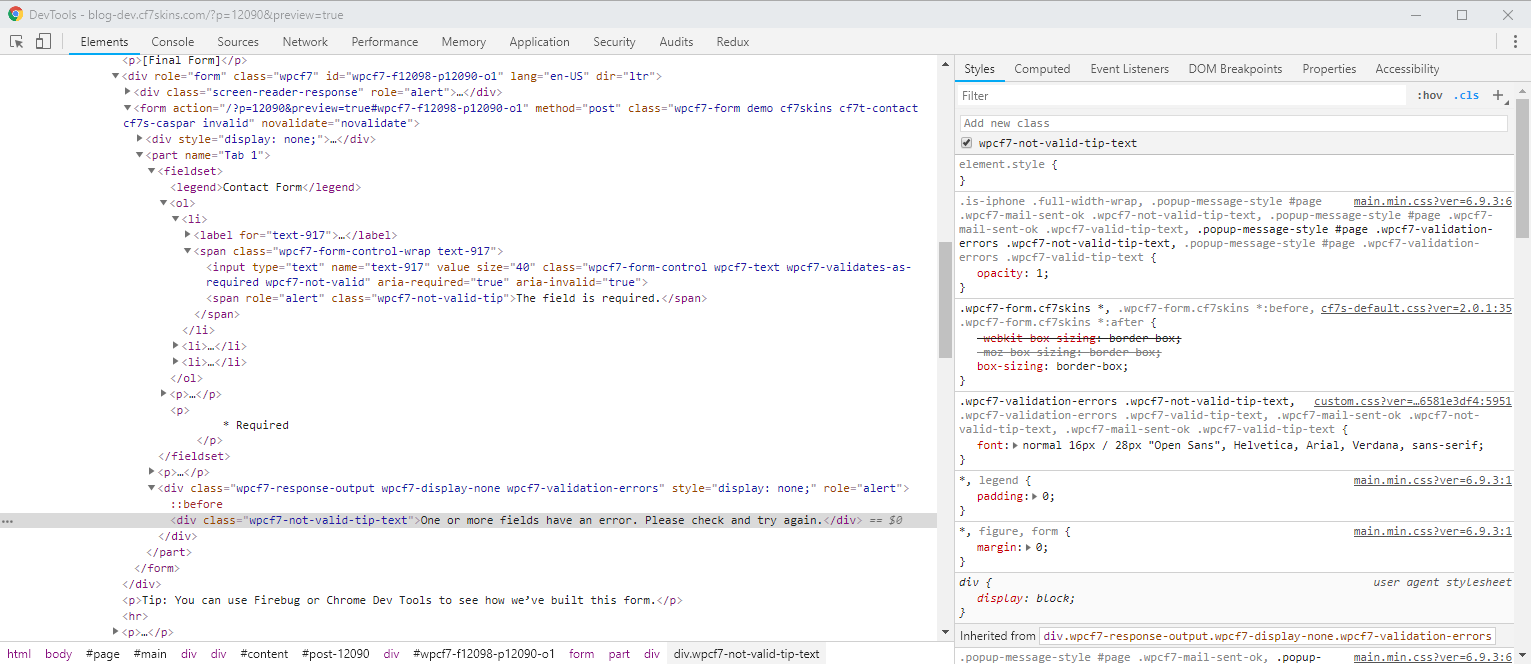
What you see depends of the WP theme & other plugins used.
Choosing CSS Selectors #
so how do i find the generic css class used while developing CF7, because as per my understanding we need to write the css code…based on these class
Use Chrome Dev Tools to select suitable CSS Selectors you use to customize your form.
Focus on CSS classes that CF7 adds. Then our advice applies to all people regardless of theme & plugins they use.
You may need to start by disabling all the CSS added by the theme to this message on this CF7 form only. After that you can start adding your desired CSS changes.
Refer to Styling Contact Form 7 Forms for general advice.
Understand CSS Structure #
It’s important to understood what CSS styling is added by each of the following:
- Contact Form 7
- Contact Form 7 Skins
- CF7 Skins Add-ons
- Current WP theme
- Other active plugins.
You can see the CSS that CF7 adds at https://blog-dev.cf7skins.com/default-cf7-css-style/ – might be a bit out of date
You can easily check the latest version in Chrome Dev Tools > Source
Target specific CF7 form ID #
Only on this specific CF7 form ID, so you need to be very careful to ensure that your CSS changes don’t affect any other CF7 forms on this site.
Refer to Styling a Specific Contact Form 7 Form for detailed advice.
CSS specificity #
We also need to make sure we add sufficient CSS specificity so people can ‘copy-pasta’ our solution & not (mostly) get over written by their theme
If you take a look at a typical CF7 Skins form on our site you can see how we tackle these issues.
Heading #
It’s pretty common for people who are experienced with CSS to use different class selectors
There are so many classes available in CF7 that you can target the same element in a lot of different ways
If you want get pedantic & compare – the best CSS would be the one that uses the lowest CSS Specificity level.
It’s always better to use the lowest level of CSS Specificity necessary to achieve the required result.
NOTES
Add comments, questions & notes here
Save all Images to Sync – use ..\Sync\..\Documentation\Documentation Guidelines\Custom CSS Styling for CF7 Forms\